Move a complete calibre library to another drive
Individual EPUB copies do not preserve complete management data. Back up the whole library, use the application move action and verify books plus custom columns.
Published · Updated · FaultNote editorial policy
Who this guide is for and what to prepare
- Readers managing books on computers and reading devices
- People who want to distinguish originals from working results
What you need
- Keep an entitled original and a backup before changing settings
- Identify the application build, destination and one trial book
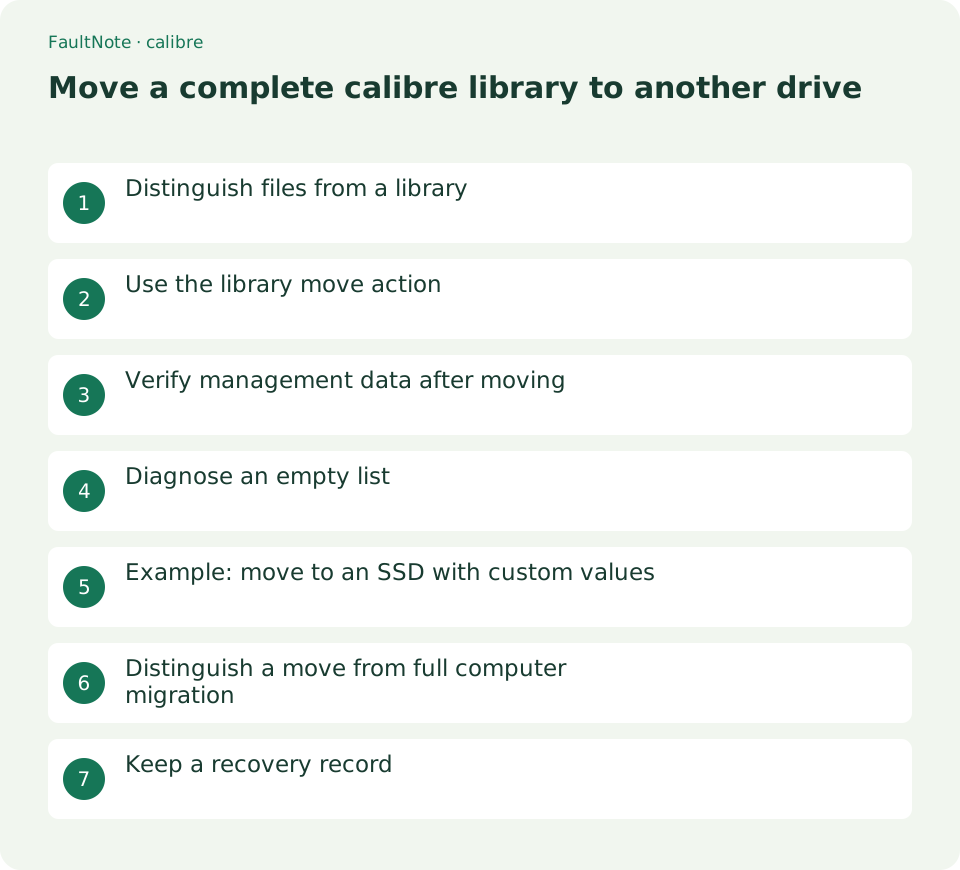
Distinguish files from a library
A calibre library includes its book folders and top-level metadata.db. Individual book files do not preserve all titles, tags and custom columns. Identify the active library name and path and inspect its root, not just an author subfolder.
Close calibre and back up the entire tree. Check free space and write access at the destination and leave managed author/title folders alone. Avoid a live NAS library: the official FAQ advises against network-drive operation.
Use the library move action
Open Switch/create library from the library menu. Distinguish using an existing location, creating an empty library and moving the current one. Select the move operation and a dedicated local destination folder.
Compare source identity and destination before execution. Do not shut down, unplug storage or open the same library elsewhere during movement. Avoid simultaneous synchronization. When it finishes, verify the book list before proceeding to deeper checks.
- Identify the current root and metadata.db
- Close and back up the entire library
- Open Library then Switch/create library
- Choose moving the current library to a new location
- Compare books, custom values and multiple formats
- Restart and verify reopening the destination
Verify management data after moving
Compare several known books, their authors, tags and custom values. Include a book with multiple formats and open each intended format through View. Read a middle passage as well as the cover to verify usable files.
Confirm the active path is the destination rather than the original. Check custom-column headings and values separately. Close and restart the application after comparison to verify it can reopen the new library.
Diagnose an empty list
An empty list may mean a new empty library or changed external-drive letter rather than deleted books. Inspect source and backup for metadata.db and subfolders before reimporting files and creating duplicates.
If the existing library remains, select its root with the use-existing operation. Database restoration is a separate response to actual damage or missing data, not the first action for a wrong path. Do not delete metadata.db speculatively; preserve state and test reopening the original.
Scroll horizontally to see the full table →
| Observed state | Check | Action |
|---|---|---|
| Empty list | Active library path | Select the correct existing root |
| Missing tags or columns | Whether only books were copied | Inspect the complete backup |
| Removable library unavailable | Drive label and letter | Select the correct existing location |
Example: move to an SSD with custom values
Before moving a full library from a crowded drive to a local SSD, record its count, a known edition-column value and a multi-format book. Close calibre, preserve the whole source and use the move action with a dedicated SSD folder rather than mixing it into another library.
Compare count and both selected books, open each format and verify the SSD is the active path. Restart before adopting it for daily management. Retain the verified backup; this migration procedure does not establish a measured speed improvement.
Distinguish a move from full computer migration
Changing storage on one PC differs from migrating settings and plugins to another. The official Export/import all calibre data workflow covers broader migration. Decide the needed scope instead of assuming a library folder transfers every application setting.
On the new computer, choose the copied existing library through first-run setup or Switch/create library. Do not edit one live library simultaneously from two machines. Consider Content server for reading access and designate one authoritative management location.
Keep a recovery record
Record source, destination, date and sample books. For removable storage, include drive label and folder name. Representative metadata notes aid comparison after recovery but do not replace the database backup.
Before cleaning obsolete copies, recheck the active path. Separate cleanup from migration and distinguish unregistering a library from deleting actual files. Complete a reading, search and custom-column check at the new location before deciding retention.
Limitations and requirements
- Compare the documented controls with your installed build.
- Retain originals and verify one book before widening the operation.
Frequently asked questions
Is copying only EPUB files enough?
It can preserve reading files, but complete managed metadata requires the whole library.
Should I reimport everything into an empty list?
First inspect the path and metadata.db. Reopening the existing library preserves management data when it remains intact.
Should I move the live library to a NAS?
The official FAQ advises against network-drive live libraries. Manage locally and consider another method for reading access.
Sources and verification date
Sources checked: . These sources support the specifications, procedures or prices discussed here. Check each source for applicable conditions and current information.
Related practical guides
- Export calibre highlights and annotations to a separate file
- Track purchase source and edition with calibre custom columns
- Send a DRM-free EPUB to a USB reading device
- Test ebook conversion on a copy before adopting the layout
- Set EPUB text size and reading layout in calibre
- Use calibre bookmarks and Reference mode for reading notes