Export calibre highlights and annotations to a separate file
Keep the book and a separate reading-note record. Filter Browse annotations, save in a readable format and verify its contents.
Published · Updated · FaultNote editorial policy
Who this guide is for and what to prepare
- Readers managing books on computers and reading devices
- People who want to distinguish originals from working results
What you need
- Keep an entitled original and a backup before changing settings
- Identify the application build, destination and one trial book
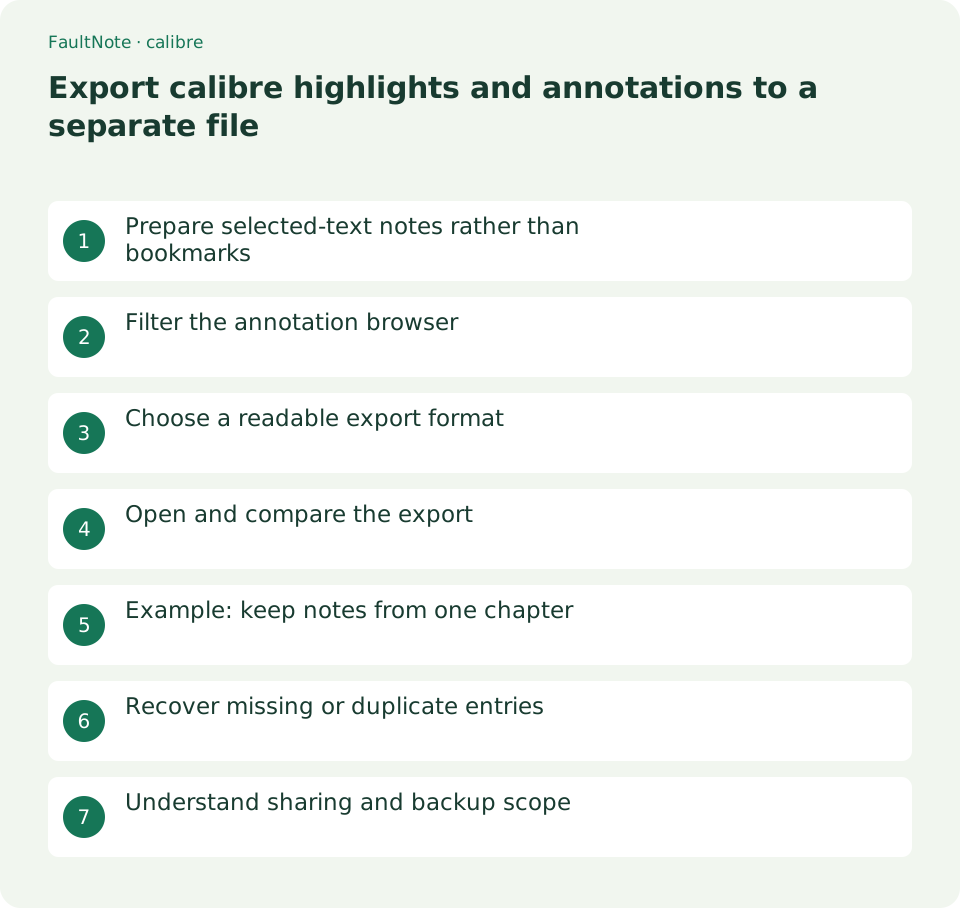
Prepare selected-text notes rather than bookmarks
Bookmarks mark places; highlights retain a text range and your notes. Decide which record you need. For study, select a key sentence and explain why it matters instead of turning an entire chapter into an undifferentiated quotation collection.
Open View, select a short passage and use the selection bar to highlight it and add a note. Check Highlights for that entry. Test one annotation before continuing, retaining a source separately from marked copies.
Filter the annotation browser
Right-click View in the main library and choose Browse annotations. This library-wide browser differs from one book's Highlights panel. Filter to the intended title and check editions and formats so unrelated entries are not included.
Select the intended entries and locate Export. If the control is absent, confirm you opened the library annotation browser rather than a different viewer panel. Record the selected count when available for later comparison.
- Right-click View and open Browse annotations
- Filter the book and select intended annotations
- Choose an export format in Export
- Use Save to file for a separate record
- Open the file and compare passages and notes
Choose a readable export format
The official annotation-browser implementation includes Plain text, Markdown, HTML and calibre annotation collection. Available choices can differ in installed releases, so use the options on your screen. Text or Markdown suits ordinary reading notes; a collection file serves a different purpose.
Choose a format and Save to file, then specify name and location. Clipboard-only export is transient and can be replaced by another copy action. Include book identity, edition and export date in a durable filename.
Open and compare the export
Open the saved file from its folder and locate one distinctive highlight and one personal note. If notes are missing, inspect selection and format. Check chapter or return information as well: an extracted sentence lacks surrounding conditions. Pressing Save alone does not verify the desired content.
For garbled display, compare another text editor before diagnosing file damage. Open HTML in a browser. A return link may not resolve on another computer; judge the exported prose as an independent note and verify link behavior separately.
Scroll horizontally to see the full table →
| Observed state | Check | Action |
|---|---|---|
| Entries missing | Selection and book format | Export one entry for comparison |
| Passage present, note missing | Selected annotation | Check note in the source list |
| Link fails on another PC | Book and library availability | Locate by title and chapter |
Example: keep notes from one chapter
For three conditions in a chapter, highlight each short passage and add a question to only the unresolved one. Filter the book in Browse annotations, select those entries and export Markdown. Verify three passages and the personal note; these counts are illustrative and must match your own selection.
On review, return to the chapter and read surrounding conditions before resolving the question. Update the external note and optionally the annotation. Editing an exported note should not be assumed to update the book automatically; designate your authoritative current record.
Recover missing or duplicate entries
For missing entries, revisit selection and title filtering and check whether another format of the book holds the notes. Export one problematic entry rather than all books again. For duplicates, distinguish merged repeated exports from two actual annotations.
Save a new export under another name before replacing older notes. Compare changes, including whether the source edition changed. Record format changes separately from book revisions so differences remain explainable.
Understand sharing and backup scope
Exports may contain private work notes or reactions. Review the actual sharing file, select only needed entries and check source usage terms. Permission to share a note does not imply permission to distribute the entire book.
A text export is not a complete library backup. Restoring books, metadata or settings requires separate preservation. This workflow creates readable notes; keep title, edition and chapter with important judgments and do not replace the source explanation with isolated fragments.
Limitations and requirements
- Compare the documented controls with your installed build.
- Retain originals and verify one book before widening the operation.
Frequently asked questions
Are bookmarks the same thing?
Bookmarks identify places; highlights retain text ranges and notes. Inspect the selected export entries.
Will editing Markdown update the book?
The external export and book annotations are separate. Do not assume automatic updates; choose where to maintain current notes.
Is annotation export a complete backup?
It preserves reading notes. Books and library management data require their own backup.
Sources and verification date
Sources checked: . These sources support the specifications, procedures or prices discussed here. Check each source for applicable conditions and current information.
Related practical guides
- Move a complete calibre library to another drive
- Track purchase source and edition with calibre custom columns
- Send a DRM-free EPUB to a USB reading device
- Test ebook conversion on a copy before adopting the layout
- Set EPUB text size and reading layout in calibre
- Use calibre bookmarks and Reference mode for reading notes