Check voice and reading order for calibre read-aloud
Test start and stop on a short paragraph and match speech with highlighting. Diagnose silence, language mismatch and complex table order separately on the device you use.
Published · Updated · FaultNote editorial policy
Who this guide is for and what to prepare
- People reading books or reference documents on a PC
- Readers who want to verify display and persistence separately
What you need
- Prepare a document you are entitled to use and keep an original plus a working copy
- Check the application version and document format
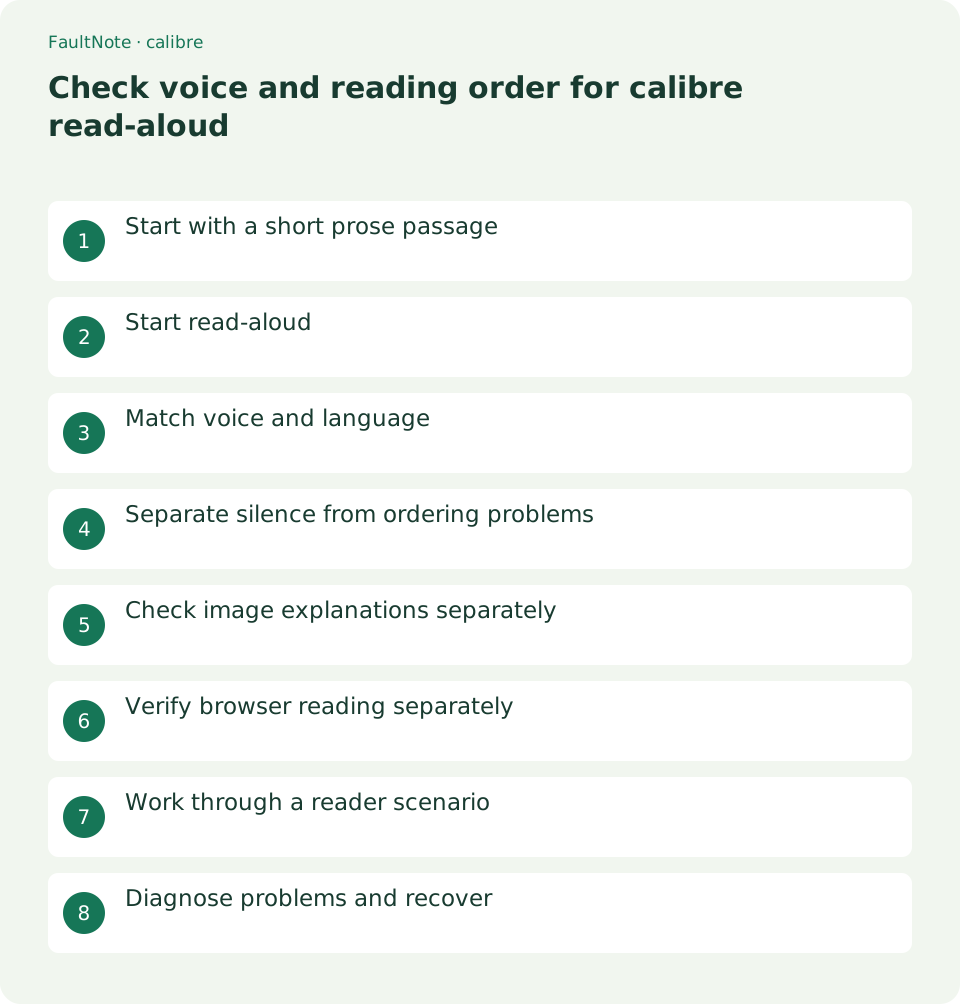
Start with a short prose passage
Choose a short selectable-text paragraph following a heading, rather than an illustration or complex table. Establishing that readable prose exists helps separate voice settings from document structure.
Select a short passage in the current chapter before starting a whole book. A heading followed by prose makes start position and ordering easier to judge. Test text selection; a visible image does not establish speech-readable text. Image-heavy pages obscure whether the problem is voice configuration or source content.
Start read-aloud
Start through the viewer's Read aloud button. Compare the highlighted passage with the speech and confirm the expected starting paragraph. Listen to one paragraph and stop before committing to a long session.
Match the first spoken sentence to its screen position. Stop and inspect if it begins unexpectedly early. Test stopping before relying on a long session. Audible output alone is insufficient; verify that the expected prose is read in sequence and that any highlighting corresponds to speech.
- Open a short selectable passage
- Start Read aloud and match the first sentence
- Test stop before resuming
- Choose an appropriate language voice through the gear
- Check numbers and names in the same paragraph
- Pause at tables and figures for separate review
Match voice and language
Inspect the voice and backend using the gear in the active read-aloud bar. The manual describes Piper or operating-system speech services. Choose an available voice matching the text language and briefly test proper names.
Compare voices using the same short sample, including numbers, abbreviations and product names. A voice mismatched to the language may be hard to understand. Change voice and backend separately. Inspect what is actually available rather than assuming every documented option is installed.
Separate silence from ordering problems
For silence, inspect volume and output device. If speech works but skips or combines content, inspect the passage itself. Table columns read as continuous prose can be misleading; review the table visually instead.
Check whether another application is audible through the same output device. If not, inspect system volume and routing. If other audio works, inspect read-aloud state and voice availability. Raising volume cannot fix incorrect content order; return to source structure when numbers or table sequences are confusing.
Scroll horizontally to see the full table →
| Observed result | What to check | Next action |
|---|---|---|
| No sound | Other apps and output device | Separate audio routing from speech state |
| Unclear pronunciation | Text and voice language | Compare voices on one sample |
| Table values read together | Columns and units | Pause and inspect table |
| Browser behaves differently | Device speech support | Repeat a short check there |
Check image explanations separately
Speech from the prose may not convey lettering inside a diagram or the diagram's meaning. Pause at a figure reference and inspect the picture and caption. Do not infer directions or numeric relationships from speech alone.
Pause at diagrams and inspect headings and units instead of only reducing speech speed. Arrows and spatial relationships may not be conveyed by prose. Use available captions or text editions, and verify which text is actually spoken. Do not claim complete document review while visual information remains unexamined.
Verify browser reading separately
A working desktop viewer does not prove identical behavior in the Content server browser viewer. The manual notes limitations in browser speech support. Recheck start, stop and reading order on the device you actually use.
Repeat a short test on your usual device and browser. Desktop voice availability does not establish browser behavior. Verify start, stop and prose tracking separately. Record a heading before switching devices and check the book and position afterward, distinguishing documented options from conditions you actually used.
Work through a reader scenario
To prepare for listening to a chapter, start with a short passage and match it to the current heading. Test stop, then compare one alternative voice on the same sentence. Continue if its numbers and abbreviations are understandable.
Pause at a specification table and inspect column headings and units. Before moving to another device, record a return heading and retest browser start and stop. Desktop chapter playback is not evidence for the other environment. Choose the reading method only after checking audible operation and comprehension.
Diagnose problems and recover
If you lose position, stop and inspect highlighting and the chapter heading. Read the suspected skipped passage visually and check whether a table or footnote altered order. A voice change may not repair structural issues; test the short problem passage rather than replaying the whole chapter.
After changing voices, compare the same numbers and names. Judge speed by comprehension. Recheck device routing, available voices and browser behavior elsewhere. Record unexamined images by chapter and figure so listening is not mistaken for complete document review.
Limitations and requirements
- Display adjustments do not improve source image resolution or repair PDF reading order.
- Menu names and available features can differ by installed version; compare the official documentation with your screen.
Frequently asked questions
Will read-aloud recognize text inside every image?
Reading book text and recognizing lettering inside an image are separate tasks. Use captions or an available text edition to inspect image content.
What if other audio works but speech is silent?
Inspect read-aloud state and voice availability using a short passage. Separate audio routing from the speech feature.
Can I understand every table through speech alone?
Columns and units can lose meaning when read as continuous prose. Pause and inspect their relationships separately.
Will another device use the same voice?
Verify available voices and browser support there. Desktop success does not establish another device's behavior.
Sources and verification date
Sources checked: . These sources support the specifications, procedures or prices discussed here. Check each source for applicable conditions and current information.
Related practical guides
- Track purchase source and edition with calibre custom columns
- Set EPUB text size and reading layout in calibre
- Use calibre bookmarks and Reference mode for reading notes
- Export calibre highlights and annotations to a separate file
- Move a complete calibre library to another drive
- Send a DRM-free EPUB to a USB reading device