Choosing a portable monitor: what one USB-C cable has to carry, and when it is not enough
A portable monitor is unusual among displays: it asks the computer for the picture and for the electricity at the same time, over one cable. That is why the purchase turns on the laptop's port rather than on the panel. Dell states for its 14-inch C1422H that a notebook or phone connected to it "need to support video signal and power output of 7.5W(5V/1.5A)", and that if the display misbehaves you should check whether the device supports "USB Type-C Alt-mode display and PD2.0 or above". ASUS lists its 15.6-inch ZenScreen MB16ACV as having one USB-C port with DP Alt Mode and USB 3.2, a power consumption of 6.64 W and a voltage requirement of DC 5V, 3A. Neither model has an HDMI input. On a USB-C port without DP Alt Mode, VESA states that no video data reaches the display at all, and Microsoft publishes the notification Windows shows in that case. This guide sets out the host requirement, Dell's published pass-through table for when you add a power adapter, the specifications that are genuinely different from a desktop monitor, and the checks to make before buying.
Published · Updated · FaultNote editorial policy
Who this guide is for and what to prepare
- People buying a second screen to carry with a laptop, unsure whether their machine can drive it
- People whose portable monitor shows nothing, or shows a picture that disappears when the adapter is removed
- People worried about how much a portable monitor will shorten their laptop's battery life
What you need
- Whether the laptop's USB-C port supports DP Alt Mode, and how many such ports there are
- The wattage of the laptop's own charger, if you plan to charge through the monitor
- Which cable you have: the one that shipped with the monitor, or an unknown USB-C cable
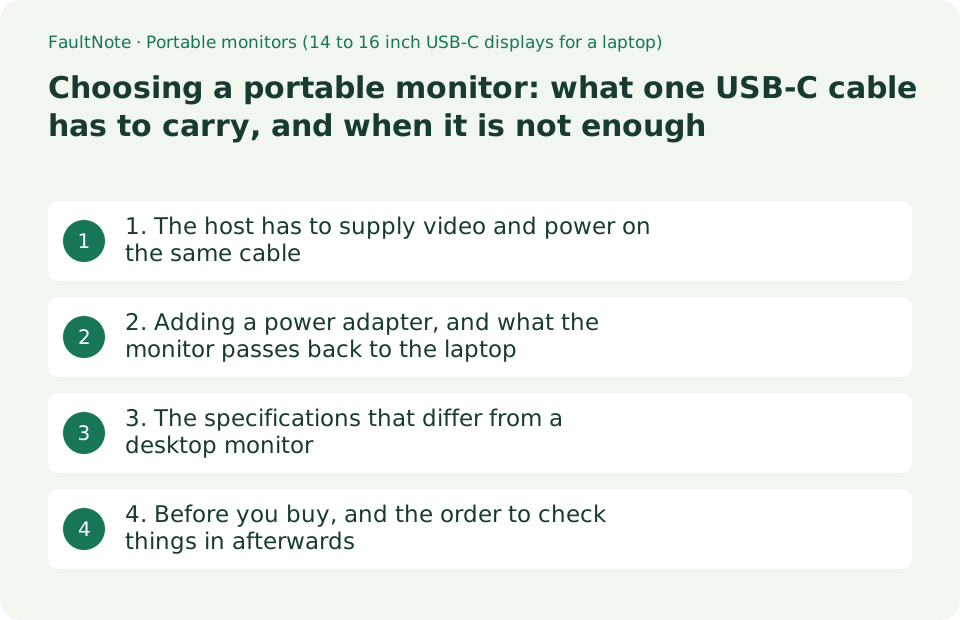
1. The host has to supply video and power on the same cable
Dell states the requirement for its 14-inch C1422H in one sentence: "For normal usage, devices of notebook and mobile phone that connect to C1422H need to support video signal and power output of 7.5W(5V/1.5A)." It follows that with a diagnostic instruction - "when you encounter abnormal display condition, please check your devices to see if they support USB Type-C Alt-mode display and PD2.0 or above". Two separate conditions, then: the port must carry DisplayPort over USB-C, and it must be able to power the panel.
ASUS publishes the same two facts differently for the 15.6-inch ZenScreen MB16ACV. Its I/O row reads "USB-C x 1 (DP Alt Mode & USB 3.2)", its power consumption is given as 6.64 W, and its voltage row as "DC: 5V, 3A". A single USB-C port is also the whole connection list - there is no HDMI input on that model, and the C1422H's connectivity row is likewise "2x USB Type-C (Alt Mode DP1.2, HBR, HDCP 1.4)". A laptop that only has HDMI and USB-A is therefore not automatically served by either product.
If the port does not support DP Alt Mode, nothing subtle happens - you get no picture. VESA's DisplayPort FAQ answers the question directly: plugging a display into a Type-C port that does not support DisplayPort over USB-C means "no video data will be received by the display, so there will be no image on the screen", adding that "doing this will not harm your device". Microsoft publishes what Windows says when it detects that case: a "Display connection might be limited" notification when a DisplayPort Alt Mode capability is present but the mode is not configured, and a separate "Use different USB port" notification when the connected device supports DisplayPort or Thunderbolt, this connector does not, and another connector on the same system does.
So the first check is on the laptop, not on the monitor. If the machine has more than one USB-C port, try each one before concluding anything - Microsoft's second notification exists precisely because the ports on one PC are often not equivalent. The refresh-rate side of DP Alt Mode, including two-lane versus four-lane allocation and where a 60 Hz ceiling comes from, is covered in our separate guide on USB-C monitors stuck at 60 Hz; this guide stays on the portable case, where 60 Hz is what the panels do anyway.
Scroll horizontally to see the full table →
| Requirement | As published | How to check it |
|---|---|---|
| Video over USB-C | Dell: the device must support "USB Type-C Alt-mode display"; ASUS lists "USB-C x 1 (DP Alt Mode & USB 3.2)" | The laptop's specification page, or the port marking; try every USB-C port |
| Power from the host | Dell: 7.5 W (5V/1.5A) from the notebook or phone; ASUS: DC 5V, 3A | A port that only carries data will not run the panel |
| Power delivery version | Dell: "PD2.0 or above" | Named in the laptop or dock specification |
| If the port has no DP Alt Mode | VESA: "no video data will be received by the display, so there will be no image" - and it "will not harm your device" | Nothing is broken; the port is simply not a video port |
| What Windows reports | Microsoft: "Display connection might be limited", and "Use different USB port" when another connector would work | Read the notification text rather than replacing the cable first |
| HDMI-only laptop | Neither the C1422H nor the MB16ACV lists an HDMI input | Check the I/O row per model before buying |
2. Adding a power adapter, and what the monitor passes back to the laptop
There is a second wiring arrangement, and Dell documents it as "plug in usage": a USB-C power adapter goes into the monitor, and the monitor connects to the notebook with a USB-C cable. The monitor then powers itself and feeds the rest back to the computer. Dell specifies the cable for this case as an "electronically marked cable, current rating: 5A", which is not what every spare USB-C cable is.
How much comes back is published as a short table, and it is not the adapter's rating. Dell writes: "When connecting 90W or above adapter, Maximum power delivery output from the monitor is 65W. When connecting 65W adapter, Maximum power delivery output from the monitor is 45W. When connecting 45W adapter, Maximum power delivery output from the monitor is 30W. When connecting <30W adapter, Maximum power delivery output from the monitor is 7.5W." It then states the ceiling plainly: "The Dell monitor C1422H can only output a maximum of 65W to the system. If the system requires 90W or above, it will need 90W or above adapters connected to the system or the battery will drain during usage."
That last sentence is the one to carry into the shop. If your laptop asks for 90 W or more, a portable monitor in this arrangement will not keep it charged, whatever adapter you attach to the monitor - the monitor's own output stops at 65 W. The reverse case, a desktop monitor charging a laptop over one cable, has its own published budget table and is covered in our separate guide on single-cable USB-C monitors.
Two practical notes from the same document. Dell warns that "when disconnecting the power adapter from the C1422H, a blank screen will appear", which is worth knowing before you conclude the monitor has failed, and it suggests connecting a power adapter when using the monitor with a mobile phone. Dell also states that it designs its monitors to work with the shipped cable and "does not guarantee video performance on cables that are not shipped with your Dell monitor" - so keep the 1.0 m USB-C cable that comes in the box with the monitor rather than in a drawer.
Scroll horizontally to see the full table →
| Arrangement | What Dell publishes for the C1422H | Consequence |
|---|---|---|
| One cable from the laptop | The host must supply 7.5 W (5V/1.5A) and support Alt Mode and PD2.0 or above | Simplest setup; the laptop pays for the display out of its battery |
| Adapter into the monitor, 90 W or above | Maximum output from the monitor to the system: 65 W | Enough for a 65 W class laptop, not for a 90 W one |
| Adapter into the monitor, 65 W | Maximum output: 45 W | One step down from the adapter's rating |
| Adapter into the monitor, 45 W | Maximum output: 30 W | Charging will be slow on most laptops |
| Adapter into the monitor, under 30 W | Maximum output: 7.5 W | Effectively no charging; expect the battery to fall |
| Cable for the adapter arrangement | "Electronically marked cable, current rating: 5A" | An unmarked spare cable is not a substitute |
3. The specifications that differ from a desktop monitor
Resolution and refresh rate are settled before you start comparing. Dell gives the C1422H a maximum preset resolution of 1920 x 1080 at 60 Hz, with a vertical scan range of 56 to 61 Hz; ASUS gives the MB16ACV 1920 x 1080, a maximum refresh rate of 60 Hz and a response time of 5 ms (GTG). Neither is a gaming panel, and there is no high-refresh choice to make in this class - which also means the DP Alt Mode bandwidth questions that dominate 4K purchases do not arise here.
Brightness is the specification most likely to disappoint someone who works outdoors or by a window. ASUS publishes 250 cd/m² typical and a contrast ratio of 800:1 for the MB16ACV, with an anti-glare surface. Those are lower figures than the desktop monitors in our other guides, which is the price of a panel that runs on the power a laptop port can spare. Check the typical brightness figure explicitly rather than assuming it matches a desk monitor.
Then the physical side, where the published numbers are genuinely decisive. ASUS lists the MB16ACV at 0.9 kg net, 35.8 x 22.5 x 1.0 cm, with a tilt range of only +15° to +35° and a 1/4-inch tripod socket, and its accessory list includes both a USB-C cable and a USB-C to A cable plus a sleeve. Dell ships a 1.0 m USB-C (C to C) cable with the C1422H. Weight, the tilt range and whether a stand or case is included matter more here than they ever do on a desk.
Power consumption is published too, and it is the number that predicts the effect on your battery. Dell lists the C1422H at 6 W in On Mode, 7.5 W maximum with, in Dell's words, "max brightness and contrast setting with maximum power loading on all USB ports", 0.3 W in Standby and Off, and an Energy Star Pon of 4.66 W. ASUS lists 6.64 W for the MB16ACV. A laptop running one of these on battery is supplying roughly that much extra continuously, on top of its own consumption - which is the honest answer to "how much battery will it cost", without any measurement claim.
Scroll horizontally to see the full table →
| Item | Dell C1422H (14 in) | ASUS ZenScreen MB16ACV (15.6 in) |
|---|---|---|
| Resolution and refresh | Maximum preset 1920 x 1080 at 60 Hz, vertical scan 56-61 Hz | 1920 x 1080, maximum refresh 60 Hz, 5 ms (GTG) |
| Connectivity | 2x USB Type-C (Alt Mode DP1.2, HBR, HDCP 1.4) | USB-C x 1 (DP Alt Mode & USB 3.2) |
| Brightness and contrast | Not reproduced here - read the brightness and contrast rows on Dell's own specification page | 250 cd/m² typical, 800:1 typical, anti-glare |
| Power | 6 W On Mode, 7.5 W max, 0.3 W standby and off, Pon 4.66 W | 6.64 W, under 0.5 W power saving, under 0.3 W off, DC 5V 3A |
| Physical | 1.0 m USB-C (C to C) cable in the box | 0.9 kg, 35.8 x 22.5 x 1.0 cm, tilt +15° to +35°, 1/4-inch tripod socket |
| In the box | The shipped video cable, which Dell recommends using | Sleeve, USB-C cable and USB-C to A cable (varies by region) |
4. Before you buy, and the order to check things in afterwards
Work down the laptop side first. Does the machine have a USB-C port that states DP Alt Mode, and are there two of them, so that the monitor and the charger do not compete for the only one? If there is just one, the adapter arrangement in section 2 is not a luxury but the normal way to use the monitor, and then the pass-through table decides whether the laptop charges while you work.
Second, be honest about the power budget. If your laptop's own charger is 90 W or more, Dell's statement is that the C1422H can only output a maximum of 65 W to the system and the battery will drain during usage unless the laptop is fed separately. Nothing about the monitor changes that; it is a property of the arrangement. A machine with a 45 W or 65 W charger sits much more comfortably in this setup.
Third, plan the cable. Dell asks for an electronically marked 5A cable for the adapter arrangement and says it does not guarantee video performance on cables it did not ship. VESA separately advises against USB-C to DisplayPort receptacle adapters, saying they "may result in poor picture quality, intermittent operation, or no video display". The cable that comes in the box is the one to travel with, and a spare should be bought to the same specification rather than picked from a drawer.
If nothing appears when you first connect, work through the published causes in order rather than returning the monitor: try the other USB-C port (Microsoft's "Use different USB port" notification exists for exactly this), read any Windows notification text instead of dismissing it, check that the laptop port is not data-only, and connect the power adapter to the monitor to rule out a host that cannot supply 7.5 W. Remember Dell's note that removing the adapter produces a blank screen - that behaviour is documented, not a fault.
Scroll horizontally to see the full table →
| Check | What to look for | Basis |
|---|---|---|
| Ports on the laptop | A USB-C port stating DP Alt Mode, and preferably a second one | Microsoft: another connector on the same PC may be the one that works |
| The laptop's charger rating | 45 W or 65 W class fits this arrangement; 90 W and above does not charge through the monitor | Dell: maximum output to the system is 65 W |
| Cable for the adapter arrangement | Electronically marked, 5 A rated | Dell states it for plug-in usage |
| Adapters and converters | Avoid USB-C to DisplayPort receptacle adapters | VESA: poor picture quality, intermittent operation or no video |
| No image at first connection | Try the other port, read the notification, then attach the adapter | VESA: a port without DP Alt Mode simply sends no video |
| Screen goes blank when unplugging the adapter | Documented behaviour, not a failure | Dell states it in the user's guide |
Limitations and requirements
- The figures here are as published in the Dell C1422H user's guide and on the ASUS ZenScreen MB16ACV specification page, captured on 2026-09-19, plus VESA and Microsoft documentation. They describe those two models; another portable monitor's host requirement, pass-through behaviour and port list will differ, and its own documentation is the one to read.
- Dell's own note on its specification pages is that the document "is informational only and reflects laboratory performance" and that a product may perform differently depending on the system it is attached to. Nothing here was measured by this site: no monitor was bought, connected or tested, and no price or stock figure is given.
- Brightness and contrast for the C1422H are deliberately not reproduced here, because those rows could not be read with confidence from the document as published; check them on Dell's own page if they matter to your choice. Every other figure quoted is stated unambiguously in the sources.
Frequently asked questions
Will my laptop run a portable monitor over one USB-C cable?
Only if that port does two things at once. Dell states for the C1422H that a connected notebook or phone must "support video signal and power output of 7.5W(5V/1.5A)", and that if the display misbehaves you should check whether the device supports "USB Type-C Alt-mode display and PD2.0 or above". ASUS lists the ZenScreen MB16ACV as a single USB-C port with DP Alt Mode and USB 3.2, drawing 6.64 W at DC 5V, 3A. If the port has no DP Alt Mode, VESA's FAQ says the display simply receives no video and there will be no image, though nothing is damaged. Try every USB-C port on the machine before concluding: Microsoft publishes a "Use different USB port" notification for the case where the connected device supports DisplayPort or Thunderbolt, the connector you used does not, and another one on the same PC does.
Can I charge my laptop through the portable monitor?
Up to a point, and Dell publishes exactly where that point is for the C1422H. With a 90 W or larger adapter attached to the monitor, the maximum power delivery output from the monitor is 65 W; with a 65 W adapter it is 45 W; with a 45 W adapter it is 30 W; and with an adapter under 30 W it is 7.5 W. Dell adds that the monitor "can only output a maximum of 65W to the system. If the system requires 90W or above, it will need 90W or above adapters connected to the system or the battery will drain during usage." So a laptop in the 45 W or 65 W class works well in this arrangement, and a 90 W-class machine should keep its own charger connected. Dell also specifies an electronically marked 5 A cable for this wiring, and notes that removing the adapter produces a blank screen.
How much battery life will a portable monitor cost me?
The honest answer is the published power consumption, because that is what the laptop has to supply. Dell lists the C1422H at 6 W in On Mode and 7.5 W maximum with, in Dell's words, "max brightness and contrast setting with maximum power loading on all USB ports", with an Energy Star Pon figure of 4.66 W; ASUS lists 6.64 W for the MB16ACV. Running on battery, the laptop is providing roughly that continuously in addition to its own draw, so expect a noticeable but not dramatic reduction - the exact result depends on your machine's battery capacity and its own consumption, which this site has not measured. If you need the laptop to last, the adapter arrangement in section 2 is the alternative, subject to the pass-through limits above.
Sources and verification date
Sources checked: . These sources support the specifications, procedures or prices discussed here. Check each source for applicable conditions and current information.
Related practical guides
- USB-C Monitor Not Working or Stuck at a Low Refresh Rate: Check DP Alt Mode and Lane Allocation
- Measure Laptop Battery Wear: Reading the Windows Battery Report and Deciding When to Replace
- Single-cable USB-C monitors: match the monitor's supply wattage against your laptop's rating
- How many external displays can you actually connect? GPU limits and the two kinds of dock
- A laptop that drains in your bag may be behaving as designed: Modern Standby against S3
- Choose a USB-C laptop charger: wattage, USB PD and cable support