Sync vs Backup: Recovering from Accidental Deletion
Synchronization aligns additions, changes, and deletions between devices. Erroneous deletions can also be reported. A backup is a mechanism that maintains a copy from another point in time and restores it after it is lost.
Published · Updated · FaultNote editorial policy
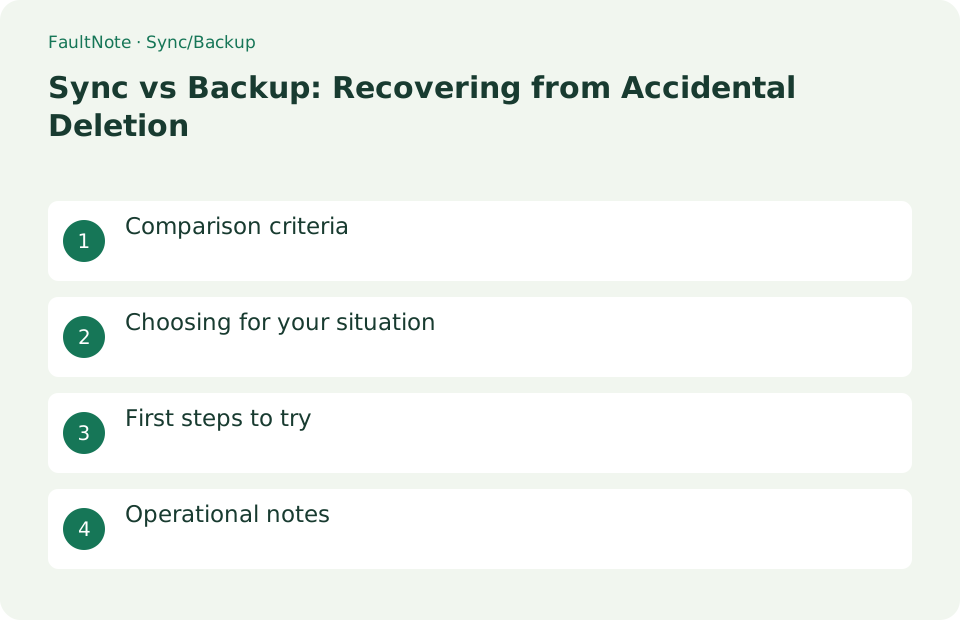
Who this guide is for and what to prepare
- People who want to know the difference between sync/backup
- People who want to start with a small, safe test
What you need
- Make a test copy leaving the original data
- Check the compatibility conditions and storage location of the destination
Comparison criteria
Synchronization aligns additions, changes, and deletions between devices. Erroneous deletions can also be reported. A backup is a mechanism that maintains a copy from another point in time and restores it after it is lost.
Scroll horizontally to see the full table →
| standard | synchronization | backup |
|---|---|---|
| the purpose | Keep up to date | go back to the past |
| delete | Reflected on other devices | restore from generation |
| confirmation | Status display | Restoration test |
Choosing for your situation
Use synchronization for documents that are being co-edited, and save important folders to separate media with generations. Also consider copies that are not always connected.
Syncing a phone and PC makes importing photos convenient, but deleting many files on the PC can also remove their cloud copies. A document can likewise be overwritten and synchronized before you notice a mistake. Use synchronization for day-to-day changes, versioned backups to restore yesterday’s or last week’s data, and a disconnected copy to avoid losing every copy in the same incident. Test recovery before the retention period expires.
First steps to try
Synchronize test documents and save them in file history, etc. After editing, restore the old version to another location, open it, and record the date, time, and steps.
- Create a test.txt in the synchronized folder and check that it appears on another device
- Connect an external drive and include the target folder in Windows File History.
- After rewriting the test.txt and synchronizing it, restore the previous version from the file history to another folder.
- Check the synchronization destination and cloud recycle bin behavior when the original file is deleted using test data
- Safely remove external drive and record recovery steps and last successful date and time
Operational notes
Don't just judge by the synchronization mark, check the final success, free, retained generation, encryption, and recovery key.
Rehearse deletion and overwrite recovery separately
Create a disposable document, wait for synchronization and delete it. Modify a different test document. Rehearse recovery from the recycle bin and recovery of an earlier version as separate tasks, because their eligibility and retention may differ.
Use disposable files and restore outside the original synchronized folder. Confirm propagation to another device and inspect the recovered content, rather than its filename alone. Resuming synchronization of the current state does not necessarily recover an earlier state.
Choose backup frequency from acceptable loss
A monthly copy cannot protect a day of edits when losing that day is unacceptable. A rarely changing photo archive may instead be duplicated whenever new material is added. Define acceptable data loss and acceptable recovery time separately, then choose frequency and destination.
A disconnected copy can separate recovery data from synchronized deletion and incidents affecting connected storage. It still omits changes made since its last connection, so record the date of the last completed backup on the medium.
Worked scenarios and decision boundaries
Synchronization is useful for quickly accessing the same documents on a replacement PC. An accidental overwrite instead requires a version from before the incident; spreading the current content to every device is insufficient. Check retention and recovery operations.
In shared folders, another person deletion or renaming may propagate. Assign ownership, change permissions and a recovery owner rather than assuming safety because you did not delete anything. An independent external copy may still omit recent work if it is too old.
List device failure, deletion, overwrite and account-access loss separately. Available copies and unlock information differ for each. Evaluate the actual recovery route for every incident rather than relying on one product name.
Scroll horizontally to see the full table →
| Condition | Route to evaluate | Acceptance boundary |
|---|---|---|
| Latest files on a new device | Synchronization | All required files download |
| Recover yesterday before overwrite | History or versioned backup | Pre-incident content retained |
| Internal disk failure | Another medium or location | Restore without the failed PC |
| Account inaccessible | Independent copy and recovery information | Read without the same account |
Run the trial and complete the transition
If today you overwrite yesterday estimate with incorrect numbers, two PCs showing the same incorrect file may mean sync is operating correctly. Recovery requires yesterday version rather than restarting or reinstalling sync. Rehearse with a sample, restore history elsewhere and compare it with the current document. A monthly independent copy may not preserve yesterday edits, so increase backup frequency according to acceptable loss. Record this separately from device-failure testing and maintain a recovery route per incident.
- List protected folders and acceptable lost editing time.
- Create separate deletion and overwrite samples and wait for saving.
- Delete one and modify the other, then inspect propagation.
- Restore the pre-incident state elsewhere and compare contents.
- Read an independent copy in a scenario without the usual PC or account.
- Record retention, last backup and recovery owner; review after important changes.
Limitations and requirements
- Check the Recycle Bin retention conditions
- Perform restoration tests regularly
Frequently asked questions
Is a trash can enough?
Separate storage will be provided as it depends on the retention period.
Are external devices always connected?
Consider keeping a disconnected copy so that one incident cannot damage every copy at once.
Does a sync recycle bin replace backup?
It helps but depends on retention, eligible content and account access. Plan for expired retention or unavailable accounts and keep independent recovery copies of important material.
Is dragging a folder enough?
Check whether it moved or copied, whether online-only data downloaded and whether processing completed. Compare counts and sample contents and open files from the copy before calling it complete.
Sources and verification date
Sources checked: . These sources support the specifications, procedures or prices discussed here. Check each source for applicable conditions and current information.
Related practical guides
- Windows 11: Sync Settings and Folders with Windows Backup
- External SSD vs HDD for backups: capacity, speed and portability
- NAS vs cloud backup: costs, recovery time and maintenance
- Preserve non-cloud game saves: copy after exit and verify restoration
- Back Up Purchased Originals and Verify a Restore
- OneDrive vs Backblaze: Which Do You Need for PC Backup?