Excel: Recover a Damaged Workbook with Open and Repair
What to do first
Retain the original, restore it by repairing it, and then extracting the value/formula.
This is a general troubleshooting guide, not an announcement of a current outage.
Affected products and symptoms
- Product
- Microsoft Excel for Windows
- Versions and conditions
- Excel for Microsoft 365 / 2024 / 2021 / 2019 / 2016
- Error codes and identifiers
- Open and Repair
Symptoms
- Can't open due to corruption error
- Can't recover automatically
Causes and conditions
Candidates include save interruption, disk/network failure, and file structure corruption.
Before you start
- Duplicate the original
- Check version history with OneDrive
Precautions
- Do not directly overwrite the original
- Formatting, shapes, and macros can be lost during extraction
Tools and official pages used in this guide
You can see the configuration name, limitations, and updated branches for this procedure on the official page.
Step-by-step instructions
Keep the original, a repair copy, and earlier versions under different names and record their sizes and timestamps. Check OneDrive synchronization too; an incomplete download is not confirmed workbook corruption.
If copying fails, investigate storage or network reads before repeating Excel repair. If there is only one original, protect readable content on separate storage before deciding on further work.
Check before continuingIf copying fails, investigate storage or network reads before repeating Excel repair. If there is only one original, protect readable content on separate storage before deciding on further work.
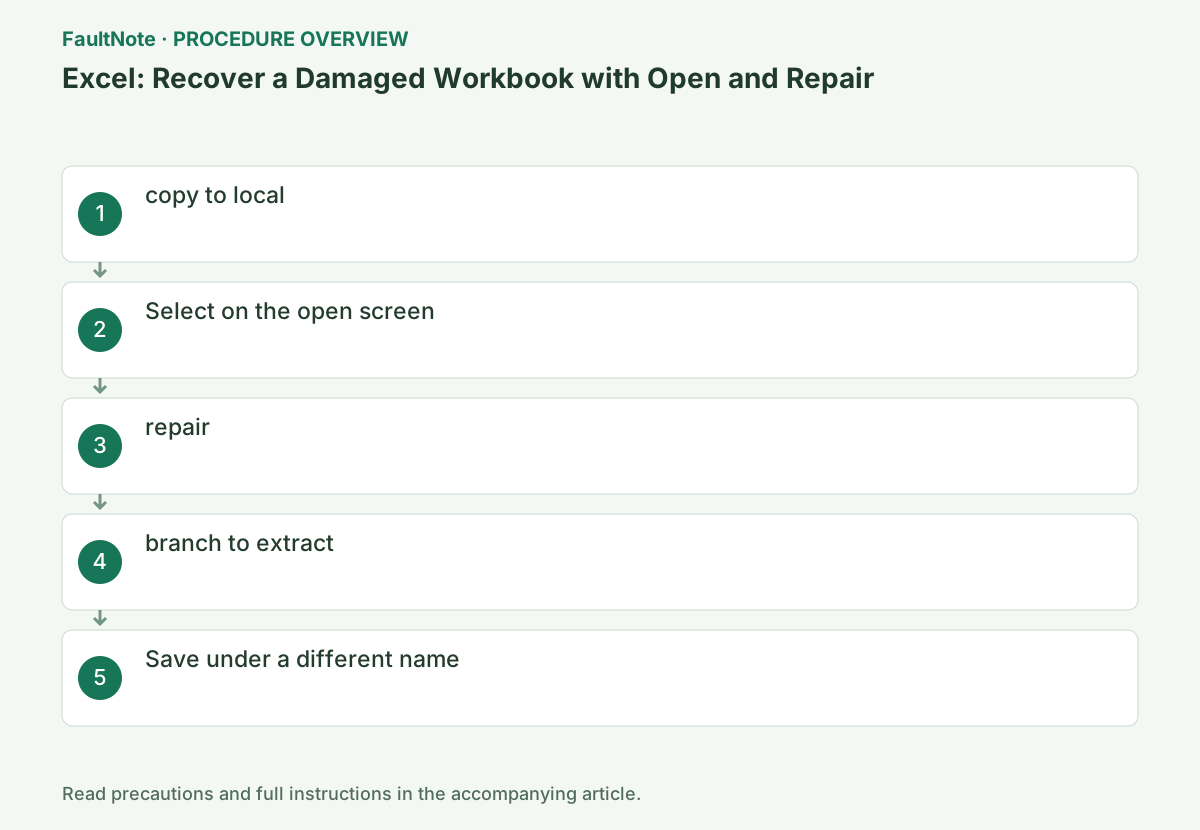
If it's on a network, copy it to your PC, leaving the original intact.
Make note of the original file's location and modification date, and give the copy a different name. If the storage device itself cannot be read, do not try to overwrite the same file over and over again, and first check the connection status of the storage destination.
Duplicate the original workbook using Explorer and operate only the copy side. Rather than opening directly from OneDrive or email attachments, save to a short local path to separate file transfer and Excel corruption.
Place a complete repair copy at a short local path and record the original name, size, time, and location. Separate network transfer from workbook corruption and do not write recovery back to unreadable storage. Retain original mail attachments and identify the latest pre-failure version. Renaming an extension does not repair the file structure.
Start Excel empty and select [File] → [Open] → [Browse] and select Copy.
Instead of double-clicking the file to open it, use the file selection dialog that appears when you click Browse within Excel. Once you have selected your copy, look for the small arrow to the right of the Open button.
Start Excel without a workbook and use File > Open > Browse. Double-clicking in Explorer does not expose the repair menu. Confirm that you selected the copy, then use the arrow beside Open > Open and Repair > Repair. If missing, verify that you are in the Browse file dialog rather than the recent-files list.
If the log reports removed records or formulas, prioritize those sheets and ranges. Compare sheet count, key totals, dates, and formula references with earlier versions or source records; opening is insufficient.
Review external-link destinations and whether updates are needed instead of approving all updates immediately. Distinguish extracted values from retained formulas; a recovered value alone is not evidence that its calculation works.
List sheets, formulas, named ranges, charts, macros, and external links with checked and missing items. Label value-only extraction as unrecovered formulas. Retain reopen warnings, logs, and reference-version dates. When handing off, preserve originals and copies and identify operations by version. Decide retention after final verification instead of deleting the original prematurely.
Check before continuingReview external-link destinations and whether updates are needed instead of approving all updates immediately. Distinguish extracted values from retained formulas; a recovered value alone is not evidence that its calculation works.
Select the arrow next to [Open] → [Open and Repair] → [Repair].
At first, try to recover as much as possible with [Repair] and wait until the process is finished. If you see recovered content or a repair log, save it and check which items were repaired or deleted before proceeding.
Wait for repair results and retain the message and log. Prioritize reported formula, name, or drawing removals. Compare key totals with source records and inspect whether formulas remain. Review external links before updates alter recovered values. If reopening always requests repair, retain that observation rather than calling a saved file healthy.
Official links for this step
- Microsoft Excel for Windows Official Troubleshooting
You can see the configuration name, limitations, and updated branches for this procedure on the official page.
- Microsoft Excel for Windows Official Troubleshooting
If Excel cannot repair it, use [Extract Data] to rescue values and formulas.
[Extract Data] is not a method that guarantees complete recovery of the entire workbook. Even if you can retrieve values and formulas, graphs, formatting, macros, etc. may not be preserved, so you need to verify the retrieved contents.
If Repair fails, preserve the repair copy and save Extract Data results separately. Recovered values or formulas do not establish complete layout or functional recovery. Check required charts, shapes, conditional formatting, validation, and macros, including broken references and date formatting. Compare backups and document missing requirements rather than distributing the extraction as complete.
Save the recovered workbook under a different name without overwriting the original, then check key sheets, formulas, charts, macros, and external links.
Don't just save your work; check important totals, formula references, and sheet counts against original documents and backups. Please leave the original file before restoration and use a file name that allows you to distinguish between the versions used for business purposes.
Close and reopen the recovered file. Preserve the needed macro-enabled format when relevant, without enabling unfamiliar macros. Check important sheets, totals, print areas, and charts, performing any input test on a copy. Do not run unverified macros or connections that write externally. Keep earlier and repaired versions distinct and name the adopted final version clearly.
For a macro workbook, save the recovered copy in the required macro-enabled format when appropriate. Close and reopen it, checking needed charts, named ranges, and macro presence. Do not enable unfamiliar macros.
If content is missing, document what was recovered rather than distributing it as a complete restoration. When using an earlier version to fill gaps, retain the originals and recheck totals and references before resuming work.
Check before continuingIf content is missing, document what was recovered rather than distributing it as a complete restoration. When using an earlier version to fill gaps, retain the originals and recheck totals and references before resuming work.
Check the result
- Reopen the recovered version
- Key values can be checked against previous editions
If the problem continues
- Open previous corruption from version history
- Find backups and automatic recovery
Scope of this guide
Troubleshooting guide — General diagnostic and recovery procedures based on official support. It does not describe a specific current incident.
Frequently asked questions
There is no menu.
First open Excel and select from [Browse].
Is it completely back to normal?
Verify each element as there are no guarantees.
Can I resume work using only extracted values?
It depends on required functions. Values alone are insufficient where formulas, external references, or validation are needed. Compare source records and prior versions and document missing features before adopting the result.
Official sources and dates
Source publication or resolution date: Not specified. Sources checked: 2026-10-13. The check date is not the date the problem first occurred. Interface labels can vary between versions and display languages.
Related troubleshooting guides
Microsoft Office / Microsoft 365 errors and troubleshooting →