OneDrive: Fix Invalid File Names and Long Paths
What to do first
Fix invalid characters and long paths without deleting content, and check syncing and sharing.
This is a general troubleshooting guide, not an announcement of a current outage.
Affected products and symptoms
- Product
- Microsoft OneDrive / SharePoint
- Versions and conditions
- OneDrive for Windows (for personal/work/school use)
- Error codes and identifiers
- Invalid file nameSync error
Symptoms
- Name has sync error
- Why are cloud files not downloading to my PC?
Causes and conditions
Candidates include reserved characters, trailing spaces/periods, reserved names, and excessive path length.
Before you start
- Copy the question file to another location
- Record who you shared with and old links
Precautions
- Do not change the file extension
- Renaming affects shared links
Tools and official pages used in this guide
You can see the configuration name, limitations, and updated branches for this procedure on the official page.
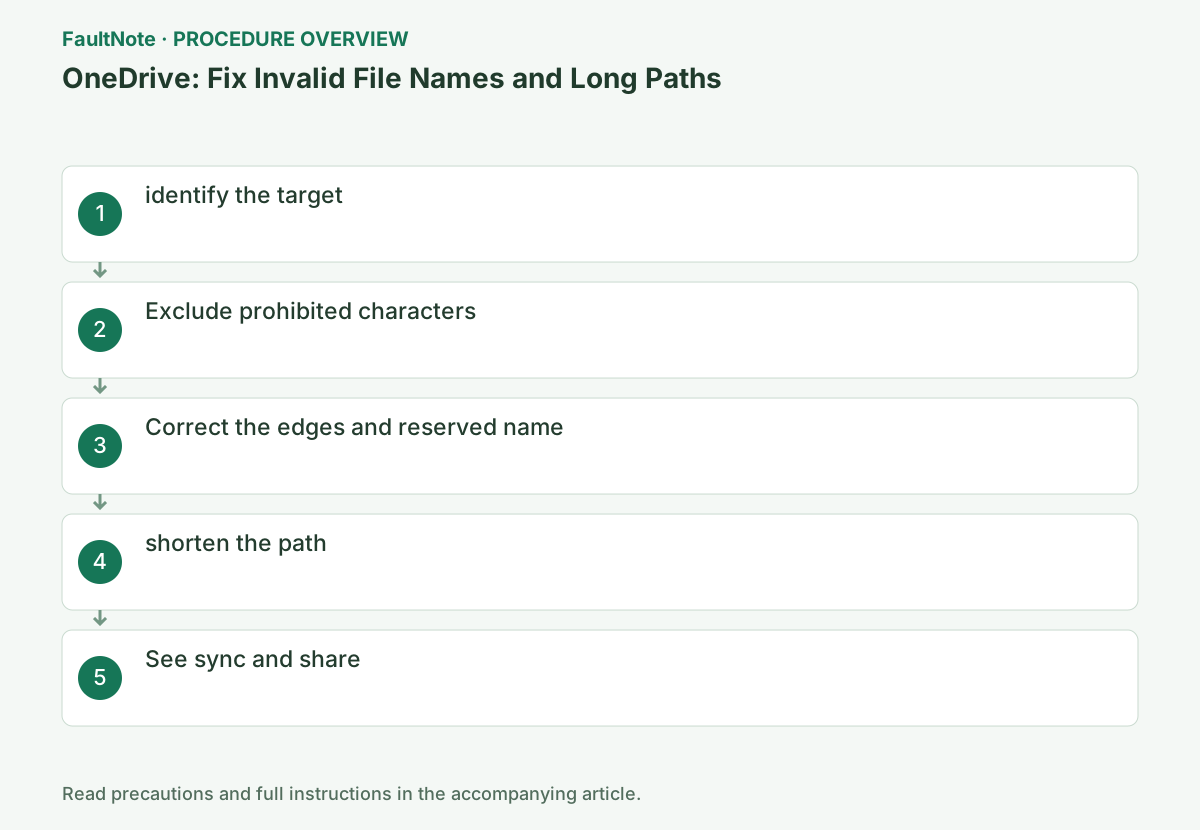
Step-by-step instructions
Read the full sync warning and identify its item. Restricted characters, reserved names, long paths, and pending downloads require different actions. Preserve originals and sharing details and decide whether to test one item first.
A Japanese name is not automatically invalid. Match actual characters and length conditions to official rules. Plan a retained old-to-new mapping before many changes.
Check the target from the cloud icon synchronization problem and the red X in Explorer.
Select the cloud icon to open the sync warning and identify the files and folders in error. If you use both personal and work accounts, check which account you want to sync with before changing.
Select the blue or white cloud in the notification area, open Show sync issues if available, and note the first failed pass. Check the naming rules for one item instead of renaming multiple items at once.
Record the actual failed name and location. Online-only status is not a naming error; do not assume every download failure is name-related. Identify account and library, test one item first, and check sharing links, references, and other users before bulk renaming. Preserve a copy where needed.
F2 replaces quotes, asterisks, colons, angle brackets, question marks, diagonal lines, vertical lines, etc.
F2 is a keyboard operation. Select the target, open Rename, and replace only the offending characters with hyphens, etc. Some names are created from sources other than Windows, so check the actual name against the official list of restrictions.
Rename the item with F2 or Rename, replacing only offending characters and preserving its extension. Compare the actual name with official rules; full-width characters and restricted ASCII punctuation need not be equivalent. Files from another platform may retain unsuitable names. Avoid overwriting a same-named file and record old/new names.
If it is a reserved name, use a different name, excluding leading and trailing spaces and trailing periods.
Reserved names are special names that cannot be used as regular file names. Even if you change the entire name to a shorter alias, keep the extension. If a file with the same name already exists, do not overwrite it, but choose a name that makes it distinguishable.
Check leading/trailing spaces, trailing periods, and reserved names. Shortening alone may not resolve a reserved name; choose a distinct valid name. Inspect extensions and actual characters when names look identical. Coordinate references used by work systems. Retain the original and valid mapping rather than restoring an invalid name after recovery.
Inspect the full path including parent folders and shorten names or hierarchy. Check cloud and Windows or application limits separately using official guidance.
This includes not only the file name but also the entire path including its parent folders. Since moving a shared folder will affect other users, first shorten the names that you can change and notify other users of the changes.
Inspect the path including parent folders and distinguish cloud limits from Windows/app destination limits. Do not substitute UTF-8 byte counts for character-based limits. Identify long folders or names, coordinate shared references, and test one shorter path. Moving outside the sync root changes cloud availability, so preserve the intended destination.
Wait for [Updated] and check the new name on the web, and if the old link is invalid, reshare.
Once the Explorer warning disappears, check if you can open a file with the same name in the web version of OneDrive. Make sure to check sharing and references from other files, and note the old name and location so you can restore it.
After synchronization, verify the new name and content on PC and web. Test needed old links, workbook references, and shortcuts instead of assuming all fail or survive. Update through legitimate sharing where necessary. Compare preserved content before restoring it and provide a rename mapping for administrator-reviewed bulk changes.
Official links for this step
- Microsoft OneDrive / SharePoint Official Troubleshooting
You can see the configuration name, limitations, and updated branches for this procedure on the official page.
- Microsoft OneDrive / SharePoint Official Troubleshooting
Open the same new name/content on PC and web. Check cleared errors separately from required recipients' access and confirm the extension and format remain correct.
If reverting content is needed, retain a valid name and compare the original. Report old/new names, location, and warning. Renaming does not fix storage or account restrictions.
Check the result
- The new name will be the same on the web and PC
- Share with others too
If the problem continues
- If there are a large number of errors, a list will be passed to the administrator.
- After automatic renaming, search from the save location
Scope of this guide
Troubleshooting guide — General diagnostic and recovery procedures based on official support. It does not describe a specific current incident.
Frequently asked questions
Can I use my Japanese name?
Japanese names are generally supported. Check restricted characters and reserved names separately, using the official character/path definition rather than an interchangeable UTF-8 byte count.
Will the content change?
Renaming does not edit file content, but effects on sharing links and references depend on the change. Test required links afterward.
Should I count UTF-8 bytes for Japanese filenames?
Use the official path definition and character-based conditions for this guide, not an interchangeable UTF-8 byte count. Check separate app or Windows limits too.
Official sources and dates
Source publication or resolution date: 2026-04-22. Sources checked: 2026-10-13. The check date is not the date the problem first occurred. Interface labels can vary between versions and display languages.