Reset the app when OneDrive synchronization stops
What to do first
Rebuild OneDrive settings and sync connections without deleting cloud files. Folder selections for selective sync must be configured again.
This is a general troubleshooting guide, not an announcement of a current outage.
Affected products and symptoms
- Product
- Microsoft OneDrive for Windows
- Versions and conditions
- OneDrive desktop sync app for Windows
- Error codes and identifiers
- 0x80070194
Symptoms
- Synchronization remains stopped for a long time, a sync error persists, or error 0x80070194 appears
Causes and conditions
Rebuilding the OneDrive sync app's settings and local synchronization data may resolve the issue.
Before you start
- Use OneDrive on the web to confirm that important files exist in the cloud
- Copy unsynchronized files outside OneDrive
- Record personal and work/school connections and selectively synchronized folders
Precautions
- Reset disconnects and rebuilds all sync connections, including personal and work/school accounts, and may take time
- Cloud data is not deleted, but protect unsynchronized files first
- The Program Files commands contain spaces, so enclose the executable paths in quotation marks
Tools and official pages used in this guide
Review the officially published reset command and alternate executable paths.
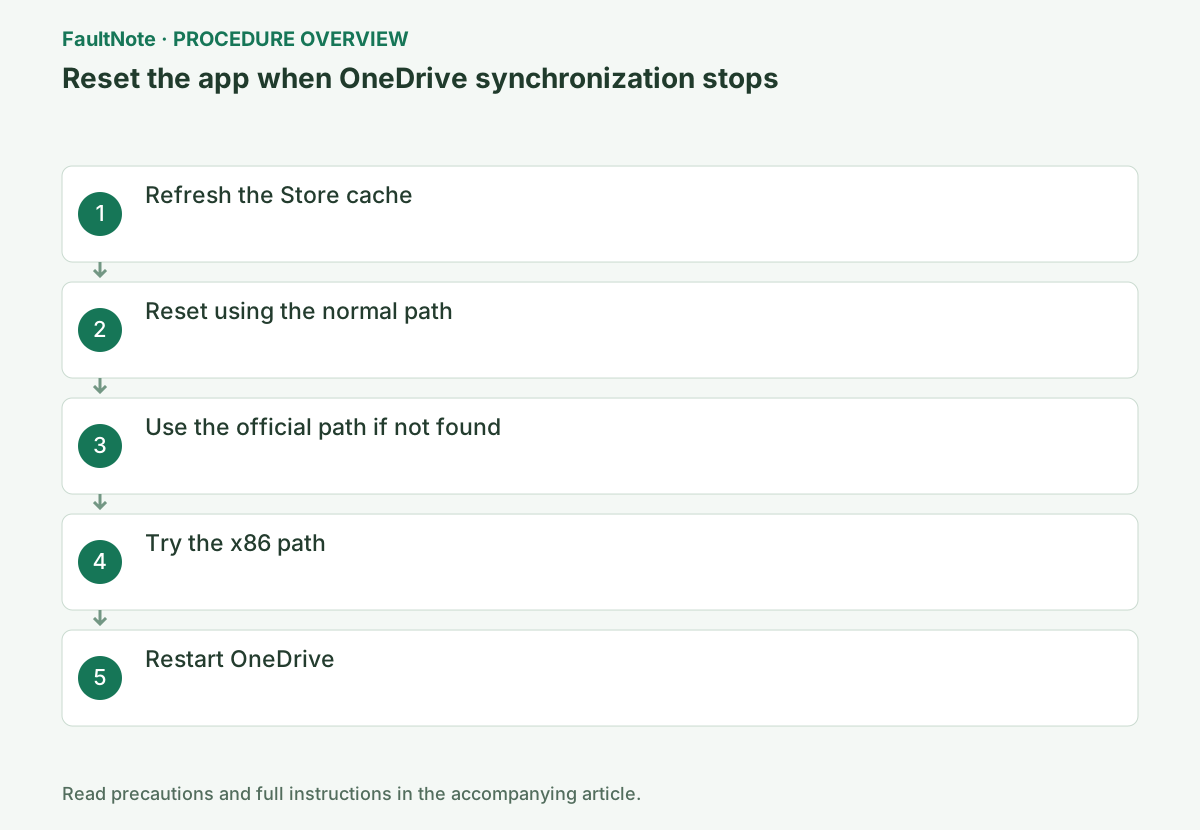
Step-by-step instructions
Check important cloud files by name, modification time, and content. Copy local files with sync errors or recent edits to a folder outside OneDrive. An online-only placeholder is not a complete backup without downloaded content.
If the client reports full storage, invalid names, or expired sign-in, address that cause first. Reset does not remove those restrictions. Retain the reported error and filename before deciding to rebuild sync settings.
Check before continuingIf the client reports full storage, invalid names, or expired sign-in, address that cause first. Reset does not remove those restrictions. Retain the reported error and filename before deciding to rebuild sync settings.
Press Windows key+R and run wsreset.exe. When the empty command window closes and Microsoft Store opens, processing is complete and you may close Store.
From the cloud icon in the taskbar notification area, open Settings > Sync and backup and record the target account and sync status. Reset does not delete files, but comparing all items again can take time.
Classify the initial state as syncing, paused, sign-in required, full storage, or a file-specific error. Record the account and filename from the cloud icon. Open the cloud file to check recent edits; its filename alone does not prove those changes arrived. Protect unsynchronized changes by copying, not moving the sync folder, then open the backup to verify content.
wsreset.exeOpen Windows key+R again and paste the following command exactly. OneDrive closes and begins rebuilding its settings and sync connections.
Paste the official command into the Win+R Run box and select OK. Only if Windows cannot find the path, proceed to the next official candidate; do not search arbitrary folders for OneDrive.exe and run it.
Use /reset in the Win+R Run dialog, not PowerShell. Paste the official environment-variable command and try another official path only when Windows cannot find the executable. Do not start simultaneous resets. Observe the icon and application state; an absent window alone is not proof of failure. Launch OneDrive manually as instructed and avoid substituting an arbitrary executable.
%localappdata%\Microsoft\OneDrive\OneDrive.exe /resetOfficial links for this step
- Reset OneDrive
Review the officially published reset command and alternate executable paths.
Check before continuingOpen Windows key+R again and paste the following command exactly. OneDrive closes and begins rebuilding its settings and sync connections.
- Reset OneDrive
Check both personal and work or school accounts after reset. Microsoft describes a reset of all sync connections followed by a full sync, so one returning icon does not establish recovery for every account.
Restore previously selected folders if you used selective sync. While a large collection is being compared, monitor progress rather than repeatedly running /reset and starting the process again.
Check before continuingRestore previously selected folders if you used selective sync. While a large collection is being compared, monitor progress rather than repeatedly running /reset and starting the process again.
Only if Windows cannot find the file, try the 64-bit path below, which quotes the executable path because it contains spaces. Try the x86 path only if this path is also absent.
After the command, wait for the cloud icon to disappear and return after several minutes. If OneDrive does not start automatically, search Start for OneDrive, open Microsoft OneDrive, and sign in with the original account.
The Program Files executable path is quoted because it contains spaces, followed by a space and /reset. Paste the full quoted path. The x86 alternative checks another installation location; it does not change Windows architecture. If all three paths are absent, verify that the sync client is installed and distinguish it from a Store file-viewing app.
"C:\Program Files\Microsoft OneDrive\OneDrive.exe" /resetIf the executable is also absent from the 64-bit path, run the following officially published path. If neither path exists, the sync app may not be installed.
Open Show sync problems from the cloud icon and wait until the selected folders and known files show Your files are synced. With a large data set, do not shut down the PC while items are being compared again.
A full comparison may not immediately reach synced status. Observe progress and record any file where it stalls, then investigate its error or restrictions. Do not delete or empty the original folder during comparison. Online-only status differs from a sync error, and a cloud icon does not imply all content is locally available; open required files to check.
"C:\Program Files (x86)\Microsoft OneDrive\OneDrive.exe" /resetIf it does not return automatically, search Start for OneDrive and launch it. Confirm personal and work/school accounts and the previously selected folders, then wait for the initial full sync to finish.
Open Show sync problems from the cloud icon and wait until selected folders and known files show Your files are synced. With a large data set, do not shut down the PC during the comparison.
Even with synced status, open the originally failing file and verify its latest content. Arrival alone does not validate edits. Check the intended shared location and distinguish same-named personal and work folders. Retain both contents before resolving a mix-up. Confirm the destination account and folder before restoring backups to avoid stale overwrites or saving to another account.
After restoring folder selections, check required shared folders and organizational libraries. A personal-account test does not verify a work-account connection; test each account and destination. Do not blindly copy every unsynchronized backup back. Compare same-named cloud updates, retain conflicting contents separately, and decide which is final before cleanup.
Check before continuingDecision: if OneDrive does not return automatically, launch it from Start. Confirm personal and work/school accounts and prior selective-sync folders, then wait for the initial full sync and Your files are synced status.
Save a small non-sensitive text file in the PC sync folder and check its name and content on the web. Then add a separate small file on the web and confirm it reaches the PC.
After both directions work, compare protected unsynchronized files. If a cloud file has the same name, compare content and timestamps and keep a separately named copy before overwriting anything. Report remaining errors by account.
Check before continuingAfter both directions work, compare protected unsynchronized files. If a cloud file has the same name, compare content and timestamps and keep a separately named copy before overwriting anything. Report remaining errors by account.
Check the result
- The cloud icon shows Your files are synced
- A small test file synchronizes in both directions between the web and PC
- Selective-sync folders match the pre-change record
If the problem continues
- Restore the selective-sync choices recorded earlier
- Before restoring unsynchronized files from the backup, check for duplicates or conflict copies
- If the issue persists, give the error code to the organization's administrator or Microsoft Support
Scope of this guide
Troubleshooting guide — After reset, OneDrive performs a full synchronization and rebuilds its sync connections.
Frequently asked questions
Will my files be deleted?
Microsoft states that resetting OneDrive does not cause files or data loss. Still, copy unsynchronized files outside OneDrive and restore selective-sync choices after reconnection.
Should I run /reset again while it still says syncing?
If progress continues, wait. Investigate file-specific stalls, authentication, or storage errors. Repeating Reset does not remove restrictions and can restart the comparison.
Official sources and dates
Source publication or resolution date: Not specified. Sources checked: 2026-10-13. The check date is not the date the problem first occurred. Interface labels can vary between versions and display languages.