Which Ethernet Cable Category for 2.5GbE and 10GbE: Cat5e, Cat6 or Cat6A
When you add a 2.5GbE router or NAS, or move to a 10 Gbps fibre line, you need to know whether your current Ethernet cables can stay or whether to buy Cat6A or Cat7. This guide decides that from the speed and distance conditions the manufacturers publish. Instead of buying the highest number, you pick the category from three things: link speed, run length and where the cable is installed.
Published · Updated · FaultNote editorial policy
Who this guide is for and what to prepare
- People adding a 2.5GbE router, switch, NAS or network adapter who want to know whether their existing Cat5e or Cat6 cables can be reused
- People moving to a 10 Gbps fibre line or a 10GbE NAS who need to work out which category, how many cables and what lengths to buy
What you need
- The supported speed (1GbE, 2.5GbE, 5GbE or 10GbE) of every device on the path: router, ONU, switch, NAS and the PC's network adapter
- The length of each cable and the category printed on its jacket (CAT.5e, CAT.6, CAT.6A and so on)
- Whether any runs are hard to replace, such as in-wall wiring or flat cables under carpet
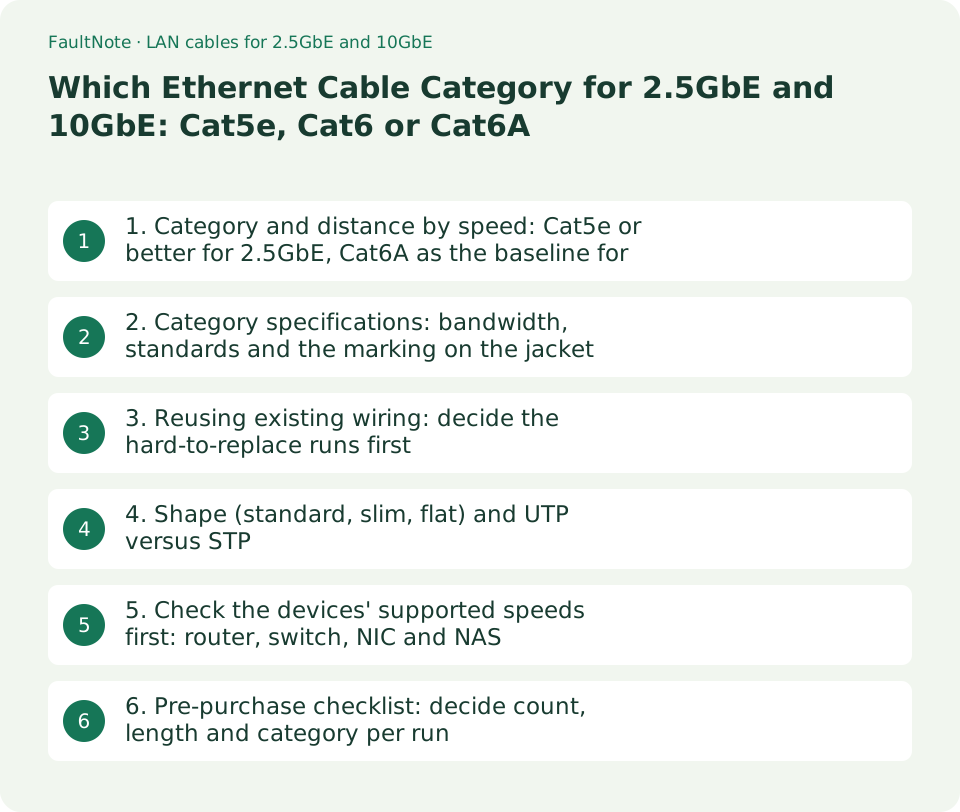
1. Category and distance by speed: Cat5e or better for 2.5GbE, Cat6A as the baseline for 10GbE
Buffalo explains that IEEE 802.3bz (2.5GBASE-T and 5GBASE-T) was standardised in September 2016 and allows 2.5 Gbps and 5 Gbps (specification values) over Cat5e or Cat6 cable. The product page for its 10GbE network adapter likewise states that 5GbE and 2.5GbE can use existing Cat5e or Cat6 cabling as is, while 10GbE needs Cat6A or Cat7. NETGEAR's support article (updated July 7, 2025) says Cat5e is fine for 1 Gbps or less, recommends Cat6 or better for 2.5G, 5G and 10G Multi-Gig devices, and separates the distances at 10 Gbps: Cat6 up to 55 m (180 ft) and Cat6A up to 100 m (328 ft). The same article notes that high-quality Cat5e can typically carry up to 5 Gbps at 100 m despite its 1 Gbps specification, and gives variation in cable quality as the reason for recommending Cat6 or better.
The 10GbE distance condition is the same on the network-adapter side. Intel's specification for the X550-T2 10GBASE-T adapter lists the cabling as "RJ45 Category 6 up to 55m; Category 6A up to 100m" and supports 10G, 5G, 2.5G, 1G and 100M. Home runs are usually a few metres to about 20 m, so some 10GbE runs will work on Cat6, but for long in-wall runs and for new purchases Cat6A is the baseline that removes the distance question.
Scroll horizontally to see the full table →
| Link speed | Usable category | Distance condition (official documents) | Evidence |
|---|---|---|---|
| 1GbE (1000BASE-T) | Cat5e or better | Up to 100 m | NETGEAR: Cat5e is fine for 1 Gbps or less |
| 2.5GbE and 5GbE (IEEE 802.3bz) | Cat5e or Cat6 or better | Up to 100 m (NETGEAR recommends Cat6 or better) | Buffalo: 2.5 Gbps and 5 Gbps (specification values) over Cat5e or Cat6 |
| 10GbE (10GBASE-T) | Cat6 (short runs) or Cat6A or better | Cat6 up to 55 m, Cat6A up to 100 m | Intel X550-T2 specification, NETGEAR support article |
- Confirm the link speed both devices on a run support and take that row (use the slower of the two devices).
- Measure the run. For 10GbE on Cat6 it must be within 55 m; otherwise within 100 m.
- If the printed category on the existing cable meets that row, reuse it and replace only the runs that do not.
2. Category specifications: bandwidth, standards and the marking on the jacket
Sanwa Supply's category guide lists Cat5e at 1 Gbps and 100 MHz, Cat6 at 1 Gbps and 250 MHz, Cat6A at 10 Gbps and 500 MHz, Cat7 at 10 Gbps and 600 MHz, Cat7A at 1,000 MHz and Cat8 at 40 Gbps and 2,000 MHz, with Cat7 and above using a double-shielded ScTP construction. Sanwa Supply classes Cat6 as 1 Gbps and Cat6A as 10 Gbps; combined with NETGEAR and Intel limiting Cat6 to 55 m at 10GbE, Cat6A is where 10GbE over a full 100 m can be assumed. To identify a cable, the company notes that the jacket may carry either the category name, such as CAT.5e or CAT.6, or the cabling standard name, such as ANSI/TIA-568-B.2-10 for Cat6A, so check that marking first on the cables you already own.
Cables with no marking, or marked CAT.7 or CAT.8, need care. In Sanwa Supply's list of cabling standards, Cat7 is ISO/IEC 11801 and Cat8 is ANSI/TIA-568.C-2-1, and Cat7 and above use a double-shielded construction. If the devices on the path top out at 10GbE, Cat6A already meets the 10GbE distance condition, so the reasons to choose Cat7 or Cat8 are limited to preparing for 25G/40GBASE-T or noise countermeasures. The company also explains that shielding needs proper grounding to be effective.
Scroll horizontally to see the full table →
| Category | Speed and bandwidth (Sanwa Supply table) | Construction | Role in a home or small office |
|---|---|---|---|
| Cat5e | 1 Gbps, 100 MHz | UTP | Usable for 1GbE, 2.5GbE and 5GbE. Not for 10GbE |
| Cat6 | 1 Gbps, 250 MHz | UTP | Usable for 2.5GbE and 5GbE. 10GbE up to 55 m |
| Cat6A | 10 Gbps, 500 MHz | UTP | 10GbE up to 100 m. The baseline for new purchases |
| Cat7 / Cat7A | 10 Gbps, 600 MHz / 1,000 MHz | ScTP (double shield) | ISO/IEC 11801. Same speed as Cat6A on 10GbE devices. Shield needs grounding |
| Cat8 | 40 Gbps, 2,000 MHz | ScTP (double shield) | For 25G/40GBASE-T. Same speed as Cat6A on 10GbE devices |
- Read the jacket of each cable you own and note the CAT.5e, CAT.6 or CAT.6A marking one by one.
- Unless a purchase record or product page confirms its category, replace any unmarked cable on runs that will carry 2.5GbE or faster.
- If you are considering Cat7 or Cat8, check the maximum speed of the devices on the path and weigh the price difference knowing that Cat6A covers everything up to 10GbE.
3. Reusing existing wiring: decide the hard-to-replace runs first
In-wall wiring and cables routed behind furniture are the most work to replace, so check their marking and length first. Cat5e and Cat6 can stay for anything up to 2.5GbE, so upgrading a router or NAS to 2.5GbE does not require rewiring. Replace only the runs that move to 10GbE with Cat6A, and for Cat6 runs within 55 m, test before deciding.
If the link speed does not appear, suspect the devices before the cable. A link will not negotiate a speed that either end does not support. On Windows, Settings > Network & internet > Ethernet shows the link speed, and the port status page of the router or switch shows the same thing. Buffalo also cautions that cable quality, installation conditions and external noise can keep performance from reaching the rated speed.
Scroll horizontally to see the full table →
| Run situation | Decision | Reason |
|---|---|---|
| Existing Cat5e / Cat6 wiring, moving to 2.5GbE | Keep it | IEEE 802.3bz assumes 2.5 Gbps and 5 Gbps over Cat5e / Cat6 (Buffalo) |
| Existing Cat6 wiring, moving to 10GbE (55 m or less) | Test, then decide | Intel and NETGEAR list Cat6 up to 55 m |
| Existing Cat6 wiring, moving to 10GbE (over 55 m) | Replace with Cat6A | Exceeds the distance condition |
| No marking, or old cable of unknown origin | Replace on runs of 2.5GbE or faster | The category cannot be confirmed |
- For each run, tabulate the two devices, the required speed, the length and the cable marking, and identify the runs that need replacing.
- Buy new cables only for those runs, then confirm on the device's link-speed display that the target speed is reached.
- If a Cat6 run at 10GbE fails to link or drops speed, replace that run with Cat6A.
4. Shape (standard, slim, flat) and UTP versus STP
Within the same category, the shape changes how easy the cable is to route and what to avoid. Sanwa Supply's buying guide describes standard (round) cable as the most common shape and the default choice, slim cable as usually stranded and easy to route through tight spaces but less stable in communication, and flat cable as suited to running under carpet, along walls and through door gaps but weak against noise and not recommended for long runs. Slim and flat products win on ease of routing, but use standard cable as the baseline for long runs and 10GbE runs.
The company explains that UTP (unshielded) cable handles the noise found in ordinary homes and offices, while STP (shielded) cable wraps the pairs in aluminium foil for stronger noise protection at a higher price, and that the shield needs proper grounding to be effective. At home, use Cat6A UTP as the baseline and consider STP only for runs with a specific reason, such as passing near a noise source. Runs over 100 m need optical fibre or an intermediate switch; raising the category does not solve distance.
Scroll horizontally to see the full table →
| Shape / construction | Suited to | Caveats |
|---|---|---|
| Standard (round) | Anywhere without special needs, long runs | The most common shape (Sanwa Supply) |
| Slim | Narrow gaps, crowded desks | Less stable communication (Sanwa Supply). Use standard cable for long runs |
| Flat | Under carpet, along walls, door gaps | Weak against noise; not recommended for long runs (Sanwa Supply) |
| STP (shielded) | Runs passing near a noise source | Needs grounding and costs more. UTP handles ordinary home noise (Sanwa Supply) |
- Check the route for places where the cable will be crushed: under doors, under carpet, behind furniture.
- Use standard cable for long runs and 10GbE runs, slim cable for short tight runs, and flat cable for short runs under carpet or through door gaps.
- If you choose STP, confirm in the manufacturer's specification that the device ports are shielded and grounded; otherwise use UTP.
5. Check the devices' supported speeds first: router, switch, NIC and NAS
A new cable does nothing if a device on the path does not support the speed. Buffalo's LGY-PCIE-MG3, for example, supports IEEE 802.3an, 802.3bz, 802.3ab, 802.3u and 802.3i and links at every speed from 10 Mbps to 10 Gbps. Intel's X550-T2 supports 10G, 5G, 2.5G, 1G and 100M. A 1GbE-only switch or ONU in the middle caps that segment at 1 Gbps.
So the order is: list the supported speed of every device on the path, find the slowest one, decide whether to replace it or accept its speed, and only then buy cables. Cables help only up to the devices' limit, and upgrading the cable alone to a higher category changes nothing.
Scroll horizontally to see the full table →
| Device | Specification to check | Where to check |
|---|---|---|
| PC network adapter (onboard or add-in card) | Supported standards (802.3bz, 802.3an) and maximum link speed | Motherboard or adapter product specification |
| Switch or router | Per-port speed (number of 2.5G / 10G ports) | Specification table on the product page |
| NAS | LAN port speed, whether an expansion card is fitted | NAS product specification |
| ONU / home gateway | LAN-side port speed (1G / 2.5G / 10G) | ISP equipment specification |
- Write out the path, such as PC > switch > router > ONU, and check the LAN port speed of each device in its product specification.
- The slowest device is the bottleneck. If you are not replacing it, buy only the category that its speed needs.
- After the change, confirm on the device's link-speed display that the target value, such as 2.5 Gbps or 10 Gbps, appears.
6. Pre-purchase checklist: decide count, length and category per run
Buy one cable per run and add some slack to the length measured along the route. Choose the category from that run's speed and length, and default to Cat6A UTP when in doubt. This article did not survey street prices, so check prices by length at a retailer on the same day. Category markings are declared by the seller or manufacturer, so it is reassuring when the product also cites the standard number, such as ANSI/TIA-568.
Scroll horizontally to see the full table →
| Item | Where to check | Easy to miss |
|---|---|---|
| Link speed (both devices) | Device product specifications | The slowest device on the path sets the ceiling |
| Length and distance condition | Measure the route, official distance limits | Cat6 at 10GbE is 55 m. Over 100 m needs fibre or a relay |
| Category marking | Jacket print, product page | Unmarked cables cannot be verified |
| Shape and shielding | Outer diameter and construction on the product page | Flat cable is weak against noise and unsuited to long runs. STP needs grounding |
- List each run on one line as speed, length, category, shape and count, and total the cables needed.
- Remove the runs where existing cable will be reused; the rest is the shopping list.
- On delivery, confirm the jacket marking matches the ordered category, then check the device's link-speed display after connecting.
Limitations and requirements
- The speed and distance conditions were confirmed on September 13, 2026 in public documents from NETGEAR, Intel, Buffalo and Sanwa Supply. Specification values are upper limits; actual throughput depends on the devices, the line and congestion.
- This article did not measure throughput and does not show speed differences before and after a cable change.
- Cat7 is ISO/IEC 11801 and Cat8 is ANSI/TIA-568.C-2-1 (per Sanwa Supply's list). On devices that top out at 10GbE they are no faster than Cat6A. The reliability of a category marking depends on the seller's declaration.
Frequently asked questions
Can I keep my current Cat5e cable between a 2.5GbE router and NAS?
Buffalo explains that IEEE 802.3bz (2.5GBASE-T / 5GBASE-T) assumes 2.5 Gbps and 5 Gbps (specification values) over Cat5e or Cat6 cable. If both devices support 2.5GbE, a Cat5e run within 100 m can stay. NETGEAR recommends Cat6 or better for Multi-Gig.
Does Cat6 work for 10GbE?
Intel's X550-T2 specification and NETGEAR's support article list Cat6 up to 55 m and Cat6A up to 100 m at 10GbE. Short home runs may link on Cat6, but Cat6A is the baseline for new purchases.
Is Cat7 or Cat8 a safe future-proof buy?
In Sanwa Supply's list, Cat7 (ISO/IEC 11801) and Cat7A use a double-shielded construction, and Cat8 is rated for 40 Gbps at 2,000 MHz. If the devices on the path top out at 10GbE they are no faster than Cat6A, and the shield needs grounding to work. Cat6A UTP meets the distance condition for everything up to 10GbE.
Sources and verification date
Sources checked: . These sources support the specifications, procedures or prices discussed here. Check each source for applicable conditions and current information.
- NETGEAR support: What kind of network cables should I use to connect to my NETGEAR devices? (KB 206, updated July 7, 2025) ↗
- Intel Ethernet Converged Network Adapter X550-T2 product specifications ↗
- Buffalo: switches supporting the new IEEE 802.3bz (2.5/5GBASE-T) standard (press release, February 8, 2017) ↗
- Buffalo: LGY-PCIE-MG3 10GbE network adapter product page ↗
- Buffalo: making the most of 10 Gbps fibre internet ↗
- Sanwa Supply: how to identify the category of a LAN cable ↗
- Sanwa Direct: how to choose a LAN cable ↗
Related practical guides
- Before moving your wired LAN to 2.5GbE or 10GbE: check the free slot and the cable run first
- Check PC-Part Compatibility Before Buying: CPU, BIOS, RAM, Case and Power
- Air cooler or AIO? Choose by case clearance, noise and maintenance
- PCIe 4.0 or 5.0 SSD for gaming? Check load times, capacity and slot sharing
- DDR4 vs. DDR5: Choose for a New Build, Reused RAM and Upgrade Cost
- DDR5 with Two or Four DIMMs: Compare Upgrade Speed Limits and Kits