Troubleshoot Host not found in Steam Remote Play
What to do first
Check the Anywhere mode, awake host, account and settings; compare a trusted LAN with the usual route. Verify discovery separately from streamed video.
This is a general troubleshooting guide, not an announcement of a current outage.
Affected products and symptoms
- Product
- Steam Remote Play
- Versions and conditions
- Steam-supported host and client devices
- Error codes and identifiers
- Host not found
Symptoms
- The operation fails with Host not found.
- The same failure is reproducible in Steam Remote Play.
Causes and conditions
Possible causes include Steam updates, account state, the discovery network, required communication or firewall permissions.
Before you start
- Exit the game and launcher normally; record the account, title, complete error, and occurrence time.
- Before changing local saves or settings, find the developer-documented save location and copy it to another folder.
Precautions
- Do not mix Remote Play Anywhere and Together participation requirements
- Do not open all ports or stop the entire firewall to discover a host
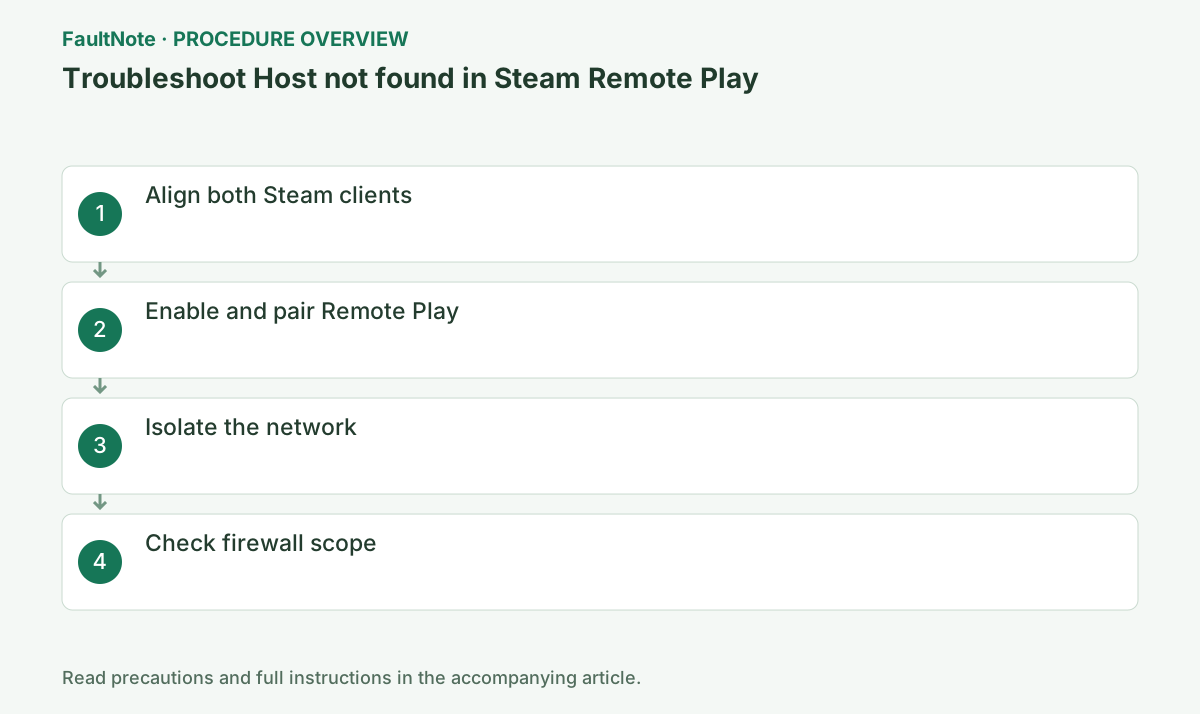
Step-by-step instructions
This guide addresses finding your own game host through Remote Play Anywhere. Remote Play Together invitations use a different participation route. Record whether the host uses desktop Steam and the client uses Steam or Steam Link. Separate an absent host from a listed host that fails to connect.
Check host power, sleep, Steam and online state. Run the game locally to its menu and exit normally. Local launch failure belongs to game diagnosis first. Before configuring wake or automatic login, compare detection while the host is manually awake.
Check host Settings > Remote Play enablement. For Anywhere between Steam PCs, check the same account; for Steam Link, use its displayed connection/pairing route. Verify that a code request comes from your intended device. Prepare authentication before account changes and do not mix the two workflows.
Where practical, compare on one ordinary trusted LAN. Record guest Wi-Fi, client isolation and VPN use. Detection there supports host/account readiness while another route may be restricted. LAN success does not prove internet reachability. Do not override organizational controls.
On a Windows host, inspect network profile and Steam permission. Decide whether a network is trusted before changing profile. Do not start with disabling the entire firewall or random router port forwarding. Give administrators host/client details, failure time and the LAN comparison.
Once listed, test connection and video, audio and input separately. A listed host producing black video has progressed beyond discovery and needs video diagnosis. Input failure after launch is another result. Record host/client Steam and OS versions and network to compare changes.
Restore temporary VPN/settings changes and retest the usual route. If the host disappears again, record the route difference instead of broad driver updates. Exit the game normally after testing. Report discovery, same-LAN result and post-connection symptoms separately; a listed name alone is not gameplay confirmation.
Check the result
- The host is discovered on the usual route
- Video, audio and input work after connection
- Reconnection reaches the same host
If the problem continues
- Report same-LAN and usual-route results plus host/client details to Steam or the network administrator.
Scope of this guide
Troubleshooting guide — A general diagnostic guide based on official support. It does not claim a current incident or a version-specific fix.
Frequently asked questions
Should a friend switch to my account too?
This account check is for Anywhere to your own host. Together uses invitations; do not transfer this condition to friends.
Does the same Wi-Fi name guarantee discovery?
Guest isolation or network topology can separate devices. Compare an ordinary trusted LAN.
What if the host is listed but video is black?
Discovery and video transfer differ. Compare local host display and encoding/decoding individually.
Will opening all ports fix it?
Do not do that. Inspect the route and Steam permission and use only specific settings required by official or administrator guidance.
Official sources and dates
Source publication or resolution date: Not specified. Sources checked: 2026-10-13. The check date is not the date the problem first occurred. Interface labels can vary between versions and display languages.