Windows shows less usable RAM than installed: what to check when Hardware reserved is large
What to do first
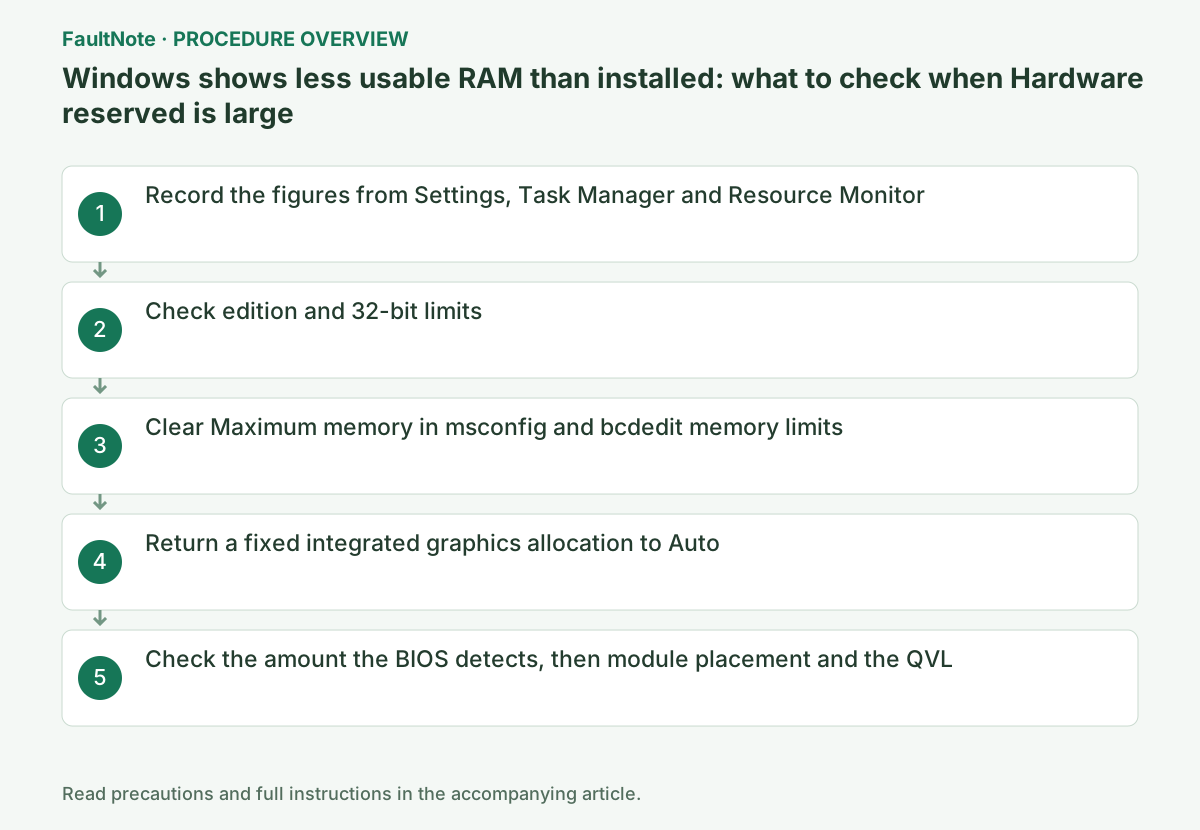
Note the figures from Settings, Task Manager and Resource Monitor, then isolate boot-configuration limits, edition limits, integrated graphics allocation and the amount the BIOS detects, in that order. Treat a gap of a few hundred MB as normal and act only on gaps of several GB.
This is a general troubleshooting guide, not an announcement of a current outage.
Affected products and symptoms
- Product
- Windows 11 Memory
- Versions and conditions
- Windows 11 / Windows 10. About or Task Manager shows several GB less usable memory than installed RAM, or a large Hardware reserved value
Symptoms
- Installed RAM reads like 32.0 GB (15.9 GB usable), with only about half of the installed amount usable
- Task Manager's Memory page shows several GB of Hardware reserved, and adding memory does not increase the usable amount
Causes and conditions
Usable memory is the installed amount minus the regions claimed by firmware and devices. A large gap comes from one of these: a boot-configuration limit (Maximum memory in msconfig, or truncatememory in bcdedit), a fixed allocation to integrated graphics, an edition or 32-bit limit, or the BIOS itself detecting less memory. The Windows screens alone do not tell you which.
Before you start
- The number and capacity of installed modules, the motherboard or PC model, and the Windows edition (Home or Pro) and bitness
- An administrator account, and a note to record any BIOS setting before you change it
Precautions
- bcdedit edits the boot configuration directly. Delete only the values shown and change nothing else. It requires administrator rights, and if BitLocker is in use, have the recovery key ready
- Record the BIOS integrated graphics allocation before changing it back. Item names and available values differ by motherboard and PC manufacturer, so check the manual
Tools and official pages used in this guide
Step-by-step instructions
Settings > System > About shows Installed RAM with the installed and usable amounts side by side. Then open Task Manager > Performance > Memory and note Hardware reserved at the bottom. Microsoft's support article (KB3070928, updated February 12, 2026) explains that Task Manager can parse SMBIOS memory data incorrectly, so its hardware reserved and speed figures may disagree with other sources, and that Resource Monitor displays the correct value.
Check Hardware reserved on the Memory tab of Resource Monitor (resmon) as well. Treat a gap of a few hundred MB from the installed amount as normal. Continue only if the gap is several GB or close to half the installed amount. If the installed amount itself differs from what the BIOS detects, skip to step 5.
Official links for this step
Microsoft's memory-limits reference lists the physical memory limit as 128 GB for Windows 11 Home, 2 TB for Windows 11 Pro and Education, and 6 TB for Pro for Workstations and Enterprise. Every 32-bit (x86) edition of Windows 10 is limited to 4 GB, and the 64-bit editions follow the same tiers as Windows 11. Memory installed beyond the limit cannot be used.
The same reference explains that devices have to map their memory below 4 GB, so on a system with 4 GB some memory is either disabled or remapped above 4 GB by the BIOS. 64-bit Windows can use remapped memory, but 32-bit client versions of Windows do not support physical memory above 4 GB. Check System type under Settings > System > About to confirm the system is 64-bit.
Official links for this step
Press Windows key + R, run msconfig, and open the Boot tab > Advanced options. If Maximum memory is ticked with a value smaller than the installed amount, untick it, select OK > Apply and restart. Microsoft asks you to use System Configuration with caution because incorrect settings can stop Windows from starting, so change nothing else here.
The boot configuration can also hold memory limits that msconfig does not show. Microsoft's BCDEdit /set reference says truncatememory makes Windows ignore all memory at or above the specified physical address, and removememory removes the specified number of MB from the memory available to the operating system. In a Command Prompt opened as administrator, list the current boot entry and delete these values if present, then restart. Microsoft warns that incorrect BCDEdit settings can leave the computer inoperable, lists Startup settings and System Configuration (MSConfig) as alternatives, and notes that BitLocker and Secure Boot may need to be disabled or suspended before changing BCDEdit options.
bcdedit /enum {current}
bcdedit /deletevalue {current} truncatememory
bcdedit /deletevalue {current} removememory
Official links for this step
Integrated graphics share part of main memory. AMD's support article (PA-280) calls the shared amount the UMA Frame Buffer Size, says it is usually set to Auto in the BIOS by default and does not need adjusting, and that Auto scales it with the amount of system memory. Intel likewise says Intel Graphics has no dedicated memory and allocates shared memory automatically, and that the BIOS VRAM or DVMT setting (such as 128 MB, 256 MB or maximum) can only limit the maximum (reviewed May 23, 2025).
If a large fixed amount (for example 8 GB or 16 GB) has been assigned in the BIOS or a vendor utility, that memory is unavailable to Windows. Return items such as UMA Frame Buffer Size, DVMT Pre-Allocated or iGPU Memory to Auto or the default. Some laptops change the shared amount from a utility instead, such as Memory Allocated to GPU in ASUS MyASUS, and ASUS does not recommend allocating more than 4 GB when the system has 16 GB of memory or less.
Power the PC back on, enter the BIOS, and confirm the total memory matches the installed amount. ASUS's memory installation FAQ (updated February 23, 2026) says to check detected capacity under DRAM Status in the BIOS after installing, recommends DIMM_A2 for one module, DIMM_A2 and DIMM_B2 for two and all slots for four, advises choosing memory from the QVL (qualified vendor list), and requires unplugging the power cord before working.
If the BIOS detects less memory, the cause is not a Windows setting but poor seating, a faulty slot, unsupported memory or an old BIOS. Unplug the power cord, reseat the modules one at a time in the recommended slots and check again. If the amount still does not match, follow the memory boot-LED and XMP/EXPO guides to isolate the fault.
Official links for this step
Check the result
- Settings > System > About shows a gap of only a few hundred MB between usable and installed memory
- The Memory tab of Resource Monitor no longer shows several GB of Hardware reserved
If the problem continues
- If a gap of several GB remains after returning msconfig, bcdedit and the BIOS graphics allocation to their defaults, give the PC manufacturer's support the installed amount and the Hardware reserved figure and ask whether the firmware is reserving it
- If the BIOS does not detect the installed amount, continue with the memory boot-LED and XMP/EXPO guides to isolate a faulty module or slot
Scope of this guide
Troubleshooting guide — Record the figures from Settings, Task Manager and Resource Monitor, then compare boot-configuration limits, edition limits, fixed integrated graphics allocation and the BIOS-detected amount in order, and confirm the usable amount moves close to the installed amount.
Frequently asked questions
Is 31.7 GB usable out of 32 GB installed a problem?
A gap of a few hundred MB comes from firmware and device reservations and is normal. This guide covers gaps of several GB or cases where close to half the installed amount is unusable.
Task Manager and Resource Monitor show different Hardware reserved values.
Microsoft's KB3070928 explains that Task Manager can parse SMBIOS memory data incorrectly, so its reserved and speed figures may disagree with other sources, and that Resource Monitor displays the correct value. Use the Resource Monitor figure.
Official sources and dates
- Memory Limits for Windows and Windows Server Releases ↗
- Microsoft Learn: Task Manager may display incorrect memory information (KB3070928, February 12, 2026) ↗
- Microsoft Support: System configuration tools in Windows ↗
- Microsoft Learn: BCDEdit /set (truncatememory, removememory) ↗
- AMD: Configuring UMA Frame Buffer Size on Desktop Systems with Integrated Graphics (PA-280) ↗
- Intel: How to Adjust Dedicated Video Memory for Intel Graphics (reviewed May 23, 2025) ↗
- ASUS FAQ 1051790: How to adjust the Memory Allocation Management of ASUS notebook (updated October 31, 2025) ↗
- ASUS FAQ 1047257: How to install DRAM (Memory) on Motherboard (updated February 23, 2026) ↗
Source publication or resolution date: 2025-06-11. Sources checked: 2026-09-13. The check date is not the date the problem first occurred. Interface labels can vary between versions and display languages.
Related troubleshooting guides
Windows errors and troubleshooting →