How much SSD does a gaming PC need? Windows requirements, published game sizes, library placement
Unlike speed or interface generation, capacity can be settled by adding numbers up. On the Windows side, Microsoft publishes a minimum of "64 GB or larger storage device" and a Copilot+ PC requirement of "256 GB SSD/UFS". The same page states that available storage varies based on installed apps and updates, and that the free space needed to install updates is highly variable. On the game side, CD PROJEKT RED lists Cyberpunk 2077 (base game and Phantom Liberty, from Update 2.0) at 70 GB for every preset, written as "70 GB SSD" for low and recommended and "70 GB NVME" for Ultra and the higher ray-tracing presets. The version 1.63 table still on the same page reads "70 GB HDD (SSD recommended)" as its minimum, so the requirement hardened with updates. Larian publishes 150 GB of available space for Baldur's Gate 3, minimum and recommended alike. Microsoft also states that DirectStorage requires an NVMe SSD to store and run games. This guide combines those published figures with the fact that a 1TB drive shows as about 931GB in Windows, and sets out the arithmetic.
Published · Updated · FaultNote editorial policy
Who this guide is for and what to prepare
- People choosing between a 500GB, 1TB or 2TB SSD when buying or building a gaming PC
- People whose C drive is full, deciding between adding a drive and moving games elsewhere
- People who want the storage requirement from the developer's own page rather than from marketing
What you need
- A list of the games you want installed at all times (three, ten, or a rotating set each season)
- The storage requirement each developer or publisher publishes on its support page
- Your current drive layout: the size and free space of the C drive, and whether an M.2 slot is free
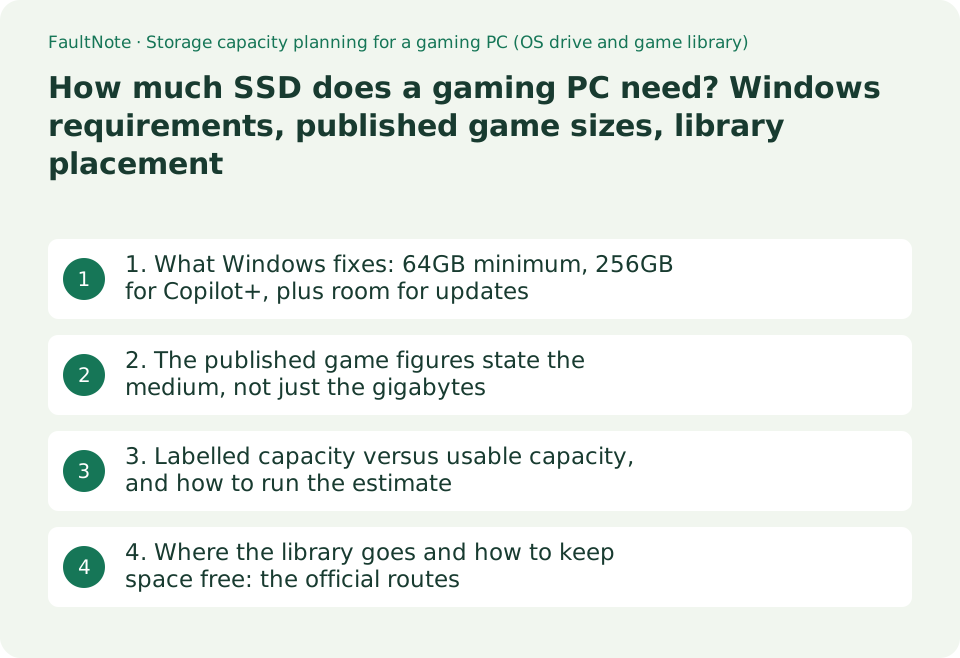
1. What Windows fixes: 64GB minimum, 256GB for Copilot+, plus room for updates
The OS is the base. Microsoft's Windows 11 specifications page (read on 2026-09-19) gives the storage minimum as "64 GB or larger storage device". The Copilot+ PC section of the same page raises it: "Storage: 256 GB SSD/UFS" alongside "RAM: 16 GB DDR5/LPDDR5". The floor itself depends on the class of machine.
The same page is explicit that these are starting points. It states that "available storage on your device will vary based on installed apps and updates" and that "system requirements to run some apps will exceed the Windows 11 minimum device specifications". Under storage space for keeping Windows 11 up to date it says the size of the operating system and the free space needed to download and install updates are highly variable, and lists the factors: the versions of Windows previously installed on the machine, the free storage available from Windows files that can be reused such as the page file or hibernation file, which applications are installed, and how those applications store data. It adds that when updating, Windows will attempt to free up enough space automatically and guide you through freeing up more if that is not sufficient.
For gaming there is one more line worth reading. The same requirements page states that DirectStorage "requires an NVMe SSD to store and run games that use the Standard NVM Express Controller driver and a DirectX12 GPU with Shader Model 6.0 support". Separately from capacity, where you put the games becomes a condition for the feature.
So the OS side of the estimate is not "64GB" but "Windows and resident apps, plus a variable amount of headroom for updates". This guide does not assert a recommended headroom figure, because Microsoft lists the variables without publishing a number. The reliable way to see your own figure is the storage page in Windows Settings.
Scroll horizontally to see the full table →
| Item | What Microsoft publishes | Effect on capacity planning |
|---|---|---|
| Windows 11 minimum | 64 GB or larger storage device | The OS floor only; games are added on top |
| Copilot+ PC requirement | 256 GB SSD/UFS, 16 GB DDR5/LPDDR5 | The floor differs by class of machine |
| Free space for updates | "Highly variable"; factors listed include previous Windows versions, reusable files such as the page file, installed apps and how they store data | Cannot be estimated as a fixed number; plan for headroom |
| Behaviour when updating | Windows attempts to free space automatically and guides you to free more if needed | Running a drive at full is a plausible cause of update trouble |
| DirectStorage | Requires an NVMe SSD to store and run such games, plus a DX12 GPU with Shader Model 6.0 | Where games live becomes a feature condition |
| Application requirements | Some apps exceed the Windows 11 minimum specifications | Check each game's published figure (next section) |
2. The published game figures state the medium, not just the gigabytes
Developers and publishers publish the requirement themselves. CD PROJEKT RED's support page (read on 2026-09-19; the page showed created six years ago, updated eight months ago) states that the requirements below apply to both the base game and Phantom Liberty starting with Update 2.0, and lists storage as "70 GB SSD" for minimum and recommended, "70 GB NVME" for Ultra, "70 GB SSD" for ray tracing minimum, and "70 GB NVME" for ray tracing recommended and ray tracing Overdrive. The capacity stays at 70 GB while the medium moves from SSD to NVMe as the preset rises.
The same page also keeps the version 1.63 requirements. There the minimum reads "70 GB HDD (SSD recommended)" with recommended and above at "70 GB SSD". The capacity did not change, but the minimum medium moved from HDD to SSD - visible by comparing two tables on one page. It is a concrete example of the fact that a machine which runs a game today is not guaranteed to meet the same conditions after updates.
Some titles are simply large. Larian Studios' official Baldur's Gate 3 FAQ gives both the minimum and the recommended PC requirement as "Storage: 150 GB available space", and the same figure for macOS. The wording matters: 150 GB of free space is required for the installation, which is not the same as saying the finished install occupies exactly that. Unpacking a download can temporarily consume more, so a drive filled to the brim stalls the job.
Those two titles already show the spread. A 1TB drive holds roughly ten 70 GB-class games, but mixing in 150 GB-class titles nearly halves the count. Whether you rotate three to five games or keep a whole series installed changes the requirement by more than a factor of two. Each figure is published on the maker's support page and changes with updates, so read it at the time you buy.
Scroll horizontally to see the full table →
| Title (publisher) | Condition | Published storage requirement |
|---|---|---|
| Cyberpunk 2077 (CD PROJEKT RED) | Minimum / recommended from Update 2.0 (base game and Phantom Liberty) | 70 GB SSD |
| Cyberpunk 2077 | Ultra, ray tracing recommended, ray tracing Overdrive | 70 GB NVME |
| Cyberpunk 2077 | Version 1.63 minimum, still shown on the same page | 70 GB HDD (SSD recommended) |
| Baldur's Gate 3 (Larian Studios) | PC minimum and recommended | 150 GB available space |
| Baldur's Gate 3 | Mac minimum and recommended | 150 GB available space |
| What it shows | Same capacity, different medium; "available space" is headroom needed in advance | 70 GB-class and 150 GB-class titles differ twofold in how many fit |
3. Labelled capacity versus usable capacity, and how to run the estimate
First, the units. A "1TB" drive means 1,000,000,000,000 bytes in decimal, while Windows Explorer reports in binary units (1 GB = 1,073,741,824 bytes). A 1TB SSD therefore shows as about 931GB (1,000,000,000,000 divided by 1,073,741,824 is about 931.3; calculated here). 2TB shows as about 1,863GB and 500GB as about 465GB. The roughly ten percent shortfall against the box is a difference of unit systems, not a fault or an exaggeration.
The procedure is then simple. (1) Convert the labelled capacity as above. (2) Subtract Windows and your resident applications. (3) Add the published requirement of every title you want permanently installed. (4) Leave headroom for updates, caches and working space. Since Microsoft describes the update requirement as highly variable, no single headroom figure can be asserted - but running with a few gigabytes left means clearing space before every update or installation.
A worked example: on a 1TB drive (about 931GB shown), Cyberpunk 2077 (70 GB) and Baldur's Gate 3 (150 GB) come to 220 GB. If Windows and resident apps take a notional 100 GB, about 611 GB remains, which is roughly eight more 70 GB-class titles. All of that is plain addition done here; actual consumption moves with save data, shader caches, DLC and updates. On a 500GB drive (about 465GB shown) the same two games plus 100 GB leave about 145 GB, which means a rotating library.
The other fork is one drive or two. A desktop with two M.2 slots can keep the OS on one drive and the game library on another. Laptops often have a single slot, which makes a capacity increase a replacement rather than an addition - our guide to laptop expandability covers how to read the Storage Slot row. Checking the slot count before buying changes what your options are when the drive fills up.
Scroll horizontally to see the full table →
| Labelled capacity | Shown in Windows (calculated here) | Rough count of 70 GB-class titles | Note |
|---|---|---|---|
| 500GB | about 465GB | about 5 after subtracting 100 GB for the OS | Usually means a rotating library |
| 1TB | about 931GB | about 11 after subtracting 100 GB | Adding one 150 GB-class title leaves about 9 |
| 2TB | about 1,863GB | about 25 after subtracting 100 GB | Suits keeping a library permanently installed |
| 4TB | about 3,725GB | about 51 after subtracting 100 GB | Check M.2 slot count and the price step first |
| The arithmetic | labelled TB x 1,000,000,000,000 / 1,073,741,824 | (remaining space) / 70 GB, rounded down | Plain arithmetic; save data and updates are not included |
| Caveat | Decimal labelling versus binary display | Counts are indicative | Published requirements change with updates |
4. Where the library goes and how to keep space free: the official routes
The location can be changed later. Valve's support article "Moving a Steam Installation and Games" states that games install by default to C:\Program Files (x86)\Steam\steamapps\common\, that a Steam library location can be created on any drive from the Storage tab of the Steam client settings, and that already-installed games can be relocated from the same Storage tab by selecting them and clicking Move. Uninstalling and reinstalling is not required.
The same article carries a caution: "It is not recommended that you install Steam to an external hard drive, due to potential performance issues." Offloading to an external drive is the obvious idea when space runs out, but at least for the Steam installation itself it is not recommended. The procedure for moving the whole installation highly recommends backing up the steamapps folder first and having your login details ready, and notes that save data for third-party games is often under the Documents "My Games" folder.
Keeping space free has documented tools on the Windows side. Microsoft's support article on freeing up drive space describes Storage Sense, which automatically removes things like temporary files and Recycle Bin contents, and Cleanup recommendations, where you review Temporary files, Large or unused files, Files synced to the cloud and Unused apps and select what to remove. Our separate walkthrough covers the Storage Sense settings themselves.
Finally, what is out of scope here. The effect of free space on SSD write performance is not covered, because none of the sources above publishes a figure for it (our TLC/QLC and SLC cache guide covers what the datasheets do state). Published requirements also change with updates and DLC: the figures here were read on the makers' pages on 2026-09-19, so open the same pages when you buy.
Scroll horizontally to see the full table →
| Goal | Documented method | Caveat |
|---|---|---|
| Install future games on another drive | Steam settings, Storage tab, "+" to create another library location | Becomes selectable as a destination for later installs |
| Move installed games | Storage tab: select the drive and games, click Move | No uninstall and reinstall needed |
| Move the whole Steam installation | Exit the client, keep steamapps, userdata and steam.exe, move the folder | Valve highly recommends backing up steamapps first |
| Offload to an external drive | - | Valve states installing Steam to an external hard drive is not recommended due to potential performance issues |
| Clear temporary files automatically | Storage Sense | Removes temporary files and Recycle Bin items |
| Find and remove large files | Cleanup recommendations (temporary, large or unused files, synced files, unused apps) | Review each category before deleting |
Limitations and requirements
- The system requirements and storage figures are as published by Microsoft, CD PROJEKT RED, Larian Studios and Valve and read on 2026-09-19. No installation sizes were measured here. Published figures change with updates and DLC, so check the same pages when you buy.
- The capacity conversion (1TB is about 931GB as shown) and the title counts derived from remaining space are plain arithmetic applied here to published figures. Real consumption moves with save data, shader caches, DLC and updates.
- The effect of free space on SSD write speed is out of scope, because none of the sources above publishes a figure for it. Prices, stock, rankings and specific product recommendations are also out of scope.
Frequently asked questions
Is a 1TB SSD enough for a gaming PC?
Add up the published requirements of the games you play. A 1TB drive shows as about 931GB in Windows, because the decimal 1,000,000,000,000 bytes is displayed in binary units (calculated here). Subtract Windows and resident applications, then add each title: CD PROJEKT RED asks 70 GB for Cyberpunk 2077 and Larian asks 150 GB of available space for Baldur's Gate 3. Taking a notional 100 GB for Windows and resident apps, those two leave about 611 GB, or roughly eight more 70 GB-class titles. If you want ten or more permanently installed, or several 150 GB-class games, that is the argument for 2TB.
Can I keep games on a hard drive?
Both the title and the Windows feature set impose conditions. CD PROJEKT RED's requirements for Cyberpunk 2077 from Update 2.0 read "70 GB SSD" at minimum and recommended and "70 GB NVME" for Ultra and the higher ray-tracing presets. The version 1.63 table still on the same page had a minimum of "70 GB HDD (SSD recommended)", so the minimum medium was raised by updates. Microsoft separately states that DirectStorage requires an NVMe SSD to store and run games that use the Standard NVM Express Controller driver, plus a DirectX 12 GPU with Shader Model 6.0 support. So whether a hard drive is acceptable has to be read per title, and some features assume an NVMe SSD.
My C drive is full. Can I move games to another drive?
Valve documents the official route. In the Steam client settings, the Storage tab lets you create a library location on any drive, and installed games can be moved from the same tab by selecting them and clicking Move - no uninstall and reinstall. The same article does state that installing Steam to an external hard drive is not recommended due to potential performance issues. If you move the whole Steam installation, Valve highly recommends backing up the steamapps folder first. For keeping space free afterwards, Microsoft's support article describes Storage Sense and Cleanup recommendations.
Sources and verification date
Sources checked: . These sources support the specifications, procedures or prices discussed here. Check each source for applicable conditions and current information.
Related practical guides
- TLC vs QLC and DRAM vs DRAM-less (HMB): reading post-SLC-cache write speed off the datasheet
- Check a laptop's upgradeability before you buy: soldered memory, M.2 slot count and battery capacity
- Plan Steam libraries across SSDs and choose the right installation drive
- Move installed Steam games to another SSD and check the result
- Make Steam recognize game files that still exist on disk
- Why a 1 TB SSD shows about 931 GB: reconcile bytes and partitions