Make Steam recognize game files that still exist on disk
An Install button does not prove that game files were deleted. Check the drive and library, then start installation at the correct existing location so Steam can detect the files.
Published · Updated · FaultNote editorial policy
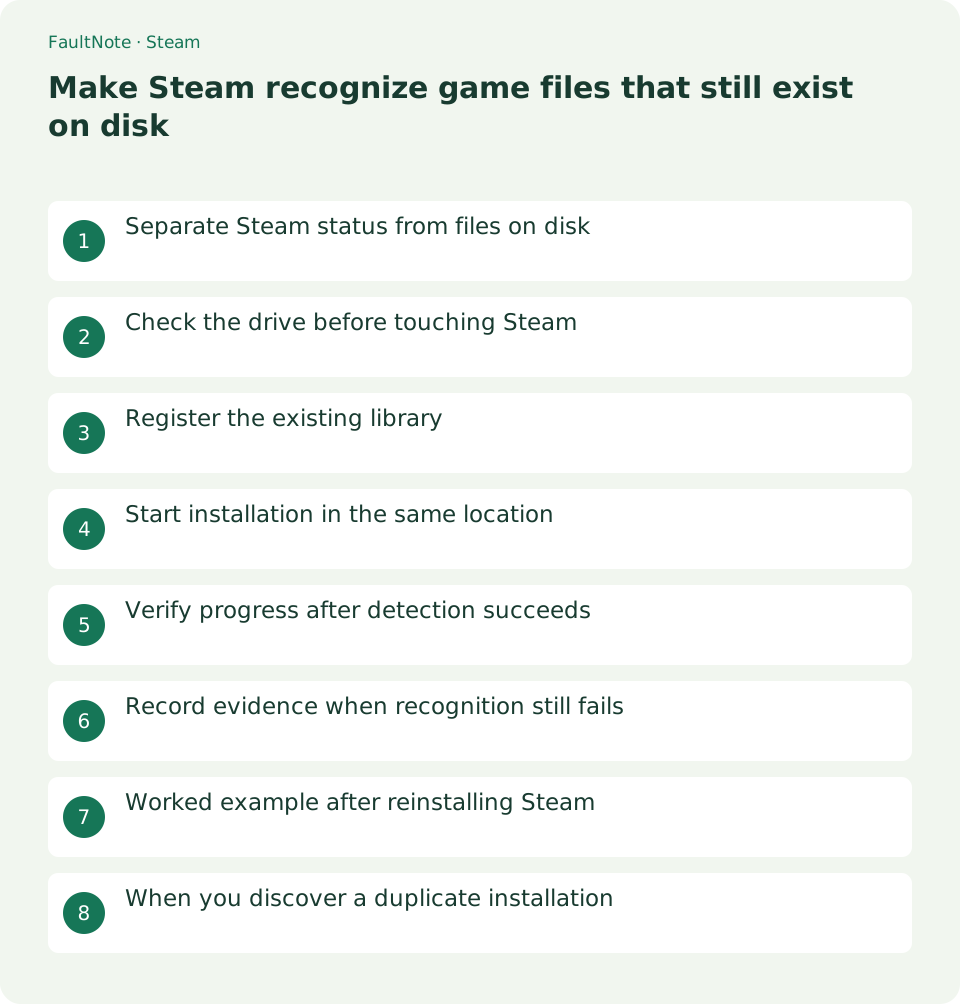
Who this guide is for and what to prepare
- Players whose games appear uninstalled after reinstalling Steam
- Players whose library is missing after reconnecting a drive
What you need
- Keep existing files and important saves, and record their locations
- Confirm that File Explorer can read the drive
Separate Steam status from files on disk
A game can appear uninstalled while files remain in an old library. First inspect its former steamapps directory in File Explorer. Immediate deletion can discard reusable data.
A folder with a similar name is not proof of a complete installation. Compare its approximate size, date and former location. If only saves remain, handle reinstalling the game and protecting progress as separate tasks.
Check the drive before touching Steam
For external or additional drives, check that Windows can read them and whether the drive letter changed. If the problem is a disconnected drive, restore its connection before downloading the game again.
If files produce read errors, do not treat this only as a library-registration issue. Prioritize protecting important data and examining the drive. Avoid repeated large writes to storage that cannot be read reliably.
Register the existing library
In Steam Settings > Storage, check whether the original library is registered. If missing, add the existing library through the drive selector. Creating an unrelated empty folder will not expose the old files.
Select the library that held the game, not the individual game directory. Check whether the list updates afterward. If Install remains, proceed to detection through installation. Interface labels may vary by client version.
- Check registered drives in Settings > Storage
- Add the existing library if it is missing
Start installation in the same location
Valve explains that starting a launch or download can detect installation files when the game folder remains in the correct location. Choose the library containing those files when starting installation.
The process may still download missing content. Watch for existing-file detection and remaining downloads instead of expecting zero traffic. If you selected another drive, check the destination before continuing a duplicate installation.
- Choose Install in Library
- Select the library containing the existing files
- Wait for detection and required downloads to finish
Verify progress after detection succeeds
Once the game appears installed, inspect Installed Files > Browse and launch it. If you need previous progress, check save dates and progress details before loading.
Installation detection and Cloud conflicts are separate issues. If a synchronization warning appears, preserve local saves before choosing anything. An installed status alone does not prove that progress was recovered.
Record evidence when recognition still fails
Record the title, original library, current registration, drive letter and exact error. Repeated manual renaming or manifest editing obscures the situation; first verify the selected location.
If files are genuinely missing, let Steam obtain them while retaining protected saves. Clean up duplicate folders only after checking the correct installation and progress.
Worked example after reinstalling Steam
After reinstalling only the client while games remain on D, first open the original library and confirm the game folder exists and is readable. Starting a new installation on C first can create duplicates.
Register the D library in Storage and, if needed, start installation there. Wait for file detection and verify Browse points to D afterward. Check actual progress because updates may still be needed even when installation files are reused.
Then launch and check previous saves. If missing, check the Windows user and whether saves were migrated into the new environment. Detecting game files does not automatically transfer another user Documents.
When you discover a duplicate installation
If both C and D contain similarly named game folders, establish the Steam Browse path first. One may be old, updating or holding custom files. Size and dates alone are not sufficient grounds for deletion; first identify the active installation.
If a download is still going to the wrong destination, inspect and pause it while checking the intended library. Avoid simultaneous manual copying and moving, which obscure which location Steam can recognize.
Before cleanup, inspect for mods and configuration files needing protection. Copy these and verify the active installation through Steam. Retaining the old folder temporarily until progress is checked makes reversal easier.
Scroll horizontally to see the full table →
| Situation | Next branch |
|---|---|
| Windows cannot read the drive | Investigate drive health or connection first |
| Files exist, library unregistered | Register the original library |
| Library registered, Install shown | Start detection at the same location |
Limitations and requirements
- Do not delete existing folders based only on an uninstalled status
- Check save recovery separately from installation detection
Frequently asked questions
Do existing folders guarantee no downloads?
Missing or updated files may still be downloaded. Check the detection status and actual download activity.
Should I create a manifest manually?
It is unnecessary for this procedure. Start with official library registration and installation at the existing location.
Should I select the individual game folder?
Register the Steam library that held the game, not its individual folder. Identify the location containing the original steamapps rather than creating an unrelated empty library.
Should I detect every game at once?
Try one needed title first to confirm location and detection. Handle remaining games afterward and watch capacity and bandwidth if multiple downloads start.
Sources and verification date
Sources checked: . These sources support the specifications, procedures or prices discussed here. Check each source for applicable conditions and current information.
Related practical guides
- Move installed Steam games to another SSD and check the result
- Plan Steam libraries across SSDs and choose the right installation drive
- Find and copy original Steam screenshots before editing
- Back up and restore Steam game files while protecting saves separately
- Prepare Steam Offline Mode before travel and test the games you need
- Manage Steam game launch options: record, test and remove them