Move installed Steam games to another SSD and check the result
Use Steam Storage to move installations and handle save protection separately. Move one game first, check its new location and loaded progress, then move the remaining titles.
Published · Updated · FaultNote editorial policy
Who this guide is for and what to prepare
- Players moving games off a crowded system drive
- Players who want to reuse installed game files
What you need
- Record source and destination drives, free space and game size
- Copy important saves from the location documented by the game developer
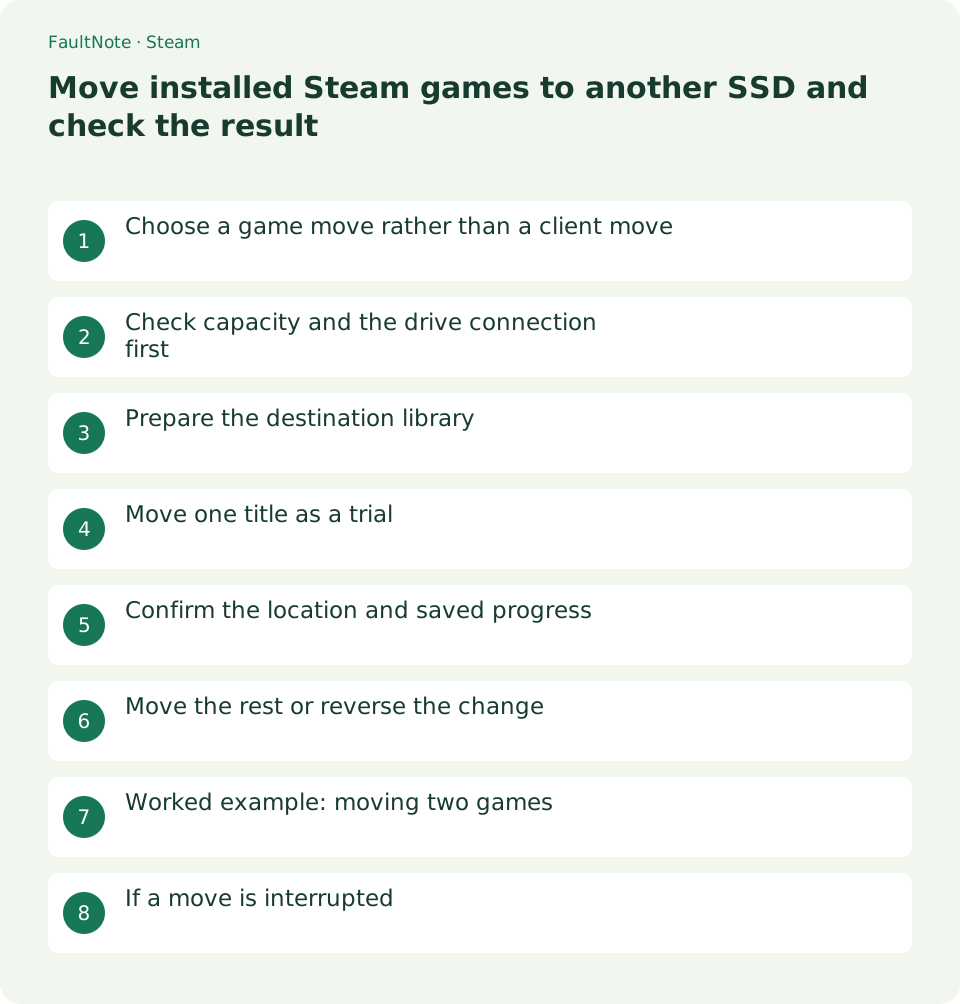
Choose a game move rather than a client move
The Steam client and game library are separate locations. A client on the system drive can use a library on another drive. Valve documents creating a library and moving installed games through Storage.
For example, moving only frequently played large games to a new SSD does not require relocating the client folder. Make a short list of target games before selecting anything.
Check capacity and the drive connection first
Check that File Explorer consistently shows the destination and that it can hold the selected games. Leave room for later updates instead of filling the drive completely. Update working-space requirements vary.
For an external drive, keep its cable and power stable during the move. Valve cautions against installing the Steam client on an external drive; that statement does not guarantee performance for an external game library.
Prepare the destination library
Open Steam Settings > Storage and add the destination through the drive selector. Labels and button placement can change with client updates, so confirm the drive letter and folder shown on screen.
If multiple SSDs have similar names, compare capacity too. If the library cannot be registered, first check whether Windows can read and write the drive; do not start the move yet.
- Add the destination drive in Settings > Storage
- Note the displayed drive letter and free space
Move one title as a trial
Select the source drive in Storage, select one game and use Move to choose the destination. Close the game and its launcher first. Do not copy the same folder manually while Steam is moving it.
Keep Steam open until the move finishes. Do not delete folders because progress looks slow; inspect the operation and drive responsiveness. Duration depends on file count and both drives.
- Choose source, select game, click Move and select destination
- Wait for the completion indication
Confirm the location and saved progress
Use Properties > Installed Files > Browse to inspect the location. Confirm it is on the new SSD, launch the game and load an existing save rather than stopping at the title screen.
Moving game files does not relocate every possible save directory. Games may use Documents or other user folders. Keep the separate save copy until you finish checking the installation.
Move the rest or reverse the change
If the trial works, move the remaining games the same way. Before selecting several, recheck their combined size and destination. Decide on further cleanup only after the moves have completed.
If loading becomes unreliable at the new location and the old drive has room, use Storage to move the game back. Change only the location during this check so that performance or loading differences remain interpretable.
Worked example: moving two games
For two large games, compare their total size with destination space first. Start with the more frequently played title. Load its save before moving, note the progress location, exit normally and retain a protective copy.
After the first move, verify the new SSD through Browse and resume the same slot. If only the first launch is slower, record it and compare another launch. Do not state a percentage improvement without measurement.
Repeat for the second title, then inspect source free space in Storage. If it has not increased, first check that you are viewing the correct drive and that the selected games moved. Do not use a space reading alone as grounds for deleting folders.
If a move is interrupted
After a disconnection, client exit or error, note where files remain on both drives. Deleting both to start over can destroy reusable data. Stabilize the connection and inspect which library Steam recognizes.
If the game launches, use Browse to establish its current location. If it does not and files remain, follow library-registration and existing-file detection steps. Record the move error, title, paths and free space so investigation need not repeat the entire operation.
If only one game loses visible saves, do not assume the move failed. Check the Windows user, Steam account and game profile. Preserve the copy containing important progress and identify the developer save location and Cloud coverage before restoring anything.
Scroll horizontally to see the full table →
| Observation | Next action |
|---|---|
| Correct destination and progress | Move remaining games the same way |
| Installation moved, progress differs | Check saves and accounts separately |
| Move error with files on both drives | Keep files and inspect recognized library |
Limitations and requirements
- Do not delete the source folder before the operation completes
- Check save locations for each game
Frequently asked questions
Must the Steam client move too?
No, if your goal is to relocate game storage. Storage can place game libraries on another drive. Treat relocating the client as a separate task and follow Valve instructions.
Does a move erase my saves?
Installation location and save location are separate concerns. Preserve important saves first, then verify that the same progress loads after moving.
Can the PC sleep during a move?
Keep the PC awake until completion. On a laptop, check power and lid behavior to avoid disconnecting storage. If interrupted, retain files on both sides and inspect the state.
Can I delete an old folder after moving?
First confirm the Steam path, launch and save loading. A similarly named folder may contain another game or custom files; inspect its contents before cleanup.
Sources and verification date
Sources checked: . These sources support the specifications, procedures or prices discussed here. Check each source for applicable conditions and current information.
Related practical guides
- Plan Steam libraries across SSDs and choose the right installation drive
- Make Steam recognize game files that still exist on disk
- Find and copy original Steam screenshots before editing
- Back up and restore Steam game files while protecting saves separately
- Prepare Steam Offline Mode before travel and test the games you need
- Manage Steam game launch options: record, test and remove them