Plan Steam libraries across SSDs and choose the right installation drive
Choose a suitable library for each new game and confirm the location after installation. Clear drive roles help prevent space shortages and unintended installations on the system drive.
Published · Updated · FaultNote editorial policy
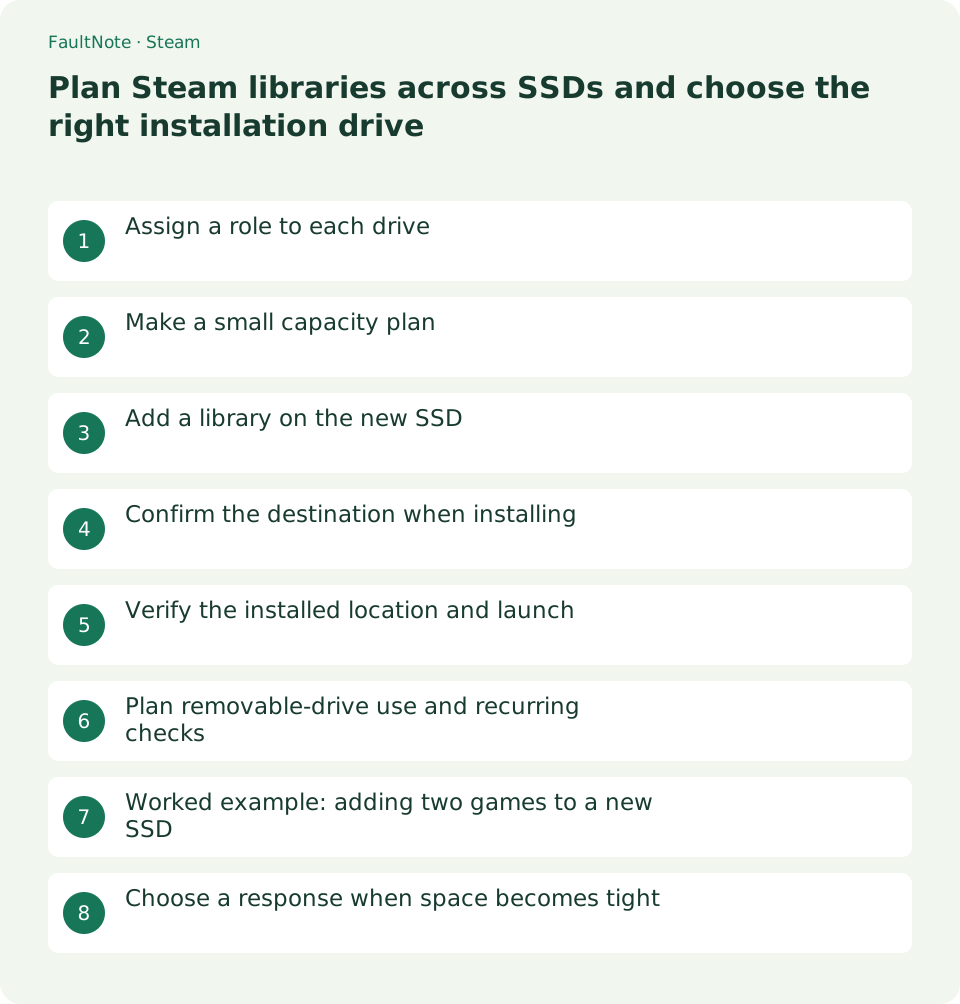
Who this guide is for and what to prepare
- Players who added a game SSD
- Players organizing new games across several drives
What you need
- Check each drive capacity, free space and connection type
- List new games and existing games that need update space
Assign a role to each drive
Before adding libraries, define roles such as system drive for Windows and apps, added SSD for frequently played games. This exact layout is optional; the purpose is to have a reason for each destination choice.
Include space for Windows, recordings and editing, not just game size. Start by directing new installations to the added SSD; handle existing-game moves separately so each operation can be checked clearly.
Make a small capacity plan
Record drive letter, purpose, free space and planned games. For example, D is the new SSD for two upcoming games while C retains existing smaller titles. Displayed sizes are a current planning guide, not a permanent update-size guarantee.
If almost no space would remain, defer another game or change its destination. Update workspace varies between titles; avoid treating a fixed number of gigabytes as universally sufficient and inspect current requirements when space is low.
Add a library on the new SSD
Use the drive selector and add operation in Steam Settings > Storage to register the new SSD. Valve documents using multiple libraries and selecting a destination for new installations.
For similarly sized drives, compare the drive letter against File Explorer. Record the displayed path and available space after registration. If adding fails, first check Windows read and write access.
- Add the new SSD in Settings > Storage
- Confirm the location and capacity match your plan
Confirm the destination when installing
Choose Install for the new game and inspect the destination before starting. Even with a usual preferred location, confirm the drive for this installation. Read the drive name rather than assuming the current default is correct.
If you discover a wrong destination afterward, do not start a competing manual copy. Inspect the state and use Steam management, such as Move after installation is complete. Test the plan with one title first.
- Choose the destination for the new installation
- Recheck the drive letter before starting
Verify the installed location and launch
Open Properties > Installed Files > Browse to inspect the actual folder. If it is on the intended SSD, launch the game and finish first-run setup. Add the installed title to your capacity plan.
A chosen installation drive does not necessarily hold saves or game settings. When planning backups, check the developer save location separately from the installation library.
Plan removable-drive use and recurring checks
For a removable library, connect the drive before using Steam and do not detach it during play or updates. If you plan to leave it behind, consider separately which games remain available without it.
Check available space monthly or before adding a large game. If space is low, uninstall unneeded games or move installations through Steam instead of deleting arbitrary steamapps folders.
Worked example: adding two games to a new SSD
For two games on a new D drive, compare its capacity in Explorer and Steam, list planned sizes and check update headroom. Existing small games on C need not all move; keep this task focused on new-installation destinations.
Register the D library, install one title and verify its Browse path and first launch. Record the installed result before starting the second, making a destination mistake easier to notice.
After both complete, review free space on D and C. Some non-installation data can use the system drive, so a C-space change is not automatically a wrong game destination. Identify growth without manually deleting managed files.
Choose a response when space becomes tight
Separate games you will play soon, unused games and other data such as recordings. Manage games through Steam and inspect personal data before relocating it. Protect progress and authored files rather than deleting everything large.
Before uninstalling, check developer save behavior and copy important files. Do not assume Cloud guarantees recovery after deletion. If you plan to play soon, moving to another roomy library may fit better.
If relying on removable storage, include the need to connect it each time. A library left at home is unavailable while traveling. Combine capacity and use location, for example by keeping travel games on internal storage.
Scroll horizontally to see the full table →
| Observation | Choose |
|---|---|
| Only new games need another SSD | Add a library and choose installation destination |
| Existing titles fill the old SSD | Move through Storage |
| Many games will not be played soon | Consider uninstalling after protecting saves |
Limitations and requirements
- Leave headroom for updates rather than filling the drive
- Do not disconnect removable storage during play or updates
Frequently asked questions
Does each SSD need a separate Steam client?
No. One client can manage multiple libraries and let you choose new-game destinations.
Will saves be on the chosen game SSD too?
Not necessarily. Save locations differ by game and can use user directories such as Documents.
Does adding a library move existing games?
Adding makes a destination available; it does not move existing games. Select it for new installations and use Steam Move separately for existing titles, then check location and launch.
Is free space equal to the displayed game size enough?
Update and working-space requirements vary. Avoid plans leaving almost no space and inspect current installation requirements. A displayed size does not guarantee room for future updates.
Sources and verification date
Sources checked: . These sources support the specifications, procedures or prices discussed here. Check each source for applicable conditions and current information.
Related practical guides
- Move installed Steam games to another SSD and check the result
- Make Steam recognize game files that still exist on disk
- Find and copy original Steam screenshots before editing
- Back up and restore Steam game files while protecting saves separately
- Prepare Steam Offline Mode before travel and test the games you need
- Manage Steam game launch options: record, test and remove them