Fix Windows Update and Save Errors Caused by Low Disk Space
What to do first
Check the cleanup candidates, save the necessary files, and then delete them.
This is a general troubleshooting guide, not an announcement of a current outage.
Affected products and symptoms
- Product
- Windows
- Versions and conditions
- Windows 11 / Windows 10
- Error codes and identifiers
- 0x800700700x800f09220x8007000E
Symptoms
- System drive capacity bar is red
- Update, app installation, and saving fail
Causes and conditions
There is not enough free space on the system drive for temporary update space or normal operation.
Before you start
- Prepare a backup destination
- Check trash and downloads
Precautions
- [Previous Windows installation] Unable to return to previous version after deletion
- Automatic deletion of Downloads is only used when explicitly set.
Tools and official pages used in this guide
Review the official requirements, screen names, and limitations for this procedure.
Step-by-step instructions
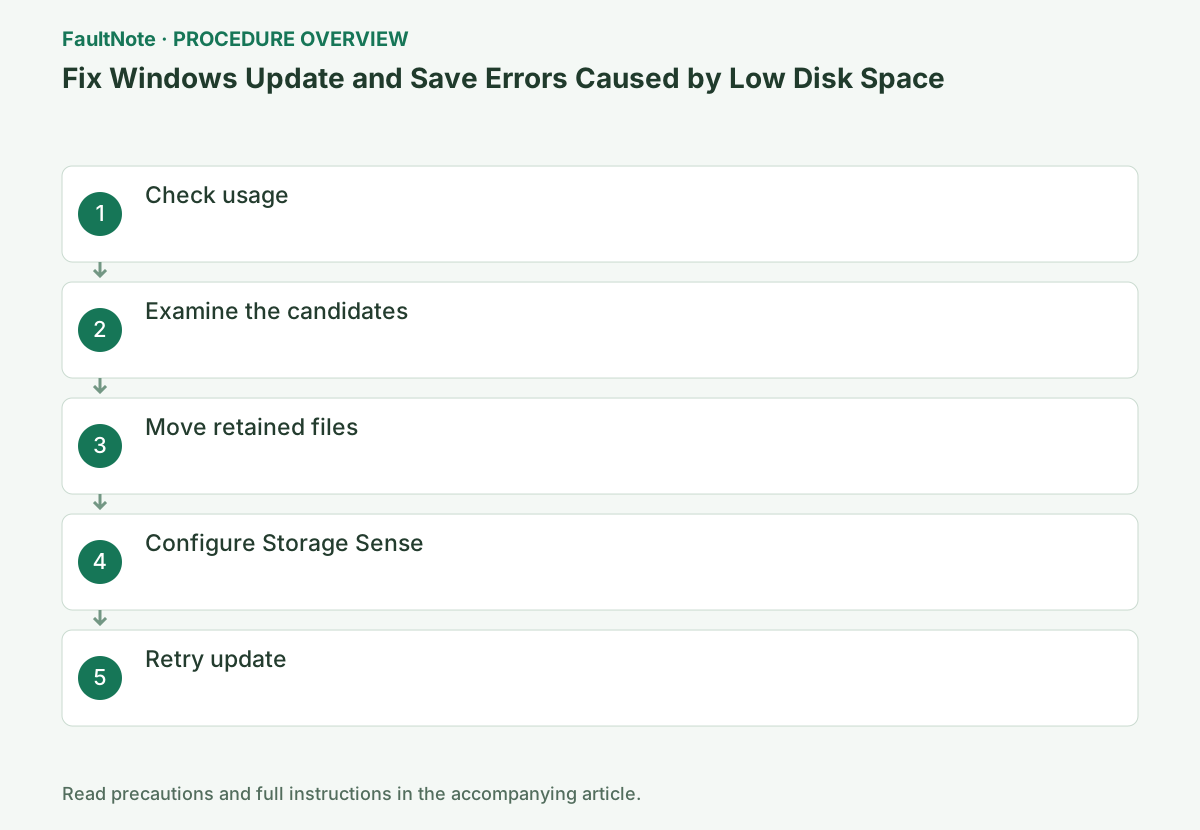
Check space on the Windows drive in Settings > System > Storage and record the update prompt. Free space on another drive may not replace every system-drive requirement. Requirements vary by update and device; use the current prompt rather than one fixed number.
Record free space at failure and after cleanup. A different error after freeing space needs its own investigation. Check storage, back up retained files, clean up, and retry in that order. Do not manually remove system folders during an update.
Open Explorer with Win+E and record the free space displayed in Windows (C:) of [PC]. Next, open Settings > System > Storage in Windows 11 or Settings > System > Storage in Windows 10. Expand categories with large capacity, such as [Apps and Features], [Temporary Files], and [Other], and compare them with the amount required by the update screen. While the capacity display is being aggregated, wait until it is complete.
Open [cleanup recommendations] in Windows 11 or [Temporary Files] in Windows 10. Read the description and capacity of each item, and check the contents of Downloads, Recycle Bin, and Previous Windows Installations first, even if they are automatically selected. Remove the necessary files from the list, and then select [Cleanup] or [Delete files]. After processing, return to the storage screen and see if the free space has increased.
Read each temporary-file category and identify personal-data categories such as Downloads. Do not select everything merely because it is large. Copy retained documents/photos/videos elsewhere and open the copies before removing originals. Inspect the Recycle Bin before emptying it.
Use an app uninstall procedure instead of manually deleting Program Files folders. Preserve licensing and settings needed for reinstallation. Read descriptions for cleanup that removes rollback files; judge recovered space separately from the recovery options lost.
If the [Other] or user folders in [Storage] are large, copy files whose contents can be determined by yourself, such as photos and videos, to external storage. Open a few files from the destination, verify that the size and contents are correct, then delete the original files and empty the Recycle Bin. Do not manually delete files under Windows, Program Files, and ProgramData.
Official links for this step
- Free up drive space in Windows
Review the official requirements, screen names, and limitations for this procedure.
- Free up drive space in Windows
If you need to prevent it from happening again, open [Storage Sense] on the storage screen. Check the frequency of execution, the number of days before deleting files in the recycle bin, and how long cloud content will be online-only. [Downloads] is affected only if you explicitly select a period, so if you are using it as a storage location, leave it set to [Never]. Check the savings after Run Storage Sense now.
Make sure that the free space on your C: drive meets the requirements on the update screen, then restart your PC. Select Settings > Windows Update > Check for updates to see if the original update passes download and installation. If the error is still 0x80070070, recheck the displayed required capacity. Only if the feature update suggests external storage, connect a USB drive with enough free space and follow the on-screen instructions.
If Windows offers external storage, follow the displayed space and connection requirements. Keep it connected through completion, including restart, and then remove it. Verify important copied files after updating too. Investigate detection first if the external device does not appear.
Confirm the target update in history and recheck system-drive space. If it still fails, retain the update, error, space before/after and external device details. Keep backups through successful completion. Safe temporary cleanup and loss of needed data are different outcomes even if both free space.
Check the result
- The system drive capacity bar is no longer red in Settings > System > Storage, or the update screen meets the required capacity.
- Files transferred externally can be opened at the copy destination
- Update or save operation completes after reboot
If the problem continues
- If the feature update screen suggests external storage, connect a USB device with sufficient space and follow the on-screen instructions.
- If there is a large discrepancy between the [Storage] category and the actual amount used, reconfirm after restarting and ask the administrator to investigate.
- If space is quickly running out, identify sources of large files, apps, and logs by category.
Scope of this guide
Troubleshooting guide — General diagnostic procedures. It does not describe a specific current incident.
Frequently asked questions
Can I delete Windows.old?
Delete it only if you are sure that there is no need to return to the previous version of Windows. Once deleted, it cannot be restored to the original version.
Does Storage Sense also erase Downloads?
By default it does not process Downloads. This only applies if you set the period yourself, so check the settings.
Does free external storage remove the need for C-drive space?
An update offering external storage can still require additional system-drive space. Follow the conditions displayed on that device and verify the target update completes rather than relying only on external capacity.
Is deleting Downloads safe?
Downloads may contain documents, purchases or installers. Inspect the contents and copy needed files elsewhere, then verify the copies. Appearing in a cleanup list does not make every file disposable.
Official sources and dates
Source publication or resolution date: Not specified. Sources checked: 2026-09-05. The check date is not the date the problem first occurred. Interface labels can vary between versions and display languages.