Create an encrypted archive with PeaZip
Combine multiple files into a strongly encrypted archive, then test-extract it to a separate folder to verify the password and contents.
Published · Updated · FaultNote editorial policy
Who this guide is for and what to prepare
- People who want to organize files with passwords
- People who want to use free archive management on Windows, macOS, and Linux
What you need
- Back up the original file
- Check if the recipient can open a 7z or AES-enabled ZIP
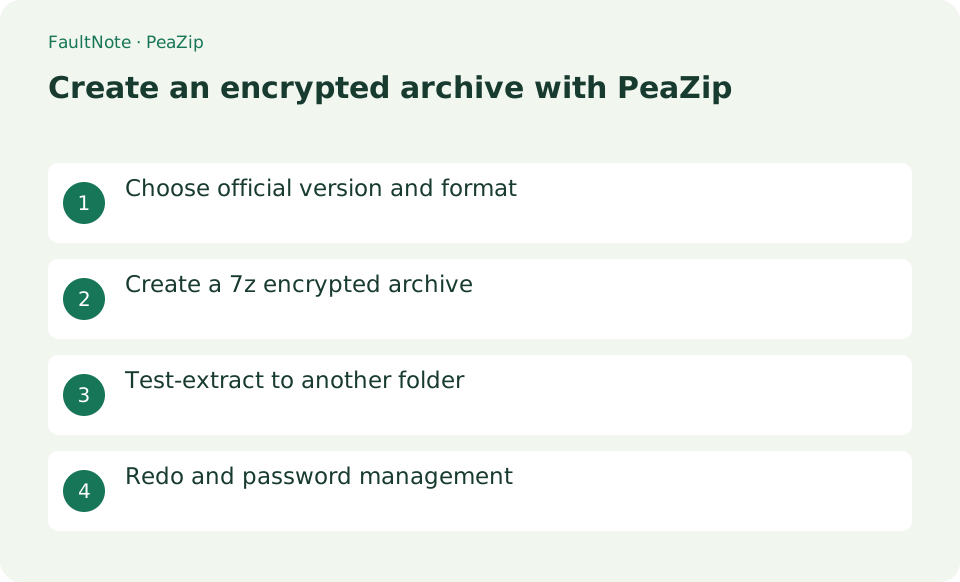
Choose official version and format
PeaZip is free, open-source archive-management software licensed under LGPLv3 and may be used by individuals, businesses, and government organizations. Official packages and portable versions for Windows, Linux, and macOS are available from peazip.github.io. Encryption options include AES-256 for 7z, WinZip AES for ZIP, and authenticated encryption in the native PEA format. When compatibility matters, first confirm which archive formats the recipient can open.
Deliver two documents with hidden filenames
Verify receiving compatibility and filename privacy separately. Originals and extracted copies are not protected by archive encryption. Distinguish test and delivery versions.
- Select only intended documents for Add and inspect extra files.
- Choose 7Z and a separate output, then configure passphrase and filename encryption.
- PeaZip may retain passwords for the session. Quit and relaunch or clear the retained password before checking filename visibility without unlocking.
- Extract to an empty folder and inspect count and content; Test alone does not prove recipient compatibility.
- Verify a small recipient sample, send the password separately and retain originals as needed.
Create a 7z encrypted archive
Select the files in PeaZip and choose [Add]. Set [Format] to 7Z, choose an output path that differs from the originals, and click the padlock icon below the output field. Enter a long, unique passphrase twice. Enable [Encrypt also file names] if filenames must also be hidden. Review the settings, select [OK] to create the archive, and confirm that the original files remain.
- Select the target and press [Add]
- Specify Format as 7Z and output name
- Enter your passphrase twice from the padlock icon
- If necessary, enable [Encrypt also file names] and create.
Test-extract to another folder
Before testing filename visibility or an incorrect password, quit and relaunch PeaZip or clear its retained session password. Check Keep password for current session. Extract into an empty test folder with the correct password and inspect every filename and document. ZipCrypto is weak for confidentiality; verify required protection and recipient AES support.
Choose the next action from the result
Scroll horizontally to see the full table →
| Result or symptom | Decision and next action |
|---|---|
| Names hidden | Verify extracted content and selection separately. |
| Names visible | Check format and filename encryption and recreate rather than rename extensions. |
| Recipient cannot extract | Check format/AES support before weakening protection. |
| Passphrase forgotten | Check stored credentials and originals; recovery is not guaranteed. |
Redo and password management
To change the settings, create another archive under a different name. PeaZip cannot recover a lost archive password. Store the password in a password manager and do not send it through the same email or chat as the archive. After verification, retain the originals securely for as long as required and delete only unneeded test archives.
Limitations and requirements
- Official PeaZip informs you that the distribution package is not code signed and the SHA-256 value, so check the official distribution source and hash.
- Prepare a secure password management method in case your password is lost.
Frequently asked questions
Which should I choose, 7z or ZIP?
If you want to hide file names and use strong encryption, 7z is an easy choice. If the recipient can only use ZIP, check the AES compatibility status and avoid choosing the weak ZipCrypto for sensitive purposes.
Can I use it for free at my company?
The official explanation is that PeaZip is LGPLv3 and is free for personal, business, and government use. However, please check your organization's software installation rules and handling of encrypted files.
Should I automatically delete originals?
Retain originals until receipt and verification, considering password loss and independent backups.
Can everyone open ZIP?
Encryption methods affect support; test a harmless sample instead of inferring compatibility from extension.
Sources and verification date
Sources checked: . These sources support the specifications, procedures or prices discussed here. Check each source for applicable conditions and current information.
Related practical guides
- ZIP vs 7z: Compatibility, Compression, and Encryption
- Windows 11: Create and Safely Extract ZIP Files with Built-in Tools
- Bitwarden vs KeePassXC: Sync and Storage Responsibility
- Diagnose Garbled ZIP Filenames Without Changing the Original
- Try a Short Destination When Game Extraction Hits a Path Limit
- Check Purchased ZIP and 7z Downloads Before Extraction