Combine and split PDFs with PDFsam Basic
Specify the merge order or split points to create new PDFs without uploading files to an external service. Keep the originals and inspect every output file for the correct page order.
Published · Updated · FaultNote editorial policy
Who this guide is for and what to prepare
- People who want to combine multiple PDFs into one
- People who want to divide a long PDF into chapters or pages
What you need
- Copy the PDF to be processed to the working folder
- Check if there is enough free space in the output destination
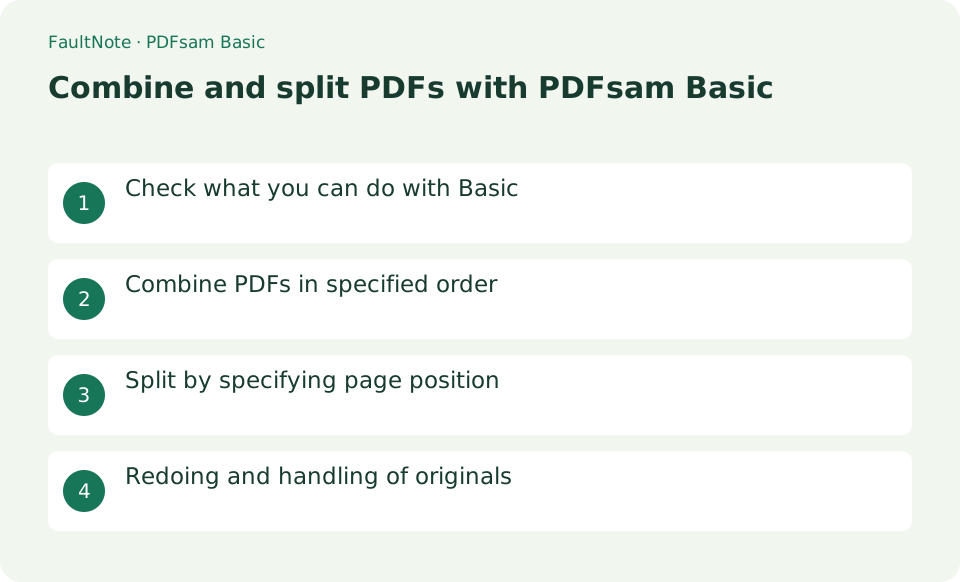
Check what you can do with Basic
PDFsam Basic is free, open-source software licensed under the AGPL. It supports 64-bit Windows 10 or later, macOS 11 or later, and 64-bit Linux. Merging, splitting, extracting, rotating, and alternate mixing all run locally, with no watermark or file-size limit. Visual page reordering, compression, and cropping belong to the paid PDFsam Visual; text editing, conversion, and OCR belong to PDFsam Enhanced for Windows. Because the product names are similar, download specifically from the Basic distribution page.
Combine cover and body into a handout
Combine a cover and body, checking order and boundary pages. Use a separate output and inspect signatures or forms independently.
- Add cover and body in Merge and inspect names, counts and versions.
- Order cover then body and record any Page ranges selection.
- Choose a new Destination file, verify no original collision and run.
- Inspect first, boundary and last pages against the intended selection.
- Test Split separately and inspect every output's boundaries.
Combine PDFs in specified order
Open [Merge] from the home screen and drag in the PDFs. Drag the table rows into the required final order. If needed, enter a page range for each row, such as "1-3,5". Under [Destination file], choose an output path that differs from the originals, then select [Run]. When processing finishes, use [Open] to inspect the generated PDF, especially its first page, each boundary between source files, its last page, and its bookmarks.
- Add PDF to [Merge]
- Arrange rows in order of completion and specify page range if necessary
- Specify the output name and press [Run]
- Check the border pages of the generated PDF
Split by specifying page position
Return to the home screen, open [Split], and select one PDF. Choose the method that fits your purpose: split after every page, after even or odd pages, after specified pages, or every n pages. Set the output folder and filename prefix, select [Run], and open every output file to confirm that no pages are missing or duplicated. Splitting by size is approximate, so check the actual output sizes when you must meet a strict attachment limit.
Choose the next action from the result
Scroll horizontally to see the full table →
| Result or symptom | Decision and next action |
|---|---|
| Order correct | Check content, count and required bookmarks/forms. |
| Boundary wrong | Fix ordering/ranges and export another copy rather than editing originals. |
| Count too low | Compare ranges, inputs and printed versus PDF numbering. |
| Signature invalid | Do not treat reconstructed output as the signed original; follow the required signing workflow. |
Redoing and handling of originals
Merging or splitting normally creates new files and leaves the originals unchanged. If a result is wrong, close and delete only the output, correct the order or split settings, and run the operation again. Password-protected PDFs may require the password. Rebuilding a signed PDF can affect signature validity, so retain the original until the final result has been verified.
Limitations and requirements
- The Basic Windows downloader will display a suggestion for the Enhanced trial version, so unselect it if you don't need it.
- PDFs containing signatures, forms, and bookmarks are individually checked after output.
Frequently asked questions
Can I use PDFsam Basic to perform OCR and text editing?
No. Basic focuses on merging, splitting, extracting, and rotating. OCR and text editing are provided by Enhanced, while visual page organization and compression are provided by Visual.
Will the PDF before division be deleted?
Normally, the file will remain and a new split result will be created in the specified folder. Check that the output name does not conflict with an existing file, and save the original until you can inspect the results.
Are blank pages included?
Included ranges retain blanks; check whether they serve duplex-printing structure before removal.
Can Basic edit text afterward?
Merge is not text editing; correct the source or use an appropriate editing tool.
Sources and verification date
Sources checked: . These sources support the specifications, procedures or prices discussed here. Check each source for applicable conditions and current information.
Related practical guides
- Google Drive Streaming vs Mirroring: Storage and Offline Access
- LibreOffice Writer: Create a Document and Export It as PDF
- SumatraPDF: Read PDFs and E-books Quickly
- Acrobat Standard vs Pro: do you need OCR, redaction or PDF comparison?
- Export One Excel Sheet to PDF with All Columns on One Page Width
- Redact Sensitive PDF Information in Acrobat Pro and Verify the Saved Copy