Share files between Android and PC with KDE Connect
Check each other's device names on Android and PC, pair, send files from the share menu, and manage recipients and permissions.
Published · Updated · FaultNote editorial policy
Who this guide is for and what to prepare
- People who want to send files between Android and PC without a USB cable
- People who want to complete sharing between devices within the same LAN
What you need
- Connect your Android device and PC to the same reliable LAN
- Set different device names for both devices
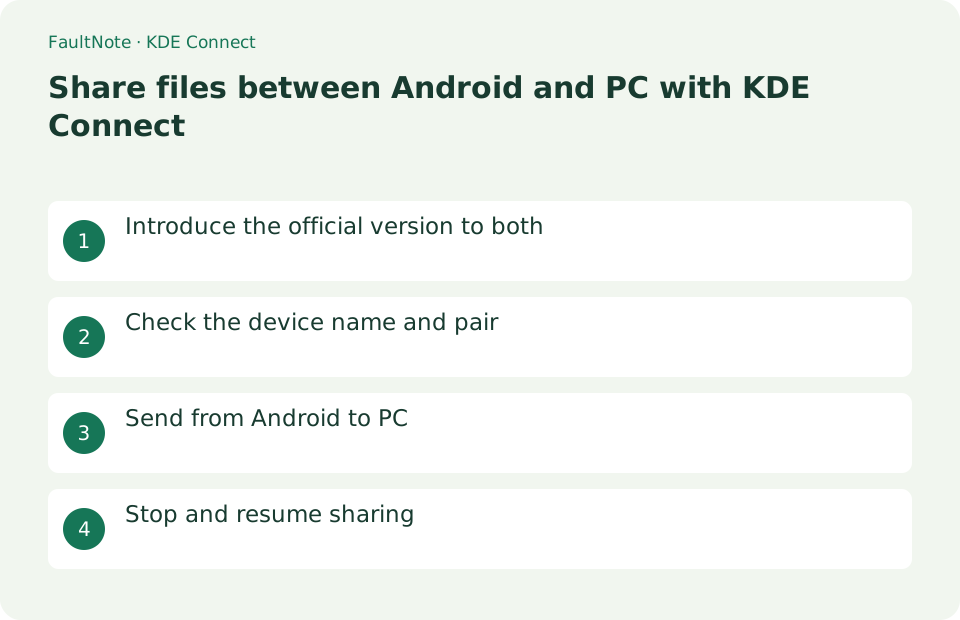
Introduce the official version to both
KDE Connect is free and open source. The Android app is available from Google Play, F-Droid, and Huawei AppGallery. The Windows version is available from Microsoft Store, Chocolatey, or the official offline installer; desktop versions also exist for Linux and macOS. Start KDE Connect on both Android and Windows and grant only the permissions required for the features you intend to use, such as local-network access or notifications.
Pair and use only required features
Pairing enables broader integration than one transfer. Disable unneeded plugins, verify the peer screen and manage received files independently from unpairing.
- Open official apps on one LAN and check workplace authorization where relevant.
- Request pairing and verify the sender on the peer before accepting.
- Disable unnecessary plugins and inspect permissions for the features used.
- Share one photo to the paired PC and open the actual received file.
- Test the reverse transfer if needed and verify unpairing on both devices afterward.
Check the device name and pair
Connect both devices to the same Wi-Fi or LAN. Select the peer and request pairing; verify the sender on the receiving device before accepting. Do not accept unknown public-network requests. For discovery failures, inspect guest-network isolation and VPN routing. Temporarily disconnect a personally managed VPN only where authorized; consult the administrator for managed connections. Keep the firewall enabled and inspect KDE Connect-specific permissions on a trusted network.
- Connect both devices to the same LAN
- Select the correct device name from the list
- Press [Request Pairing]
- Verify the requesting device's name on the other device and select [Accept]
Send from Android to PC
In Android's Files or Photos app, select a file, choose [Share], select KDE Connect's [Send to Device], and choose the paired PC. When Windows shows a completion notification, inspect the filename, size, and contents in the Downloads folder. To send from Windows, right-click the KDE Connect icon in the notification area and choose [Device name] > [Send a file/URL] > [Send File], then select the file. Open it from the Android notification or Downloads folder to verify it.
Choose the next action from the result
Scroll horizontally to see the full table →
| Result or symptom | Decision and next action |
|---|---|
| Pairing succeeds | Enable only required features; pairing is not approval of every capability. |
| Peer absent | Check LAN isolation, apps and permissions without disabling a managed VPN unilaterally. |
| Only completion notice | Find and open the actual received file. |
| File remains after unpair | It is an independent received copy; manage retention separately. |
Stop and resume sharing
To stop sharing temporarily, close KDE Connect on each device. If the devices no longer need to trust each other, select [Unpair] in the device settings and confirm the change on both Android and Windows. Disable KDE Connect's automatic startup in Windows and turn off plugins you do not need, such as notification sync or clipboard sharing. Unpairing does not delete received files, so remove or organize them separately in their save folders.
Limitations and requirements
- Do not accept pairing requests from public Wi-Fi or unknown devices
- Clipboard and notification sync transfers their contents to the paired device, so enable only the plugins you need
Frequently asked questions
I can't find my device even though it's the same Wi-Fi
Check guest-network isolation, VPN routing and application-specific permissions. Test without a personal VPN only where authorized. Do not change managed connections or network classification without permission or disable the entire firewall.
Will received files also be deleted if pairing is canceled?
It won't disappear. What is broken is the trust relationship between devices. Delete received files from your PC or Android's Downloads as necessary.
Is clipboard content shared too?
It depends on plugins, permissions and OS support; disable unneeded sharing before copying secrets.
Should I unpair after one-time use?
If ongoing integration is unnecessary, verify unpairing and review autostart, managing files separately.
Sources and verification date
Sources checked: . These sources support the specifications, procedures or prices discussed here. Check each source for applicable conditions and current information.
Related practical guides
- Windows 11: Manage Phone Notifications, Photos, and Calls on Your PC
- Use your phone as a webcam, or buy one? What Windows 11 documents, and what it does not
- LocalSend: Transfer Files Between Devices on the Same LAN
- Syncthing: Sync a Folder Directly Between Two Devices
- FreeFileSync: Compare Folders and Create a Mirror Backup
- External SSD vs HDD for backups: capacity, speed and portability