FreeFileSync: Compare Folders and Create a Mirror Backup
FreeFileSync synchronization can delete and overwrite files. Establish the role of each side, inspect Compare results before synchronizing, and configure Versioning in a separate folder when you need retained versions. Test restoring a sample file before using the setup for important work.
Published · Updated · FaultNote editorial policy
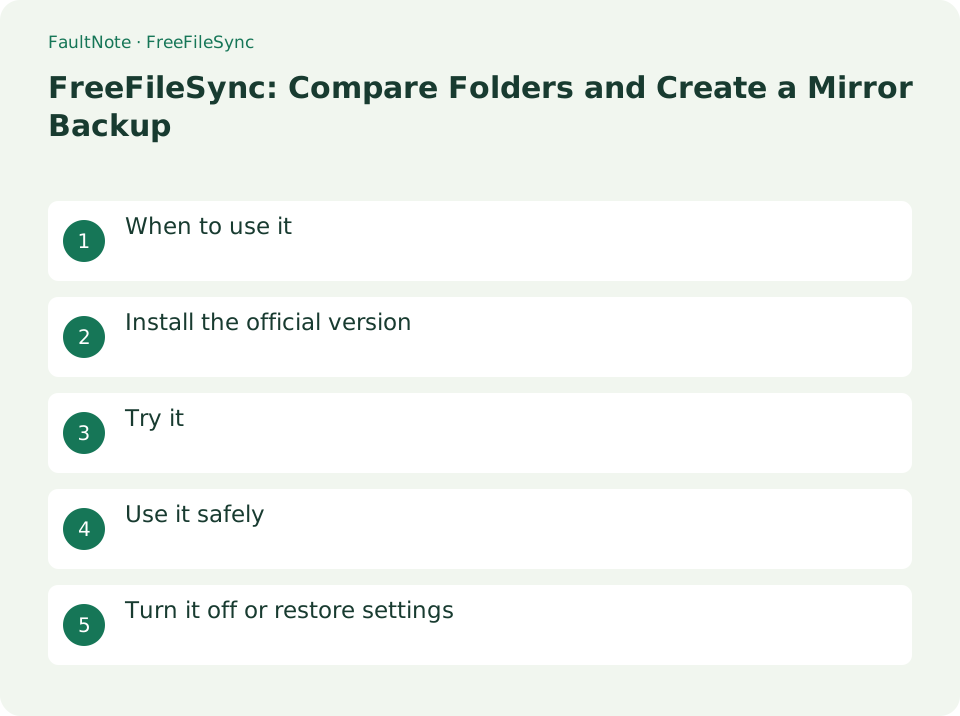
Who this guide is for and what to prepare
- People copying working folders to an external drive
- People choosing between Mirror and Two way synchronization
What you need
- Record the left source and right backup paths. Start with disposable test folders.
- Check space for both backup copies and retained versions. Protect important originals separately.
1. Choose a variant by its effects
Mirror makes the right side match the left and can delete right-only files. Two way propagates changes and deletions in both directions. Update avoids propagating source deletions to the target, but can still overwrite existing files.
- For a dedicated backup, plan to keep everyday editing out of the right-side destination.
- Choose a synchronization variant and inspect the displayed copy, update, and deletion directions.
Restore an earlier document to a third folder
Use source, mirror and separate restoration folders. Keep version storage outside sync roots. Compare first; cancellation does not necessarily undo completed changes.
- Create a before document and empty destination and verify Mirror direction.
- Confirm copy direction in Compare and resolve unexpected operations before syncing.
- Choose Versioning outside roots and timestamp naming, noting Replace does not retain multiple generations.
- Verify the first copy, edit the source to after and compare before updating.
- Restore before into a third folder and inspect it without overwriting current work.
2. Compare a small test first
Keep comparison separate from execution. Identify each side using its folder name and contents, not just its drive letter.
- Place two short documents in a test source and select an empty test destination on the right.
- Run Compare and confirm that the planned actions are copies from left to right.
- If unexpected deletions or reverse updates appear, stop and correct the paths or variant before comparing again.
3. Retain versions before overwriting
Versioning can move deleted or overwritten files into a specified history location. Replace can replace a previous retained copy with the same name; choose a timestamp style when you need multiple versions.
- Select Versioning under deletion handling and choose a history folder outside both synchronization roots.
- For example, choose Time stamp [Folder] to retain original filenames inside dated folders.
- If you enable age or count limits, check that they cover your required recovery window.
4. Verify copying and restoration
Test restoration into a third folder instead of overwriting the source. Open the content to verify more than the presence of a filename.
- Review the test comparison, synchronize, and open the destination documents.
- Add different text to a source test document, compare again, inspect the planned update, and synchronize.
- Copy the previous version from the history destination into the restore-test folder and verify that it opens with its earlier content.
Choose the next action from the result
Scroll horizontally to see the full table →
| Result or symptom | Decision and next action |
|---|---|
| Only copies planned | Test copies and then restoration, not comparison alone. |
| Right-only deletion planned | Expected for Mirror; preserve right-side work before proceeding. |
| Earlier version absent | Check versioning, path and retention and inspect actual versions. |
| Operation cancelled midway | Inspect logs and both sides and Compare again; completed changes may remain. |
5. Save a reviewed setup
A saved configuration still needs review if drive locations or working folders change. Stopping synchronization does not automatically undo changes that have already completed.
- After the test succeeds, configure the real source, destination, and history paths, then compare.
- Inspect planned deletions and updates, then save the configuration with a recognizable name.
- Keep another backup of important data instead of relying only on a continuously connected synchronization target.
Limitations and requirements
- A history folder inside a synchronization root can be included in later operations. Keep it outside both roots.
- Update is not protection against every mistake. Review overwrites and incorrectly selected targets separately.
Frequently asked questions
Does Mirror keep older files automatically?
Mirror alone makes the destination match the source. Configure a retention method such as Versioning and verify restoration if you need older content.
Should I use Two way for backup?
It suits workflows edited on both sides, but can propagate deletions from either side. For a one-direction copy, choose a variant whose direction and deletion behavior match that goal.
Can version storage be inside the mirror?
Keep it outside both roots to avoid version files becoming sync inputs.
What if I ran the wrong production job?
Stop further actions, inspect logs/files/versions and verify recovery copies before choosing restoration.
Sources and verification date
Sources checked: . These sources support the specifications, procedures or prices discussed here. Check each source for applicable conditions and current information.
Related practical guides
- Syncthing: Sync a Folder Directly Between Two Devices
- External SSD vs HDD for backups: capacity, speed and portability
- NAS vs cloud backup: costs, recovery time and maintenance
- OneDrive vs Backblaze: Which Do You Need for PC Backup?
- CMR vs. SMR Hard Drives: Tell Them Apart by Model Number for NAS, RAID and Backup
- Sync vs Backup: Recovering from Accidental Deletion