LocalSend: Transfer Files Between Devices on the Same LAN
LocalSend sends a copy of selected files to another device on a local network. Confirm the recipient and destination, transfer one small file, and inspect the received copy before sending a larger batch. Treat this as an explicit transfer, rather than ongoing folder synchronization.
Published · Updated · FaultNote editorial policy
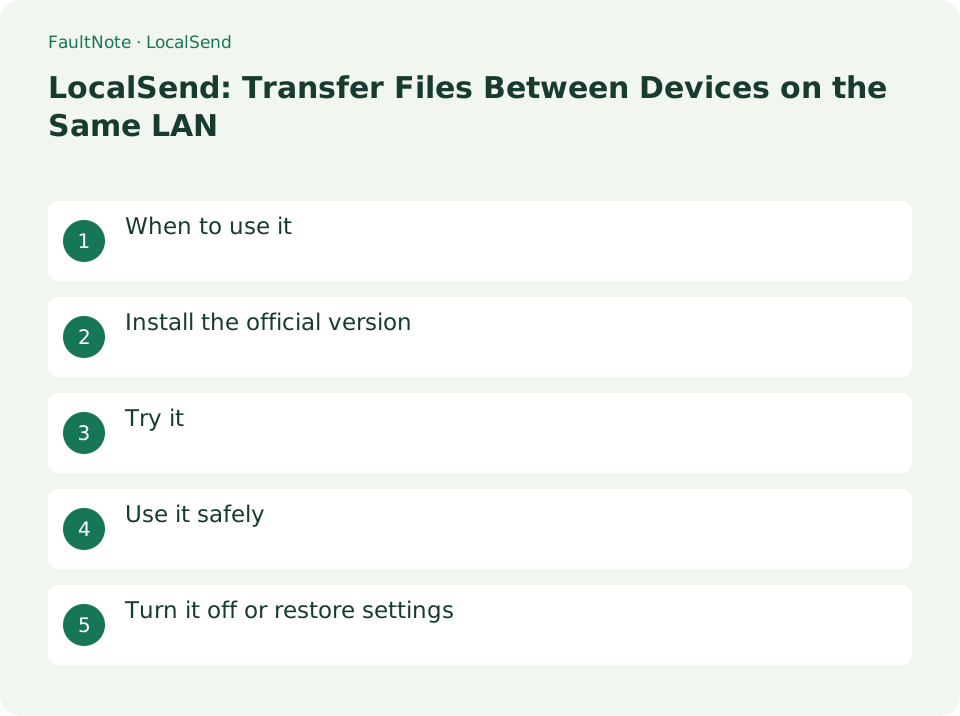
Who this guide is for and what to prepare
- People moving photos or documents between a computer and a phone
- People who want a transfer without cloud uploads or account creation
What you need
- Install the official LocalSend app on both devices and check the receiver's free space.
- Use the same trusted LAN, such as your home network, and prepare a small non-sensitive image.
1. Identify the receiver and its destination
No account or external server is required, but the other device must be available in the app. Establishing the destination first makes a large transfer easier to verify.
- Open LocalSend on both devices and compare the receiver's displayed device name.
- Check the receiver's destination setting. Downloads is the default, but use the location actually configured on that device.
Transfer ten photos to another device
Send one photo first, then the rest. Completion does not prove all ten were selected; compare received files. Source deletion is a separate decision.
- Compare device names and inspect destination and free space.
- Send one image and verify sender and filename before accepting.
- Open the received file and verify content, orientation and name.
- Send the remainder and compare counts and same-name handling.
- Open representative files, close apps and handle source cleanup separately.
2. Test the transfer with one file
If nearby devices have similar names, verify the recipient while looking at its screen. Keep the original file throughout the transfer.
- Open the sending screen and select one small image.
- Select the verified device, then approve the request on the receiver after checking the sender and filename.
- Open the received image from its destination and check its content and orientation.
3. Send a batch and verify the copies
A completed transfer does not prove that every intended file was selected. Check the destination listing for omissions and the handling of duplicate names.
- Select the required files and send batches that fit the receiver's available storage.
- Compare the received listing and file count, then open a few representative images or documents.
- Close the apps after locating the saved copies. Decide separately whether to remove any originals after verification.
4. Check discovery failures in order
Devices can share a Wi-Fi name yet be isolated by guest-network or access-point settings. Separate a discovery failure from a transfer failure.
- Keep both apps open and verify the LAN. On iOS or macOS, check LocalSend's local-network permission.
- On a network you administer, check client-isolation rules. Mark a Windows network private only when you trust it.
- If necessary, inspect firewall permissions limited to LocalSend. Its documented default listening port is TCP/UDP 53317; opening a router port to the internet is unnecessary.
Choose the next action from the result
Scroll horizontally to see the full table →
| Result or symptom | Decision and next action |
|---|---|
| Device appears | Confirm the receiving screen as well as its label. |
| Peer absent | Check LAN, running apps and local permissions without exposing external ports. |
| Request arrives but save fails | Check destination, space and permissions separately from discovery. |
| Count is short | Identify omitted or failed selections before resending. |
5. Keep recipient checks and updates routine
Recipient verification remains part of each transfer. Avoid choosing an unfamiliar device or removing protection from the entire network to speed up setup.
- Review receiving confirmation and PIN options, and inspect each request on a shared network.
- Check updates through the official distribution channel. The app does not update itself, so review updates from your store or package manager.
Limitations and requirements
- LocalSend is not a versioned backup system. Keep important originals backed up separately.
- Check administrator rules for VPN or guest-Wi-Fi restrictions instead of disabling protection globally.
Frequently asked questions
Does the transfer need an internet connection?
The transfer itself works over a local network. Downloading or updating the app can require internet access.
Does sending remove the original?
Sending transfers a copy. Inspect the received content and decide separately whether to keep the original.
Can I send to a device in another home?
This workflow uses one LAN; choose another sharing method for distant devices rather than exposing a router.
Can I delete the source photos?
Verify all required files and backup needs before deciding; transfer completion alone is insufficient.
Sources and verification date
Sources checked: . These sources support the specifications, procedures or prices discussed here. Check each source for applicable conditions and current information.
Related practical guides
- Syncthing: Sync a Folder Directly Between Two Devices
- FreeFileSync: Compare Folders and Create a Mirror Backup
- External SSD vs HDD for backups: capacity, speed and portability
- NAS vs cloud backup: costs, recovery time and maintenance
- Bitwarden Free vs Premium: sync, authentication codes and emergency access
- OneDrive vs Backblaze: Which Do You Need for PC Backup?