Windows 11 search cannot find files or does not update results
What to do first
For missing search results, check Classic/Enhanced scope and exclusions, then wait for completion. Rebuild only if the scope is correct but old results persist.
This is a general troubleshooting guide, not an announcement of a current outage.
Affected products and symptoms
- Product
- Windows 11 Search Indexing
- Versions and conditions
- Windows 11
Symptoms
- Existing files do not appear in Start or File Explorer search
- Old results remain after files are moved or renamed
- Content cannot be searched in a particular folder
Causes and conditions
Possible causes include locations outside the Classic search scope, excluded folders, initial indexing in progress, or inconsistent index information.
Before you start
- Record the missing file's full location and name
- Confirm that you can open it directly in File Explorer
- Check whether it is encrypted or cloud-only
Precautions
- Enhanced mode may use more power and CPU
- Repeated rebuilding prolongs the period of incomplete search results
- Do not carelessly add confidential folders to the search scope
Tools and official pages used in this guide
Check the official requirements, screen names, and limitations for this procedure.
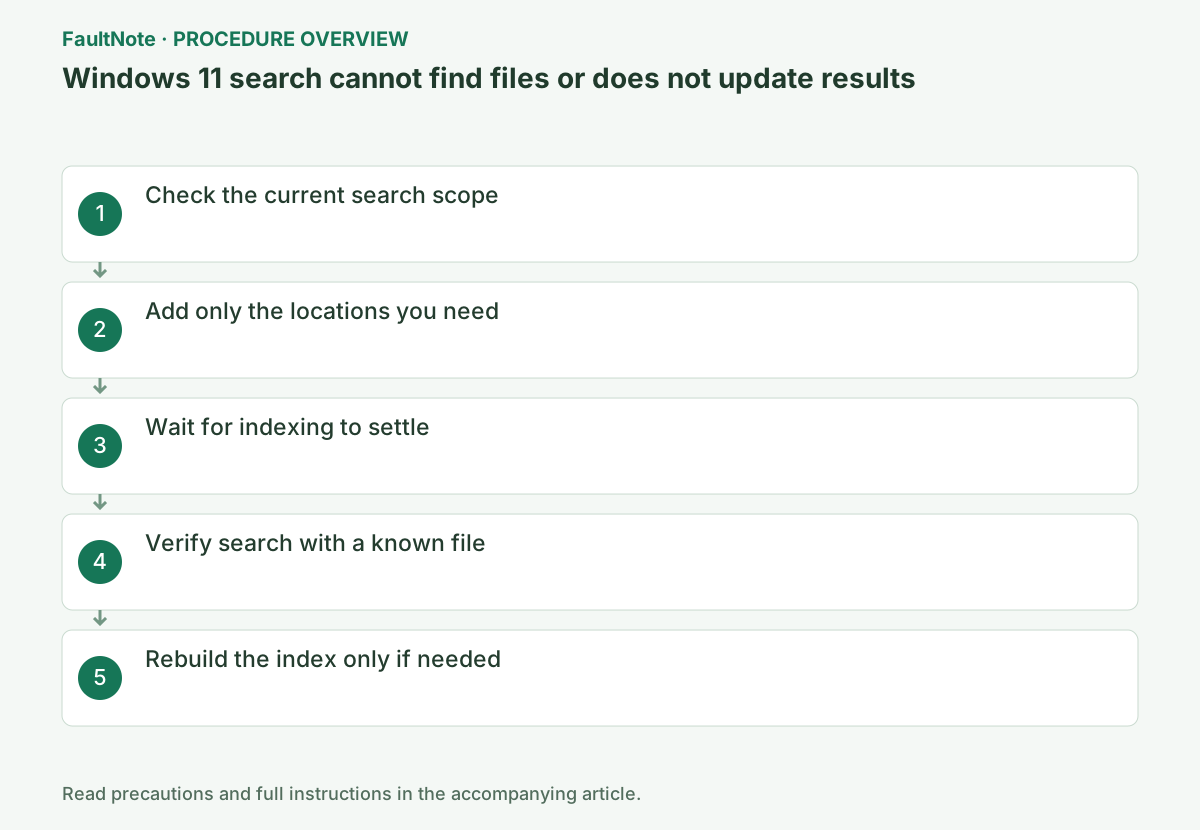
Step-by-step instructions
Open the storage folder directly and confirm the file exists. Another user folder, external drive or moved location may not be an indexing fault. Confirm access to cloud files too. Rebuilding an index is not file recovery.
Distinguish missing filename results from missing content-word results. Verify the actual name to avoid a typo. Content search depends on format and indexing settings; do not assume identical full-text support for every format. Record location, type, term and search surface.
Open Settings > Privacy & security > Searching Windows and check whether Find my files is set to Classic or Enhanced. Classic mainly covers Documents, Pictures, Music, and Desktop by default.
First open the folder directly in File Explorer and confirm that the file actually exists. Rebuilding the index will not restore a moved or deleted file. Also note whether it is an online-only OneDrive file or stored locally.
To keep using Classic, select Customize search locations > Modify and choose the folder. Select Enhanced only if you need the whole PC, and check that the target is not under Exclude folders from enhanced search.
Under Modify, expand the folder tree, check only the intended folder, and click OK. Adding other drives or large development folders together expands the workload, so first try only the location where files are missing from search.
Check indexing status on the same screen. Initial indexing or scope changes can take several hours, so connect AC power and continue normal use. Do not repeatedly rebuild while processing is underway.
Official links for this step
- Search indexing in Windows
Check the official requirements, screen names, and limitations for this procedure.
- Search indexing in Windows
Save a small non-private test document with a distinctive name in the target folder. Confirm that the scope includes it. If found while the original is missing, investigate original type/name/location differences. If both fail, inspect scope and indexing state first.
For content search, review the file type in Advanced Indexing Options for properties-only versus content indexing. Record original settings before changing them. Opening the dialog differs from completed indexing; inspect status before retesting. Repeated rebuilds make comparisons harder.
Create a small text file with a unique name in the target folder and search for its filename. If you need content search, check how its extension is handled under Customize search locations > Advanced > File Types.
If the scope is correct but old or missing results persist after indexing completes, select Customize search locations > Advanced > Index Settings > Rebuild. Search results will be incomplete until it finishes.
Approving the Rebuild confirmation recreates the existing index, so results may temporarily become fewer. It does not delete the original files. Wait for completion, search for the known filename again, and do not repeatedly press Rebuild.
After indexing, retry the same filename and content term and record which improved. Confirm a result belongs to the intended location rather than a similar copy. Remove the test document when finished and restore unnecessary scope changes.
For continued failure, provide existence/location/type/term, indexing completion and setting changes. Include filename-success/content-failure differences. Missing data calls for backups or app recovery, not repeated index rebuilding as a recovery operation.
Check the result
- The uniquely named test file appears in search results
- Results show the current location after moving or renaming a file
- Indexing status shows completion
If the problem continues
- For cloud-only files, check sync status and the service's own search
- If only search inside a particular app fails, investigate that app's indexing integration
Scope of this guide
Troubleshooting guide — Ensure that the folder is indexed and that known filenames and text within files appear correctly in results.
Frequently asked questions
Does Enhanced always enable content search?
It broadens the locations searched, but file-format filters, encryption, or cloud status may prevent content from being indexed.
Can I search during rebuilding?
Yes, but results may be incomplete or slower until it finishes. Let processing finish without interruption before assessing the results.
Does rebuilding recover deleted files?
It is not file restoration. Verify existence first; missing files call for Recycle Bin, backups or app recovery. Diagnose scope/indexing when an existing file is absent from search.
Why does the name match but a content word not match?
Check content indexing for that type and compare a small known document of the same format. Distinguish this from file existence/filename search. Wait for indexing completion before retrying the same term.
Official sources and dates
Source publication or resolution date: Not specified. Sources checked: 2026-09-05. The check date is not the date the problem first occurred. Interface labels can vary between versions and display languages.
Related troubleshooting guides
Windows errors and troubleshooting →