Intel SST Driver Causes a Blue Screen During the Windows 11 24H2 Upgrade
What to do first
IntcAudioBus.sys 10.29.0.5152/10.30.0.5152 should be updated to 10.29.00.5714/10.30.00.5714 or later from the PC manufacturer or Windows Update.
Affected products and symptoms
- Product
- Windows 11
- Versions and conditions
- Windows 11 24H2, device equipped with Intel 11th generation Core processor and IntcAudioBus.sys 10.29.0.5152 or 10.30.0.5152
- Error codes and identifiers
- IntcAudioBus.sys10.29.0.515210.30.0.515251876952
Symptoms
- Blue screen error occurs on Windows 11 24H2
- 24H2 is not presented in Windows Update due to compatibility protection
Causes and conditions
Compatibility issue between Windows 11 24H2 and a specific version of the Intel Smart Sound Technology Audio Controller driver (IntcAudioBus.sys) on devices equipped with Intel 11th generation Core.
Before you start
- Check if the CPU is Intel 11th generation in [Settings] > [System] > [About]
- Prepare a backup of your recovery key and important files
- Record the manufacturer name and exact PC model number.
Precautions
- Do not use drivers from other models
- Do not forcefully install 24H2 with the problem version
Tools and official pages used in this guide
Review the official requirements, screen names, and limitations for this procedure.
Check the target processor, issue version, and fixed driver requirements.
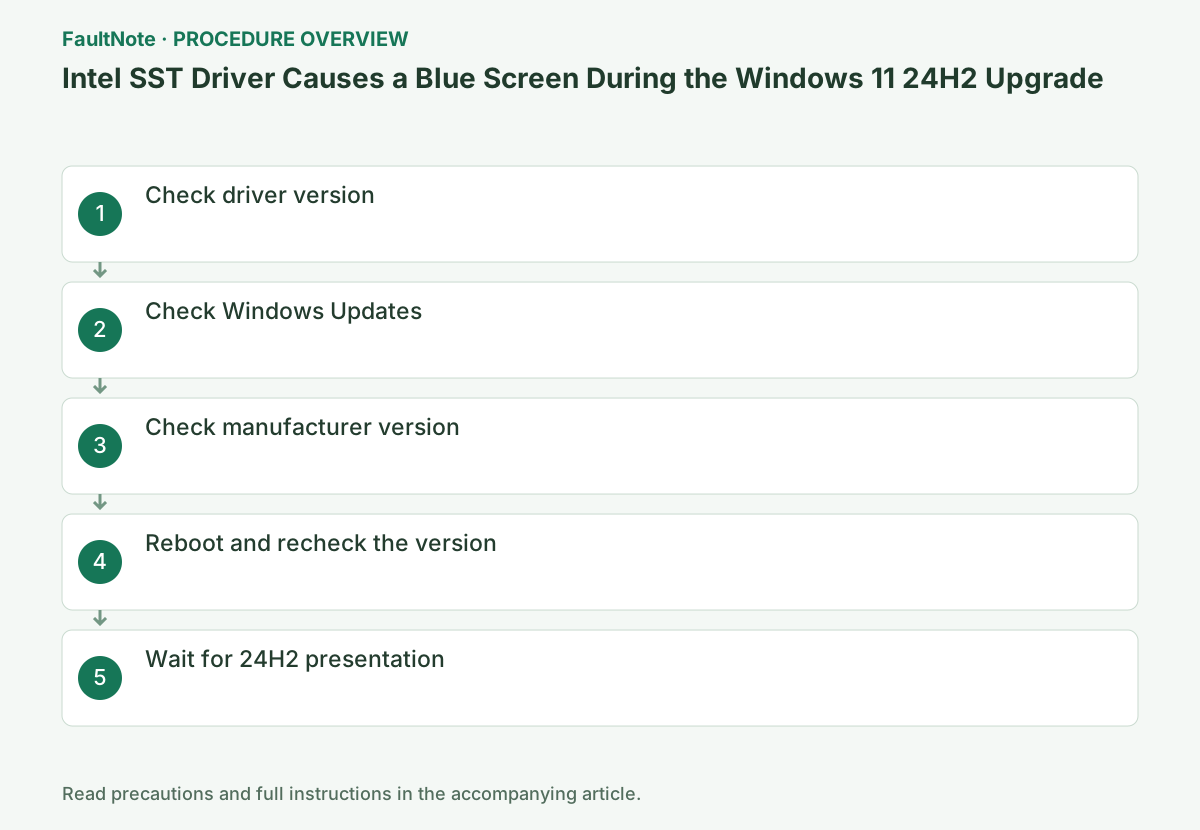
Step-by-step instructions
Right-click Start, open Device Manager, and check the version in System Devices > Intel Smart Sound Technology Audio Controller > Properties > Driver.
Also check similar Intel SST items and note whether the problem version is 10.29.0.5152 or 10.30.0.5152 as indicated by Microsoft.
Check before continuingVerdict: Right-click Start, open Device Manager, and check the version under System Devices > Intel Smart Sound Technology Audio Controller > Properties > Driver. Also check similar Intel SST items and note whether the problem version is 10.29.0.5152 or 10.30.0.5152 as indicated by Microsoft.
If there is a compatible Intel SST driver in [Settings] > [Windows Update] > [Advanced options] > [Optional updates], apply it.
Check the Intel SST option update and select [Download and Install]. After restarting, check [Driver updates] in the update history.
Check before continuingVerdict: If there is a compatible Intel SST driver in [Settings] > [Windows Update] > [Advanced options] > [Optional updates], apply it. Check the Intel SST option update and select [Download and Install]. After restarting, check [Driver updates] in the update history.
If it is not available in Windows Update, use the compatible version 10.30.00.5714 or later or 10.29.00.5714 or later from the PC manufacturer's support for the model number.
Use verified 10.29.00.5714 or later or 10.30.00.5714 or later from the PC manufacturer's Audio/Chipset page by model number. Do not substitute a generic Intel driver.
Official links for this step
- Resolved issues in Windows 11, version 24H2
Review the official requirements, screen names, and limitations for this procedure.
- Microsoft official: Intel SST compatibility issues and compatible drivers
Check the target processor, issue version, and fixed driver requirements.
Check before continuingVerdict: If it is not available in Windows Update, use the compatible version 10.30.00.5714 or later or 10.29.00.5714 or later from the PC manufacturer's support for the model number. Use verified 10.29.00.5714 or later or 10.30.00.5714 or later from the PC manufacturer's Audio/Chipset page by model number. Do not substitute a generic Intel driver.
- Resolved issues in Windows 11, version 24H2
After restarting, check in Device Manager that the version is at or above the standard and there are no warning icons.
Check that the version of the same controller is at or above the required version and that [Device status] is normal. Also try the audio output and microphone.
Check before continuingVerdict: After rebooting, check in Device Manager that the version is at or above the standard and there are no warning icons. Check that the version of the same controller is at or above the required version and that [Device status] is normal. Also try the audio output and microphone.
It may take up to 48 hours to remove Windows Update safeguards. Do not force installation assistant before Windows Update offers the upgrade.
Safeguard removal may take up to 48 hours. Wait until 24H2 appears in Windows Update and do not work around it with ISO.
Check before continuingVerdict: It may take up to 48 hours to remove Windows Update safeguards. Do not force installation assistant before Windows Update offers the upgrade. Safeguard removal may take up to 48 hours. Wait until 24H2 appears in Windows Update and do not work around it with ISO.
Check the result
- IntcAudioBus.sys is 10.29.00.5714/10.30.00.5714 or later
- Audio works and no alerts in device manager
If the problem continues
- If you cannot find a compatible version, tell the PC manufacturer the model number and current version.
- If you experience audio problems after updating, if [Restore driver] is available, restore the manufacturer's instructions.
Fix status
Resolved — Resolved by updating to a compatible Intel SST driver. Microsoft's page lists it as externally resolved and was last updated on 2025-09-26 10:10 PT.
Frequently asked questions
The numbers have different digits, but are they the same version?
10.30.0.5152 is the problem target, and 10.30.00.5714 and later are the corresponding standard. Compare the full version number, including the final build digits.
It does not appear on Windows Update.
PC manufacturers may distribute it for each model. Check the exact model number.
Official sources and dates
Source publication or resolution date: 2025-09-26. Sources checked: 2026-09-05. The check date is not the date the problem first occurred. Interface labels can vary between versions and display languages.
Related troubleshooting guides
Windows errors and troubleshooting →
- Windows 11 24H2 Stops or Crashes on Devices Using sprotect.sys
- The screen brightness changes on its own: telling content-based adjustment apart from ambient-light adjustment
- Laptop is slow only on battery: check the power mode, energy saver and the maker's cooling mode in that order
- A driver can't load on this device: what memory integrity is blocking, and the choices that leaves