Windows upgrade error 0x8007007F: scope and next steps
What to do first
Windows upgrade stopped with 0x8007007F? Check the upgrade method, distinguish the resolved 2025 incident, and collect SetupDiag results if a retry fails.
Affected products and symptoms
- Product
- Windows
- Versions and conditions
- Upgrade from Windows 10 1809/21H2/22H2 to Windows 11 22H2/23H2, and some upgrade paths from Windows Server 2016/2019 to Server 2019/2022
- Error codes and identifiers
- 0x8007007F
Symptoms
- Upgrading using Windows Setup > Upgrade displays error 0x8007007F and the process fails
Causes and conditions
Occurred in certain client and server upgrade paths after 2025-08-12. Microsoft's public information does not indicate a technical cause. This resolved incident did not affect upgrades to Windows 11 24H2 or Windows Server 2025. A matching code in another upgrade route, Installation Assistant or a routine update does not establish that it is the same incident.
Before you start
- Record the error screen, source/destination Windows version, and time of occurrence.
- Back up important files and ensure AC power and sufficient free space
- Remove unnecessary USB storage, docks, and additional disks
Precautions
- Avoid power outages
- Do not use outdated ISOs that do not apply to the target version
Tools and official pages used in this guide
Review the official requirements, screen names, and limitations for this procedure.
Obtain Installation Assistant or official installation media directly from Microsoft.
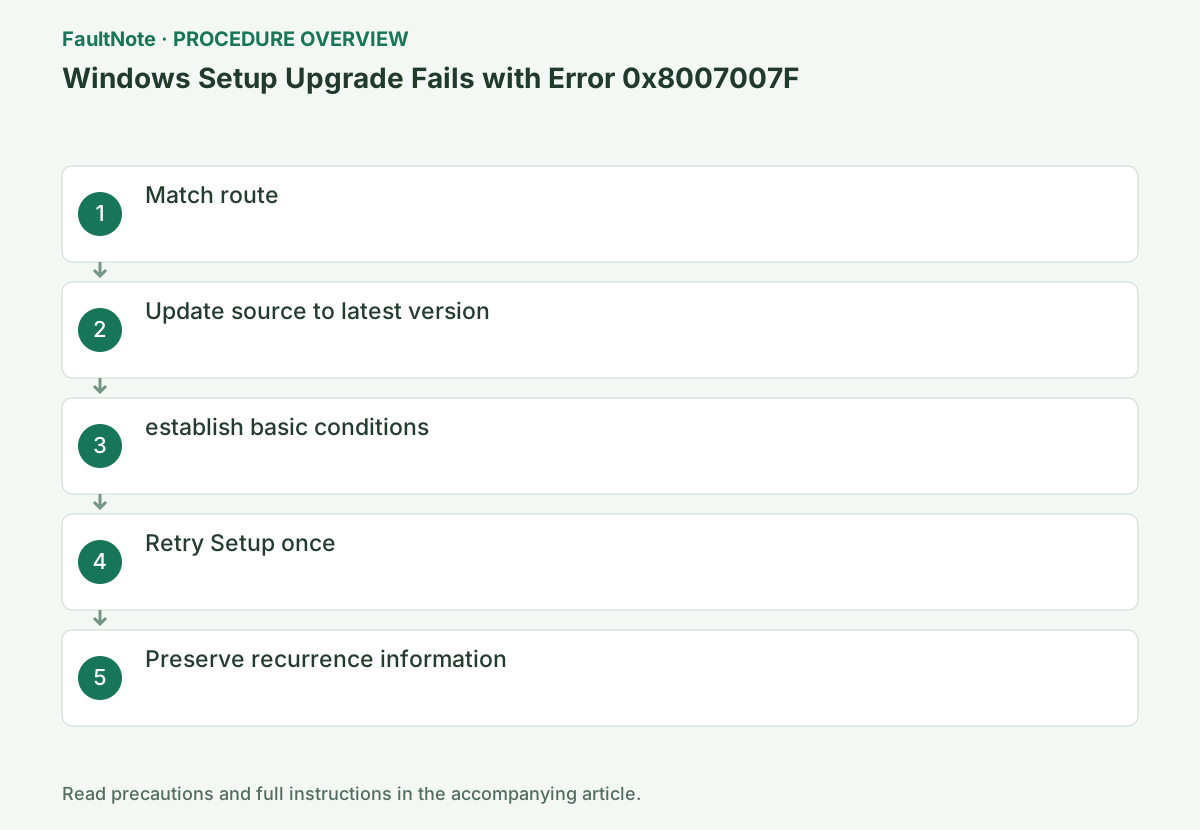
Step-by-step instructions
Check whether Windows Setup issued 0x8007007F from Windows 10 1809/21H2/22H2 to Windows 11 22H2/23H2 or the corresponding Server route.
Open winver with Win+R and record the source version, OS build, and full code of the Setup screen. Distinguish this from a standard Windows Update failure.
Record whether the failure occurred in Windows Update, Installation Assistant or setup.exe from installation media. For an upgrade to 24H2 or later, do not base the diagnosis solely on the resolved 2025 incident.
Check before continuingVerification: Check whether Windows Setup issued 0x8007007F from Windows 10 1809/21H2/22H2 to Windows 11 22H2/23H2 or the corresponding Server route. Open winver with Win+R and record the source version, OS build, and full code of the Setup screen. Distinguish this from a standard Windows Update failure.
Check for updates in [Settings] > [Windows Update] and apply the suggested updates. Complete the normal reboot until Restart Required disappears.
Restart after updating and open Windows Update again. Do not run Setup and update at the same time until it is [Up to date] or approved by the administrator.
Check before continuingVerdict: Check for updates in [Settings] > [Windows Update] and apply the suggested ones. Complete the normal reboot until Restart Required disappears. Restart after updating and open Windows Update again. Do not run Setup and update at the same time until it is [Up to date] or approved by the administrator.
Check free space on the system drive, stable power supply, and internet connection. Do not stop security products without permission, and follow the administrator's distribution route for organizational PCs.
Check the free space on the Windows drive using [PC] in Explorer, and connect it to AC power. Choose the same language, edition, and architecture for official media.
Official links for this step
- Resolved issues in Windows 11, version 23H2
Review the official requirements, screen names, and limitations for this procedure.
- Download Windows 11
Obtain Installation Assistant or official installation media directly from Microsoft.
Check before continuingVerdict: Check free space on the system drive, stable power supply, and internet connection. Do not stop security products without permission, and follow the administrator's distribution route for organizational PCs. Check the free space on the Windows drive using [PC] in Explorer, and connect it to AC power. Choose the same language, edition, and architecture for official media.
- Resolved issues in Windows 11, version 23H2
Rerun Upgrade from the same official installation media or administrator-provided setup. Microsoft advises that this issue will usually be resolved by retrying.
Start setup.exe normally without changing it to compatibility mode. Confirm your personal file and app selections with [Change what to keep], and if they are not what you intended, press [Back] to cancel.
Check before continuingVerdict: Rerun Upgrade from the same official installation media or administrator-provided Setup. Microsoft advises that this issue will usually be resolved by retrying. Start setup.exe normally without changing it to compatibility mode. Confirm your personal file and app selections with [Change what to keep], and if they are not what you intended, press [Back] to cancel.
After another failure, record the full error, progress stage, source and destination releases, and installation media. SetupDiag is Microsoft’s tool for analyzing Windows Setup logs.
Follow Microsoft’s SetupDiag guidance to inspect existing automatic results or saved Setup logs. Share the relevant results and timestamps with your administrator instead of downloading replacement DLLs or deleting update data speculatively.
Official links for this step
Check before continuingThe failure logs and diagnostic results are preserved for a supported next step.
Check the result
- Setup passes compatibility checks and completes the upgrade
- After restarting, you can check the intended Windows version with winver
If the problem continues
- If it happens again, pass the setup log and route to the administrator or Microsoft Support.
- If the code has changed to a different code, follow the official guidance for that code.
Fix status
Resolved — Microsoft says it has been resolved as of 2025-08-15, and it is not expected to occur on devices upgraded after that. Public page history resolved on 2025-08-18 18:59 PT.
Frequently asked questions
How many times do you want to retry?
Retry once after preparing the required conditions. If it is the same 0x8007007F, proceed to log investigation.
Will my personal files remain?
Check the Setup "What to carry over" screen. Backups are essential.
Does 0x8007007F always mean the 2025 known issue?
No. Microsoft’s resolved incident covers specific upgrade paths. Compare the date, destination release and installation method.
Does the same fix apply to 24H2 or later and Installation Assistant?
The 2025 incident excluded upgrades to 24H2. For a current Installation Assistant or other upgrade failure, check the applicable requirements and Setup logs separately.
Will running as administrator or adding a DLL always fix it?
The code alone does not establish that. Inspect Setup records instead of assuming insufficient elevation. This guide does not recommend third-party DLL downloads.
Official sources and dates
- Resolved issues in Windows 11, version 23H2 ↗
- Windows release health ↗
- Recovery options in Windows ↗
- SetupDiag ↗
Source publication or resolution date: 2025-08-18. Sources checked: 2026-09-11. The check date is not the date the problem first occurred. Interface labels can vary between versions and display languages.