Rebuild the cache when Microsoft Teams cannot reconnect
What to do first
Fully quit new Teams, try Repair in Windows Settings first, and use Reset, which removes personal settings, only if Repair fails.
This is a general troubleshooting guide, not an announcement of a current outage.
Affected products and symptoms
- Product
- Microsoft Teams for Windows
- Versions and conditions
- New Microsoft Teams for Windows
Symptoms
- Teams remains at Reconnecting, or the screen does not update after sign-in
Causes and conditions
Inconsistent local cache or app data in the client may be involved.
Before you start
- Confirm that Teams on the web and ordinary websites open, to exclude a service outage
- Save any draft post elsewhere
- In Windows, check whether Microsoft Teams has Advanced options under Settings > Apps > Installed apps
Precautions
- Reset for new Teams deletes app data including personal settings, but does not delete cloud chats or teams
- The first launch after cache rebuilding takes longer
Tools and official pages used in this guide
Review the effects and procedure for repairing and resetting new Teams.
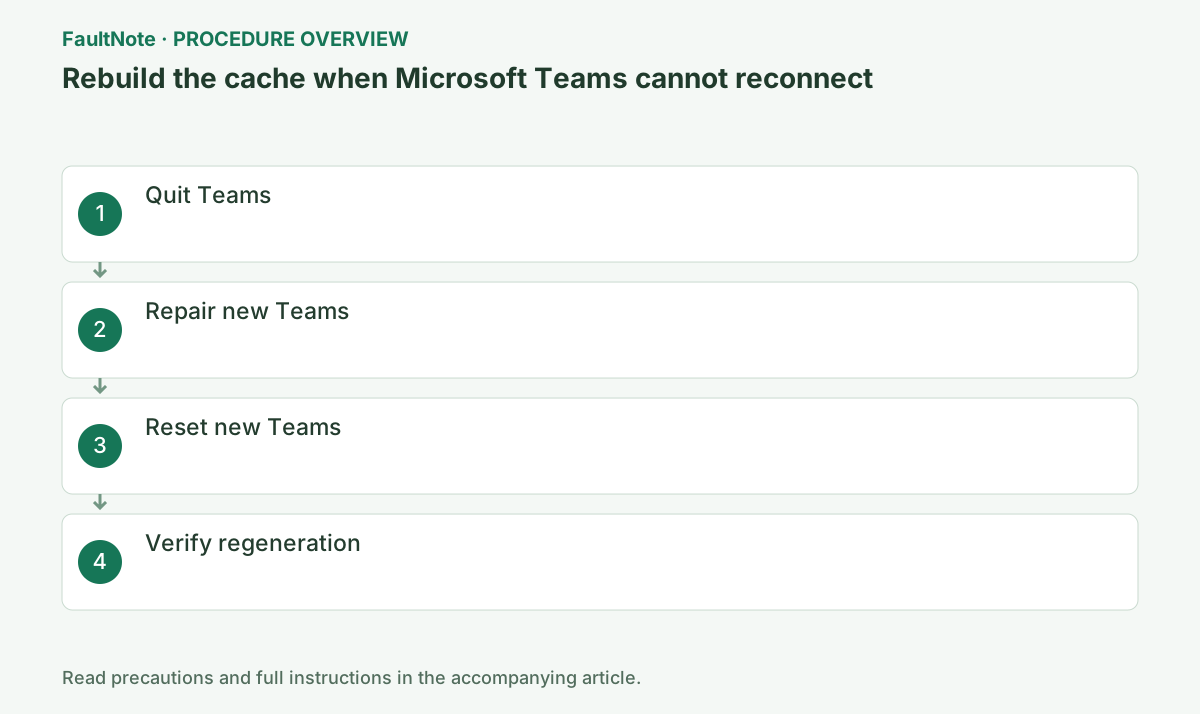
Step-by-step instructions
Distinguish stale chats, sign-in failures, and meeting-video problems. Compare Teams on the web using the same account; if that also fails, investigate service or authentication conditions first.
Save unsent text elsewhere and record the account, organization, notification settings, and selected devices. Confirm that you can use your password and additional authentication before resetting.
If new Teams advanced options are unavailable, compare official cache guidance with the administrator's deployment. Do not install classic Teams just to obtain that menu. Request any managed package change and report the version and missing control. A working web session can provide interim access while desktop recovery remains separate.
Check before continuingSave unsent text elsewhere and record the account, organization, notification settings, and selected devices. Confirm that you can use your password and additional authentication before resetting.
Save unsent input, right-click the Teams taskbar icon, and select Quit. Stop here if a restart restores synchronization.
If available, record the version under the profile menu > About, then right-click the Teams icon in the notification area and choose Quit. Do not do this during a meeting or with unsent messages.
Closing the window can leave Teams running in the background. Quit from its notification-area icon after calls end and save unsent text elsewhere. Record the product, version, organization, and last working time. If you use several organizations, check whether only one is affected; working content in another organization is not recovery of the target.
Open Settings > Apps > Installed apps > Microsoft Teams > Advanced options. If Repair is available, run it first. Repair preserves app data; start Teams and test reconnection.
Open Settings > Apps > Installed apps > Microsoft Teams > three-dot menu > Advanced options. Select Repair first, and use Reset only if Repair does not solve the problem.
Search for Microsoft Teams under Windows Settings > Apps > Installed apps and open the target entry's advanced options. Options vary with Windows and distribution; note unavailable Repair. After an available repair, open the same chat or connection. Do not run Repair, Reset, and reinstall consecutively without tests. Stop after successful repair and verify needed settings and meetings.
Official links for this step
- Clear the Teams client cache
Review the effects and procedure for repairing and resetting new Teams.
Check before continuingOpen Settings > Apps > Installed apps > Microsoft Teams > Advanced options. If Repair is available, run it first. Repair preserves app data; start Teams and test reconnection.
- Clear the Teams client cache
After Repair, launch Teams and test the original action once. If it works, no Reset is needed. Otherwise proceed to Reset and read the warning that app data, including personalization, will be deleted.
New and classic Teams use different cache locations. Do not delete an old-client folder as a substitute for the new Teams procedure. This guide uses Windows app settings to select the intended application.
Check before continuingNew and classic Teams use different cache locations. Do not delete an old-client folder as a substitute for the new Teams procedure. This guide uses Windows app settings to select the intended application.
Only if Repair fails, select Reset on the same page. Microsoft states that Reset deletes app data, including personal settings; afterward, start Teams, sign in, and reconfigure notifications and other preferences.
After Repair, confirm that Teams starts with sign-in state and data preserved. After Reset, you may need to enter credentials and review notifications and camera/microphone permissions.
Reset removes app data and personalization, so prepare for reauthentication. If you cannot access additional authentication or the organization account, coordinate recovery first. Use the legitimate organization sign-in afterward. Allow initial chat and team lists to load rather than immediately repeating resets. Follow new Teams instructions without adding classic Teams folder deletion.
Start Teams. The first launch may take longer while the cache is rebuilt; wait and confirm that current chats, teams, and meetings load.
Load current chats, the team list, and calendar, then use a test call to check audio and video. Do not reset again before synchronization finishes. If errors continue, give the administrator the code and time.
For meeting-only failures, verify the link opens under the intended account and organization. Guest and internal meetings can differ; record which fails. Check organization access and reaching the pre-meeting screen separately. Include same-link web and desktop results at the same time. Before repeating cache removal, identify whether account, link, or device access fails.
Check recent conversations, a reflected short post, and required notifications separately. For meeting failures, verify pre-meeting camera and microphone selection. A working chat with missing audio belongs in device investigation, not a blanket reset-failed diagnosis. Reopen and confirm the same account works. If not, provide web results and desktop errors from the same time.
For missing notifications after Reset, check recreated Teams preferences and Windows notification permission. Current chat content and displayed notifications are separate checks. Restore required devices, backgrounds, and preferences from your record. If organization access fails, compare account authentication on the web rather than resetting again; report how far the post-reset session worked.
Check before continuingDecision: start Teams and wait for initial cache rebuilding, then confirm that current chats, teams, and meetings load. Check chats, teams, calendar, audio, and video; if errors remain, give the administrator the code and time.
After signing in, select the intended organization and check recent chats, a short test post, and the pre-meeting preview. Do not judge responsiveness only during the first cache rebuild; close and reopen once.
If the fault remains, avoid repeated resets and send the Teams version, failure time, and web-versus-desktop results to the administrator. A camera-only failure belongs in permissions and device-selection checks.
Check before continuingIf the fault remains, avoid repeated resets and send the Teams version, failure time, and web-versus-desktop results to the administrator. A camera-only failure belongs in permissions and device-selection checks.
Check the result
- The target is new Teams and the operation was performed on Microsoft Teams in Windows Settings
- The Reconnecting message disappears and the same current data shown on the web appears
If the problem continues
- Temporarily use Teams on the web
- Reconnect the VPN and ask the organization's Microsoft 365 administrator to check service status
- After Reset, restore notifications, appearance, and other personal settings manually
Scope of this guide
Troubleshooting guide — This is a general connection-recovery procedure. Cache operations do not resolve a service outage.
Frequently asked questions
What is the difference between Repair and Reset?
Repair attempts to fix the app while preserving app data. Reset deletes app data, including personal settings, so use it only if Repair fails.
Does Reset erase my cloud chat history?
It resets client app data. Save unsent input and choose the intended organization and account afterward. For absent conversations, compare the same organization on the web.
Official sources and dates
Source publication or resolution date: 2025-07-14. Sources checked: 2026-10-13. The check date is not the date the problem first occurred. Interface labels can vary between versions and display languages.