Fix a Discord microphone that is not detected
What to do first
Check Windows input metering, Discord device selection, transmission mode, and permissions. Separate detection from remote transmission and verify with a test call after reset.
This is a general troubleshooting guide, not an announcement of a current outage.
Affected products and symptoms
- Product
- Discord
- Versions and conditions
- Discord desktop, browser, and mobile apps
Symptoms
- The input sensitivity meter does not react
- Others hear silence and Push to Talk does not work
Causes and conditions
Mute state, channel permissions, input device and mode, OS permission, or damaged voice settings can cause this.
Before you start
- Before changes, record and preserve Voice & Video settings, input device, input mode, and channel permissions.
- Change one item at a time and record the original symptom after each stage.
Precautions
- Do not bulk-delete unrelated settings or data.
- Exclude personal data and credentials; share only the necessary parts of Voice & Video settings, input device, input mode, and channel permissions.
Tools and official pages used in this guide
Check the official page for exact setting names, limitations, and updated decision paths.
Official Discord download if the app alone still fails after reset.
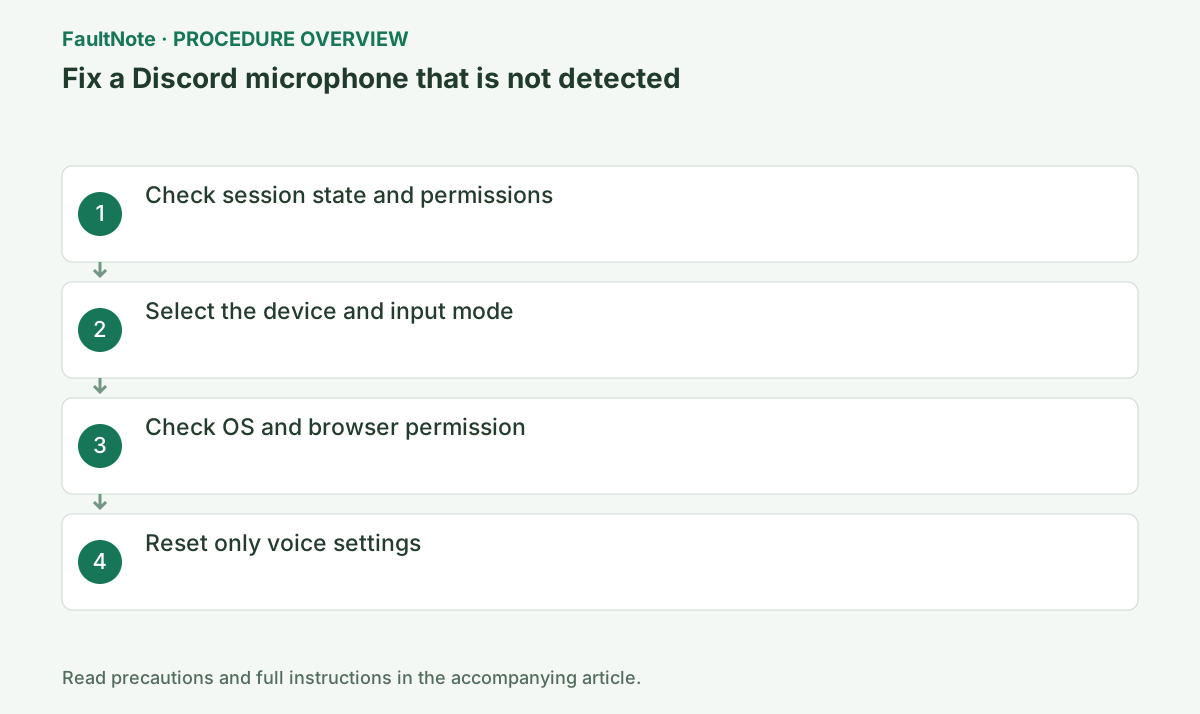
Step-by-step instructions
Check self-mute, deafen, the headset hardware switch, and the channel Speak permission. Compare another voice channel.
Selecting the named device instead of Default reveals whether Windows switching or Discord causes the issue.
Open the lower-left gear > Voice & Video and record Input Device, Input Volume, and Input Mode together before checking channel permission.
Check hardware mute and select the intended Windows input. Webcam or controller microphones can change Default. Verify the device name and response meter together to distinguish wrong selection from hardware failure.
Official links for this step
- Official Discord troubleshooting
Check the official page for exact setting names, limitations, and updated decision paths.
- Official Discord troubleshooting
Open the bottom-left gear > Voice & Video, choose the named input device, and verify Voice Activity versus Push to Talk. Test the assigned PTT key.
For Voice Activity inspect sensitivity; for Push to Talk verify the key is not intercepted and transmits only while held.
Compare quiet and normal speech at the same distance. Test the held key in Push to Talk or detection conditions in Voice Activity. Record settings and change one option at a time.
Allow Discord in Windows or macOS microphone privacy settings. In the browser, grant microphone site permission and select the correct device.
Without Speak permission, Mic Test can work while channel transmission fails. A server-specific result points to role settings.
In the browser, inspect site and OS permissions separately, reload after allowing access, and avoid simultaneous desktop calls. A browser-only failure points toward site access or device selection, not unrelated desktop resets.
Open Voice & Video > Debugging > Reset Voice and Video Settings, then select the input and volume again. Record current values first.
Reset Voice and Video Settings restores devices, volume, and input mode defaults. Reapply only recorded settings.
Official links for this step
- Official Discord download
Official Discord download if the app alone still fails after reset.
- Official Discord download
Check the input meter in Windows Sound settings first. If it does not move, inspect the mute switch, connection, and chosen device. If it moves but Discord does not respond, focus on Discord's device selection and permissions.
For the comparison, select the microphone by name rather than leaving input at Default. Reconnecting USB or Bluetooth hardware may change the listed device, so review the menu even if you think the previous microphone remains selected.
Push to Talk transmits only while its assigned key is held. Voice Activity may exclude quiet speech through its sensitivity setting. A successful microphone test does not verify the call's mode, mute state, or server speaking permissions.
After detection works, use a small test call to confirm another person hears you. Local playback alone does not verify transmission; ask separately whether speech arrives and whether it cuts out.
After resetting voice settings, recheck input, output, and Push to Talk. Record the prior settings before changing several options so effects on other meeting applications are easier to identify.
Check the result
- confirm normal voice in Discord Mic Test and a permitted voice channel
- Check adjacent basic functions for side effects from the change.
If the problem continues
- escalate to hardware support if all apps fail, or Discord Support with settings and device list if Discord alone fails
- When continuing with a workaround, preserve original files or account data separately.
Scope of this guide
Troubleshooting guide — Check Windows input metering, Discord device selection, transmission mode, and permissions. Separate detection from remote transmission and verify with a test call after reset.
Frequently asked questions
The mic test works but the channel does not.
Check server roles, channel permissions, and the Push to Talk key.
Does reset remove my servers?
No. It resets voice/video configuration, not server membership.
Windows responds, but Discord does not.
Select the device by name and check application or site permission. Reselect after USB changes; Windows detection does not prove Discord access.
Only loud speech is transmitted.
Compare activation sensitivity and processing one option at a time. Push to Talk separates detection from activation thresholds. Ask a participant to compare quiet and normal speech and retain previous settings.
Official sources and dates
Source publication or resolution date: Not specified. Sources checked: 2026-10-13. The check date is not the date the problem first occurred. Interface labels can vary between versions and display languages.