Graphics card runs at PCIe x8 or a lower generation: check GPU-Z Bus Interface, M.2 lane sharing and BIOS link speed
What to do first
ASUS FAQ 1055579 explains that a graphics card's operating mode depends on the highest common specification and the lane allocation of the motherboard and the card, and tells readers to check the slot specification, M.2 lane sharing, the card's PCIe specification, the BIOS link speed, the driver and seating in turn. A low generation reading can be light-load power saving, so first read the value again under load.
This is a general troubleshooting guide, not an announcement of a current outage.
Affected products and symptoms
- Product
- Desktop PC graphics card PCIe slot
- Versions and conditions
- Windows 11 / Windows 10 custom-built or desktop PCs where the GPU-Z "Bus Interface" field (including the GPU-Z page in ASUS GPU Tweak III) shows the graphics card running with fewer lanes or an older generation than expected, such as x8 or PCIe 2.0 / 3.0
Symptoms
- The GPU-Z "Bus Interface" field reads something like "PCIe x16 5.0 @ x8 5.0" or "PCIe x16 4.0 @ x16 2.0", with the value after @ lower than the value before it
- The card started showing x8 after an M.2 SSD was added or after the graphics card was moved to a different slot
Causes and conditions
The graphics card's actual operating mode is set by the highest specification both the motherboard slot and the card support, and by how the motherboard allocates lanes. The usual causes are a card that is an x8 product, a chipset-connected slot, lane sharing with an M.2 slot, a link speed forced in the BIOS, or a card that is not fully seated. A lower generation on its own can also be normal power saving while the card is under light load.
Before you start
- The exact model numbers of the motherboard and graphics card, and the motherboard manual (the pages that list expansion slot and M.2 slot specifications and sharing rules)
- GPU-Z (downloaded from the official TechPowerUp site) or ASUS GPU Tweak III, the CPU model, and a note of which M.2 slot number each SSD is installed in
Precautions
- A change from x16 to x8 does not by itself mean game frame rates are halved. The impact depends on the card and the game, and this article did not measure it on real hardware.
- Remove or install cards and SSDs only with the power cable unplugged. Fixing a PCIe setting to a lower generation in the BIOS can reduce speed, so record the setting and its original value before changing it.
Tools and official pages used in this guide
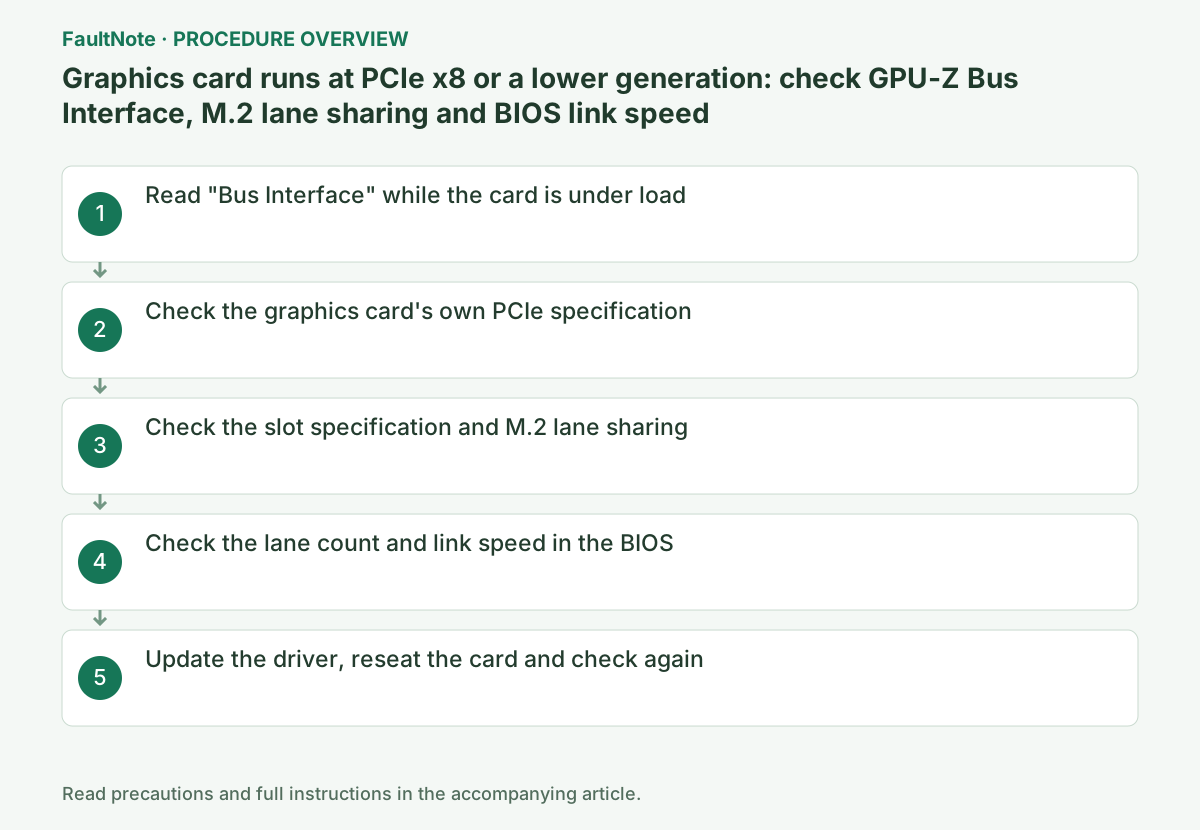
Step-by-step instructions
Open GPU-Z (or the [GPU-Z] page in GPU Tweak III for ASUS cards) and look at the "Bus Interface" field. In the ASUS FAQ example, the "x16 2.0" after @ is the card's current operating mode. Note this value before moving on to the next checks.
The ASUS FAQ explains that a low reading can be a normal result of light graphics load and power saving on the motherboard and card, and that it rises automatically under load such as gaming. TechPowerUp's official page also states that GPU-Z includes a GPU load test to verify the PCI Express lane configuration. Read the field again while a game or the load test is running; if the lane count (x16 / x8) or generation is still low, continue to the next step.
Open the card's product specification page and check which PCIe generation and lane count it supports. The ASUS FAQ says most graphics cards are x16 products, while some series such as the RTX 3050, RTX 4060 and RTX 4060 Ti are x8. Intel's specification page for the Arc B580 also lists PCI Express 4.0 x8.
If the card is an x8 product, running at x8 in an x16-sized slot is expected behaviour and does not need a repair or a setting change. Match the model name exactly, including any "Ti" suffix and the maker's product name. Continue to the slot checks only when an x16 card is running at x8.
Use the motherboard specification page or manual to confirm whether the slot holding the graphics card is connected to the CPU or the chipset, and which generation and lane count it runs at. In the ASUS FAQ example (ROG MAXIMUS Z890 HERO), the CPU-connected slot is PCIe 5.0 x16 and the Z890 chipset-connected slot is PCIe 4.0 x16. Slots with the same x16 shape can have different operating conditions.
In the same manual, check whether that slot shares lanes with an M.2 slot. In the ASUS FAQ example, installing an SSD in M.2_3 or M.2_4 makes PCIEX16(G5) run at x8, and the ASUS TUF GAMING X870-PLUS WIFI specification says using M.2_2 with Ryzen 9000 / 7000 makes PCIEX16(G5) run at x8. If sharing is the cause, choose between moving the SSD to an M.2 slot that does not share lanes and accepting x8 operation. Back up the data and turn the PC off before moving an SSD.
In the ASUS FAQ procedure, press Delete or F2 right after power-on to enter the BIOS EZ Mode, press F7 to switch to [Advanced], then open [System Agent (SA) Configuration] → [PCI Express Configuration] to see the graphics card's current lane count. Menu names and locations differ by motherboard maker and model, so match them against the manual.
On the same screen, check whether a link speed option such as [PCIEX16(G5) Link Speed] was previously fixed to a lower generation such as Gen3. The ASUS FAQ says to set it to Auto or to the highest generation the card's PCIe specification supports if a lower generation was set. Do not change other PCIe settings without knowing the cause.
Official links for this step
If no cause has been found so far, the ASUS FAQ lists installing the latest driver from the graphics card maker's official site, making sure the card is fully inserted into the slot, and checking the slot and the card's gold contacts for dust, dirt or damage.
Before reseating, shut down Windows, switch off the power supply and unplug the power cable. Remove the auxiliary power cables and release the slot latch before pulling the card, inspect the contacts and insert the card fully again. After reassembly, read "Bus Interface" under load as in step 1 and record any change. If the card is mounted vertically with a riser cable, also check which PCIe generation that cable supports in its product specification.
Official links for this step
Check the result
- While a game or the GPU-Z load test is running, the value after @ in "Bus Interface" matches the lane count and generation expected from the card and slot specifications and the sharing rules
- The lane count shown on a BIOS screen such as [PCI Express Configuration] matches the sharing rules in the motherboard manual
If the problem continues
- If the card and slot are both x16, no shared M.2 slot is in use and the BIOS link speed is Auto but the card still runs at x8, record the GPU-Z reading, the BIOS screen and the slot number, then contact the motherboard maker
- If the same card runs at x8 or a lower generation in another PC or slot as well, contact the graphics card maker and mention the condition of the card's contacts
Scope of this guide
Troubleshooting guide — Read the GPU-Z "Bus Interface" field again under load to rule out idle power saving. If it stays low, check the card's PCIe specification, the slot specification, M.2 lane sharing, the BIOS link speed setting, the driver and seating in turn; move the SSD if lanes are shared and set a fixed link speed back to Auto.
Frequently asked questions
Is it a fault if GPU-Z shows PCIe 1.1 or 2.0 while the PC is idle?
Not necessarily. The ASUS FAQ explains that the motherboard and card running in power-saving mode under light graphics load can be normal, and that the link rises automatically under load such as gaming. Read the value again under load and judge by whether it stays low.
My graphics card dropped to x8 after I added an M.2 SSD. Can I get x16 back?
Check the motherboard manual to see whether that M.2 slot shares lanes with the graphics card slot. If it does, moving the SSD to another M.2 slot that does not share lanes may restore x16. If no such slot is free, choose between using fewer SSDs and running the card at x8.
Official sources and dates
- [Graphics Card/Motherboard] PCIE Interface Operation Mode (Speed) Confirmation ↗
- TechPowerUp: GPU-Z official page (load test to verify PCI Express lane configuration) ↗
- Intel: Intel Arc B580 Graphics specifications (PCI Express 4.0 x8) ↗
- ASUS: TUF GAMING X870-PLUS WIFI specifications (M.2_2 and PCIEX16(G5) lane sharing) ↗
Source publication or resolution date: 2026-05-06. Sources checked: 2026-09-13. The check date is not the date the problem first occurred. Interface labels can vary between versions and display languages.