AMD Software Error 1603: troubleshoot the general installation error
What to do first
Narrow the general error down through updates, the full package, DISM/SFC and the existing AMD installation, rather than applying every repair at once.
This is a general troubleshooting guide, not an announcement of a current outage.
Affected products and symptoms
- Product
- AMD Software: Adrenalin Edition
- Versions and conditions
- Windows; AMD Software Installer (no specific release)
- Error codes and identifiers
- Error 1603GPU-KB1603
Symptoms
- AMD Software package installation ends with a general error
- Repeated attempts roll back at the same stage
Causes and conditions
Possible causes include driver conflicts, missing Windows updates, damaged Visual C++ Redistributables, Windows system files and required services.
Before you start
- Copy Install.log to another location
- Prepare a restore point and a backup of important data
- Record the GPU model and current AMD Software version
Precautions
- Do not manually delete registry entries
- Do not make disabling security protection the default solution
- Cleanup Utility removes AMD graphics components; download the reinstall package first
Tools and official pages used in this guide
Select the GPU and OS manually to download the full package.
Repair the Microsoft official package only if the log indicates Visual C++ corruption.
Official cleanup option if 1603 persists after ordinary repairs.
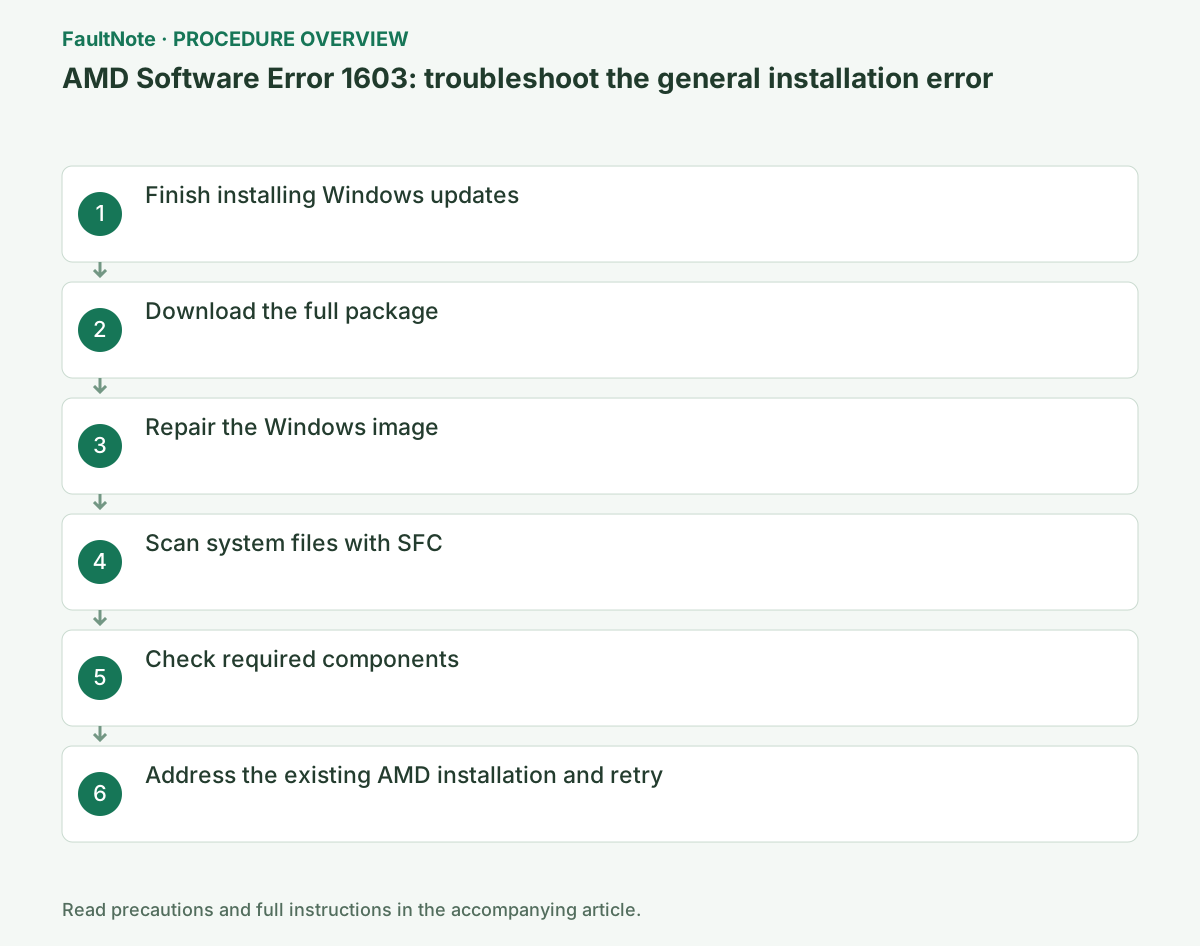
Step-by-step instructions
Install important updates under Settings → Windows Update and restart as requested. Check for updates again and try AMD setup with no installation pending.
Check the displayed code, AMD Software version and GPU name, and save screenshots or notes together. If the code differs, stop this procedure and use the official article for that code.
Save the AMD installer log and Windows Update state from the same time. Look for evidence of whether driver setup, Visual C++ or Windows Installer stopped, and record recent software or update changes. The final 1603 alone does not identify the component.
AMD lists several possible causes. Observe update state, matching full-package availability and security block history, then retry once per change. Do not delete runtimes and registry entries together without evidence.
Manually select the GPU and OS in AMD Drivers and Support and download the full AMD Software package. Do not use an old online installer or an incomplete download.
On a manufacturer-built PC, check the support page for the exact PC model before selecting AMD's generic package. Switchable graphics, integrated GPUs and handheld PCs may require OEM drivers; record the current version and keep a recovery package.
Official links for this step
- AMD Drivers and Support
Select the GPU and OS manually to download the full package.
Check before continuingThe official AMD Drivers and Support page or signed download opens, and its product, OS and version requirements match this PC.
- AMD Drivers and Support
If another installer was active, finish it normally and restart before retrying. If security blocking occurred at the same time, inspect the official package and detection. If a Visual C++ operation failed, identify the runtime product and version before considering official repair. Do not choose a cause from the number 1603 alone.
Retain results of Windows corruption checks for the next decision. A completed repair command is distinct from successful AMD setup. If the same component stops again, give support that failure location rather than declaring repair complete. Review logs for personal details such as usernames before publishing them.
Open Windows Terminal as administrator, run the following DISM command and wait for completion. Do not retry AMD setup at this stage; after successful DISM completion, proceed to the next SFC step.
If DISM fails, record the code and consult the official procedure for that cause. Do not conclude SFC or AMD repair succeeded when DISM has not completed successfully.
Save the DISM result. The normal order is successful DISM completion, SFC, inspection of its repair result, restart, then an AMD installation retry. Do not judge installation immediately after DISM alone.
DISM /Online /Cleanup-Image /RestoreHealthIn the administrator window where DISM completed successfully, run the following SFC command and wait for verification to reach 100%. Save its message. If repair cannot be completed, record that result and address the Windows problem first.
Inspect the SFC result, then restart. After restart, retry the supported full AMD package once and record completion or the new error code. Check the driver version after AMD installation.
sfc /scannowCheck that required Windows services such as Plug and Play have not been disabled. If the evidence indicates a damaged Visual C++ Redistributable, repair it using Microsoft's official package.
If required components were repaired, finish requested restarts and retry the full AMD package once. Check the GPU and Software & Driver versions in AMD Software after installation completes.
Official links for this step
- Latest supported Visual C++ Redistributable downloads
Repair the Microsoft official package only if the log indicates Visual C++ corruption.
Check before continuingThe official Latest supported Visual C++ Redistributable downloads page or signed package opens, and its product, OS and version requirements match this PC.
- Latest supported Visual C++ Redistributable downloads
If installation still fails, use AMD's official Cleanup Utility or Microsoft's Program Install and Uninstall troubleshooter to address the conflicting AMD Software installation, then restart and run the full package.
If it fails, save the new Install.log and record how far installation progressed.
Finally, open the gear icon → System in AMD Software and check the GPU name and Software & Driver versions. Retry the original game, display or installation operation once under the same conditions; undo the change if new symptoms appear.
Official links for this step
- AMD Cleanup Utility
Official cleanup option if 1603 persists after ordinary repairs.
Check before continuingExpected result: if failure persists, address the conflicting AMD installation with the official AMD Cleanup Utility or Microsoft Program Install and Uninstall troubleshooter, restart and run the full package. On failure, save the new Install.log and record the last completed stage.
- AMD Cleanup Utility
Keep a small table of package, change and resulting code. Distinguish failure after Windows updates, failure with the full package and repeated failure in the same logged component. This prevents repeating the same remedy.
If setup completes but the game still crashes, separate installation failure from runtime failure. If a new display or audio issue appears, restore the saved compatible driver and retain the successful setup log.
Check before continuingKeep a small table of package, change and resulting code. Distinguish failure after Windows updates, failure with the full package and repeated failure in the same logged component. This prevents repeating the same remedy.
Use separate criteria: setup completion, no GPU warning after restart, intended driver version and original reproduction result. If setup succeeds but the game crashes, installation improved while runtime failure remains. Record game version, crash time, selected GPU and mods before changing more drivers.
Keep the recovery package until checks finish. If a display regression appears on the new driver and disappears on the old one, retain the versions and reproduction conditions together. Combined OS, driver and game reinstallation changes are hard to interpret. State which failure disappeared and what remains before further changes.
Check the result
- DISM and SFC complete
- AMD Installer completes without 1603
- After restarting, you can check AMD Software and GPU driver versions
If the problem continues
- Consult the administrator if selective startup is needed on a managed PC
- Contact AMD Customer Care with Install.log attached
Scope of this guide
Troubleshooting guide — Repair missing updates or damaged components so that the full AMD Software package for the GPU can complete successfully.
Frequently asked questions
Is 1603 only a driver problem?
It has multiple possible causes. AMD also lists Windows updates, Visual C++, system files and existing-software conflicts.
Should I start with Cleanup Utility?
Trying Windows updates and the full package first limits the changes. Proceed to cleanup if an existing AMD installation still causes a conflict.
Should I reinstall Visual C++ solely because of 1603?
No. It is one possible cause, not a diagnosis. Inspect the failing log component and Windows update state first.
Should I reset Windows if the full package still gives 1603?
Not as the first branch. Identify the failed component and Windows state and seek help with logs. Resetting is separate work affecting data and environment; this code alone is not justification.
Official sources and dates
Source publication or resolution date: Not specified. Sources checked: 2026-10-13. The check date is not the date the problem first occurred. Interface labels can vary between versions and display languages.
Related troubleshooting guides
AMD Radeon / Adrenalin errors and troubleshooting →
- Smart Access Memory becomes disabled after installing Adrenalin 26.8.1
- AMD Software Error 182: graphics driver installation stops
- AMD Software Error 184: unsupported operating system
- AMD Software Error 195: cannot access required web resources