Firefox crashes or displays text and page elements incorrectly
What to do first
Use Troubleshoot Mode to distinguish GPU effects from extension effects, and disable acceleration only when needed.
This is a general troubleshooting guide, not an announcement of a current outage.
Affected products and symptoms
- Product
- Mozilla Firefox
- Versions and conditions
- Firefox Desktop (general Mozilla support procedure; no specific version)
Symptoms
- Firefox crashes
- Text or objects on web pages display incorrectly
Causes and conditions
With some GPU and graphics-driver combinations, Firefox hardware acceleration can contribute to crashes or rendering problems.
Before you start
- Save open tabs and work
- Update Firefox to the latest version
- Record the current settings under General > Performance
Precautions
- Improvement in Troubleshoot Mode does not by itself prove that the GPU is responsible
- Disabling acceleration may affect video playback or rendering performance
Tools and official pages used in this guide
Review the startup procedure and the features disabled in diagnostic mode.
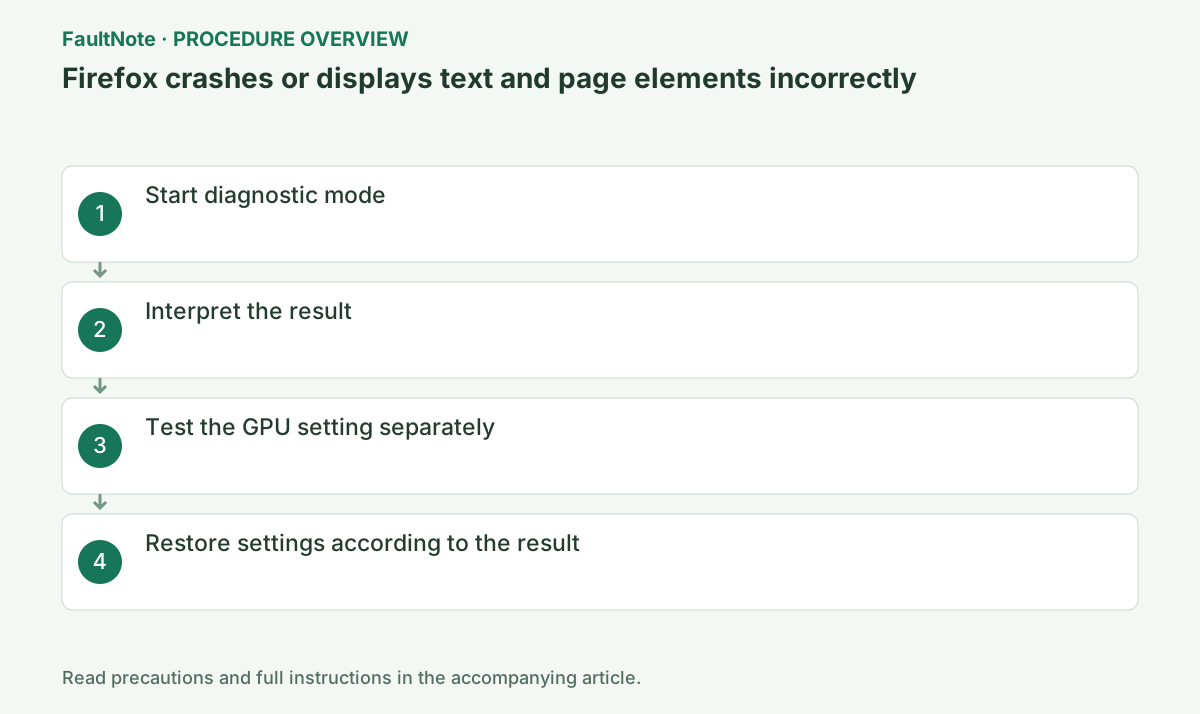
Step-by-step instructions
Record missing text, black video, a tab crash, and a full-browser exit separately. Choose the exact action and zoom level immediately before the fault; video playback and scrolling on the same site are different tests.
A normal session that no longer reproduces the fault is an inconclusive baseline. Identify a reproducible page and affected location before changing modes. Keep screenshots private or crop them to remove personal information.
Check before continuingA normal session that no longer reproduces the fault is an inconclusive baseline. Identify a reproducible page and affected location before changing modes. Keep screenshots private or crop them to remove personal information.
Choose Menu > Help > Troubleshoot Mode > Restart > Open. This opens a diagnostic session with add-ons, themes, and hardware acceleration temporarily disabled.
This makes no permanent change, so reproduce only the affected page and action and record the result.
Use the three-line menu at the upper right to open the listed items, and distinguish the normal window from the diagnostic one. Use the same URL, zoom level, video position, and action so the before-and-after conditions match.
For a video that turns black only on entering fullscreen, play the same video to the same position before entering fullscreen. Opening a page or playing a different clip is insufficient. For missing text during scrolling, use the same page, zoom, and scroll position. Record a full-window exit separately from a rendering fault. Observe intermittent behavior more than once in normal mode; one immediate success does not settle the diagnosis.
Official links for this step
- Firefox Troubleshoot Mode
Review the startup procedure and the features disabled in diagnostic mode.
Check before continuingChoose Menu > Help > Troubleshoot Mode > Restart > Open. This opens a diagnostic session with add-ons, themes, and hardware acceleration temporarily disabled.
- Firefox Troubleshoot Mode
If the issue persists in Troubleshoot Mode, the disabled features are less likely to be the main cause. Restart Firefox normally to end this guide's temporary changes.
If it improves, do not immediately conclude that the GPU is responsible. After restarting normally, disable extensions and compare the reproduction.
Troubleshoot Mode changes extensions, themes, and hardware acceleration together. Return to normal mode and test the candidates one at a time.
Select Open in the diagnostic dialog; Refresh Firefox is a separate reset, not the comparison button. Match login and network conditions to the original action. If the fault remains, return to normal startup instead of continuing to remove extensions. Network errors and maintenance notices should be recorded separately from graphics rendering faults.
If only Troubleshoot Mode helps, compare the standard theme in a normal session. If changing the theme makes no difference, restore it and compare with extensions disabled.
Record extension names, original enabled states, and results after restarting. If the last restored extension triggers the fault, disable it again and check that improvement returns. Restore unrelated extensions to their original states.
If the standard theme alone fixes the fault, do not also change GPU and extensions unnecessarily. Retest and report the custom theme and version. If theme and acceleration changed together, restore one variable and compare again. Record retained and restored settings so the relevant workaround can be reassessed after later Firefox updates.
Check before continuingRecord extension names, original enabled states, and results after restarting. If the last restored extension triggers the fault, disable it again and check that improvement returns. Restore unrelated extensions to their original states.
Start normally and open Menu > Settings > General > Performance. Clear Use recommended performance settings, then clear Use hardware acceleration when available.
Quit Firefox completely, reopen it, and test the rendering fault and crash with the same URL, zoom level, video, or scrolling action.
After changing the setting, close every Firefox window and restart. Save the Graphics section of about:support if needed. Restore any setting that does not help before proceeding.
Record both performance check boxes before changing them. Clearing recommended settings alone does not disable acceleration; inspect the additional acceleration option. Close every window and reopen using the normal shortcut. Keep other profiles or windows separate. Hold the video, page, and zoom constant, changing only acceleration for this comparison.
If there is no improvement, restore both check boxes on the same page and restart. If it improves, check for an official GPU-driver update; after updating, enable acceleration again and compare.
If an extension is a candidate, open Menu > Add-ons and themes > Extensions, disable extensions one at a time, and reproduce the issue after each change.
When finished, test another normal page and a video as well as the affected URL. Completion means the rendering fault is gone, the crash does not recur, and any responsible extension has been identified.
If there is no clear difference, check whether the page actually reloaded after the change. Ads or embedded videos can vary on the same URL, so retain the necessary content and action. If both modes now work, document inconclusive observation rather than a confirmed cause. On recurrence, resume from the recorded action and compare one variable before adding old workarounds.
If disabling acceleration helps and enabling it reproduces the fault, record the workaround and its side effects. Obtain driver updates from the PC or GPU maker and retain before-and-after versions. On multi-GPU laptops, identify the display GPU. If enabling acceleration after an update worsens behavior, first return Firefox to the working setting. Test each update separately instead of installing several drivers without comparison.
Check before continuingDecision: if there is no improvement, restore both settings and restart. If it improves, install an official GPU-driver update, enable acceleration again, and compare. If an extension is suspected, disable extensions one at a time and retest after each change.
After disabling acceleration, check everyday video, browser meetings, and scrolling as well as the original page. If rendering improves but video becomes slower, retain both observations before deciding whether the workaround is usable.
If there is no improvement, restore acceleration and provide the Firefox version, GPU, driver version, and normal-versus-diagnostic results to Mozilla or your administrator. Describe the observed difference without declaring the entire GPU faulty.
Check before continuingIf there is no improvement, restore acceleration and provide the Firefox version, GPU, driver version, and normal-versus-diagnostic results to Mozilla or your administrator. Describe the observed difference without declaring the entire GPU faulty.
Check the result
- There is a reproduction difference between Troubleshoot Mode and normal mode
- The rendering problem or crash stops after hardware acceleration is disabled
If the problem continues
- If there is no improvement, restore the recommended-performance and acceleration settings under General > Performance
- Disable extensions one at a time and re-enable the others after finding the cause
- Proceed to the Firefox Refresh article only when the entire profile is suspect
Scope of this guide
Troubleshooting guide — This is Mozilla's diagnostic procedure and workaround, not a notice that a particular bug has been fixed.
Frequently asked questions
Can I restore the setting?
Enable acceleration or recommended performance settings again on the same Performance page, then restart Firefox.
Does improvement in Troubleshoot Mode prove a GPU problem?
No. Extensions, theme, and acceleration change together. Compare them separately during normal startup and retain only changes with repeatable improvement as candidates.
Official sources and dates
Source publication or resolution date: 2026-06-12. Sources checked: 2026-10-13. The check date is not the date the problem first occurred. Interface labels can vary between versions and display languages.