Return profile settings to defaults with Firefox Refresh
What to do first
Move to a new profile without extensions and customizations, confirm retained items, then restore only the settings you need.
This is a general troubleshooting guide, not an announcement of a current outage.
Affected products and symptoms
- Product
- Mozilla Firefox Desktop
- Versions and conditions
- Firefox Desktop; available in Firefox 150 or later when using the new profile management
Symptoms
- Firefox problems continue after isolating extensions and settings
Causes and conditions
Extensions, damaged settings, or customizations in the profile may interfere with operation.
Before you start
- Check Firefox account synchronization
- Back up important bookmarks
- Record extensions, site permissions, certificates, and toolbar settings
Precautions
- Extensions, themes, site permissions, modified settings, added search engines, and similar customizations are removed
- Old Firefox Data contains sensitive information and must be handled carefully
- With new profile management, the feature may be unavailable before Firefox 150
Tools and official pages used in this guide
Review what data is retained and which settings are removed before proceeding.
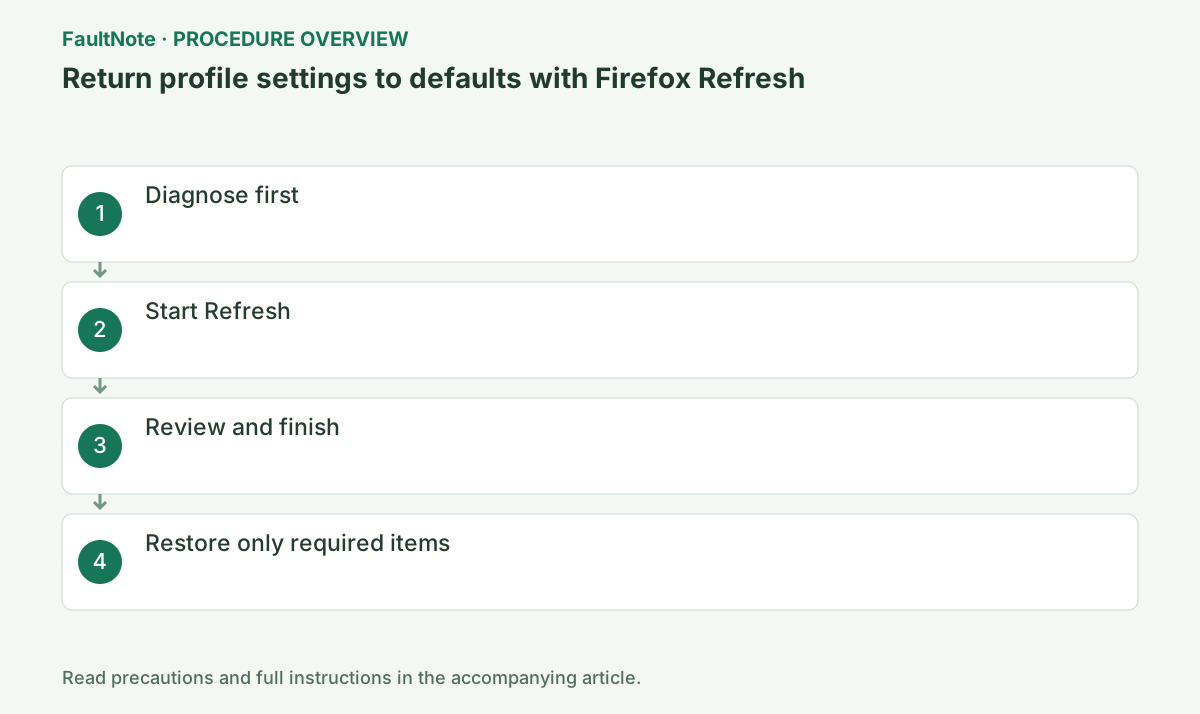
Step-by-step instructions
Refresh retains key data such as bookmarks and passwords, but removes extensions, extension data, and modified settings. Record essential extensions and accessibility customizations.
Check how you will restore extensions used for authentication, translation, or work sites. Retained bookmarks do not imply that saved information inside every extension survives.
Check before continuingCheck how you will restore extensions used for authentication, translation, or work sites. Retained bookmarks do not imply that saved information inside every extension survives.
Open Menu > Help > Troubleshoot Mode and reproduce the same operation with extensions and related features temporarily disabled. If it does not improve, another cause may make Refresh ineffective, so record the error and URL.
If there are many extensions or accessibility settings, save their list and settings as images or notes. Refresh removes extensions, themes, permissions, and modified settings.
Use the three-line menu at the upper right to open the listed items and distinguish the normal window from the diagnostic window. Use the same URL, zoom level, video position, and operation before and after the change.
Before Refresh, distinguish one-site from all-site problems. A site that also fails in another browser needs site or network investigation. If Troubleshoot Mode helps, isolating extensions may preserve more settings. Record reproduction conditions even when normal mode temporarily works. Save forms and complete active uploads before closing Firefox.
In normal mode, open Menu > Help > More troubleshooting information and select Refresh Firefox on the right. Select Refresh Firefox again in the confirmation dialog; Firefox then closes.
If normal startup fails, the same feature is available from Troubleshoot Mode. The button may be unavailable before Firefox 150 when using the new profile management.
Improvement in diagnostic mode does not establish that the GPU alone is responsible. Extensions, themes, and hardware acceleration change together, so return to normal mode and test candidates individually.
Open detailed troubleshooting information through Help and choose Refresh Firefox, reviewing its removal warning. This creates a new profile, unlike simply selecting Open for Troubleshoot Mode. It applies to desktop Firefox. If the button is missing, consult official profile-management and version conditions instead of deleting settings files as a substitute.
Official links for this step
- Refresh Firefox
Review what data is retained and which settings are removed before proceeding.
Check before continuingIn normal mode, open Menu > Help > More troubleshooting information and select Refresh Firefox on the right. Select Refresh Firefox again in the confirmation dialog; Firefox then closes.
- Refresh Firefox
After Firefox creates a new profile and restarts, review the imported-items list and select Finish. Choose whether to restore prior windows and tabs, then check bookmarks, history, and passwords.
Old Firefox Data on the desktop is a copy of the old profile and contains sensitive information. Keep it securely until recovery has been verified.
After changing a setting, close every Firefox window and restart. Save the Graphics section of about:support if needed, and restore any setting that does not help before proceeding.
Review imported data and choose whether to restore previous tabs. For diagnosis, begin with the affected page instead of restoring a large workload immediately. Check important bookmarks and needed saved passwords. Retained cookies do not guarantee every session persists. Record sites requiring extra authentication or organization certificates separately from ordinary pages.
Review the imported-data summary and open the page that previously failed. Test loading and input before restoring extensions; restoring everything immediately hides the result of the clean state.
If the initial state works, restore required extensions individually and repeat the same action after each. If one reintroduction triggers the failure, disable it again and check its vendor for updates.
Before recovering anything from Old Firefox Data, preserve the current new profile too. Bulk overwrites can restore the settings Refresh removed. Identify required files through official migration guidance and restart to verify each transfer. Treat the old folder as sensitive and avoid exposing it through attachments. Decide retention after recovery checks.
Check before continuingIf the initial state works, restore required extensions individually and repeat the same action after each. If one reintroduction triggers the failure, disable it again and check its vendor for updates.
Before reinstalling extensions, reproduce the affected URL and operation to establish a clean state where the symptom is absent. Then restore required extensions, site permissions, and toolbar settings one at a time, checking after every change.
Remove the item added immediately before the problem returned. If information is missing, follow Mozilla's profile-recovery procedure and copy only required files from Old Firefox Data. Overwriting the entire new profile can restore the problem too.
When finished, open an ordinary page and video as well as the affected URL. Completion means rendering works, crashes do not recur, and any responsible extension has been identified.
If the new profile still fails, record the symptom before repeating Refresh and compare non-profile conditions such as network, site availability, or rendering. Recover only needed old information. Working bookmarks and passwords may remove the need for bulk restoration. Provide Firefox version, URL, Troubleshoot Mode results, and post-refresh results rather than just saying it was reset.
Restore extensions from their legitimate vendors, avoiding similarly named add-ons. Check restored settings and stored data, testing the failing action after each addition. If bulk synchronization reintroduces the fault, inspect synchronized items and extension states before repeating Refresh. Also verify essential accessibility and text-size customizations.
Check before continuingDecision: establish a symptom-free baseline before reinstalling extensions, then restore required extensions, permissions, and toolbar settings one at a time. Remove the item that precedes recurrence and copy only required files from Old Firefox Data if data is missing.
Old Firefox Data on the desktop contains information from the previous profile. Keep it during recovery if needed, but do not publish it in a shared folder or send the entire directory as an attachment.
Restore only required information using the official profile-transfer guidance. Restoring all old settings can reintroduce the fault. After verification, decide what backup is still needed and avoid leaving unnecessary sensitive data indefinitely.
Check before continuingRestore only required information using the official profile-transfer guidance. Restoring all old settings can reintroduce the fault. After verification, decide what backup is still needed and avoid leaving unnecessary sensitive data indefinitely.
Check the result
- Bookmarks, history, and passwords are retained
- The symptom is resolved before extensions are restored
If the problem continues
- With Firefox closed, follow Mozilla's old-profile recovery procedure and restore only required items from Old Firefox Data; do not overwrite the entire new profile
- Keep the old profile and compare it using Profile Manager
Scope of this guide
Troubleshooting guide — Refresh retains items such as bookmarks while removing extensions and modified settings.
Frequently asked questions
What remains after Refresh?
Bookmarks, history, passwords, cookies, form autofill data, the personal dictionary, and similar data are retained.
Do retained bookmarks mean extension data survives too?
No. Mozilla describes removal of extensions and their data. Check the extension vendor's export or recovery procedure beforehand.
Official sources and dates
- Refresh Firefox - reset add-ons and settings ↗
- Troubleshoot and diagnose Firefox problems ↗
- Restore bookmarks, passwords and data from an old Firefox profile ↗
Source publication or resolution date: 2026-04-09. Sources checked: 2026-10-13. The check date is not the date the problem first occurred. Interface labels can vary between versions and display languages.