Excel: Start in Office Safe Mode
What to do first
Use Excel safe mode to suppress startup elements and examine the difference from normal.
This is a general troubleshooting guide, not an announcement of a current outage.
Affected products and symptoms
- Product
- Microsoft Excel for Windows
- Versions and conditions
- Excel for Microsoft 365 / 2024 / 2021 / 2019 / 2016
- Error codes and identifiers
- excel /safe
Symptoms
- Stop at startup
- Can't open only on normal startup
Causes and conditions
Possible options include COM/Excel add-in, XLStart, and settings.
Before you start
- Duplicate a question book
- Record add-in list
Precautions
- Do not enable macros or external content merely to test the workbook
- Do not overwrite the original workbook
Tools and official pages used in this guide
You can see the configuration name, limitations, and updated branches for this procedure on the official page.
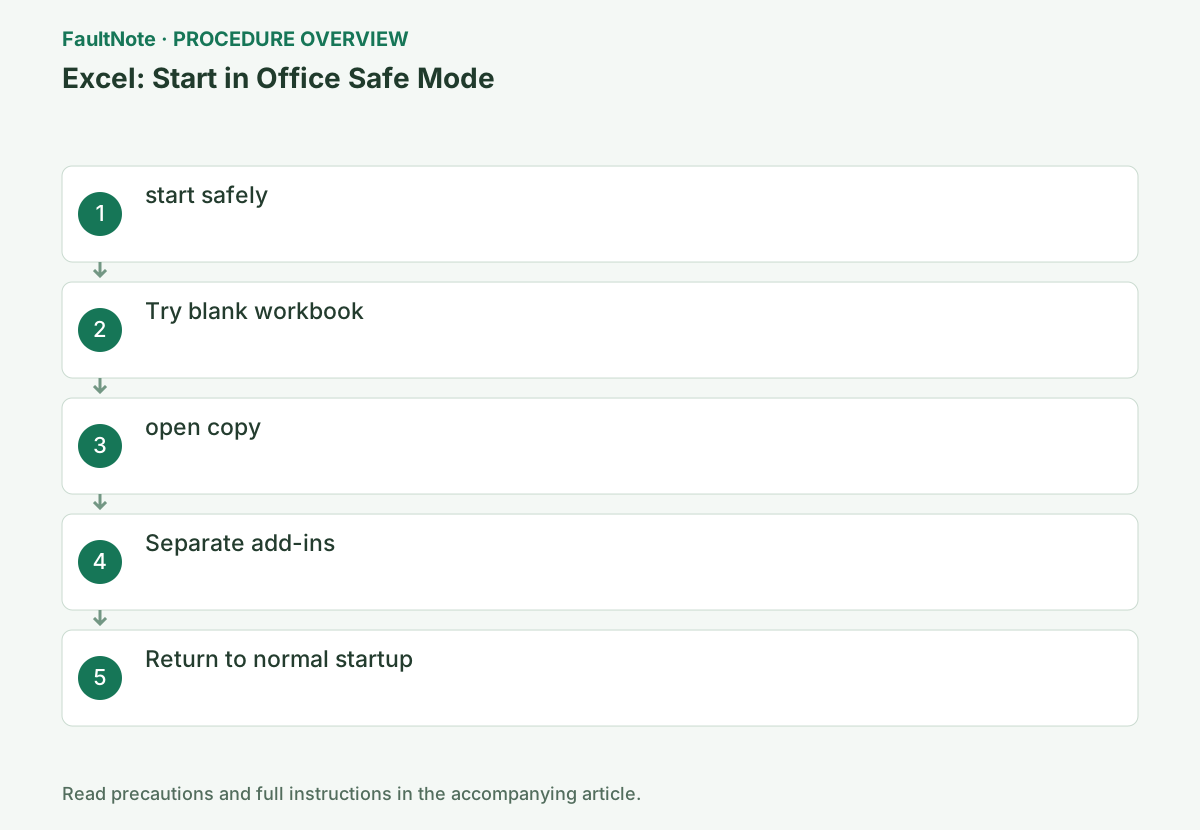
Step-by-step instructions
Record whether empty Excel fails or only a particular workbook. Retain the original and prepare a separate copy, noting recent add-ins or Office updates.
Compare blank and target-copy files in both modes. Safe-mode success alone does not identify one add-in or XLStart file; follow with individual comparisons.
Press Win+R, run excel /safe, and check the title bar.
Close all open Excel windows before running. Use this to confirm that you are in safe mode after booting, and to compare the effects of add-ins that are loaded only during normal boot.
Close all open Excel files and press Win+R and type excel /safe. Make sure that [Safe Mode] is displayed in the title bar after startup, and then create a blank workbook.
Save and close Excel windows, run excel /safe with a space, and verify the safe-mode title. Avoid mixing the test with an existing normal process. Separate a missing command from a startup crash. Safe mode limits additional startup features; it does not repair every workbook.
excel /safeEnter short text and numbers into a blank workbook and save it locally under a separate name.
Enter numbers or short strings in the cells of the new workbook and save it with a different name from the original business file. If the problem occurs even when the workbook is empty, the cause is not limited to that workbook, so repairing the Office side is also a candidate.
Enter text in A1 and a number in A2, save a separate local file, reopen, and check content and destination permission. A blank-file failure is not limited to one workbook. Separate network-save failure from local success. Expected safe-mode feature limits are not ordinary faults; do not overwrite a business original for testing.
Open a copy of the question book and determine if it is file specific.
The workbook in question uses a separately named copy and does not enable unknown macros or external content. If the blank workbook is fine but you can't open the copy, follow the Open and Repair steps for instructions on how to repair the file.
Use a copy and identify launch, load, calculation, or save failure. Distinguish a lengthy calculation from a confirmed hang and avoid repeatedly reopening. Do not enable unknown macros or connections. A one-file failure with working blank files can proceed to Open and Repair on the copy. Safe-mode readability does not establish normal calculation or integration.
Disable them one by one by going to [File] → [Options] → [Add-ins].
Choose COM Add-ins under Manage, click Go..., and clear the relevant check box. Excel add-ins have a separate management list. Record the original states and compare the same action after each change and restart.
Treat COM and Excel add-ins as separate management lists. Record states, clear check boxes, and test normally. Disabling a custom-function add-in can alter calculations, so retain errors and results on a copy. Save separately rather than overwriting the business workbook while functions are disabled. Restore items individually.
Quit completely, start normally, and put back any unrelated add-ins.
Do not re-enable all add-ins at once until you check the improved status by normal startup. Consult the provider for items that are potential causes, and return unrelated items to their original state based on the list you have saved.
Restore unrelated add-ins after improvement and verify needed calculations, save, charts, and output. Match vendor update instructions to Office. If even safe-mode blank saves fail, inspect destination permission and Office repair separately. For one-file failure, review recovery and earlier versions. Report version, error, and blank/copy results rather than deleting startup folders broadly.
Official links for this step
- Microsoft Excel for Windows Official Troubleshooting
You can see the configuration name, limitations, and updated branches for this procedure on the official page.
- Microsoft Excel for Windows Official Troubleshooting
Verify the original action in normal mode. With add-ins disabled, inspect custom-function and integration cells and keep changed results separate. Launch success and calculation correctness are different checks.
Retain originals, copies, add-in states, and tested actions for support. Do not enable unknown macros; carry these comparisons into repair rather than repeatedly relaunching safe mode.
Check the result
- You can save empty workbooks
- Can judge the difference from normal
If the problem continues
- If safe mode also fails, proceed to repair Office.
- If it's a specific book, open it and use repair.
Scope of this guide
Troubleshooting guide — General diagnostic and recovery procedures based on official support. It does not describe a specific current incident.
Frequently asked questions
Is it okay to start with Ctrl?
You can also launch the shortcut by holding down Ctrl.
Can I overwrite it?
First save it to a copy and check the limit effect.
Should I save while an add-in is disabled?
Save a separately named copy first. Custom functions or integrations can change results, so do not overwrite the original before verifying required calculations.
Official sources and dates
- Open Office apps in safe mode on a Windows PC ↗
- Command-line switches for Microsoft Office products ↗
Source publication or resolution date: Not specified. Sources checked: 2026-10-13. The check date is not the date the problem first occurred. Interface labels can vary between versions and display languages.
Related troubleshooting guides
Microsoft Office / Microsoft 365 errors and troubleshooting →