Word: Start in Office Safe Mode
What to do first
Check the difference from normal startup in Office safe mode with only Word.
This is a general troubleshooting guide, not an announcement of a current outage.
Affected products and symptoms
- Product
- Microsoft Word for Windows
- Versions and conditions
- Word for Microsoft 365 / 2024 / 2021 / 2019 / 2016
- Error codes and identifiers
- winword /safe
Symptoms
- Crashes on normal startup
- I want to check if the cause is an add-in.
Causes and conditions
Possible suggestions include add-ins, templates, extensions, and broken resources.
Before you start
- Check unsaved documents
- Record add-in name
Precautions
- Some functions are limited
- Disable add-ins before removing them
Tools and official pages used in this guide
You can see the configuration name, limitations, and updated branches for this procedure on the official page.
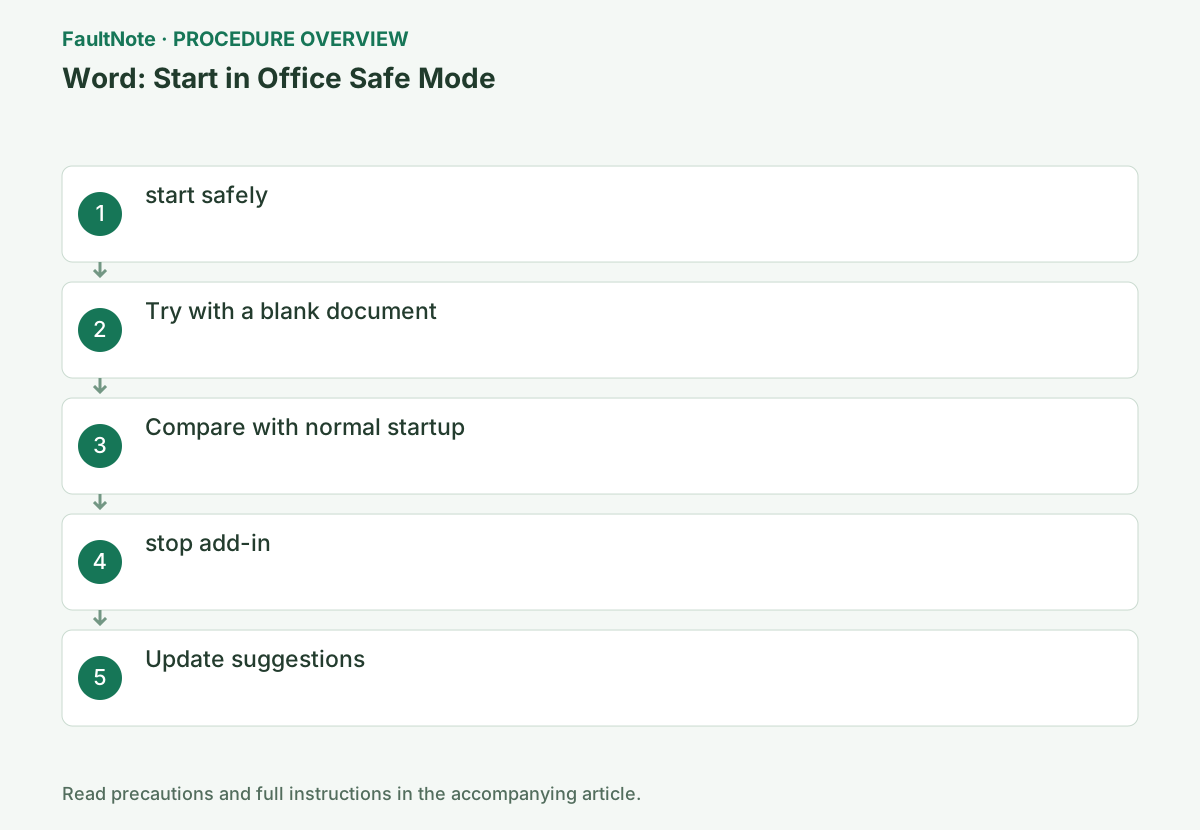
Step-by-step instructions
Distinguish an empty Word startup failure from a specific-document failure. Record its location, size, format, and recent changes and prepare a copy. Use a non-sensitive blank document for launch comparisons.
Preserve recovered unsaved documents separately first. Safe mode not automatically opening a recovered document is not proof of its loss.
Enter winword /safe using Win+R and select [OK].
First, close all Word windows. Check if Safe Mode is displayed in the title after startup, and if the command is not found, check if Word is installed on the PC.
Close all open Word files, press Win+R and type winword /safe. If [Safe Mode] does not appear in the title bar, Word started normally, so this launch cannot be used for the Safe Mode comparison.
Use a space in winword /safe, close Word first, and verify the safe-mode title. Do not mistake a document opening in an existing normal process for safe mode. Separate command-not-found from startup failure. This starts Word diagnostically, not Windows Safe Mode; save documents first.
winword /safeTry typing, saving, exiting, then opening a copy of the problem document.
Type a short string in a new blank document and save it somewhere you know. If this is successful and only a specific document fails, use Copy to investigate the problem with that document rather than the entire Word.
Type a short string into a blank document, save separately to a known local folder, then reopen and verify it. Use a copy of the failing document. Blank-file failure and copy-only failure lead to different checks. Restricted-permission documents can be limited in safe mode, so inability to open one is not proof of corruption. Do not enable unknown macros or external content.
Close Word and start it normally to see if it only fails normally.
Opening in safe mode does not mean that all documents are OK. If it stops after just starting normally, it may be caused by an add-in, so please proceed to the next step to check the add-in.
Compare the same blank file and copy in normal startup. Safe-mode-only success suggests startup components without identifying one cause. Expected customization limits are not new faults. Record print-only failures separately and distinguish launch, editing, saving, and printing instead of calling them all working.
Disable them one by one using [File] → [Options] → [Add-ins] → COM add-ins.
Select [COM Add-ins] under [Manage] at the bottom of the screen, and select [Go] to open the list. Make note of the valid items, uncheck one, restart Word, and try the same operation. Do not choose to delete from the beginning.
Open File > Options > Add-ins > Manage: COM Add-ins > Go, record states, and clear check boxes rather than removing items. Restart normally for each test and restoration. Note unavailable signing or document-management functions while disabled. Escalate managed items rather than deleting them.
If you have improved a specific item, check the latest version from the provider and revert unrelated items.
If the disabled item is a necessary function for your business, notify the provider or administrator of the Word version and reproduction conditions. After the diagnosis is completed, start it from the normal shortcut and restore only the add-ins you need.
Disable a reintroduced trigger again to confirm improvement. Report Word/add-in versions, action, and mode results to the vendor and verify update compatibility. Restore unrelated items and everyday editing/saving. If safe mode also fails, assess Office or document repair with originals and settings preserved rather than repeatedly resetting.
Official links for this step
- Microsoft Word for Windows Official Troubleshooting
You can see the configuration name, limitations, and updated branches for this procedure on the official page.
- Microsoft Word for Windows Official Troubleshooting
Launch normally and verify editing, separate save, and reopen for a blank file and required document copy. Check print preview or business add-ins where needed; safe-mode launch alone is not operational recovery.
Report the failing document type and action without exposing macros, private content, or credentials. Retain copies and changed add-in states as the return path.
Check the result
- Can save blank documents
- Can reproduce the difference from normal
If the problem continues
- If safe mode also fails, proceed to repair Office.
- If you only have a specific document, open it as a copy and try repairing it.
Scope of this guide
Troubleshooting guide — General diagnostic and recovery procedures based on official support. It does not describe a specific current incident.
Frequently asked questions
Is it the same as Windows Safe Mode?
Starts only Word with restrictions.
Can I continue using it?
It is for diagnostic use. After fixing it, it will return to normal startup.
Is a document corrupt if safe mode cannot open it?
Not necessarily. Safe mode has limitations including restricted-permission documents. Compare a blank file and a normal-mode copy and retain the actual error.
Official sources and dates
Source publication or resolution date: Not specified. Sources checked: 2026-10-13. The check date is not the date the problem first occurred. Interface labels can vary between versions and display languages.
Related troubleshooting guides
Microsoft Office / Microsoft 365 errors and troubleshooting →