Before turning on Windows protected print mode: which drivers disappear, and the scanner catch
Windows can print without a manufacturer's driver (Windows Ready Print), and it has a setting that makes it print that way exclusively (Windows protected print mode). Microsoft highly recommends turning it on. Turning it on also uninstalls any printer that uses a third-party driver and deletes that driver from the driver store, and on some multifunction devices the scanner stops being available. This guide was written on 2026-09-21 from three Microsoft documents and covers what to check first, what happens, and how to reverse it. It is also a checklist for buying a printer.
Published · Updated · FaultNote editorial policy
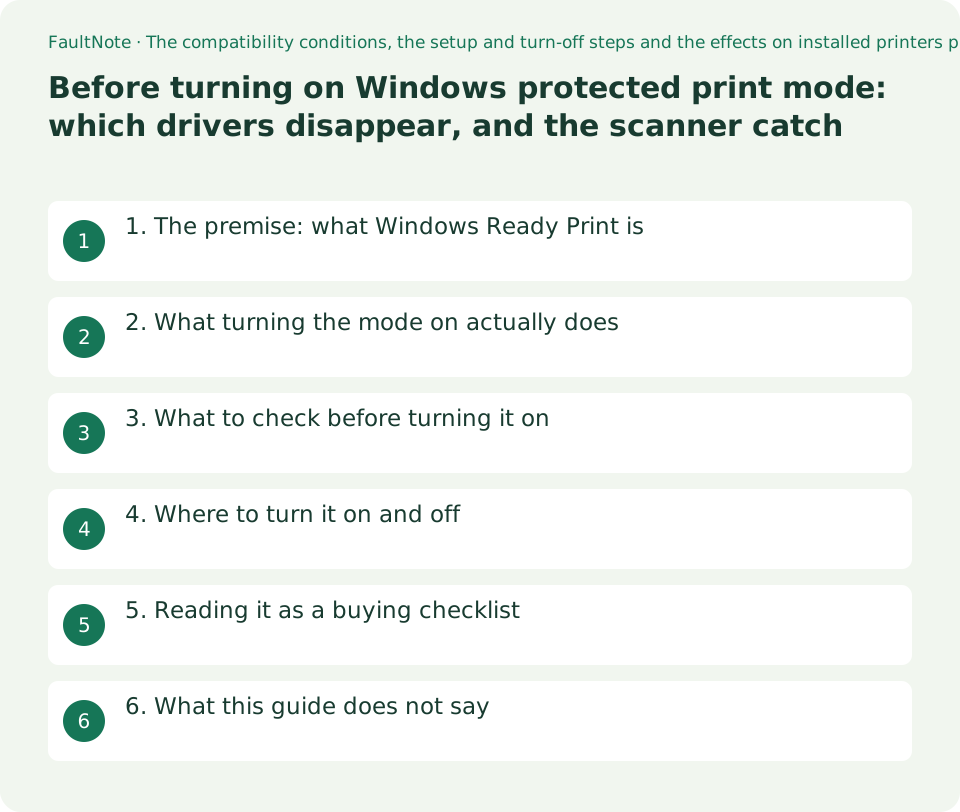
Who this guide is for and what to prepare
- Anyone deciding whether to turn Windows protected print mode on
- Anyone whose printer or scanner vanished after turning it on
- Anyone buying a printer who wants one that works without installing drivers
What you need
- Note the model of the printer you use, and whether you use the scanner on a multifunction device
- Be ready to look up whether that model is Mopria certified
- Check whether you print to OneNote, or use XPS or fax; all three are affected
- On a work or school PC, bear in mind that the setting may be governed by group policy
1. The premise: what Windows Ready Print is
Microsoft describes it as: Windows Ready Print is Windows' preferred means of communicating to printers, including the Internet Printing Protocol (IPP), eSCL scanning, and Universal Print.
The distinguishing property is that no driver is installed: Windows Ready Print doesn't require the installation of third-party drivers. This provides a simple, streamlined, and secure printing experience compared to legacy printers, regardless of the PC's architecture. That last clause matters when you are considering a Windows on Arm machine.
Compatibility has a marker: Windows Ready Print is designed to work with Mopria certified printers , and many existing printers are already compatible with Windows Ready Print. Mopria is described as a collection of printer manufacturers and software vendors that define the standards for IPP printing and eSCL scanning, with certified devices guaranteeing conformance.
Manufacturer-specific features are not simply lost, either: the documents state that customization is available through print support applications (PSAs).
2. What turning the mode on actually does
The mode itself is short to describe: Windows protected print mode exclusively uses Windows Ready Print which provides additional print security benefits on PCs. Enabling Windows protected print mode is highly recommended.
What happens is enumerated. Upon enabling Windows protected print mode, printers that use third-party drivers are uninstalled. And: The print driver is deleted from the print driver store, and it can't be used while Windows protected print mode is active.
Even a Mopria certified printer is uninstalled if it was originally installed using a third-party driver. It can be reinstalled, and when it is, it uses Windows Ready Print instead. A printer that was installed with Windows Ready Print in the first place is not uninstalled at all.
Reversal has its own rules. Disabling the mode and reinstalling a printer restores the original driver, but printers already installed continue to use Windows Ready Print unless they are removed and reinstalled with the mode disabled. Non-compatible printers do not come back by themselves: the FAQ states you will have to manually reinstall them.
3. What to check before turning it on
The table gathers what the documents say is worth checking first. The last column summarises the source; it is not a rating by this site.
The scanner is what people miss. Some compatible devices' scanners are unavailable in Windows protected print mode. The page directs you to the Mopria certified products list to check, and says that where a device is not Mopria certified, only printing functionality is available in the mode. If you scan for work, check this before anything else.
Software printers are affected too. Unsupported software printers, including OneNote (Desktop), are uninstalled. To keep printing to OneNote, the OneNote (Desktop) – Protected virtual printer is used instead, and it is stated to be installed by default in OneNote Windows app versions 2410 and later running on Windows 11 version 26100 or higher.
XPS and fax are removed when the mode is turned on, and the page carries the steps for reinstating them (through Windows Features, selecting Microsoft XPS Document Writer, and so on) after the mode is disabled.
Scroll horizontally to see the full table →
| What to check | What the source states | What to do |
|---|---|---|
| Printer compatibility | Designed to work with Mopria certified printers; compatible devices are identified by an icon in Settings | Confirm certification on the Mopria certified products list |
| The scanner on a multifunction device | Some compatible devices' scanners are unavailable in the mode; check whether the device is Mopria certified | If you scan regularly, check this before turning the mode on |
| The driver you have now | Printers using third-party drivers are uninstalled and the driver is deleted from the driver store | That driver cannot be used while the mode is active |
| Printing to OneNote | Unsupported software printers are uninstalled; the OneNote (Desktop) – Protected virtual printer is used instead | Version conditions apply (OneNote app 2410 or later, Windows 11 version 26100 or higher) |
| XPS and fax | Removed when the mode is turned on; reinstall steps are published for after it is disabled | If you use either, note the steps before you proceed |
| Manufacturer-specific features | Can still be provided through print support applications (PSAs) | The documents do not say the features disappear entirely |
4. Where to turn it on and off
Both live in the same place: Settings, Bluetooth & Devices, Printers & scanners, then scroll to Printer Preferences and look under Windows protected print mode.
To turn it on, select Set up and work through the prompts. Microsoft notes that some printers may need to be reinstalled and that those are identified in the Set up dialog. Reinstall the compatible printers afterwards.
To turn it off, select Turn Off in the same place — with one condition: If Windows protected print mode is enabled as group policy, you won't be able to disable it without contacting your administrator. That is the case on many work and school machines.
The FAQ also states the direction of travel: Windows protected print mode will be enabled by default at a future date. No date is given, so this guide gives none either.
5. Reading it as a buying checklist
This also changes what to look for in a printer. A Mopria certified model prints without a driver being installed and is not tied to the PC's architecture; the FAQ states plainly that Mopria certified printers work regardless of your PC's architecture.
For a multifunction device, check printing and scanning separately. The documents are explicit that a device can be compatible for printing while its scanner is unavailable in the mode, and they point to the Mopria certified products list.
Even if you are keeping the printer you have, knowing where it stands is worth the few minutes, since the mode is stated to become the default at some future point. For a non-compatible printer, the FAQ says it cannot be reinstalled while the mode is enabled.
The future of manufacturer print drivers themselves is covered separately on this site, from Microsoft's published end-of-servicing plan. This guide keeps to what happens on your machine when you change this setting.
06. What this guide does not say
It does not say whether a given model is compatible. The place to check is the Mopria certified products list; no device was tested here.
It does not tell you whether to turn the mode on. Microsoft recommends it highly, but the weight of the scanner and software-printer effects depends on how you work.
It does not cover enterprise deployment through group policy or Intune. Those have their own pages and are not decision material for a personal reader.
It puts no figure on the security benefit. The documents describe additional print security benefits; nothing was measured here.
0Limitations and requirements
- Turning the mode on uninstalls printers that use third-party drivers and deletes the driver from the driver store.
- Some compatible devices' scanners are unavailable in the mode. If you scan for work, check the Mopria certified products list first.
- Unsupported software printers including OneNote (Desktop), along with XPS and fax, are removed.
- If the mode is enabled as group policy, it is stated that you cannot disable it without contacting your administrator.
- Everything quoted here was read on 2026-09-21. The FAQ and the Windows Ready Print page displayed Last updated on 2026-06-18.
Frequently asked questions
Will my current printer stop working?
A printer using a third-party driver is uninstalled. A Mopria certified model can be reinstalled and then uses Windows Ready Print. The FAQ states that a non-compatible printer cannot be reinstalled while the mode is enabled.
What happens to the scanner on my all-in-one?
The documents note that some compatible devices' scanners are unavailable in the mode, and direct you to the Mopria certified products list to check. Where a device is not Mopria certified, only printing functionality is available.
Can I reverse it?
Select Turn Off in the same place in Settings. But if the mode was enabled as group policy you cannot disable it without contacting your administrator, and non-compatible printers have to be reinstalled manually afterwards.
Will it become the default eventually?
The FAQ states that Windows protected print mode will be enabled by default at a future date. No date is given, so none is given here.
Sources and verification date
Sources checked: . These sources support the specifications, procedures or prices discussed here. Check each source for applicable conditions and current information.
- Microsoft Learn: Overview of Windows protected print mode. States that the mode exclusively uses Windows Ready Print and that enabling it is highly recommended; that it is designed to work with Mopria certified printers, identified by an icon in Settings; that some compatible devices' scanners are unavailable in the mode, to be checked against the Mopria certified products list; the setup and turn-off steps under Settings, Bluetooth & Devices, Printers & scanners, Printer Preferences; that the mode cannot be disabled without an administrator when enabled as group policy; that enabling it uninstalls printers using third-party drivers and deletes the driver from the print driver store; the reinstall behaviour for Mopria certified printers originally installed with a third-party driver; that a printer originally installed with Windows Ready Print is not uninstalled; the removal of unsupported software printers including OneNote (Desktop) and the OneNote (Desktop) – Protected virtual printer with its version conditions; and the removal and reinstall steps for XPS and fax. Read 2026-09-21 ↗
- Microsoft Learn: Windows protected print mode FAQ. States that non-compatible printers are uninstalled and cannot be reinstalled while the mode is enabled; that they must be manually reinstalled after disabling it; that manufacturers can still provide custom features via print support apps; that scanner compatibility is checked against the Mopria certified products list; that some Mopria certified printers installed by default with third-party drivers are removed but can be reinstalled; that Mopria certified printers work regardless of the PC's architecture; and that the mode will be enabled by default at a future date. Page shows Last updated on 2026-06-18. Read 2026-09-21 ↗
- Microsoft Learn: Discover Windows Ready Print. States that Windows Ready Print is Windows' preferred means of communicating to printers, including IPP, eSCL scanning and Universal Print; that it requires no third-party drivers and works regardless of the PC's architecture; that it is designed to work with Mopria certified printers; describes Mopria as the alliance defining the standards for IPP printing and eSCL scanning with certification guaranteeing conformance; compares Windows Ready Print with legacy driver printing on security, compatibility and reliability; describes customization through print support applications; and points to the end of servicing plan for legacy v3 and v4 Windows print drivers. Page shows Last updated on 2026-06-18. Read 2026-09-21 ↗
Related practical guides
- Will your old printer work on Windows 11? Microsoft's printer-driver end-of-servicing dates, and what the IPP class driver covers
- Installing Windows 11 on an unsupported PC: what Microsoft states will happen
- Mouse Polling Rate vs DPI: Choosing Between 1000 Hz and 8000 Hz Using Manufacturer Documentation
- G-SYNC vs FreeSync Certification: What Each Badge Guarantees and How to Read a VRR Range
- How to read printer page yield: cartridges, ink tanks and laser under the ISO test conditions
- Onboard audio or a USB DAC/headphone amp: work out the voltage your headphones actually need