Mouse Polling Rate vs DPI: Choosing Between 1000 Hz and 8000 Hz Using Manufacturer Documentation
Polling rate (report rate) is how often a mouse reports its position and button state to the PC. Logitech explains that 125 Hz means 125 updates per second (one every 8 milliseconds) and 1000 Hz means 1,000 updates per second (one every millisecond), that 250 Hz or below is sufficient for most users, and that faster rates mainly benefit competitive gamers on high-refresh monitors. DPI is a separate setting: it controls cursor speed, not report frequency. Rates above 1000 Hz also have costs. Logitech says report rates above 1 kHz can lower game frame rates because the extra USB traffic may impact system performance, and Razer says 8000 Hz wireless operation depends on its HyperPolling Wireless Dongle, citing the Viper V2 Pro at around 17 hours of battery with constant motion at 8000 Hz. Before buying, confirm which rates the model supports, whether a dongle is required, and whether the battery life at that rate is acceptable.
Published · Updated · FaultNote editorial policy
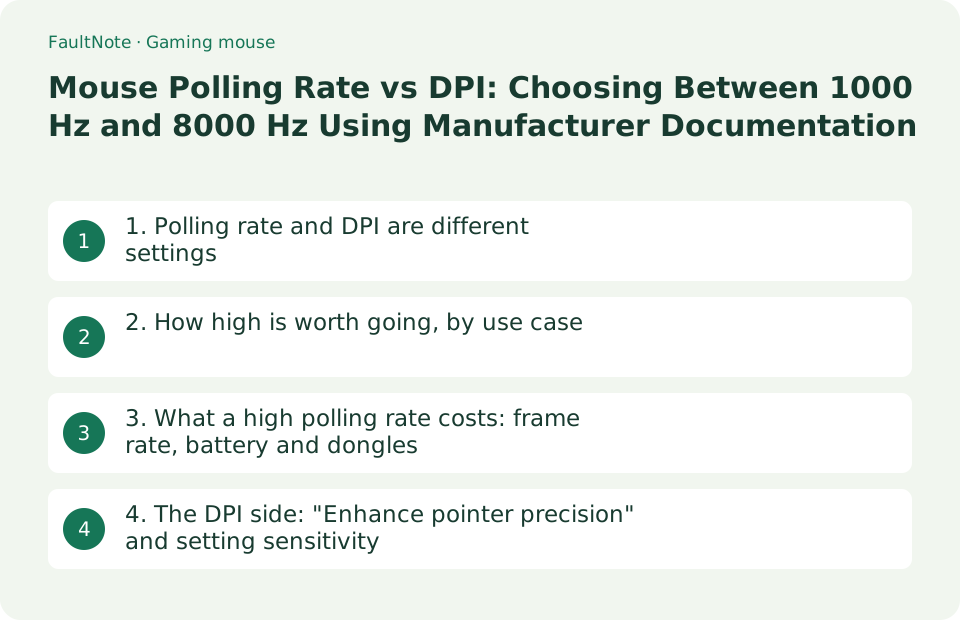
Who this guide is for and what to prepare
- People deciding whether the "8000 Hz" or "4000 Hz" label on a gaming mouse matters for them
- People unsure whether DPI or polling rate is the setting to change for the behavior they want
What you need
- The exact model of your mouse and its product page, which lists the supported polling rates
- The configuration software for the mouse (Logi Options+, G HUB, Razer Synapse and so on)
- Your monitor's refresh rate and access to the in-game sensitivity settings you normally use
1. Polling rate and DPI are different settings
Polling rate (report rate) is how often the mouse reports its position and button state to the PC, measured in hertz. Logitech explains that 125 Hz sends updates 125 times per second (once every 8 milliseconds) and 1000 Hz sends updates 1,000 times per second (once every millisecond). DPI (dots per inch) sets cursor speed: how far the cursor travels on screen for the same physical movement. Logitech states the split directly: DPI controls cursor speed, while polling rate determines how often the cursor updates.
So if your aim feels too fast or too slow, the settings to change are DPI and in-game sensitivity. If movement feels choppy or delayed, polling rate is the setting involved. Both are changed in the configuration software, and many mice can also switch DPI steps with a button on the device.
Scroll horizontally to see the full table →
| Setting | What it controls | What changes when you adjust it | Where to check or change it |
|---|---|---|---|
| Polling rate (report rate) | How many times per second the mouse reports to the PC (Hz) | The interval between reports. 1000 Hz is one report per millisecond (Logitech) | Configuration software (Logi Options+, G HUB, Razer Synapse and so on) |
| DPI (CPI) | How far the cursor moves for the same hand movement | Cursor and aim speed, which is what "sensitivity" usually refers to | Configuration software, or a DPI button on the mouse on some models |
| In-game sensitivity | The view-movement multiplier inside that game | Combines with DPI to produce your effective sensitivity | The settings screen of each game |
| Windows "Enhance pointer precision" | Varies cursor travel with how fast you move the mouse | When on, the mouse may not follow the configured DPI (see section 4) | Control Panel > Hardware and Sound > Mouse > Pointer Options |
2. How high is worth going, by use case
Logitech gives a breakdown by use: 50-100 Hz for standard computing such as browsing, email or word processing (and longer battery life on wireless mice), 100-250 Hz for creative work such as design and photo editing plus casual gaming, 500 Hz for serious gaming, and 1000 Hz and above mostly for competitive gaming or high-end esports setups. It states that 250 Hz or below is sufficient for most users, that faster rates mainly benefit competitive gamers on high-refresh monitors, and that you should test the settings on your own hardware.
Razer describes the point of a high polling rate as lower latency and smoother visuals when combined with a high-refresh-rate monitor. Going from 1000 Hz to 8000 Hz shortens the input interval from 1 ms to 0.125 ms and lets the device report up to 8 times more data per second. How much of that you notice depends on your monitor and the game. The table below is a checklist for what to look at before buying. The figures are the manufacturers' statements, not measurements made for this site.
Scroll horizontally to see the full table →
| How you use the PC | Logitech's stated guideline | What to check |
|---|---|---|
| Mostly browsing, email and documents | 50-100 Hz (longer battery life on wireless mice) | Whether the default is already fine, and whether you can lower it to favor battery life |
| Design, photo editing, casual gaming | 100-250 Hz | Which steps the software offers (125 / 250 / 500 / 1000 Hz and so on) |
| Serious gaming | 500 Hz | Your monitor's refresh rate, and whether you can tell the difference in your games |
| Competitive play on a high-refresh monitor | 1000 Hz and above | Whether the model supports rates above 1000 Hz, whether a dongle is needed, battery life and the trade-offs in section 3 |
3. What a high polling rate costs: frame rate, battery and dongles
A Logitech support article states that some users see a drop in frames per second when the report rate of the mouse is set above 1 kHz. It explains that while a higher polling rate can result in smoother movement, the extra USB traffic may also impact system performance and lead to FPS drops, and it suggests reducing the polling rate to see whether FPS improves, or trying another game. Higher is therefore not automatically better.
Wireless adds conditions. Razer says the 8000 Hz operation of the Viper V3 Pro is made possible with the HyperPolling Wireless Dongle, and that this dongle is designed exclusively for mice and does not have multi-device support (Razer's compatible keyboards reach up to 4000 Hz through the dongle). For battery life, the example Razer gives is the Viper V2 Pro at around 17 hours with constant motion at 8000 Hz. When a product page advertises "up to X hours", check which polling rate that figure assumes for that specific model.
Scroll horizontally to see the full table →
| Trade-off or requirement | What the manufacturer states | What to check before buying or changing the setting |
|---|---|---|
| Lower frame rate in games | Logitech: report rates above 1 kHz can cause FPS drops; the extra USB traffic may impact system performance | Play at the high rate, then compare with a lower rate if FPS drops |
| Requirements for 8000 Hz wireless | Razer: the Viper V3 Pro reaches 8000 Hz with the HyperPolling Wireless Dongle, which has no multi-device support | Whether the dongle is included or sold separately, and whether you can spare a USB port |
| Battery life | Razer: the Viper V2 Pro lasts around 17 hours with constant motion at 8000 Hz. Logitech: high rates can drain battery quickly on wireless mice | Which polling rate the battery figure on the product page assumes |
| Different ceilings for keyboards and mice | Razer: through the same dongle, mice reach up to 8000 Hz and compatible keyboards up to 4000 Hz | If you also want a faster keyboard, check that model and its dongle separately |
| Connection stability | Razer (Viper V3 Pro FAQ): for polling-rate testing, plug the dongle directly into a USB port on the PC and close background programs | Whether you have a port you can use directly rather than through a hub |
4. The DPI side: "Enhance pointer precision" and setting sensitivity
If you want the mouse to follow your DPI setting exactly, the Windows "Enhance pointer precision" option can get in the way. A Logitech support article describes users seeing physical DPI changes when the wireless report rate is changed in G HUB, says this setting can cause interference on its gaming mice that allow the wireless report rate to be changed, and recommends disabling it to give you complete control over DPI. The path it gives is Control Panel > Hardware & Sound > Devices and Printers > Mouse > Pointer Options tab > Motion > uncheck Enhance pointer precision > Apply. Razer gives similar advice in the Viper V3 Pro FAQ: to improve accuracy, consider disabling "Enhance pointer precision" in the Windows mouse settings.
Effective sensitivity comes from DPI combined with in-game sensitivity. As an example, Razer states that the factory DPI steps of the Viper V3 Pro are 400, 800, 1600 (default), 3200 and 6400, switchable with the button on the mouse. Pick one DPI step, tune in-game sensitivity against it, and only then revisit DPI. Polling rate is independent of this, so avoid changing both at once when you are comparing.
Scroll horizontally to see the full table →
| Symptom or goal | Setting to look at | What the manufacturer says |
|---|---|---|
| DPI seems to change after changing the report rate | Windows "Enhance pointer precision" | Logitech: this setting can interfere; disable it for complete control over DPI |
| Aim drifts or feels accelerated | The same setting (turn it off and compare) | Razer: consider disabling "Enhance pointer precision" to improve accuracy |
| Sensitivity too fast or too slow | DPI step and in-game sensitivity | Razer: the Viper V3 Pro ships with DPI steps of 400 / 800 / 1600 / 3200 / 6400, switched on the mouse |
| Movement feels choppy or delayed | Polling rate (and FPS at high rates) | Logitech: if FPS drops at a high rate, lower it and compare |
Limitations and requirements
- The figures in this guide are the published explanations and specifications of Logitech and Razer, checked on their pages on 19 September 2026. No latency or frame-rate measurements were made for this site.
- The latency comparisons Razer publishes on its own pages (the 0.125 ms input interval and the millisecond average-latency charts) are Razer's own values, which the page notes were measured in a controlled environment. They are not third-party measurements.
- Battery life and supported rates differ by model and generation. For any model other than the examples named here, check the product page for your exact model.
Frequently asked questions
Will buying an 8000 Hz mouse make me better at games?
Not necessarily. Logitech says 250 Hz or below is sufficient for most users, that faster rates mainly benefit competitive gamers on high-refresh monitors, and that you should test on your own hardware. Logitech also notes that rates above 1 kHz can lower FPS because the extra USB traffic may impact system performance. Wireless 8000 Hz has further requirements such as a compatible dongle, so check support and battery life first.
My aim feels wrong. Should I change DPI or polling rate?
Sensitivity (how fast the cursor or aim moves) comes from DPI and in-game sensitivity. Fix one DPI step first and adjust in-game sensitivity against it. Polling rate is how often the mouse reports; it does not set how fast the cursor moves. If movement feels accelerated, check whether "Enhance pointer precision" is enabled in Windows - both Logitech and Razer advise turning it off.
My frame rate dropped after I raised the polling rate.
A Logitech support article states that setting the report rate above 1 kHz can cause FPS drops, because the extra USB traffic may impact system performance. Its suggested response is to reduce the polling rate and see whether FPS improves, and to try another game. Compare both settings in the game you actually play.
Sources and verification date
Sources checked: . These sources support the specifications, procedures or prices discussed here. Check each source for applicable conditions and current information.
- Logitech: What Is Polling Rate on a Mouse? (guidelines by use case, and DPI vs polling rate) ↗
- Logitech Support: Using a higher report rate sometimes causes FPS drops while gaming ↗
- Logitech Support: Inconsistent DPI when wireless report rate is changed in G HUB and Enhance pointer precision is enabled in Windows ↗
- Razer: Razer HyperPolling Wireless Gaming Technology ↗
- Razer: Razer HyperPolling Wireless Dongle (FAQ on battery, multi-device support and compatibility) ↗
- Razer: Razer Viper V3 Pro (DPI steps, 8000 Hz requirements, FAQ) ↗
Related practical guides
- 1080p, 1440p or 4K: Plan a Gaming Monitor and GPU Budget Together
- USB-C Hub vs Thunderbolt Dock: Displays, Power, and Compatibility
- OLED monitor burn-in warranty and care: how to check warranty length and burn-in coverage before you buy
- Monitor Color Gamut Explained: sRGB and DCI-P3 Coverage vs Area Ratio for Photo and Video Editing
- USB-C Monitor Not Working or Stuck at a Low Refresh Rate: Check DP Alt Mode and Lane Allocation
- IPS vs VA vs TN vs OLED, and How to Read "1ms": Panel Type and Response Time on a Spec Sheet