Installing Windows 11 on an unsupported PC: what Microsoft states will happen
What actually happens if Windows 11 goes onto a machine that does not meet the requirements? There is no need to guess: Microsoft publishes it. No support, updates including security updates not guaranteed, possible malfunction from compatibility issues, a watermark on the desktop, and the full text of the disclaimer shown during installation. This guide was written on 2026-09-21 from that page and sets out the stated conditions and where Microsoft points for rolling back. It contains no steps for bypassing the requirements; it exists to put the conditions in front of the decision.
Published · Updated · FaultNote editorial policy
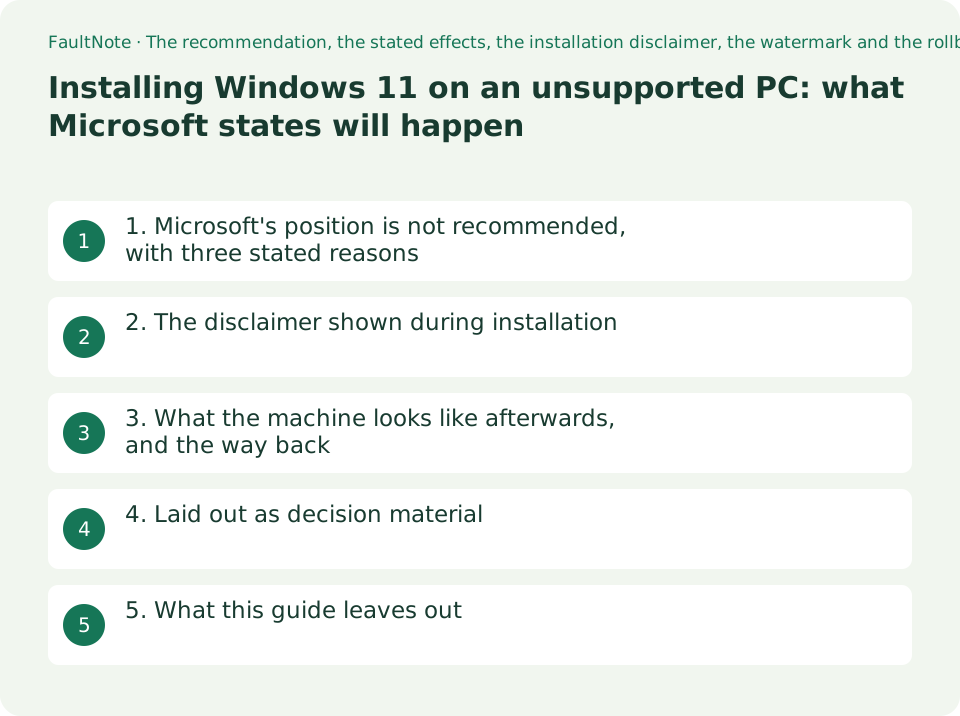
Who this guide is for and what to prepare
- People with a machine judged ineligible, deciding whether to upgrade anyway
- People already running it unsupported who want to know exactly what that means
- People weighing keeping a machine against replacing it, who want published conditions rather than opinion
What you need
- Check whether the machine meets the requirements (PC Health Check, or the maker's guidance)
- Note the current Windows version and when it last updated
- Have somewhere to back up important files, for any step beyond the scope of this guide
1. Microsoft's position is not recommended, with three stated reasons
The page states the position first: Installing Windows 11 on a device that doesn't meet Windows 11 minimum system requirements isn't recommended.
Then what follows from it: If Windows 11 is installed on ineligible hardware, your device won't receive support from Microsoft, and you should be comfortable assuming the risk of running into compatibility issues.
And: Devices that don't meet these system requirements might malfunction due to compatibility or other issues. Additionally, these devices aren't guaranteed to receive updates, including but not limited to security updates.
Read the phrase aren't guaranteed carefully. It is not the same as will not receive, and this guide does not upgrade it into that. The source's strength of claim is what gets reported.
2. The disclaimer shown during installation
The page reproduces the disclaimer that appears when installation is attempted on an ineligible device. As decision material this is the most concrete part of it.
This PC doesn't meet the minimum system requirements for running Windows 11 - these requirements help ensure a more reliable and higher quality experience. Installing Windows 11 on this PC is not recommended and may result in compatibility issues. If you proceed with installing Windows 11, your PC will no longer be supported and won't be entitled to receive updates. Damages to your PC due to lack of compatibility aren't covered under the manufacturer warranty. By selecting Accept, you are acknowledging that you read and understand this statement.
Two things appear here for the first time. One is the wording won't be entitled to receive updates — an entitlement, not a prediction. The other is the manufacturer warranty: damages from lack of compatibility are stated to be outside it. That line is about money, and on a machine still in warranty it can decide the question by itself.
The disclaimer closes by saying that accepting acknowledges having read and understood it. It is constructed so that not knowing is not available afterwards.
03. What the machine looks like afterwards, and the way back
For anyone who has already done it, the page is unambiguous: If you installed Windows 11 on a device not meeting Windows 11 system requirements, Microsoft recommends you roll back to Windows 10 immediately.
It also says what becomes visible: When Windows 11 is installed on a device that doesn't meet the minimum system requirements, a watermark is added to the Windows 11 desktop. A notification might also be displayed in Settings to advise that the system requirements aren't met.
For rolling back, the page gives Settings > System > Recovery as the entry point. That route has time limits and prerequisites, and whether it is available depends on the machine, so read Microsoft's page directly — nothing here was confirmed on hardware.
The page's own dating is worth noting too: it carries Updated December 12, 2024, states that it was originally published on 4 October 2021 when Windows 11 was released, and states that the minimum system requirements remain unchanged.
4. Laid out as decision material
The table maps what Microsoft states to how it bears on a decision. It is an arrangement of the page, not an opinion about it.
This guide includes no steps for bypassing the requirements. The reason is not only editorial policy: it is the disclaimer above. Once what a reader takes on is spelled out that plainly, adding the steps stops being the presentation of decision material.
Scroll horizontally to see the full table →
| What Microsoft states | What it means | How it bears on the decision |
|---|---|---|
| The device will not receive support from Microsoft | No official route when something breaks | Heavy on a machine used for work, or one that cannot be down |
| Updates including security updates are not guaranteed | Not guaranteed, rather than will not arrive | A plan that assumes updates cannot be built on this |
| The device might malfunction from compatibility or other issues | No specific symptom is named | Meaning the failure mode cannot be estimated in advance |
| Damage from lack of compatibility is outside the manufacturer warranty | A cost question | On a machine still in warranty this row can decide it alone |
| A watermark is added to the desktop | Permanently visible | Real consequence for a machine used in front of other people |
| If already installed, roll back immediately | Microsoft's recommendation is consistent throughout | Deciding while the rollback route is still open leaves more options |
5. What this guide leaves out
No bypass steps. Nothing about registry changes or modified installation media either.
Nor any claim about whether updates actually arrive. Microsoft's wording is not guaranteed, and this site has not tracked any machine. Individual reports of what happened on one device are not a substitute for the published statement.
Reading the supported processor lists and checking a used machine are covered in separate guides here, as is the wider set of options around Windows 10 reaching end of support. This guide covers only what Microsoft states about one of those options.
0Limitations and requirements
- This guide gives no steps for bypassing the requirements — a policy, and equally a consequence of how plainly the disclaimer states what a reader takes on.
- Updates are not guaranteed is not the same as updates will not arrive. The source's wording is what gets reported here.
- Rolling back has time limits and prerequisites and may not be available. Read Microsoft's page directly; nothing was confirmed on hardware here.
- The wording quoted was read on 2026-09-21; the page carried Updated December 12, 2024.
Frequently asked questions
Will updates stop if I install it on an unsupported PC?
Microsoft's wording is that such devices are not guaranteed to receive updates, including but not limited to security updates. It does not say they will not arrive, and this site has tracked no machine, so it asserts neither.
What does unsupported actually mean here?
The page states that if Windows 11 is installed on ineligible hardware the device will not receive support from Microsoft, and that you should be comfortable assuming the risk of running into compatibility issues.
What happens to the manufacturer warranty?
The disclaimer shown during installation, reproduced in full on the page, includes that damages to the PC due to lack of compatibility are not covered under the manufacturer warranty.
Can the desktop watermark be removed?
This guide does not cover removing it. The page states that a watermark is added to the desktop when Windows 11 is installed on a device that does not meet the requirements, and that a notification might also appear in Settings.
I have already installed it. What now?
Microsoft recommends rolling back to Windows 10 immediately, and gives Settings > System > Recovery as the entry point. That route has time limits and prerequisites; read Microsoft's page directly.
Sources and verification date
Sources checked: . These sources support the specifications, procedures or prices discussed here. Check each source for applicable conditions and current information.
Related practical guides
- Still on Windows 10: choosing between ESU, an in-place Windows 11 upgrade and a new PC, from two published dates
- Before buying a used business PC: how to read Windows 11's supported-CPU lists, and what "activated" does not prove
- Back Up Files with Windows 11 File History and Test a Restore
- Move Files to a New Windows PC with an External Drive
- Copy Large Folders with Robocopy: Preview, Resume and Check Results
- Save selected PDF pages with Microsoft Print to PDF