Mouse wheel moves another window or jumps too far: check inactive scrolling and line count
If the hovered window scrolls instead of the clicked window, inspect inactive-window scrolling. For large jumps, first check line count and screen-at-a-time settings before investigating hardware.
Published · Updated · FaultNote editorial policy
Who this guide is for and what to prepare
- People who want to adjust existing peripherals before replacing them
What you need
- Record Windows and manufacturer mouse settings
- Open long documents in two windows
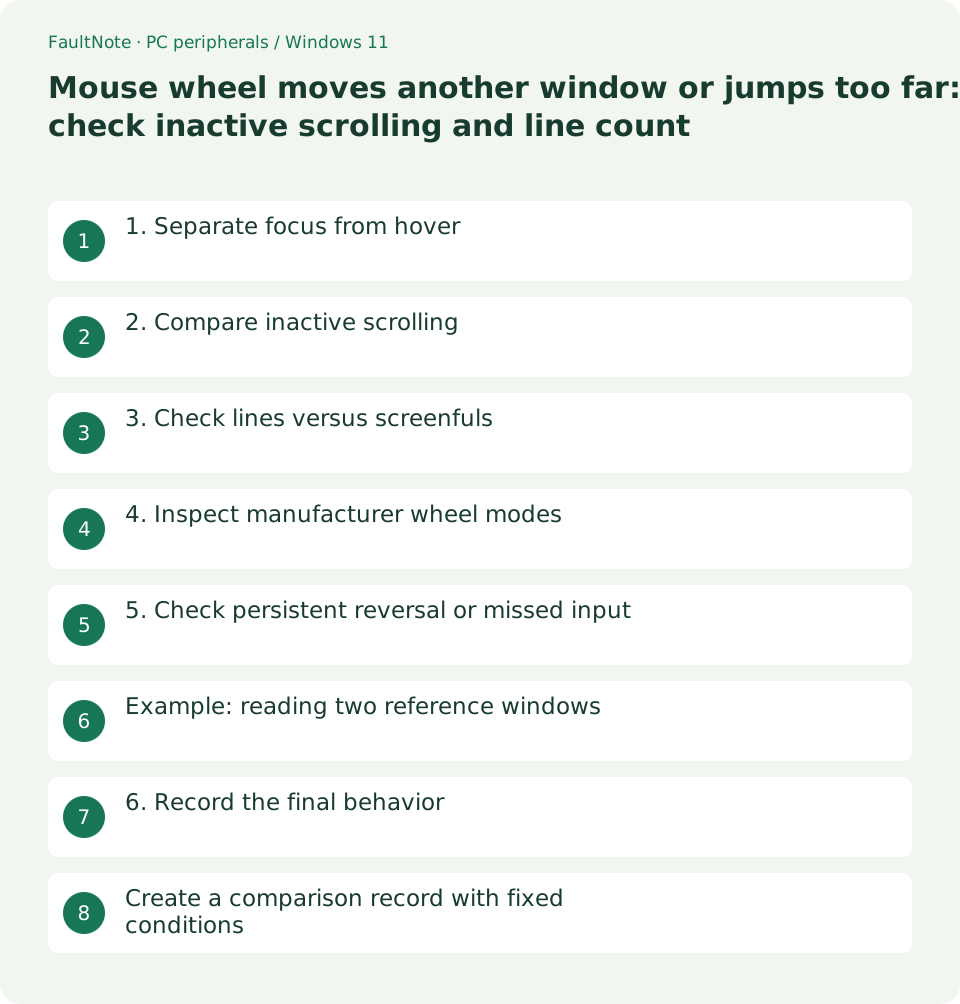
1. Separate focus from hover
Place two windows side by side, click one, then move only the pointer over the other and scroll. Record which document moves and whether keyboard focus actually changes.
- Click the left window and hover over the right
- Move the wheel one notch and identify the scrolling window
2. Compare inactive scrolling
Open Settings > Bluetooth & devices > Mouse in Windows 11 and inspect inactive-window scrolling. Microsoft documents the feature. Choose based on whether hover scrolling helps your workflow.
- Record the current state and compare on versus off
- Repeat the same one-notch test in both documents
3. Check lines versus screenfuls
A screenful differs from a configured number of lines. Keep the document fixed while comparing settings because line height and application scrolling behavior affect the visible distance.
- Record the scrolling mode and line count
- Try fewer lines and compare movement distance
4. Inspect manufacturer wheel modes
Some devices have ratcheted or free-spin modes and application profiles. If one app still jumps after Windows adjustments, inspect its profile and extensions rather than resetting every configuration together.
- Check wheel-mode controls in the manual
- Compare only the profile for the affected app
5. Check persistent reversal or missed input
Slow, deliberate movement that produces opposite-direction steps needs a separate investigation. Compare another app and, if available, another PC. Follow manufacturer cleaning instructions rather than spraying liquid into gaps.
- Turn slowly in one direction and observe movement
- Scroll the same document with another mouse
Example: reading two reference windows
Hover scrolling can help when an editor is on one side and references on the other, but can surprise you when the pointer rests over the wrong document. Choose the behavior for your workflow. Compare the same notch after clicking each window and record pointer location as well as the destination of typed text.
If reduced line count leaves opposite-direction jumps, treat that separately from excessive distance. A browser-only issue warrants checking its scrolling features and extensions. A device-specific issue across apps warrants connection comparisons. Record the model, wheel mode, line count and affected apps alongside any video.
Scroll horizontally to see the full table →
| Observed result | Next check |
|---|---|
| Hovered window moves | Compare inactive scrolling |
| Exactly one screen moves each time | Inspect screen-at-a-time mode |
| Slow movement still reverses | Compare another device and app |
6. Record the final behavior
Record line count, hover scrolling and wheel mode. If the same device reverses while another works normally, give that comparison to support. Also verify the chosen setup in your usual spreadsheet app.
- Retest both windows and the usual application
- Undo changes that did not help
Create a comparison record with fixed conditions
Record direction, notch versus continuous spin, pointer location, focused window and app. Use blank or public documents for recordings. Start with a short deliberate notch so ongoing smooth animation is less likely to be confused with new reverse input.
Preserve differences between default and app-specific profiles before changing them. Distinguish ordinary rotation from wheel-click combinations, tilt and a second wheel. Name controls using the manual so the relevant setting can be identified without changing unrelated options.
Before trying another PC, record the original connection. Different apps and line counts make distance comparisons ambiguous, so focus on whether irregular reversal follows the device. On managed systems, report the existing configuration. Verify the final setup in web pages, documents and spreadsheets.
Limitations and requirements
- Record the starting state and compare one changed condition at a time.
Frequently asked questions
Can settings fix every scrolling-direction problem?
An intended direction preference differs from irregular reverse input. Test deliberate movement in one direction.
Why does horizontal scrolling not work?
Microsoft notes that horizontal scrolling requires a supporting mouse. Check tilt or dedicated-wheel support.
Why does only my browser behave differently?
Compare browser settings, extensions and manufacturer app profiles individually.
Should I set the line count to zero?
Choose a usable movement amount and investigate irregular reversal separately.
Sources and verification date
Sources checked: . These sources support the specifications, procedures or prices discussed here. Check each source for applicable conditions and current information.
Related practical guides
- Before buying a compact keyboard: plan mouse space and essential keys
- Choose a vertical mouse by hand fit, handedness and button reach
- Monitor glare: check window, lamp and desk placement before increasing brightness
- Cannot adjust external-monitor brightness in Windows: check its buttons and DDC/CI
- Sticky trackball movement: distinguish connection trouble from ball and support dirt
- Short key presses ignored or Ctrl seems held: check Filter Keys and Sticky Keys