Short key presses ignored or Ctrl seems held: check Filter Keys and Sticky Keys
Filter Keys changes handling of brief or repeated presses; Sticky Keys allows multi-key commands to be entered sequentially. Test the relevant setting while preserving accessibility features you need.
Published · Updated · FaultNote editorial policy
Who this guide is for and what to prepare
- People who want to adjust existing peripherals before replacing them
What you need
- Record existing keyboard accessibility settings
- Save open work
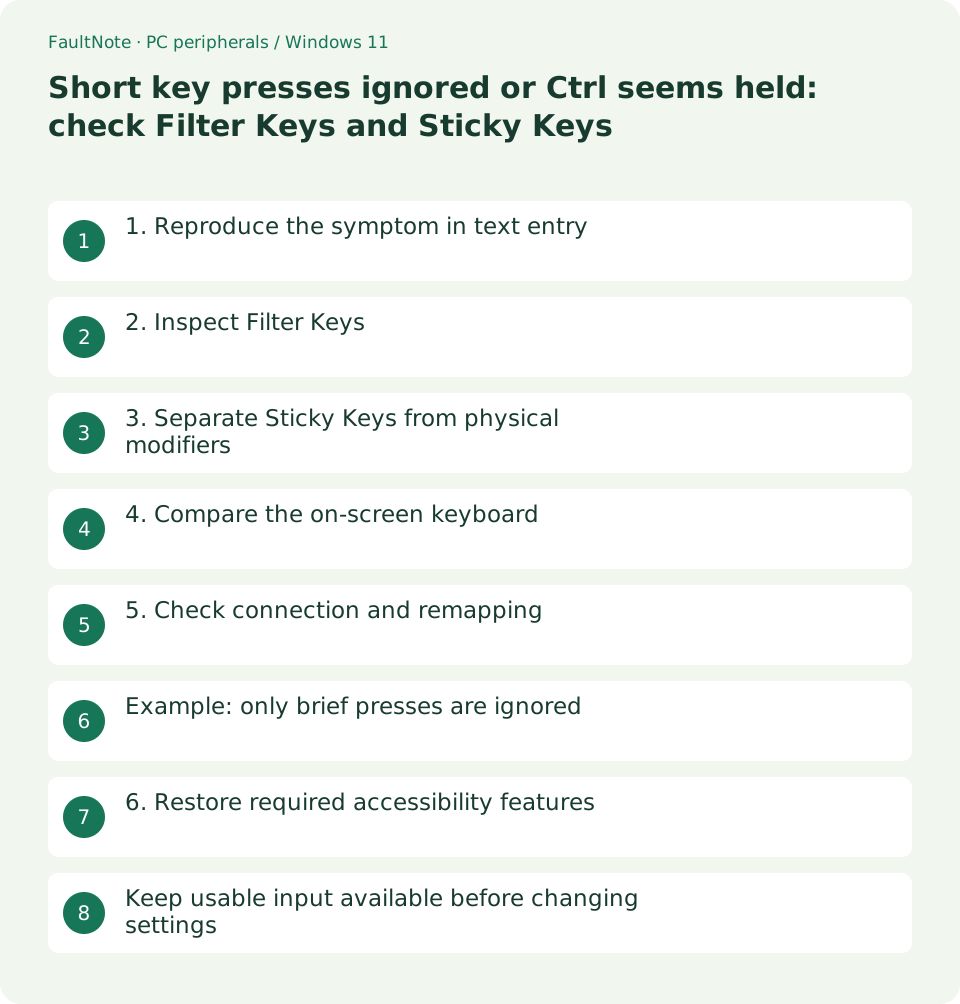
1. Reproduce the symptom in text entry
A game can add bindings and input-method effects. In a new Notepad document, compare a brief press, a longer press and repeated presses. Use non-sensitive text for shortcut tests.
- Compare brief and longer presses
- Check whether other keys behave similarly
2. Inspect Filter Keys
Press Windows+U and open Keyboard. Microsoft explains that Filter Keys can ignore brief or repeated keystrokes. Record its state and details before temporarily disabling it if you do not need it.
- Record the state under Accessibility > Keyboard
- Change one setting and repeat the brief-press test
3. Separate Sticky Keys from physical modifiers
Sticky Keys permits sequential modifier commands and may be intentional. If it was enabled accidentally, restore the intended state and also check for a physically stuck Ctrl or Shift key. Inspect activation shortcuts separately.
- Record Sticky Keys and its shortcut setting
- Restore the intended state and try plain text entry
4. Compare the on-screen keyboard
Windows+Ctrl+O opens the on-screen keyboard. Compare mouse-selected input with the physical device, then repeat in another app. This is diagnostic evidence rather than proof of a hardware failure.
- Select the same character on the screen keyboard
- Compare Notepad with the usual application
5. Check connection and remapping
If only one key fails after settings are restored, inspect remapping or macro software. For a wired device, compare a direct connection. Keep a working input method available throughout diagnosis.
- Compare mappings with the original configuration
- Try a direct connection on another suitable port
Example: only brief presses are ignored
When a brief press fails but a longer press works, inspect Filter Keys and its timing options. Save the starting state, temporarily change the relevant feature if appropriate and repeat the same input. If it does not help, restore it and compare another app and keyboard rather than disabling every accessibility feature.
If plain typing works but modifier shortcuts behave unexpectedly, separately inspect Sticky Keys, physical modifiers and macros. Num Lock behavior and layout-dependent symbols are different cases. Record affected keys, brief versus long presses, on-screen input and another-app results before deciding on replacement.
Scroll horizontally to see the full table →
| Observed result | Next check |
|---|---|
| Only brief presses are missed | Compare Filter Keys and timing |
| Modifier behavior continues after release | Check Sticky Keys, physical keys and macros |
| Only one app misbehaves | Inspect app mappings and input settings |
6. Restore required accessibility features
Restore any required accessibility settings after the test. Record the setting that changed the symptom. If settings repeatedly revert on a managed PC, report the behavior to its administrator.
- Compare the final state with the initial record
- Note the useful change and any unresolved keys
Keep usable input available before changing settings
Keep a recovery input method available. If the mouse works, open the on-screen keyboard and verify it can operate settings before a connection trial. Test in Notepad after sign-in rather than exposing passwords in diagnostic notes.
After each change, compare brief, longer and repeated presses, then a modifier combination. Confirm required assisted input still works. Removing filtering may change the symptom while removing help the user needs. Completion means the intended usable behavior, not simply having every feature off.
For a single failing key, inspect its mapping and physical movement. The same character failing on multiple keyboards also warrants app and input-method checks. Separate layout-dependent symbols from missed presses. Report key names, affected apps, timing comparison and changed or restored settings.
Limitations and requirements
- Record the starting state and compare one changed condition at a time.
Frequently asked questions
Should Filter Keys always be off?
Keep it when it provides needed assistance. Compare the symptom and choose settings suitable for the user.
Sticky Keys turns on again; what should I check?
Inspect the activation shortcut separately and ask the administrator about managed settings.
Should I remove every keyboard driver?
That is unnecessary for the initial comparison. Preserve working input and inspect settings and connections individually.
Does normal on-screen typing prove a hardware failure?
It is a useful clue, but remapping and connection issues remain possible.
Sources and verification date
Sources checked: . These sources support the specifications, procedures or prices discussed here. Check each source for applicable conditions and current information.
Related practical guides
- Before buying a compact keyboard: plan mouse space and essential keys
- Monitor glare: check window, lamp and desk placement before increasing brightness
- Choose a vertical mouse by hand fit, handedness and button reach
- Sticky trackball movement: distinguish connection trouble from ball and support dirt
- Mouse wheel moves another window or jumps too far: check inactive scrolling and line count
- USB hub devices disconnect: check bus power, external power and concurrent use