Choose a vertical mouse by hand fit, handedness and button reach
A vertical label or tilt angle does not determine fit. Check whether primary and thumb buttons are reachable with your hand resting naturally, then test control without a tight grip.
Published · Updated · FaultNote editorial policy
Who this guide is for and what to prepare
- People who want to adjust existing peripherals before replacing them
What you need
- Identify the operating hand and working-surface height
- Check trial or return conditions
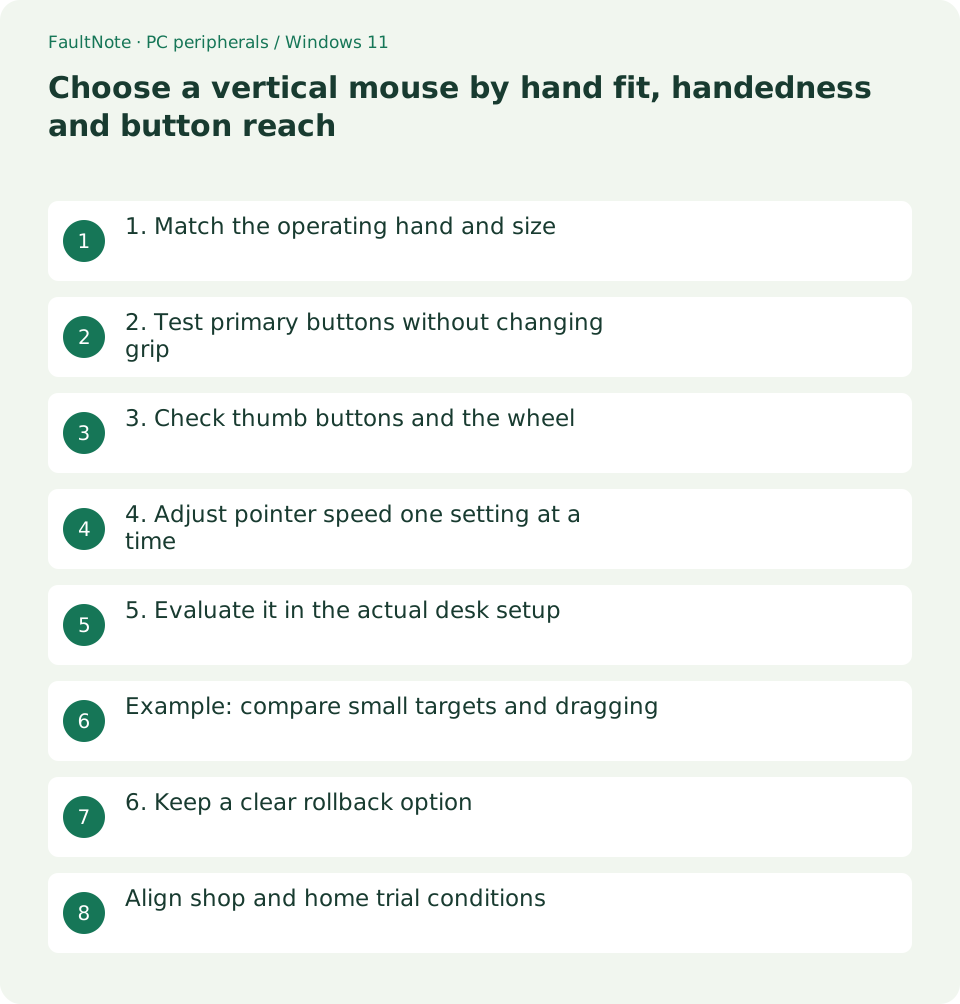
1. Match the operating hand and size
Logitech specifies a 57-degree Lift design for small to medium hands and describes a left-handed option. This is a product example, not a common size or handedness standard for all vertical mice.
- Check handedness and dimensions in official specifications
- Match the exact model to the order
2. Test primary buttons without changing grip
Check whether your fingers reach the primary buttons without moving the whole hand. Also test lifting and repositioning if that is part of your normal pointing technique.
- Try single clicks, double clicks and dragging
- Select both small and large targets
3. Check thumb buttons and the wheel
A listed back button may still be hard to reach. Test navigation, scrolling and middle-click actions. Check the manufacturer software if a button needs reassignment.
- Try back and forward in your usual browser
- Check whether scrolling pushes the device sideways
4. Adjust pointer speed one setting at a time
Keep the initial speed comparison simple. Change either Windows speed or the manufacturer sensitivity setting, then repeat movement between the same targets. Record game sensitivity separately.
- Record the current speed and adjust gradually
- Move to edge targets and check stopping control
5. Evaluate it in the actual desk setup
OSHA recommends trying a suitable pointing-device shape before selection. Repeat the comparison next to the keyboard on your actual working surface, including mat edges and cable resistance.
- Use both mice in the same location
- Record ease of text selection and file dragging
Example: compare small targets and dragging
During a trial, drag files, select small interface targets, scroll a long page and use back navigation. Note tasks that require a grip change on the vertical device but not the old one. This helps separate pointer speed from button reach. Judge ordinary light handling rather than a forced grip.
Begin with the same resolution, scaling and pointer settings. If the shape seems suitable, make a small speed adjustment and repeat. Better clicking does not resolve inaccessible wheels, accidental thumb-button presses or difficulty lifting. Use published size guidance as an initial filter, then assess your actual tasks and confirm model handedness.
Scroll horizontally to see the full table →
| Observed result | Next check |
|---|---|
| Primary buttons require a grip shift | Compare another size or shape |
| Fast movement but poor stopping | Make a small speed adjustment and retest |
| Lifting is insecure | Reconsider fit for frequent repositioning |
6. Keep a clear rollback option
Start with short tasks and retain the old mouse. If reach or control is poor, reconsider size and placement. Evaluate practical usability rather than treating product claims as a medical outcome.
- Keep the previous mouse available
- Recheck button reach and routine tasks before the return deadline
Align shop and home trial conditions
A shop surface may differ from the home desk. Brief trials help check reach, but do not establish long-session usability. At home use the normal chair, keyboard and mat, and adjust placement before evaluating shape and speed.
Use routine tasks such as selecting files, highlighting a line, switching tabs and selecting a link after scrolling. Record grip shifts, accidental button presses and stalled drags alongside speed. Treat any counts as personal trial records, not general product performance or health measurements.
Published size categories do not establish every finger reach. Record handedness, dimensions, buttons and connection separately. On a managed PC, verify essential functions without unavailable software. Persistent reach, lifting or task errors are concrete reasons to reconsider the shape within the return terms.
Limitations and requirements
- Record the starting state and compare one changed condition at a time.
Frequently asked questions
Do all 57-degree mice feel the same?
Dimensions, button positions and weight differ, so angle alone does not decide fit.
Can I use a left-handed model with my right hand?
Hand-specific shapes change button placement and support. Choose the version intended for the operating hand.
Is a vertical mouse suitable for gaming?
Test the required game controls, lifting and rapid movement rather than relying on a category label.
Should I force long sessions while adapting?
Use short routine trials and retain the previous mouse. Do not assume inaccessible controls will be solved by practice.
Sources and verification date
Sources checked: . These sources support the specifications, procedures or prices discussed here. Check each source for applicable conditions and current information.
Related practical guides
- Before buying a compact keyboard: plan mouse space and essential keys
- Mouse wheel moves another window or jumps too far: check inactive scrolling and line count
- Monitor glare: check window, lamp and desk placement before increasing brightness
- Cannot adjust external-monitor brightness in Windows: check its buttons and DDC/CI
- Sticky trackball movement: distinguish connection trouble from ball and support dirt
- Short key presses ignored or Ctrl seems held: check Filter Keys and Sticky Keys