Cannot adjust external-monitor brightness in Windows: check its buttons and DDC/CI
A laptop brightness slider does not necessarily control an external display. First test the monitor menu, then check the requirements for supported software control and DDC/CI.
Published · Updated · FaultNote editorial policy
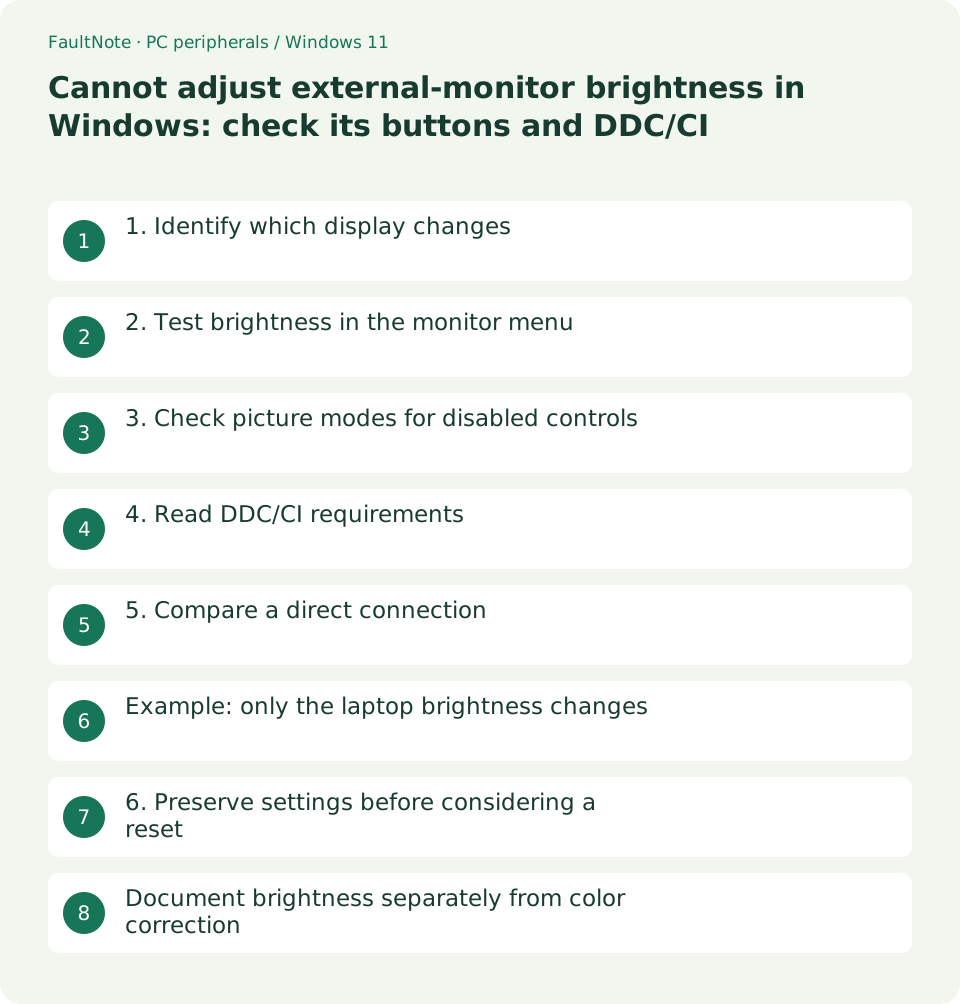
Who this guide is for and what to prepare
- People who want to adjust existing peripherals before replacing them
What you need
- Identify the monitor model and active input
- Record brightness, color and picture preset values
1. Identify which display changes
Compare the laptop and external display while changing Windows brightness slightly. If only the laptop changes, that alone does not indicate an external-display fault. Microsoft directs users to external-monitor buttons.
- Identify the target display
- Record the original value and make a small change
2. Test brightness in the monitor menu
Open the OSD with the monitor controls and locate brightness. Change it separately from contrast, black level and color temperature so the result is attributable to one control.
- Locate the controls and menu item in the manual
- Adjust brightness slightly and compare a normal document
3. Check picture modes for disabled controls
If brightness is unavailable, consult the manual for mode-specific restrictions such as HDR or presets. Record the active mode before a comparison rather than assuming every monitor behaves identically.
- Record HDR state and picture preset
- Compare only the modes described as restricting the control
4. Read DDC/CI requirements
The Dell S2722DC manual describes DDC/CI software adjustment of parameters including brightness. Treat it as a supported example rather than a guarantee for every monitor or every setting.
- Check the DDC/CI setting in the OSD
- Verify software support for the model and OS
5. Compare a direct connection
If the OSD works but software control fails, compare a direct connection without the dock or switch. A picture appearing does not itself verify software control through that path.
- Save work before bypassing intermediate equipment
- Compare the same control in the same software
Example: only the laptop brightness changes
With a laptop dock, brightness keys may affect only the laptop. First make a small change in the external monitor OSD. If that works, hardware adjustment is available. For software control, verify the supported model and DDC/CI, then compare a direct connection. Success only when directly connected points to the intermediate control path as a useful next check.
For multiple displays, match the software target to the physical model and change only one monitor slightly. If a value changes without a visible result, inspect picture-mode restrictions and the software method. Before reset, save input, preset, brightness and DDC/CI settings. Keep working OSD control available while documenting unresolved software behavior.
Scroll horizontally to see the full table →
| Observed result | Next check |
|---|---|
| Windows affects only the laptop | Use the external monitor OSD |
| OSD works but software does not | Check model support, DDC/CI and direct connection |
| Control disabled in one mode | Read mode restrictions in the manual |
6. Preserve settings before considering a reset
A factory reset can affect input and color settings. Save values and read its scope before using it. If hardware brightness works, retain that usable route while documenting the software-control problem.
- Record the chosen brightness and DDC/CI state
- For unresolved control, record model, path and software
Document brightness separately from color correction
Keep color temperature, gamma, contrast and profiles unchanged during the initial brightness comparison. Test the OSD using fixed light and dark content. For a dimming app, check behavior after exit and distinguish hardware brightness changes from image darkening.
Use official software support information and required monitor settings. If multiple control apps are installed, save their configurations and compare them individually. Broad driver removal is not needed for that check. On managed PCs, preserve OSD control and explain the requested function to the administrator.
For separate day and night values, check supported preset functions and whether settings persist across inputs. After any reset compare input, color, DDC/CI and brightness with the saved record. Restoring brightness control is separate from validating color accuracy; this procedure does not claim measured color performance.
Limitations and requirements
- Record the starting state and compare one changed condition at a time.
Frequently asked questions
Does every dimming app change monitor hardware brightness?
Some tools darken the image while others control hardware brightness. Check their documentation and the monitor OSD value.
Does every monitor provide DDC/CI?
Check the model manual; support does not guarantee every control in every app.
Should factory reset be the first step?
Save settings and read the reset scope because input and color configuration may change.
Should HDR always be disabled?
Use a mode comparison when documented, then restore the desired HDR state and check available controls.
Sources and verification date
Sources checked: . These sources support the specifications, procedures or prices discussed here. Check each source for applicable conditions and current information.
Related practical guides
- Monitor glare: check window, lamp and desk placement before increasing brightness
- Before buying a compact keyboard: plan mouse space and essential keys
- Choose a vertical mouse by hand fit, handedness and button reach
- Mouse wheel moves another window or jumps too far: check inactive scrolling and line count
- Sticky trackball movement: distinguish connection trouble from ball and support dirt
- Short key presses ignored or Ctrl seems held: check Filter Keys and Sticky Keys