Before buying a compact keyboard: plan mouse space and essential keys
Choose using required keys and actual mouse movement space. Removing a number pad can free space, but frequent tasks may become Fn combinations that need a separate usability check.
Published · Updated · FaultNote editorial policy
Who this guide is for and what to prepare
- People who want to adjust existing peripherals before replacing them
What you need
- Measure usable desk width and candidate dimensions
- List about ten everyday key operations
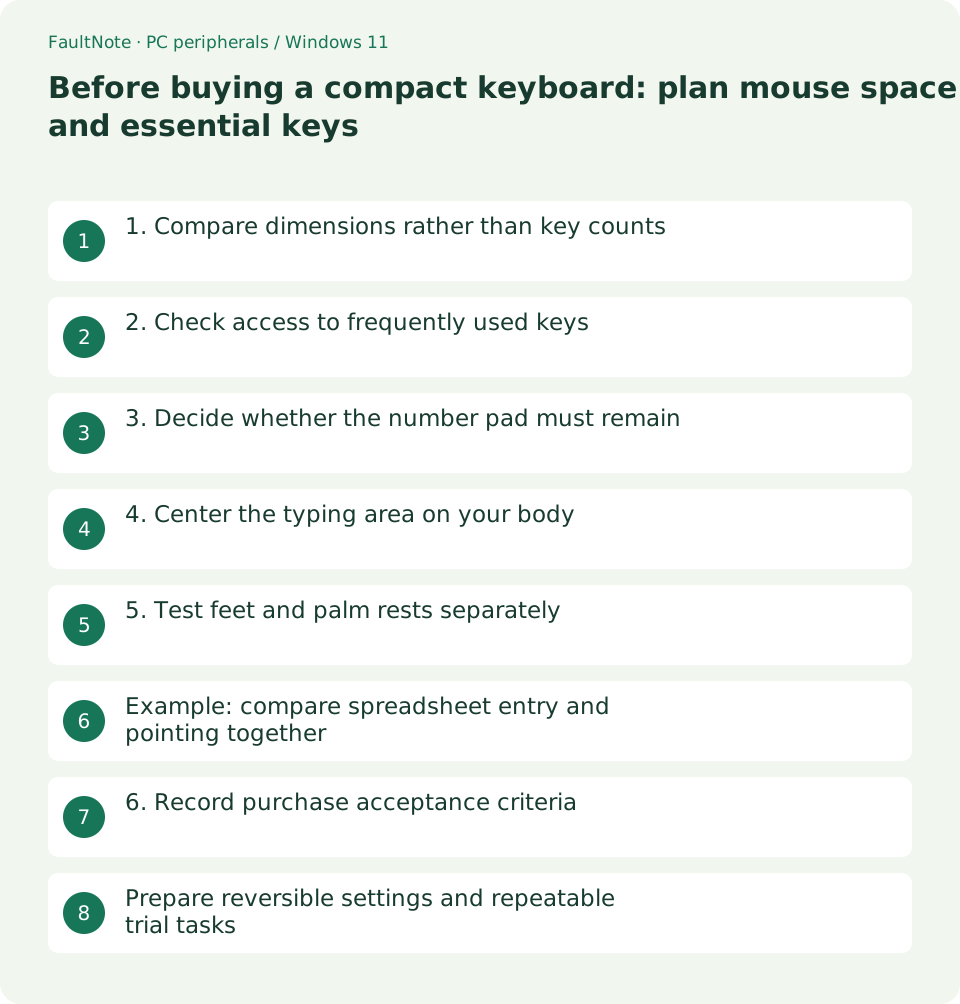
1. Compare dimensions rather than key counts
Bezels and controls can make equally named layouts different sizes. Make a paper outline of each candidate and include cable exits and any palm rest when checking the working area.
- Copy dimensions from official specifications
- Place the outline and reach for the mouse from your chair
2. Check access to frequently used keys
List tasks that need arrows, Delete, Home, End and function keys. A compact layout may retain the function through a layer, so inspect the manual instead of assuming the key is absent or directly accessible.
- Group commands by editing, spreadsheets and games
- Mark frequent commands that require a Fn combination
3. Decide whether the number pad must remain
Try the number row for occasional entry. For regular long numeric tasks, consider a separate pad that is brought out only when needed. Decide where it would sit without displacing the mouse.
- Try a short numeric task using the number row
- Add a paper outline for a separate pad
4. Center the typing area on your body
OSHA recommends a keyboard directly in front of the user and a nearby mouse. Center the area you actually type on, then test the transition between typing and pointing.
- Place both hands on the home row and adjust the position
- Check whether reaching for the mouse pushes your elbow outward
5. Test feet and palm rests separately
OSHA advises against using keyboard feet when they increase wrist bending. Compare height and tilt with the feet folded before deciding whether an additional rest suits the desk.
- Try typing with the feet folded
- Recheck key reach with the proposed rest
Example: compare spreadsheet entry and pointing together
If number entry is occasional but text and pointing dominate, compare a tenkeyless board with a separate pad. For daily long numeric entry, weigh the cost of changing key access. Use paper outlines and the normal mouse to check the usable area, not just the amount of empty desk.
After delivery, test editing keys, numbers and copy/paste in the same sample tasks. Check commands that become difficult with a held Fn key and the combinations actually used in games. If essential controls remain awkward, compare a larger layout rather than assuming practice will solve everything. Verify the regional layout against its manual.
Scroll horizontally to see the full table →
| Observed result | Next check |
|---|---|
| Heavy number entry | Compare retained and separate pads in real tasks |
| Frequent navigation commands | Compare layouts retaining dedicated keys |
| Restricted pointing space | Measure body dimensions and movement area |
6. Record purchase acceptance criteria
Use concrete criteria such as usable pointing space, accessible essential keys and clear cable routing. After delivery, repeat the same tasks instead of judging only appearance.
- Record dimensions and missing dedicated keys per candidate
- Try text, number entry and mouse transitions within the return period
Prepare reversible settings and repeatable trial tasks
Save current mappings and profiles before the trial. Test documented combinations in the actual OS, including file renaming, deletion and line navigation. If work and game profiles differ, verify switching. Use saved or disposable material for unfamiliar shortcuts.
Avoid changing keyboard and mouse together. Keep the existing mouse while testing keyboard placement and the same document. Compare reach and usable mat area rather than total empty space. Filling the new space with another device can remove the intended benefit.
For travel, include detachable cables, separate pads, cases and adapters in the package. On a fixed desk, inspect routing and connector access. Acceptance means completing required input and pointing tasks; choose a larger layout if missing dedicated keys repeatedly interrupt work.
Limitations and requirements
- Record the starting state and compare one changed condition at a time.
Frequently asked questions
Is a smaller keyboard always easier to use?
Key access and height also matter. Define the space problem and test everyday tasks.
Can I choose from a percentage label alone?
A percentage label does not establish key placement or layers. Read the layout and Fn chart.
Must a separate number pad be on the right?
Place it for your operating hand and workflow, testing whether it blocks mouse movement.
Should I raise the feet for wrist positioning?
Compare folded and raised feet in your desk setup; reject a position that increases wrist bending.
Sources and verification date
Sources checked: . These sources support the specifications, procedures or prices discussed here. Check each source for applicable conditions and current information.
Related practical guides
- Choose a vertical mouse by hand fit, handedness and button reach
- Mouse wheel moves another window or jumps too far: check inactive scrolling and line count
- Short key presses ignored or Ctrl seems held: check Filter Keys and Sticky Keys
- Monitor glare: check window, lamp and desk placement before increasing brightness
- Cannot adjust external-monitor brightness in Windows: check its buttons and DDC/CI
- Sticky trackball movement: distinguish connection trouble from ball and support dirt