Monitor glare: check window, lamp and desk placement before increasing brightness
Use reflections on a dark screen to identify the light source, then change its relationship to the display. Record where and when glare occurs and verify the result in your normal work.
Published · Updated · FaultNote editorial policy
Who this guide is for and what to prepare
- People who want to adjust existing peripherals before replacing them
What you need
- Prepare a normal document and a dark background
- Record desk, stand and display settings
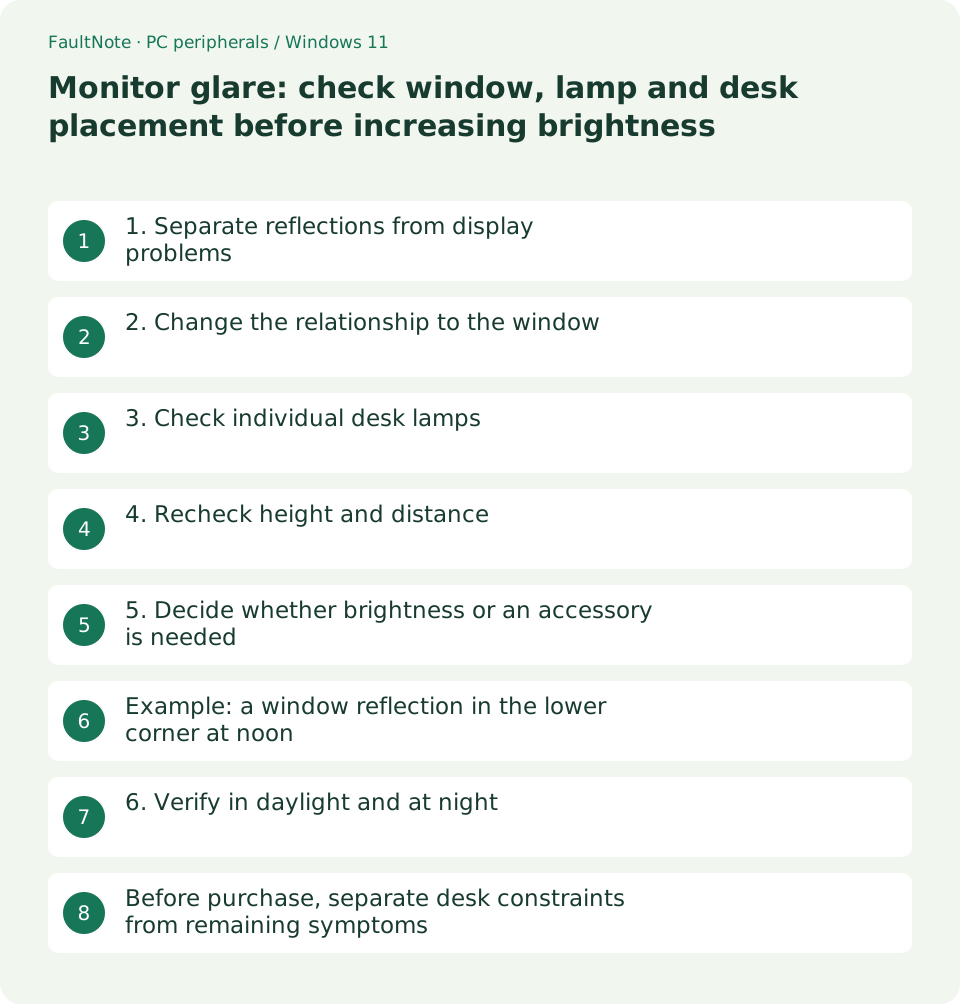
1. Separate reflections from display problems
A visible lamp shape needs a different response from text that is simply too small. Check whether the same window image remains when content changes. Camera exposure can disguise glare, so inspect from your seated position too.
- Display a dark background and note reflection location and time
- Return to a normal document and compare unreadable areas
2. Change the relationship to the window
OSHA suggests positioning the monitor perpendicular to a window. Treat this as a starting arrangement and compare it with your actual room, especially at the time of day when you work.
- Rotate within the stand limits and check cable slack
- Adjust the blind angle and inspect the same document
3. Check individual desk lamps
If glare remains after addressing the window, test desk lamps individually. Aim for a setup that works for both paper and screen. Changing lamp direction and screen tilt together makes the useful change harder to identify.
- Toggle one light and check whether its reflection disappears
- Aim the lamp at reference material and compare the screen
4. Recheck height and distance
OSHA describes an upper screen edge at or below eye level and a typical viewing distance of roughly 50–100 cm. Use these as starting points rather than fixed dimensions for every person.
- Return the chair to its normal position before adjusting height
- Try larger text if you must lean forward to read
5. Decide whether brightness or an accessory is needed
Adjust brightness after reducing the reflection. Before ordering a film or hood, check dimensions, mounting, touch support and cleaning instructions. Consider the effect on text and color and read the return conditions before installation.
- Record the original brightness and make small adjustments
- Match accessory dimensions to the actual display area
Example: a window reflection in the lower corner at noon
If a document is readable in the morning but a corner becomes obscured at noon, investigate the window and sunlight before assuming brightness is inadequate all day. Change only the blind first. If the reflection fades, check both text and paper references. Then, if necessary, rotate the screen and align the chair. Reject a configuration that makes you lean sideways to avoid glare.
Record time, lamp state, blinds, orientation and brightness separately. Recheck at the same time another day and note different weather. If a white page is fine but a dark editor is difficult, include the real application theme. Use the observed display result to decide whether placement or an accessory helps.
Scroll horizontally to see the full table →
| Observed result | Next check |
|---|---|
| Blind adjustment removes the reflection | Recheck text and paper under that lighting |
| Only switching off a lamp helps | Adjust that lamp position and direction |
| Reflection is gone but text remains small | Adjust text size separately |
6. Verify in daylight and at night
A placement that works in daylight may reflect lamps at night. Check a document, a dark screen and a call. Undo changes that leave the stand unstable, strain cables or remove essential working space.
- Retest at the original problem time
- Record the chosen position and brightness
Before purchase, separate desk constraints from remaining symptoms
A rotation that removes glare may still block the mouse mat, reference material or desk space. Sketch desk dimensions, stand footprint and input-device areas. Compare moving the screen separately from moving lights. An arm is not by itself evidence that a light-source problem will disappear.
For a shared desk, choose adjustments that can be restored. Record distances from desk edges as well as photos. Recheck webcam framing, face lighting, access to windows and cable slack. Reconsider a configuration that improves reading but obstructs another common task.
For replacement candidates, preserve problem time, source position and usable viewing space as requirements. Store lighting may not reproduce the room, so inspect surface descriptions, adjustment ranges, accessory compatibility and return terms. If observations do not follow the light source, investigate display artifacts or dirt separately.
Limitations and requirements
- Record the starting state and compare one changed condition at a time.
Frequently asked questions
Does a matte monitor eliminate reflections?
Surface finish does not change the light source or room. Test placement with the current display first.
What if the desk cannot move?
Compare stand rotation, blinds and lamp position individually within stable placement and cable limits.
Should I switch to a dark theme?
Theme changes can alter reflection visibility. Check the actual app and both light and dark content.
Can a photo alone establish the result?
Exposure and camera angle affect reflections. Prioritize reading from your seated position and use photos to document placement.
Sources and verification date
Sources checked: . These sources support the specifications, procedures or prices discussed here. Check each source for applicable conditions and current information.
Related practical guides
- Before buying a compact keyboard: plan mouse space and essential keys
- Choose a vertical mouse by hand fit, handedness and button reach
- Mouse wheel moves another window or jumps too far: check inactive scrolling and line count
- Cannot adjust external-monitor brightness in Windows: check its buttons and DDC/CI
- Sticky trackball movement: distinguish connection trouble from ball and support dirt
- Short key presses ignored or Ctrl seems held: check Filter Keys and Sticky Keys