Compare stereo, mono and spatial headphone playback in Windows 11
Compare channel placement, mono and Windows Sonic on headphones that already play sound. Use reference passages, record settings and choose configurations for stereo or one-ear listening.
Published · Updated · FaultNote editorial policy
Who this guide is for and what to prepare
- People organizing downloaded music or spoken audio on a PC
What you need
- Prepare known left/right material, centered speech and familiar listening material.
- Hold headset and connection constant and record current mono, spatial and EQ settings.
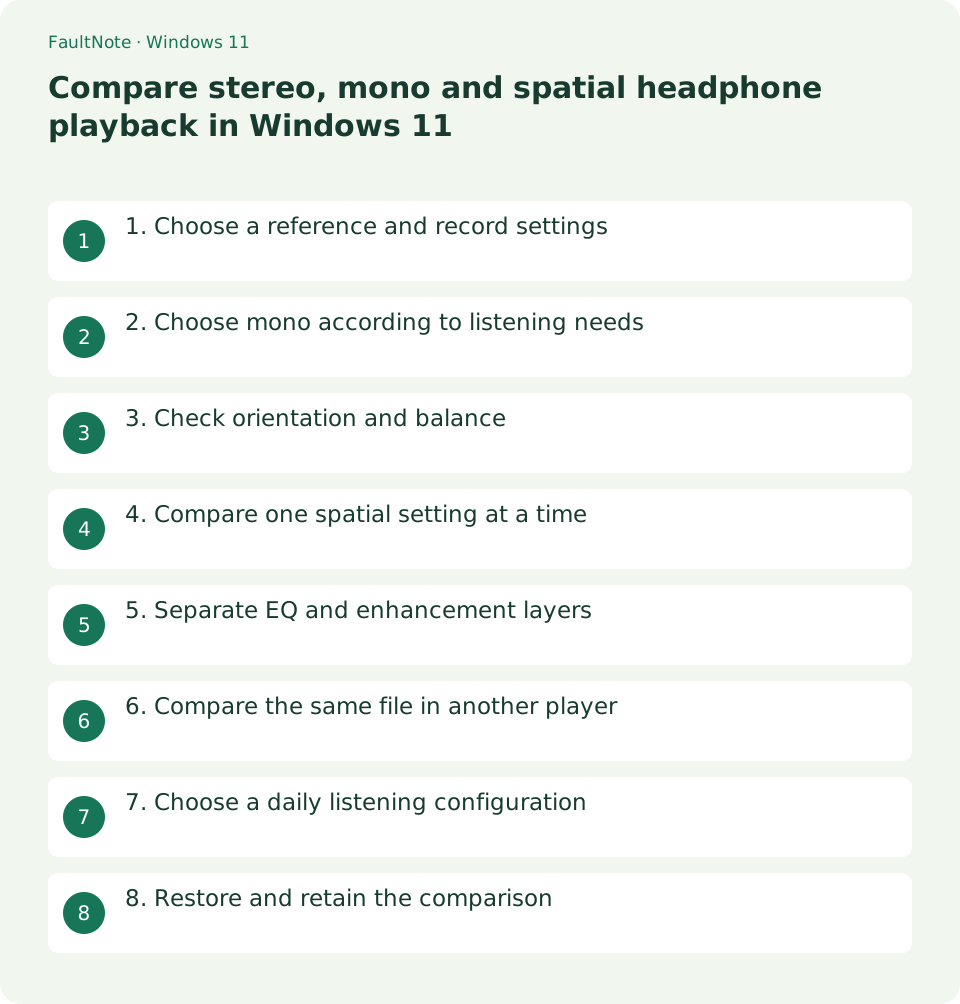
1. Choose a reference and record settings
This workflow checks left/right presentation in headphones that already produce sound. Resolve complete silence through the separate no-sound guide first. Prepare known left/right material, a centered-voice recording and a familiar release. Compare short passages at a low level. Do not judge channel correctness solely from unfamiliar artistic effects. Keep files unchanged and compare playback settings individually.
Record headset, connection, player, track, time, mono and spatial settings. If testing Chapter One at 01:20 through USB, use the same passage for each setting. Hold the device constant initially because connection changes can also change level or processing. Retain native playback speed and avoid adding EQ or normalization during comparison. Short notes let you restore preferred settings afterward.
2. Choose mono according to listening needs
In Windows 11, inspect Settings > Accessibility > Audio > Mono audio. Microsoft describes combining stereo into one channel so all content can be heard through one headphone. Compare mono on for one-ear listening and off when inspecting separate left/right placement. Neither state is universally preferable: choose for the current listening purpose and replay the same passage after changing it.
For dialogue placed separately on left and right, one-ear listening prioritizes retaining both parts. Combining channels changes directional separation, so treat that goal separately from evaluating spatial presentation. A mono source may show little difference; compare clearly separated stereo material before concluding the setting has no effect. This playback check does not require converting original FLAC or MP3 files to mono. Record the earlier state.
- 1. Open Settings, Accessibility, Audio
- 2. Record the current mono state
- 3. Compare On and Off using the same reference
- 4. Choose for one-ear listening or stereo inspection
3. Check orientation and balance
Wear headphones according to L and R labels and use known channel-identification material. If left is heard on the right, inspect orientation and connection first. Moving-character effects alone may not establish correct orientation. For imbalance, inspect any Windows or device channel-balance control for an unintentionally reduced side. Record values and restore preferred settings after comparison.
Equal channel settings do not eliminate deliberate differences in a recording. Inspect balance using centered speech before spatially placed material. One asymmetric release may reflect its mix; a consistent imbalance across references warrants connection or device comparison. Change one headset or connection at a time while retaining the passage. This narrows device candidates without diagnosing hardware or personal hearing from subjective results. Retain earlier settings if inconclusive.
4. Compare one spatial setting at a time
Microsoft directs users through Settings > System > Sound to the output device properties, then Windows Sonic for Headphones under spatial sound, applying if prompted. Record the current choice and compare Off with Windows Sonic using the same passage. If the option is unavailable, consult device support rather than selecting another output and changing the comparison. Consider additional spatial apps only after deciding you need their features.
An apparent increase in width does not prove dialogue location or distance remains faithful to the recording. Include an unprocessed comparison for material with deliberate stereo placement. Follow supplied recommendations where available rather than assuming spatial processing is required. Returning to Off is reasonable if differences are unclear or dialogue becomes harder to follow. This is a listening choice, not a universal improvement claim.
5. Separate EQ and enhancement layers
Concurrent Windows spatial processing, device-app effects and player EQ obscure the source of changes. Record settings, disable one layer and compare, restoring it before the next trial. For distant-sounding dialogue, compare spatial-off and EQ-off separately. Disabling everything at once does not identify which useful features can be retained.
Pause and match comfortable low levels if settings produce large volume differences. Do not mistake greater loudness for clearer dialogue. Consult device-app documentation rather than enabling effects merely from their names. Restore changes that did not help. If preferences differ by release, inspect the current state when switching instead of assuming automatic profile changes.
6. Compare the same file in another player
Hold Windows settings constant and open the same file in another player at native speed, the same time and the same output. Compare app-specific EQ or spatial processing. A difference in one player prioritizes its settings; matching results suggest checking system/device processing or the recording. Same-file comparison separates app differences from different recordings. Player names alone do not establish quality.
Record observed presentation, such as centered speech in player A and wider presentation in B, as observations of this setup. Use internal Open or a one-time Open with operation without changing defaults. If one becomes silent, branch to no-sound troubleshooting rather than treating silence as a stereo difference. Resume comparison after both players produce sound.
Scroll horizontally to see the full table →
| Result | Next check | Boundary |
|---|---|---|
| Mono combines the presentation | Check suitability for one-ear listening | Separate from stereo-effect evaluation |
| Spatial processing makes speech seem distant | Compare Off at a similar level | Width alone does not prove improvement |
| Only one app changes placement | Inspect app EQ and processing | Separate from recording differences |
7. Choose a daily listening configuration
Choose one aim: retaining all content in one-ear listening, evaluating stereo placement or following dialogue comfortably. Mono is a starting point for one-ear use; mono-off comparison suits stereo inspection; processing comparisons suit clarity. There need not be one best configuration for every goal. Inspect the actual available controls rather than forcing unavailable combinations of mono and spatial processing.
An example note is USB headphones, mono Off, spatial Off, normal EQ, verified at Chapter One 01:20. Switch deliberately to a separate one-ear configuration when needed and restore the normal state afterward. Choose settings using short references before continuing a long release. Recheck quietly when changing headsets rather than assuming identical results. Note Windows and device-app state separately for easier restoration.
8. Restore and retain the comparison
After comparing, reconcile mono, spatial, balance and EQ with your notes. Retain only deliberate choices and restore trial changes. Replay familiar material to check channels, intelligibility and unexpected loudness. Files remain unchanged, so undesirable results do not require re-encoding originals. Restore only settings touched here instead of resetting all Windows configuration.
Separate established and untested outcomes: mono combines the presentation, spatial improvement is inconclusive, another device remains untested. Lack of a noticeable difference is not a reason to keep adding effects. Restore the baseline and use these notes for future comparisons. If silence or pervasive dropouts arise, switch to the relevant troubleshooting workflow rather than mixing those symptoms into stereo conclusions.
Limitations and requirements
- This is guidance rather than a measured result on a particular device. Verify the display and playback in your own setup.
Frequently asked questions
Is mono Off always correct?
On can help retain all content during one-ear listening. Compare Off for stereo placement and choose according to purpose.
Is Windows Sonic needed for every release?
Not necessarily. Check supplied guidance and an unprocessed comparison, restoring Off if dialogue becomes harder to follow.
What material should I use for channel checking?
Use a reference with known left and right content. Do not establish orientation or balance from one unfamiliar artistic mix.
Should I convert the original audio to mono?
Change playback settings only for this comparison. Retain original format, speed and duration and restore settings if unsuitable.
Sources and verification date
Sources checked: . These sources support the specifications, procedures or prices discussed here. Check each source for applicable conditions and current information.
Related practical guides
- Windows 11 Home vs Pro: When Is the Upgrade Worth It?
- Set default players for MP3, FLAC and WAV in Windows 11
- Back Up Files with Windows 11 File History and Test a Restore
- Move Files to a New Windows PC with an External Drive
- Copy Large Folders with Robocopy: Preview, Resume and Check Results
- Save selected PDF pages with Microsoft Print to PDF