USB hub devices disconnect: check bus power, external power and concurrent use
Unused ports do not establish available power or upstream capacity. Compare the same device directly and through the hub, then add peripherals individually to identify the failure condition.
Published · Updated · FaultNote editorial policy
Who this guide is for and what to prepare
- People who want to adjust existing peripherals before replacing them
What you need
- Record hub and peripheral models and power specifications
- Save work and prepare devices for disconnection
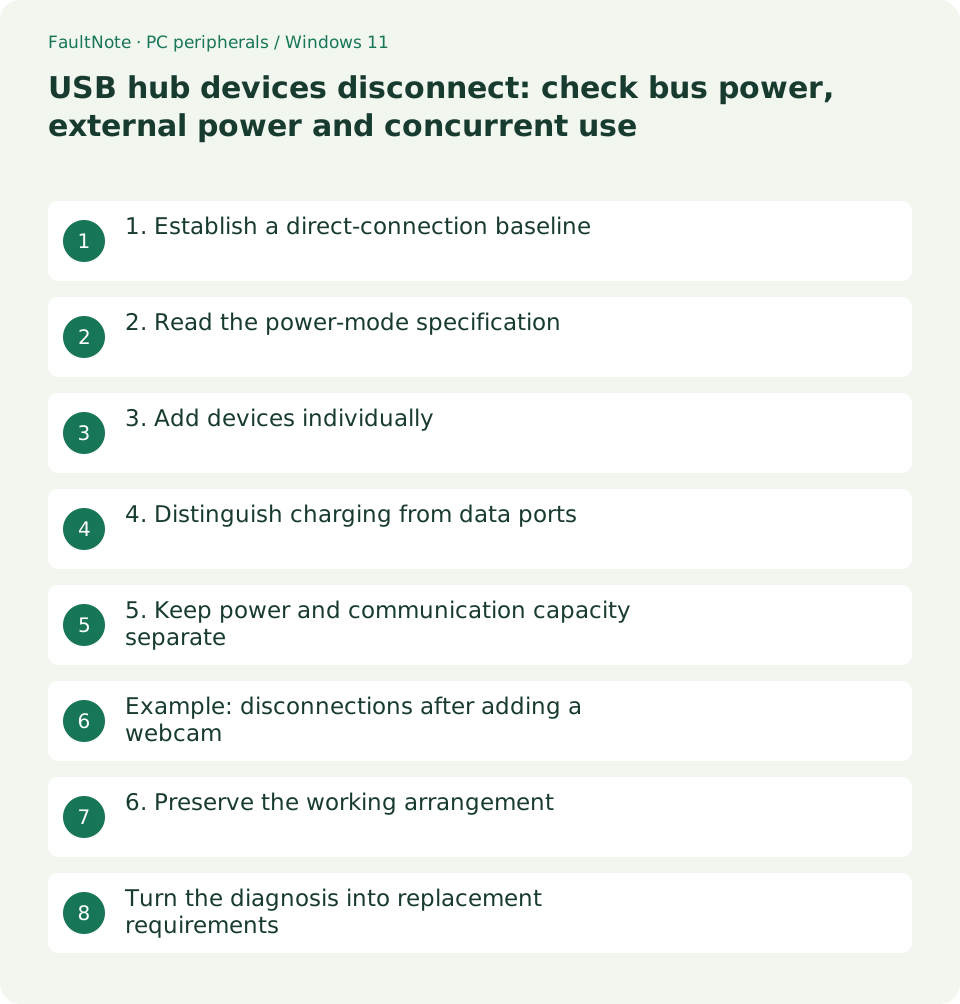
1. Establish a direct-connection baseline
Connect the affected peripheral directly and repeat the same task with the same cable and app. If it still disconnects, replacing only the hub is not yet supported by the comparison.
- Disconnect unnecessary USB devices and connect the target directly
- Repeat the operation that produced the symptom
2. Read the power-mode specification
Plugable distinguishes host-powered and externally powered operation. Some products support both modes, while others require their adapter. Read the operating conditions for the exact hub.
- Check whether the supplied adapter is required
- Verify that the connected supply matches the specified one
3. Add devices individually
Add one device at a time and repeat the task. Failure only during concurrent operation suggests a shared condition worth investigating, but does not by itself prove insufficient power.
- Record connection order and affected devices
- Compare approved power configurations
4. Distinguish charging from data ports
A charging-only port may supply power without providing a data connection. Identify upstream and downstream ports too. A lit indicator is not sufficient evidence of usable input or video.
- Match port labels to the manual
- Verify input or camera preview rather than only power
5. Keep power and communication capacity separate
An external adapter does not create a separate host connection for every port. List concurrent tasks, then check upstream and per-port specifications rather than using port count or charging wattage alone.
- List devices and operations used concurrently
- Check upstream and downstream specifications separately
Example: disconnections after adding a webcam
If a keyboard is stable alone but both devices drop when a webcam preview starts, test the webcam alone through the hub, then compare placing the webcam directly on the PC. Keep any working arrangement while checking power and upstream specifications. A lit LED does not establish that data communication is healthy.
Record power configuration, connected devices, active tasks and affected devices. Avoiding concurrent use may not meet the actual requirement. Check candidate specifications for the needed combination and ask the manufacturer about unknowns. Distinguish a laptop PD input from the documented distribution of power to the hub and its peripherals.
Scroll horizontally to see the full table →
| Observed result | Next check |
|---|---|
| Direct connection also fails | Investigate device, cable and app too |
| Single device works; concurrent use fails | Check power conditions and shared path |
| Powered but not detected | Check charging-only ports and data path |
6. Preserve the working arrangement
Record the stable arrangement and consider keeping essential input devices directly connected. Stop using damaged or abnormally hot parts. Do not substitute an adapter without verifying compatibility.
- Verify normal use and reconnection in the stable setup
- Summarize model and failure conditions for support
Turn the diagnosis into replacement requirements
Separate the need for more ports from the need to resolve dropouts. Record host ports, cable length, peripheral list, concurrent tasks and adapter placement. Count usable data ports rather than total sockets; a USB-C shape does not establish every advertised capability.
Compare the specified adapter, operating mode and per-port power description. Ask about unclear concurrent conditions using exact models. A replacement or extension cable needs a data specification as well as the right connector. Verify both a stable path and the required desk reach.
If connection order changes the result, record and repeat it. Temporary detection after reboot is not sufficient if normal reconnection fails. Stop relevant tasks before unplugging devices, then restore the working arrangement and verify all required peripherals. Use observed conditions rather than an unproven power diagnosis.
Limitations and requirements
- Record the starting state and compare one changed condition at a time.
Frequently asked questions
Will a powered hub always fix it?
Cables, peripherals and the data path can also cause trouble. Compare direct, single and concurrent operation first.
Can I use a spare power adapter?
Verify voltage, polarity, connector, current requirement and manufacturer guidance.
Do more ports increase total speed?
Check the shared upstream connection and concurrent-use conditions, not only per-port labels.
Does laptop charging prove sufficient peripheral power?
Check laptop charging and peripheral power allocation separately in the manual.
Sources and verification date
Sources checked: . These sources support the specifications, procedures or prices discussed here. Check each source for applicable conditions and current information.
Related practical guides
- Monitor glare: check window, lamp and desk placement before increasing brightness
- Before buying a compact keyboard: plan mouse space and essential keys
- Choose a vertical mouse by hand fit, handedness and button reach
- Sticky trackball movement: distinguish connection trouble from ball and support dirt
- Short key presses ignored or Ctrl seems held: check Filter Keys and Sticky Keys
- Mouse wheel moves another window or jumps too far: check inactive scrolling and line count