Find and copy original Steam screenshots before editing
Find the image under View > Recordings & Screenshots, open its local location and copy the file elsewhere. Original here means the existing captured image, not recovery of lost quality or deleted data.
Published · Updated · FaultNote editorial policy
Who this guide is for and what to prepare
- Steam users who want to use this feature while preserving their data
- Users who want before-and-after checks and a recovery plan
What you need
- Identify the PC and Steam account used for capture
- Prepare separate editing and archive folders
- Note the game, approximate capture date and pictured scene
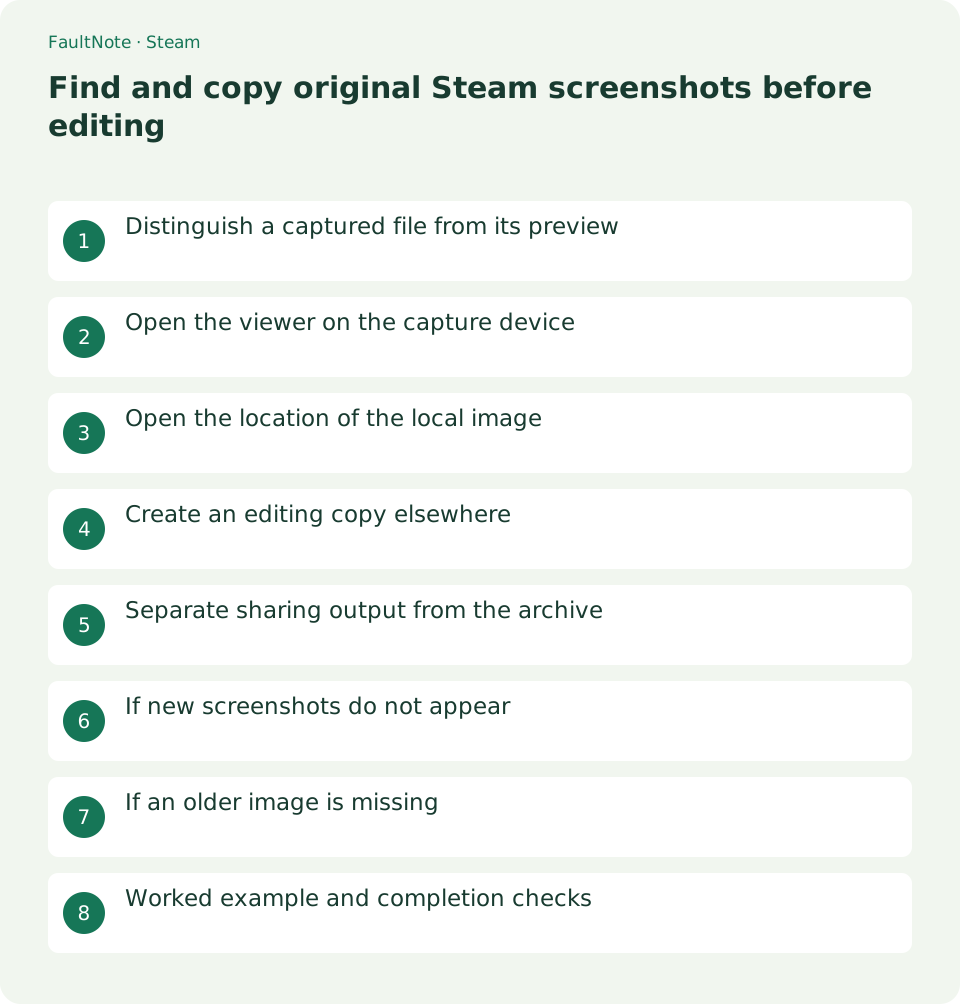
Distinguish a captured file from its preview
You want the image file saved at capture, rather than a new screenshot of its small Steam preview. Recapturing a preview can include Steam UI or limit resolution to the displayed size. Start with the actual file.
Original does not automatically mean uncompressed, lossless or a perfect source-frame match. Inspect the stored format and dimensions. Converting an existing compressed image to PNG cannot restore discarded information.
Still screenshots and game recordings are separate. This guide retrieves one or more captured images. Video clipping or MP4 export belongs to recording workflow and is not the same operation.
Open the viewer on the capture device
Open Steam on the capture PC and select View > Recordings & Screenshots. Current Valve recording support documents this viewer. Older Steamworks instructions say View > Screenshots, so follow the equivalent current item.
Filter by game and use date or pictured content to find the item. Select an image when recordings and pictures share the view. Check whether the current filter shows only recent items and align both game and period.
Installing the game on another PC does not locate images captured elsewhere. Start with the original device and account. Community upload status and the presence of an original local file are separate questions.
- Open the Steam media viewer on the capture PC
- Filter by game and period, then select the image
Open the location of the local image
Use the image context menu or corresponding Show on Disk operation. The 2026 Second Front publisher manual documents this location-opening operation. Menu placement may vary; inspect actions for the selected image.
In File Explorer, identify the file matching the selected picture. Compare date, format and dimensions when names are similar. Use actual dimensions to avoid confusing a thumbnail with the captured image.
Properties > Installed Files > Browse opens game installation storage, not necessarily screenshot storage. On a PC with a relocated Steam installation, prefer opening the actual image location over guessing a default path.
- Choose the selected image Show on Disk action
- Compare date, content and dimensions in the opened folder
Create an editing copy elsewhere
Copy rather than cut the needed images into an archive folder named with game and date. Work outside the managed location; renaming or editing there can obscure the relationship between viewer items and files.
Open the destination copy and compare content and dimensions. For many files, check count and sample several images. Verify readability rather than relying only on a completed copy operation.
Keep the archive unchanged and annotate, crop or resize a further editing copy. Use a separate filename reflecting its purpose. If the edit is unsatisfactory, restart from the archived capture.
- Copy the original image into a separate folder
- Verify that the destination file opens
- Edit a separate working copy
Separate sharing output from the archive
For explanation, crop only the needed region and annotate a working copy. To preserve small text, start from the captured dimensions rather than enlarging a preview. Open the output and check readability.
Before publishing, check for account names, chat or room codes and review publisher image-sharing rules. Local retrieval does not require uploading to the Steam community merely to use an editor.
Retain the local archive even if a posting service compresses the upload. Produce later sizes from the archive rather than downloading and enlarging a small posted image. Use distinct output names for each purpose.
If new screenshots do not appear
Steam standard screenshot capture requires its overlay and defaults to F12. Check the current shortcut in Settings > In-Game. A game photo tool or Windows capture shortcut may save elsewhere; identify which feature you used.
Take one new test image and check notification, viewer addition and local-file presence. Without notification, inspect shortcut and overlay; with a viewer item but no file, inspect its location and local state. Do not delete old images as a test.
If enabling overlay does not help, consult support about game compatibility or conflicts. With multiple capture tools, clarify feature and shortcut assignments. Success in one game is not proof that every game works.
If an older image is missing
Check the original PC, account, game and period, then broaden viewer filters. If the client moved, consult records of its earlier location. Do not conclude an image is absent after searching only the current game directory.
Compare dimensions and content to distinguish candidate captures from thumbnails. After a PC reinstall, inspect earlier backups too. Avoid unnecessary writes to storage whose missing files may need recovery.
If only an uploaded image remains, separately check whether that copy is obtainable. It may differ from the local capture. This procedure does not guarantee restoration of a deleted original; identify the copy that actually remains.
Worked example and completion checks
For three review images, find the game and date, open the local location and copy all three into a dated game folder. Check count, content and dimensions, then edit only a working copy of the one you will publish.
Inspect the edited result and confirm the archive is unchanged. Record the sharing filename to avoid accidentally publishing an unredacted copy. For large collections, establish the workflow with a few images first.
Completion requires an actual local file, readable destination copy, expected content and dimensions, and clear separation between archive and edits. Do not delete Steam originals merely because they were located; verify the retained copies first.
Limitations and requirements
- Separate archive and edits; do not overwrite managed originals
- Do not promise recovery of compressed detail or deleted files
Frequently asked questions
Does original always mean PNG?
Check the stored format. Original means the file saved at capture, not a guarantee of lossless encoding. PNG conversion cannot restore information discarded by JPEG compression.
Must I upload to Steam to save a copy?
No upload is required for copying a local file. Open its location, copy it elsewhere and verify readability. Publishing is a separate action.
Do screenshots move to the game SSD?
Game files and screenshots need not share a location. Use the screenshot location action rather than installation Browse, and search on the capture device instead of assuming a default path.
Can enlarging a thumbnail recover the original?
Enlargement does not restore missing detail. Check the capture PC, old storage and backups for a larger file. State the dimensions and condition of the remaining copy without promising original quality.
Sources and verification date
Sources checked: . These sources support the specifications, procedures or prices discussed here. Check each source for applicable conditions and current information.
Related practical guides
- Move installed Steam games to another SSD and check the result
- Back up and restore Steam game files while protecting saves separately
- Make Steam recognize game files that still exist on disk
- Prepare Steam Offline Mode before travel and test the games you need
- Manage Steam game launch options: record, test and remove them
- Plan Steam libraries across SSDs and choose the right installation drive