Prepare Steam Offline Mode before travel and test the games you need
Prepare Steam and each game while online, then actually switch to Offline Mode and test play. Installed status alone does not establish that first-launch and external authentication requirements are satisfied.
Published · Updated · FaultNote editorial policy
Who this guide is for and what to prepare
- Players wanting single-player games during travel or connection downtime
- Laptop users heading somewhere with unreliable internet
What you need
- Verify Steam login and ownership on your own PC
- Allow online time for updates and launch checks before leaving
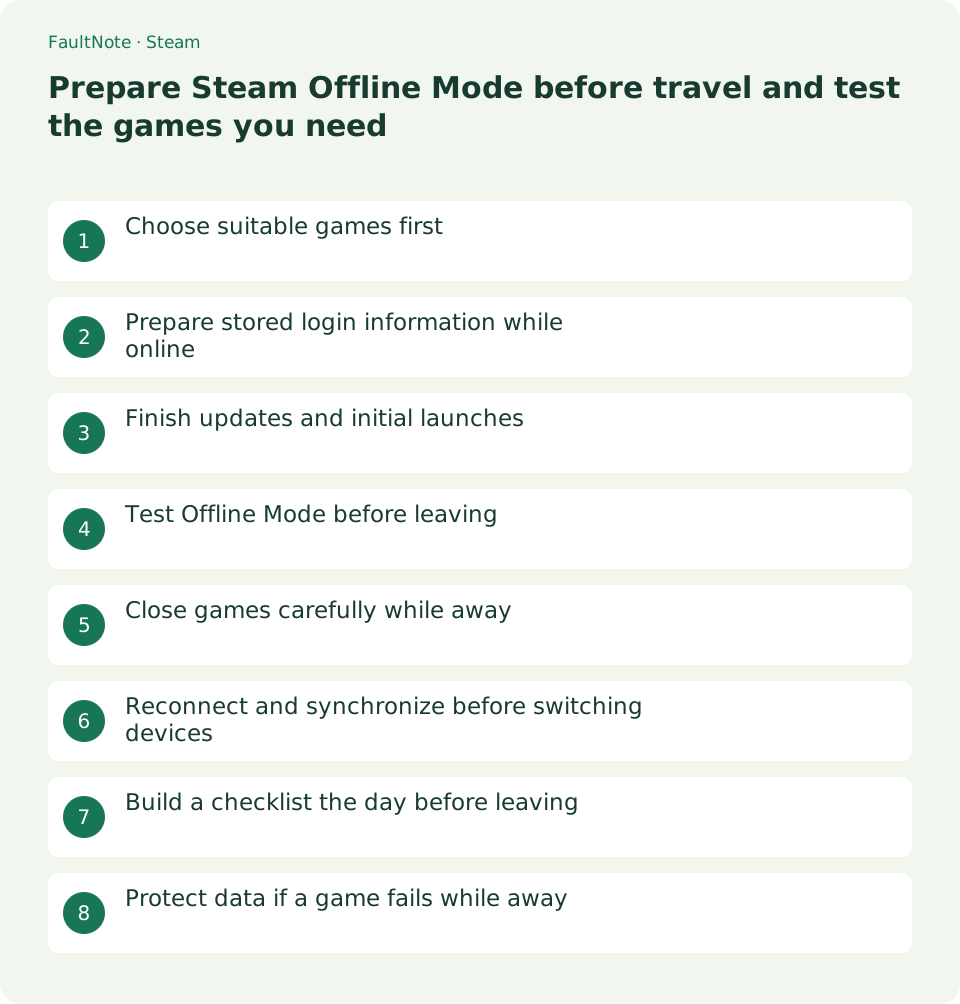
Choose suitable games first
Offline Mode allows Steam games to run without a Steam network connection, but game requirements still apply. Valve states that games requiring an active connection or external launcher will not work in this mode.
If you choose three games for travel, check their store descriptions and publisher support for single-player and authentication requirements. Distinguish unavailable online co-op from a game that cannot launch without a connection.
Prepare stored login information while online
On your own PC, sign in while online and check stored-login settings. Valve documents Remember me and ensuring the option not to save credentials is disabled. Placement may differ by client version.
This preparation is intended for your own computer, not storing credentials on a shared one. If Steam already requires a login after you lose connectivity, Offline Mode does not bypass authentication. Keep access available until preparation is complete.
Finish updates and initial launches
Update Steam and the intended games, then launch each once online. Complete any first-launch installation or authentication before leaving. Do not skip this check just because installation shows 100 percent.
Go beyond the title screen: enter the intended single-player mode and check loading and controls. Exit the game normally afterward and allow Cloud synchronization to finish if used.
- Complete client and game updates
- Launch each online and test the intended mode
- Exit the game and wait for synchronization
Test Offline Mode before leaving
Choose Go Offline from the Steam menu, then launch the same game after switching. Testing at home lets you return online and finish updates or authentication if it fails.
If needed, also check restart and launch with Wi-Fi temporarily disconnected, then restore the connection. Note the tested game and date. Do not assume the result applies to every title.
- Switch to Offline Mode from the Steam menu
- Launch the game and load the intended single-player session
Close games carefully while away
Cloud cannot synchronize while offline. Treat progress as belonging to the device you used, and avoid advancing the same game on another PC during that period. Keep a separate copy of important saves.
Valve recommends closing Steam normally to preserve stored information. Avoid routinely forcing power off; exit the game and close Steam through its normal exit command.
Reconnect and synchronize before switching devices
When connectivity returns, put Steam online and complete synchronization on the device used while away. Launch on the next PC afterward. If a conflict appears, identify progress and preserve local data before choosing.
For a game that failed, determine whether it requires connectivity or preparation was incomplete. Meet the publisher requirements at a connected location and test again; do not try to bypass authentication.
Build a checklist the day before leaving
List each intended game with checks for updates, online first launch, single-player loading, offline launch and a save copy. Installed status alone covers none of the remaining checks. Have alternatives for games you cannot verify.
For two laptop games, test online and offline launch separately for each and load the intended save. Check the travel controller on that PC too. Success on another computer is not verification of the laptop you will carry.
Close Steam normally and, where useful, restart to check that preparation persists. Last-minute game additions may leave updates or first authentication unfinished. Keep a short list of the titles you actually verified.
Protect data if a game fails while away
If launch fails, record the full error and stage: Steam login, external launcher or an online game mode. Changing many settings without the required connection may not address the unmet requirement.
Deleting saves or stored Steam information can create more preparation problems while away. Retain progress files and check updates and authentication once connectivity is available. Do not combine a one-game launch investigation with major system resets.
Record the device and last progress point in case a Cloud conflict appears at home. Copy offline progress before reconnecting, then inspect synchronization. Complete that handoff before playing an older copy on another PC.
Scroll horizontally to see the full table →
| Check result | Plan |
|---|---|
| Progress loads offline | Record the game and check date |
| External authentication stops launch | Check publisher requirements and choose an alternative |
| Steam requires login | Prepare again while connected |
Limitations and requirements
- Changing Steam mode does not make online-only games playable
- Protect offline progress on its device until it synchronizes
Frequently asked questions
Can every installed game play offline immediately?
Initial launch, updates or external launchers may impose requirements. Test launch and the intended mode while online.
What if I have no connection and Steam asks me to log in?
Valve states that a required login cannot be bypassed offline. Restore connectivity and prepare the client again.
Can I first-launch a new game while traveling offline?
Initial launch may require connectivity. Launch online beforehand, complete extra setup or authentication and test Offline Mode on the same device before leaving.
What happens to Cloud saves while offline?
Keep progress protected on that device until synchronization is possible. Reconnect it first, verify synchronization and only then continue on another PC. Make a separate copy before reconnecting for important saves.
Sources and verification date
Sources checked: . These sources support the specifications, procedures or prices discussed here. Check each source for applicable conditions and current information.
Related practical guides
- Find and copy original Steam screenshots before editing
- Move installed Steam games to another SSD and check the result
- Back up and restore Steam game files while protecting saves separately
- Make Steam recognize game files that still exist on disk
- Manage Steam game launch options: record, test and remove them
- Plan Steam libraries across SSDs and choose the right installation drive