Transfer Steam games to a second PC over your local network
Keep both Steam clients online with compatible transfer permissions and leave the updated source PC idle. Start installation normally on the receiving device and check Downloads for a local transfer.
Published · Updated · FaultNote editorial policy
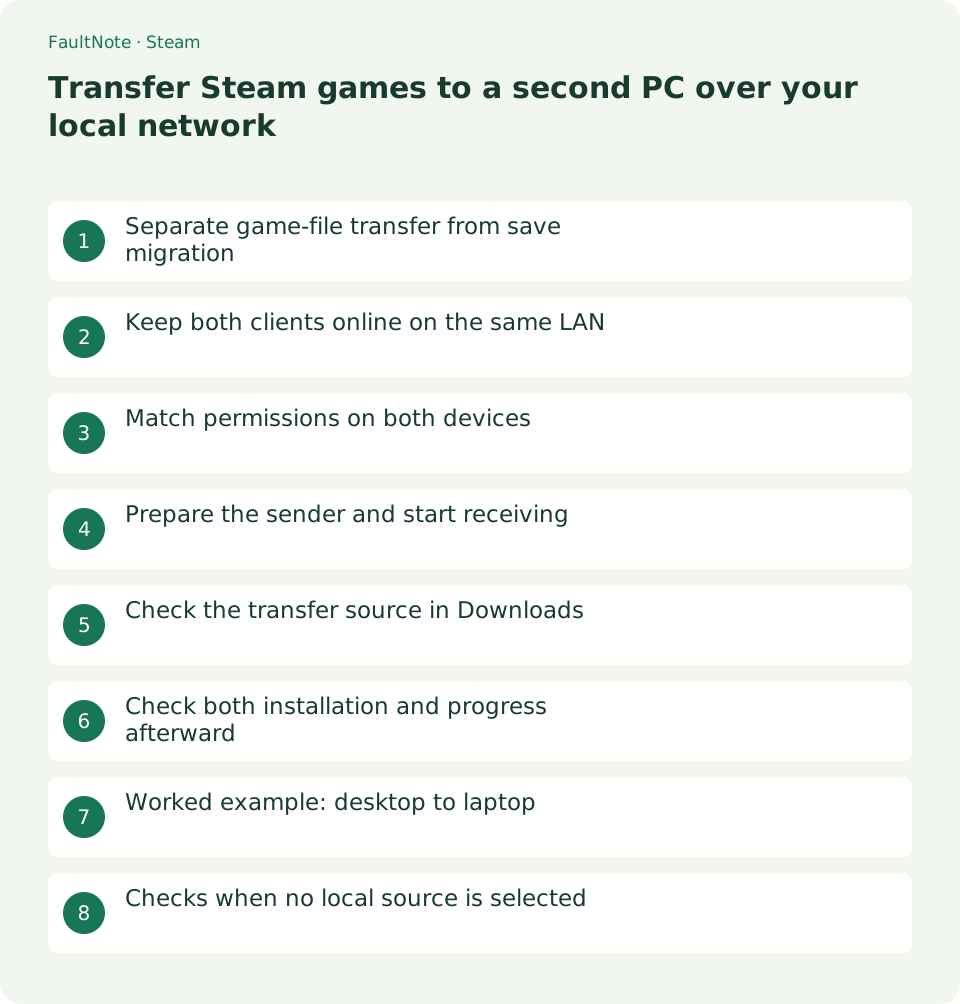
Who this guide is for and what to prepare
- Households with more than one gaming PC
- Players reducing internet downloads during installation
What you need
- Sign in with accounts that can play the game on both devices
- Connect to the same local network and update the source game
Separate game-file transfer from save migration
Local transfer supplies original Steam game files to another device. Valve excludes saves, personal settings, Workshop, Cloud and shader files. An installed game alone does not establish that your progress has moved.
For a new laptop prepared from a home desktop, plan two tasks: LAN transfer for installation files, and Cloud verification or developer instructions for progress. Transferring files does not create another license.
Keep both clients online on the same LAN
Similar network names do not prove that devices can reach one another; guest Wi-Fi may isolate clients. Use your normal home LAN and confirm both Steam clients are online. Offline Mode cannot perform this transfer.
Record the active connection before changing VPN or network equipment settings. If wireless discovery is unreliable, compare with wired connections to the same home router where practical.
Match permissions on both devices
Check game-file transfer permissions in Steam Settings > Downloads. For your own devices, the own-device setting is a sensible starting point. For a friend, permissions on both sides must include that person.
If you do not need transfers from everyone at home, avoid broadening access. Valve notes that wider permissions can reveal installed games to other users on the LAN; choose the relationship you actually need.
- Open Settings > Downloads on both devices
- Choose mutually compatible permissions
Prepare the sender and start receiving
Update the source game and leave the sender idle without games or downloads. On PC, use the regular desktop client. Current Valve guidance allows a Steam Deck to send, while PC Big Picture and custom launchers cannot host transfers.
On the receiver, begin a normal library installation. You do not need to manually share the game folder. Try one title first and avoid intensive work on the sender during transfer.
- Stop games and downloads on the sender
- Install the game normally on the receiver
Check the transfer source in Downloads
After installation, check the game Cloud synchronization status in Steam first. If there is no warning, launch and verify loading and the intended save slot. For a game requiring manual migration, prepare the protected save following developer instructions before launching.
Steam can obtain remaining files from internet servers when the source becomes unavailable. If transfer stops, check whether the sender started a game, slept or began another download.
Check both installation and progress afterward
After installation, launch the game and check loading. Then verify Cloud support and synchronization, or migrate a separately protected save according to developer guidance, and load the intended slot.
If no transfer is selected, check that the released game is playable on both accounts, the source is updated, permissions match and the LAN permits communication. Investigate specific restrictions with the network administrator rather than disabling the firewall entirely.
Worked example: desktop to laptop
For one game from an updated desktop to a new laptop on the same account, confirm it is playable in the laptop library. Match own-device permissions, stop source downloads and games, and leave the regular Steam client idle.
Start installation on the laptop and inspect its Downloads source. Note the sending device indication and keep power and connectivity stable on both. Watch during progress too if conserving internet usage matters, because the source can change.
Afterward, check the game synchronization status in Steam before launching and compare actual progress. If the relevant save is not covered by Cloud, identify its documented location and migrate a separate copy while the game is closed. A title screen on the laptop is not grounds to erase source-PC data.
Checks when no local source is selected
First check release and playability on both accounts, then source updates, idle state and regular desktop mode. These can be checked without changing networking, so do not start with port changes or router restarts.
Next check whether the LAN permits direct communication. Guest or managed networks may isolate devices even on the same Wi-Fi. Explain the feature to the administrator on a managed network rather than trying to evade restrictions.
Finally, check that both clients are current and report the situation to official support if needed. Normal internet installation remains an option. With a data allowance, pause the receiver rather than leaving an unexpected internet download unattended.
Scroll horizontally to see the full table →
| Status | What to check |
|---|---|
| No sender indication | Check permissions, online state, sender idle state and LAN |
| Falls back to public download | Check sender sleep or game launch |
| Installation present, progress absent | Handle Cloud or manual save migration separately |
Limitations and requirements
- Local transfer does not back up saves or Workshop content
- Transfers can fall back to internet downloads
Frequently asked questions
Can I use it without internet access?
Both Steam clients must be online. Being connected to the same LAN alone is insufficient.
Is it always faster than an internet download?
No. LAN speed, storage and sender load all matter. Check the receiving view for the actual source and progress.
Can I transfer to a family member using another account?
Both accounts must be able to play the game and permissions must match. File transfer does not grant a license. Choose only the permission scope needed for the household.
Can I play another game while sending?
The sender must be idle. Avoid starting games or other downloads there if you want the transfer to continue locally. If the receiver switches to public download, inspect the source and adjust your plan.
Sources and verification date
Sources checked: . These sources support the specifications, procedures or prices discussed here. Check each source for applicable conditions and current information.
Related practical guides
- Switch Steam game beta branches and check save compatibility
- Find and copy original Steam screenshots before editing
- Move installed Steam games to another SSD and check the result
- Back up and restore Steam game files while protecting saves separately
- Make Steam recognize game files that still exist on disk
- Prepare Steam Offline Mode before travel and test the games you need