Switch Steam game beta branches and check save compatibility
Branch switching replaces the installed game version. Available old versions and save compatibility depend on the game. Record the current version, preserve saves and use a separate test history before deciding to return.
Published · Updated · FaultNote editorial policy
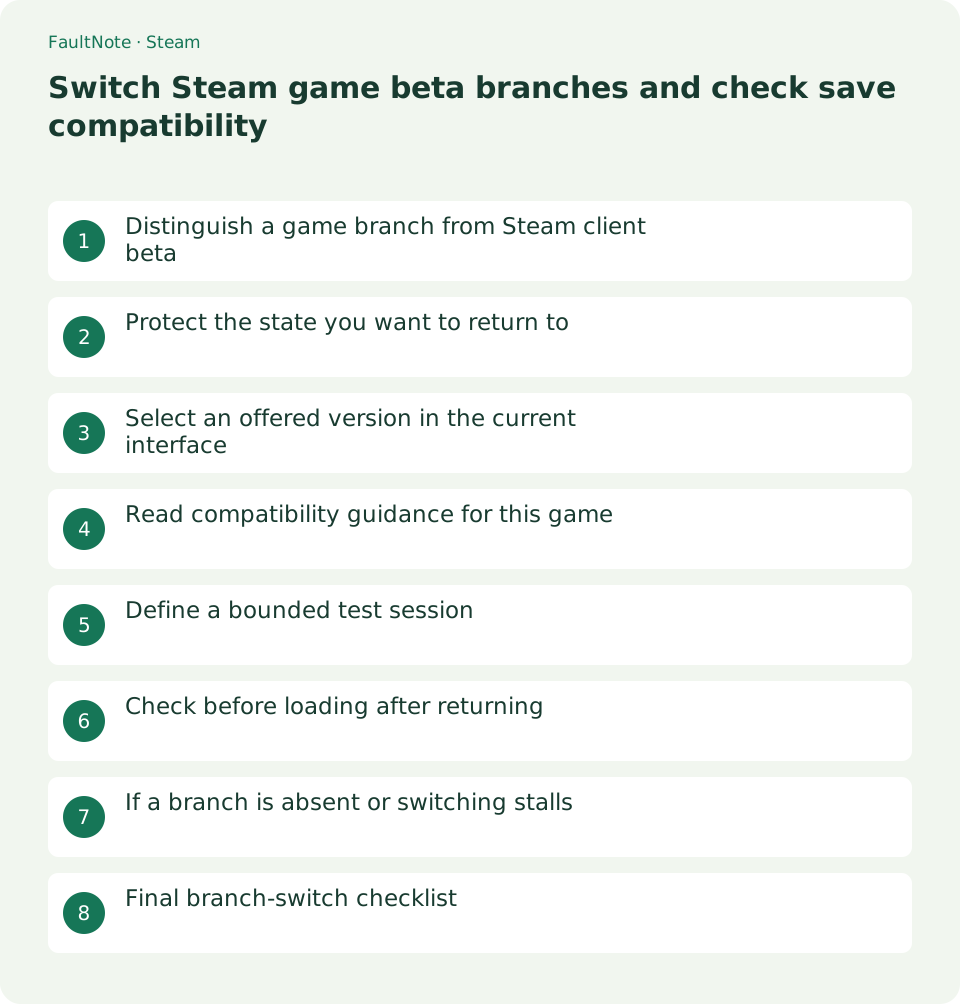
Who this guide is for and what to prepare
- Steam users who want to use this feature while preserving their data
- Users who want before-and-after checks and a recovery plan
What you need
- Check the game official beta instructions, release notes and save location
- Record the current branch, version, mods and progress slot
- Close the game and copy important saves into a separate folder
Distinguish a game branch from Steam client beta
This changes a particular library game distribution version, separately from opting the Steam client into beta. It covers a game public beta or an older version retained by its developer.
Valve defines branches as specific builds made available publicly or privately. Selecting one starts downloading it in place of the installed branch. This changes game content, unlike adding a launch parameter.
It is not a universal archive of every previous version. Inspect the choices the developer offers and consult official support if the required version is absent. Use legitimate instructions for code-protected branches.
Protect the state you want to return to
Record branch, in-game version, save slot, progress location and mods. A screenshot or short note helps compare after returning. Include chapter or playtime where dates alone cannot identify slots.
Close normally, then copy saves from the developer-documented location into a separate folder outside the beta write location. Name the copy with public-version context and date. Protect progress independently of installation backups.
A save changed by beta may be unreadable after returning. The branch selector cannot establish compatibility. Without official guidance, avoid advancing important progress and check whether a new slot or test history is possible.
Select an offered version in the current interface
Right-click the game in Library, open Properties and select Game Versions & Betas. Localized or older clients may label it differently; confirm it is the game-version selector. Current Steamworks documentation uses this name.
Select the branch named by the developer and enter an officially supplied access code if required. Do not choose similarly named test or unstable branches by guesswork. Record the prior default-version indication too.
Wait for branch download and processing in Downloads. Do not launch mid-change or mix files from another version manually. Check the selected-branch indication afterward and compare the in-game version once launched.
- Open the game Properties > Game Versions & Betas
- Select the documented branch and wait for completion
- Check the selected branch and in-game version
Read compatibility guidance for this game
Klei Rotwood guidance is a concrete example: beta uses separate saves, recommends a backup when importing existing progress and does not promise supported return to live. Those conditions belong to Rotwood, not every Steam game.
For your game, check shared versus separate save locations, backward compatibility, mods and server-version requirements. If documentation is absent, retain a recoverable public-version copy and limit experimentation to test data.
For multiplayer, check whether participants and server must match versions. If connection fails after switching, compare versions before assuming a network fault. Save compatibility and network-version compatibility are separate checks.
Define a bounded test session
For a new feature check, use a new slot or developer-provided test data. If established progress is essential, retain the original and use a working copy, following any game-specific instructions.
Record the scene and results for launch, load, save and reload. Launch alone does not verify continued use of that history. Label new beta saves separately and never overwrite the protected public-version copy.
For modded games, check developer or mod-author compatibility. Do not change many mods and launch parameters together when something fails. Compare against the recorded conditions and version change first, then investigate separately after returning if needed.
Check before loading after returning
Exit and copy beta-generated data separately if needed. Select the original default version in Game Versions & Betas and wait for downloads and processing. Selecting it does not itself mean replacement is finished.
Check the public in-game version and follow developer restoration instructions for preserved progress. Copy the destination current state too, so a mistaken slot restoration can be reversed. Do not load beta saves without compatibility guidance.
Load the same slot and compare the recorded location, then check normal save and reload. If display or mods remain problematic, record branch, version and error for the developer. Do not delete protected data merely because progress is not visible.
- Close and separately retain needed beta data
- Select the original default version and finish downloading
- Compare version and saves before returning to normal play
If a branch is absent or switching stalls
If a branch is missing, check the game, availability period and access conditions in official guidance. Old screenshots do not establish present availability. Use offered versions and ask the developer where needed.
If selected but queued, inspect Downloads and available space, including schedules and other jobs. Before adding manual copies that mix versions, establish whether Steam completed the replacement.
If in-game version differs, check for a different shortcut or installation. Compare a normal library launch and record both branch indication and game version. Send the discrepancy to the developer rather than claiming an untested fix is certain.
Final branch-switch checklist
Completion means the intended version is active, test results are understood, return conditions are known and original saves remain protected. Successful beta play alone does not establish backward compatibility.
Keep original and test branch names, date, copy locations, scene and return result. Recheck branch availability and save compatibility when needed, because later updates can change the conditions.
Keep installation-version changes and progress-data changes independently traceable. Preserve the public copy, use test data and retain the destination state before returning, so the required history stays identifiable.
Limitations and requirements
- Returning the game version and restoring progress are separate
- Check branch availability and compatibility per game
Frequently asked questions
Can I select every old version?
Only branches offered by the developer are available. Check availability and access conditions if the version is absent. Owning the game does not imply access to every historical build.
Does returning restore saves automatically?
Installation version and save state are separate. A changed beta save may be unreadable in an older version. Preserve the original and check developer return instructions.
How do I know which branch to choose?
Use the name in official guidance for the intended feature or fix. Do not guess from similar names. Record the current version and return choice.
Will existing mods still work?
Compatibility depends on game and mod versions. Preserve the mod list and consult developer or author guidance. Avoid changing multiple settings at once when investigating.
Sources and verification date
Sources checked: . These sources support the specifications, procedures or prices discussed here. Check each source for applicable conditions and current information.
Related practical guides
- Back up and restore Steam game files while protecting saves separately
- Switch between two PCs with Steam Cloud: save handoff and verification
- Find and copy original Steam screenshots before editing
- Move installed Steam games to another SSD and check the result
- Transfer Steam games to a second PC over your local network
- Make Steam recognize game files that still exist on disk