Switch between two PCs with Steam Cloud: save handoff and verification
Exit the game and wait for synchronization on the device you used, then check synchronization on the next device before loading. Verify the actual slot and progress as well as the Cloud status.
Published · Updated · FaultNote editorial policy
Who this guide is for and what to prepare
- Players alternating between desktop and laptop
- Players trying to avoid loading outdated progress after switching devices
What you need
- Check the same Steam account and game Cloud support
- Copy important progress from the documented save directory
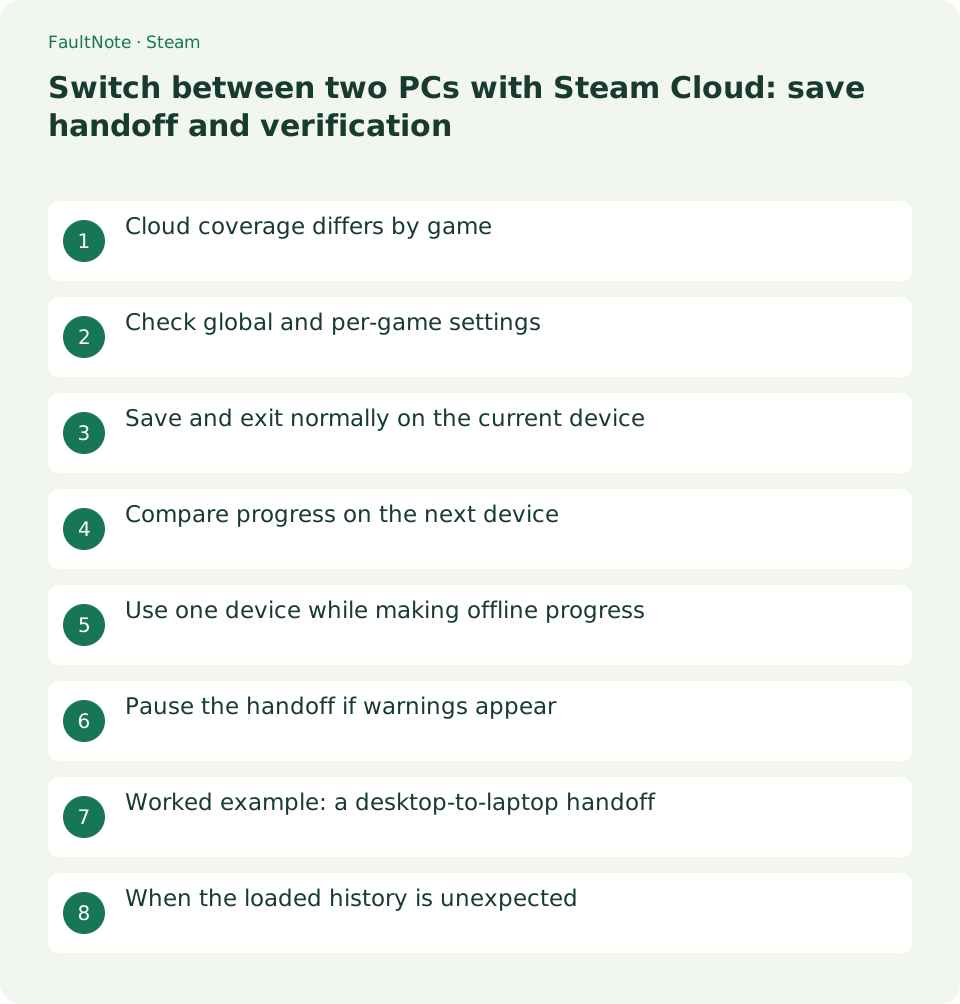
Cloud coverage differs by game
Steam Cloud support is a starting point, but developers decide which saves and settings are included. Valve notes that identifying exact coverage may require developer or community information. Do not assume every setting transfers.
For example, different graphics settings on a laptop are not the same issue as missing progress. Separate progress, input settings and graphics when listing what should carry over.
Check global and per-game settings
Check Cloud synchronization under Steam Settings > Cloud and in the game Properties > General. Inspect both devices rather than stopping after checking one.
If a device has been playing with Cloud disabled, copy important saves before enabling it and responding to any prompts. Decide which progress to preserve before continuing to alternate devices.
- Check Settings > Cloud on both devices
- Check Properties > General for the game
Save and exit normally on the current device
Save in the game and note the slot, playtime or progress location. For autosave games, wait for the saving indication to finish before using the normal exit command.
After closing the game, leave the PC on until synchronization settles in Steam. Steamworks documents synchronization before and after normal sessions. A slow connection can lengthen the wait.
- Save in the game and note progress
- Check Steam synchronization after exiting
Compare progress on the next device
Start the next PC online and check the game synchronization status. If there is no warning, launch and compare the load screen with the recorded slot or location. Inspect existing progress before selecting a new game.
An up-to-date Cloud indicator does not prove that the intended progress is covered. If progress is old, exit and check the original save, synchronization and game-specific coverage. Avoid playing further with the wrong version.
- Check synchronization on the next PC before launch
- Compare the load screen with your recorded progress
Use one device while making offline progress
Advancing independently on both devices while offline creates competing histories. During travel, use only the laptop, then synchronize it at home before returning to the desktop.
Make a separate save copy for long trips or important milestones. Synchronization distributes changes; it does not guarantee rollback to any chosen point. Manual restoration may also require game-specific instructions.
Pause the handoff if warnings appear
If a conflict appears, compare the last played device and actual progress rather than timestamps alone. Preserve important local saves before choosing. This guide establishes routine handoff order rather than resolving an existing conflict.
If synchronization fails, do not force a new session on the other device. Retain the source save, record connectivity and the warning, and consult Steam Cloud support and developer save documentation.
Worked example: a desktop-to-laptop handoff
For desktop play in the afternoon and laptop play at night, note the slot and progress at exit. Close normally and wait for synchronization. Powering off before upload finishes can leave older progress visible on the laptop.
Start the laptop online, inspect synchronization and then launch. Resume only after the slot and progress match. If timestamps are ambiguous, compare a chapter or location visible in the game.
Reverse the same sequence the next morning: save and exit on laptop, finish its sync, check desktop sync and verify progress in-game. Keep track of which device holds the latest history rather than advancing both independently.
When the loaded history is unexpected
Exit without layering new saves onto the wrong history. Inspect and copy the previous device actual progress. Compare game content as well as file timestamps, which may hide a different slot or account.
A game can use its own account or multiple profiles even under one Steam account. Check the selected game profile and documented save method before migrating files; an apparent mismatch can come from looking at a different history.
Before restoring, copy the destination current state too and follow developer instructions. Avoid repeated Cloud toggling without a plan. Protect the desired history, decide operation order and verify loading both after restoration and after the next sync.
Scroll horizontally to see the full table →
| State | Next action |
|---|---|
| Progress matches on both | Continue the normal handoff sequence |
| Only one advanced offline | Protect and synchronize that device first |
| Both advanced independently | Pause handoff and identify the history to keep |
Limitations and requirements
- Cloud file coverage differs between games
- Do not ignore synchronization warnings and advance on another device
Frequently asked questions
Can I close the laptop immediately after exiting?
Wait for synchronization before closing it. If offline, protect progress locally and synchronize after reconnecting before using another device.
Why can progress differ despite an up-to-date status?
The game may not include that slot or file, among other possibilities. Check the source save and game-specific Cloud coverage.
What if I want graphics settings to match too?
Settings coverage differs by game. Successful save handoff does not imply identical graphics. Choose appropriate settings for each device and check developer coverage.
What if I want independent progress on both PCs?
This differs from synchronizing the same history. Check support for separate slots or profiles and identify synchronized files before repeatedly toggling Cloud and overwriting both sides.
Sources and verification date
Sources checked: . These sources support the specifications, procedures or prices discussed here. Check each source for applicable conditions and current information.
Related practical guides
- Switch Steam game beta branches and check save compatibility
- Back up and restore Steam game files while protecting saves separately
- Manage Steam downloads with schedules, bandwidth limits and queue priority
- Find and copy original Steam screenshots before editing
- Move installed Steam games to another SSD and check the result
- Transfer Steam games to a second PC over your local network