Manage Steam downloads with schedules, bandwidth limits and queue priority
Prioritize the needed game in Downloads and adjust timing and bandwidth in Settings > Downloads. Automatic-update hours do not block manually started or launch-triggered updates.
Published · Updated · FaultNote editorial policy
Who this guide is for and what to prepare
- Players whose Steam updates overlap with online calls
- Players planning overnight updates for the next day
What you need
- Separate games needed today from updates that can wait
- Record current download settings in a note or screenshot
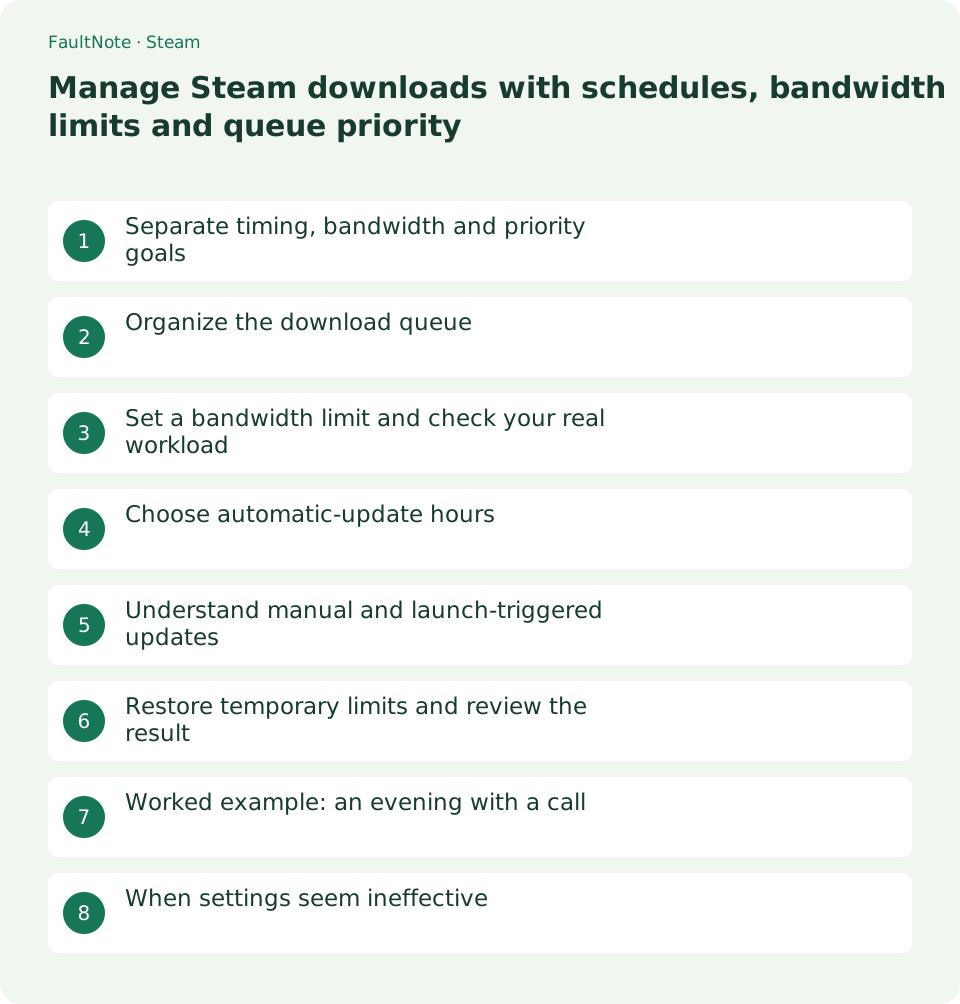
Separate timing, bandwidth and priority goals
Download management has three goals: when updates run, how much bandwidth they use and which finishes first. Overnight scheduling only helps if the PC is available then; an overly low limit may leave work unfinished in the morning.
For an evening call followed by gaming the next morning, limit activity during the call and prioritize the needed game afterward. Reducing monthly data consumption and improving simultaneous use are different goals; note why you are setting a limit.
Organize the download queue
Open the manager from Downloads at the bottom of Steam or View > Downloads. Inspect active, queued and completed work, and put the game needed today first. Use pause when you want to retain unfinished work.
Starting every update immediately can delay the one you actually need. Check current progress and storage before adding large jobs. After reordering, confirm that the intended title is active.
- Open the Download Manager
- Prioritize the needed game and leave other work queued
Set a bandwidth limit and check your real workload
Use the bandwidth limit in Settings > Downloads and enter a value in the units shown by the interface. Do not copy a connection-plan number without checking units. Stability depends on the connection and concurrent activity.
After setting it, briefly check your usual call or task and the download progress. Adjust down if contention remains or up if there is comfortable headroom. This setting does not increase the underlying connection speed.
- Record the current limit and change it
- Check the actual workload and Steam progress
Choose automatic-update hours
Set automatic-update hours in Settings > Downloads. Valve describes choosing a local-time range such as midnight to 8 AM. Pick hours when your PC can actually be available.
Plan the PC power state and a morning check too. Do not expect a powered-off computer to download just because a schedule exists. Inspect completed and remaining jobs after the first scheduled night.
- Set the automatic-update time range
- Inspect completed work and the remaining queue the next morning
Understand manual and launch-triggered updates
Valve states that manual downloads can override the schedule and launching a game can trigger an immediate update. A large update at play time does not necessarily mean scheduling is broken.
The per-game Properties > Updates option to update only on launch differs from preparing updates in advance. For a title you want to play immediately next time, inspect the queue and complete needed work beforehand.
Restore temporary limits and review the result
If the limit was only for a call, restore it afterward. A forgotten limit can make Steam seem unexpectedly slow later. For a daily routine, check over several days whether needed updates finish overnight.
Evaluate both interference during work and unfinished updates the next day. Do not invent bandwidth savings or speed improvements without measurement. The baseline note makes reversal straightforward.
Worked example: an evening with a call
For an 8 PM call, updates after 10 PM and gaming the next morning, inspect Downloads before the call. Pause a large update or reduce its bandwidth and check interference. Restore the limit after the call and prioritize tomorrow title.
Record change time, call behavior and remaining work the next morning. A stable call with unfinished updates does not meet both goals. Next time adjust one condition, such as the limited period or downloading the needed title beforehand.
Download behavior can also change when disk-heavy work overlaps. Inspect Downloads and storage space rather than blaming bandwidth alone. Consider other planned work before deciding to interrupt it.
When settings seem ineffective
First check whether you clicked an immediate update or launched the game. Automatic scheduling and manual actions are different controls. Record the trigger before repeatedly changing the hours.
Inspect per-game update and global download settings. Manually start needed work when an update-on-launch title must be ready beforehand. Leaving it until launch can shift the wait into play time.
For apparent slowness, inspect the limit, units and active stage. Zero network activity with ongoing disk work does not necessarily mean the operation stopped. Restore the baseline for comparison, then investigate another stage or connection if unchanged.
Scroll horizontally to see the full table →
| Situation | Next action |
|---|---|
| Call suffers, downloads progress quickly | Pause or lower the temporary limit |
| Call stable, download unfinished in morning | Revisit timing and priority |
| Launch triggers update outside hours | Prepare the update before play |
Limitations and requirements
- Automatic-update hours do not prohibit manual or launch-triggered updates
- Restore a temporary bandwidth limit after the call
Frequently asked questions
Does updating only on launch avoid updates?
It changes timing. Updates can be required at launch, so download beforehand if immediate play matters.
Why can downloads happen outside my scheduled hours?
Manual starts or game launches can override the automatic-update schedule. Check Downloads and the game update settings.
Does a bandwidth limit reduce total monthly data?
It mainly limits rate. Downloading all the same required files may only take longer. For data conservation, separately consider avoiding unnecessary downloads or using local transfers.
Must the PC be on for overnight updates?
Steam needs to be available during those hours. Scheduling does not download on a powered-off PC. Check the first morning result and laptop power or lid behavior.
Sources and verification date
Sources checked: . These sources support the specifications, procedures or prices discussed here. Check each source for applicable conditions and current information.
Related practical guides
- Switch between two PCs with Steam Cloud: save handoff and verification
- Switch Steam game beta branches and check save compatibility
- Find and copy original Steam screenshots before editing
- Move installed Steam games to another SSD and check the result
- Transfer Steam games to a second PC over your local network
- Back up and restore Steam game files while protecting saves separately