Save recent gameplay with the OBS Replay Buffer
The Replay Buffer retains recent output while running and creates a clip when saved. Starting it after an event cannot recover footage from before it was active.
Published · Updated · FaultNote editorial policy
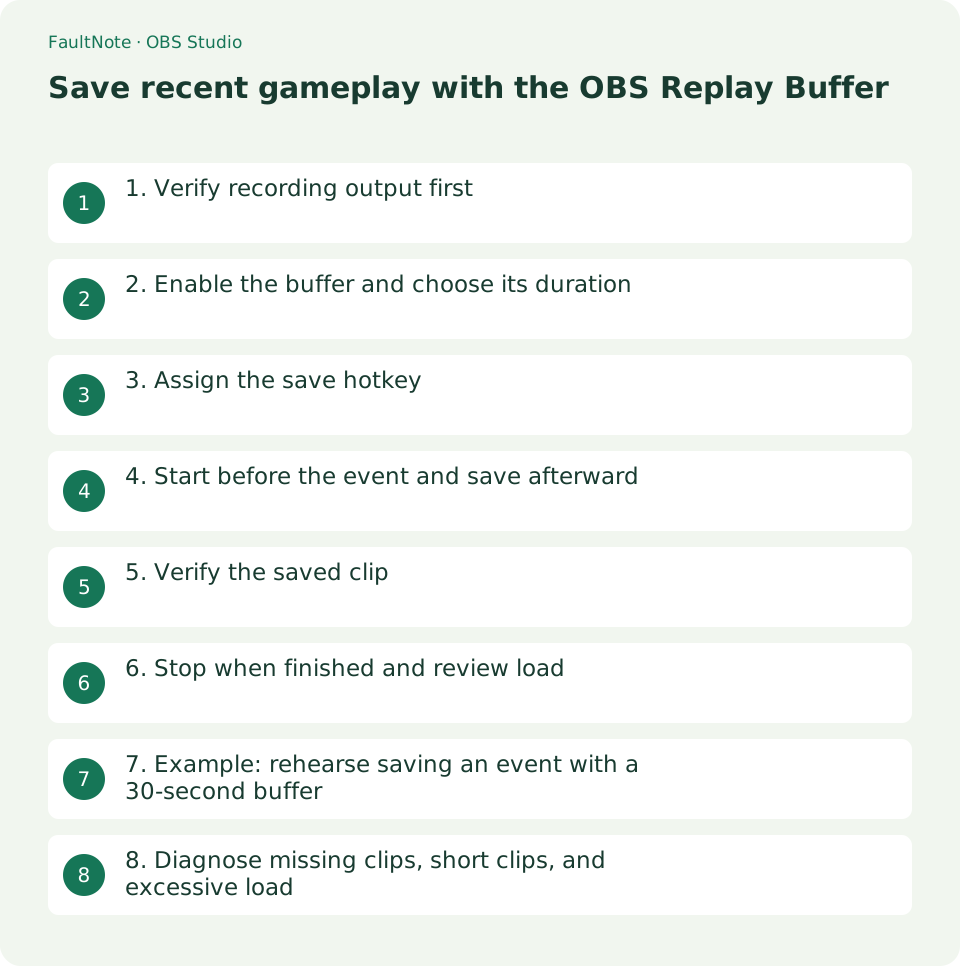
Who this guide is for and what to prepare
- People who want to complete the task and inspect the saved result
What you need
- Prepare a working gameplay scene and recording destination
- Choose a hotkey that does not conflict with gameplay
1. Verify recording output first
Confirm recording path, format, and encoder under Output, then verify an ordinary short recording. Replays save OBS output too, so an incorrect scene produces an incorrect clip.
Recording and streaming are separate actions. Saving local recent footage does not require starting a public stream.
- Confirm the scene with an ordinary recording
2. Enable the buffer and choose its duration
Enable Replay Buffer in Output settings and begin with a short duration. Longer buffers require more memory; choose a period that covers the lead-in and event rather than starting with an unnecessarily long interval.
Review the memory-related limits shown by your settings. Changes to resolution, frame rate, or quality can change requirements even with the same duration.
- Choose duration from the required lead-in and aftermath
3. Assign the save hotkey
Assign an unused combination to Save Replay in Hotkeys. Distinguish it from Start and Stop Replay Buffer and check that it does not trigger an unwanted in-game action.
Apply the settings after choosing the key. Assigning the key does not itself start the buffer.
- Verify Start, Save, and Stop as distinct actions
4. Start before the event and save afterward
Select Start Replay Buffer, play long enough to fill the intended interval, perform an identifiable action, and press the save hotkey.
Saving writes the recent interval to a file. A save soon after starting can produce a shorter clip because the full interval has not accumulated.
- Perform a marker action after the buffer fills
5. Verify the saved clip
Open the recording destination and inspect the new replay file time and duration. Play it separately to check that the required scene and lead-in are included.
If there is no file, check active buffer status, hotkey conflicts, and destination write access in that order. A successful ordinary recording does not prove the replay save action was triggered.
- Compare file time with the event position
6. Stop when finished and review load
Stop the Replay Buffer when finished. Saving a clip does not remove ongoing encoding work if the buffer continues running.
If gameplay suffers, review resolution and frame rate as well as duration, changing one setting at a time. Compare clips of the same action for motion and readability.
- Perform the last save before stopping
7. Example: rehearse saving an event with a 30-second buffer
For an illustrative 30-second replay, start the buffer and play for more than 30 seconds before triggering an obvious visual marker. The duration is a workflow example, not a claim of equal resource requirements on every PC.
Save shortly after the marker and check for the new file. Delaying the save shifts the retained interval forward and can exclude earlier context. Choose both duration and save timing based on the lead-in and aftermath you need.
Trigger another marker and save again. Overlap between clips can be expected when saves are close together. Repeated stopping and starting may remove coverage during the gaps, so choose the workflow based on whether continuous coverage or distinct clips matters more.
If the expected event is missing, check the hotkey and active scene. An active buffer saves a waiting image if that is the OBS output. Separate scene verification from buffer status rather than only searching the destination folder.
Rehearse shutdown too: save the final event if needed, then stop the buffer and confirm output work has stopped. Do not assume footage can still be saved after closing the buffer; perform required saves first.
8. Diagnose missing clips, short clips, and excessive load
For a missing clip, distinguish enabling the feature, starting it, and triggering Save. These are separate stages. A conflicting game key can prevent the intended save action, so use a short OBS-visible test to verify it.
For a shorter-than-configured file, check the elapsed time before Save. Compare an immediate save with one after the duration has accumulated. Verify timing before increasing memory limits indiscriminately.
If the clip is not gameplay, inspect the scene actually going to output. In setups with separate preview and program compositions, the visible editing preview is not enough. Use a recognizable marker to establish what is being saved.
Compare gameplay after stopping the buffer when investigating load. Reducing duration changes retained footage but does not stop ongoing encoding. Separate retention settings from image settings and adjust resolution or fps while checking necessary motion quality.
Limitations and requirements
- Keep the original material until the exported result works in the intended application.
Frequently asked questions
Does the save key start recording each time?
Save writes a file from the active buffer. Start the buffer first and allow the desired interval to accumulate.
Is all footage before saving retained?
Only the configured interval actually accumulated is available. Footage before startup or older than the retained interval cannot be recovered later.
What if I cannot locate a saved replay?
Check the configured recording path and file modification times. Verify active buffer status and the save hotkey, then create a new short test output.
Sources and verification date
Sources checked: . These sources support the specifications, procedures or prices discussed here. Check each source for applicable conditions and current information.
Related practical guides
- Record one game in OBS with a specific Game Capture window
- Control OBS Window Capture matching when application titles change
- Crop and frame a source in OBS without stretching the image
- Remux an OBS MKV recording to MP4 before importing it into an editor
- Record game audio only in OBS and test notification exclusion
- Diagnose OBS recording stutter with rendering and encoding statistics